

Most organizations have different shifts for different locations. Plus, work schedules can vary by job and some jobs don’t require a worker to work a standard eight-hour five-day workweek. To ensure your program can accurately calculate projected costs, Program office users can define various work schedules to accommodate your organization’s business needs.
Main benefits
- Self-Service! Shifts are defined and maintained by your program office.
- Improve cost calculation accuracy for employees with non-standard (not 5 days a week) shifts.
TIP: Must be used with the modified Estimated Cost Calculation rule that includes work schedules. - Specify the hours per day so that estimated cost projections are more accurate.
- Define at the Industry level, so shifts can vary by geography and industry.
- Include or exclude holidays.
- Included in Request Definition and Assignment Definition reports, so you can get a list of requests and assignments by Work Schedule.
Persona
Program office users.
Action required
Program office users can create and manage Work Schedules.
How to steps
Information in this article reflects a standard Enterprise configuration. Your Enterprise platform is based on your organization’s configuration. Settings and/or data visibility rules may vary slightly from what is described.
As a Beeline Enterprise administrator, you can create and manage Work Schedules. You can define any number of Work Schedules with a set number of days worked, define the number of days off, hours per day, exclude holidays, and more.
The Work Schedules you define and activate display in the Work Schedule list in the Position Information section of the Create New Request page. When a user creates a new request, they can select a schedule from the Work Schedule list in the Position Information section of the Create New Request page.
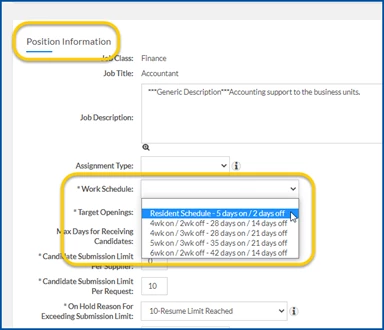
To create a work schedule, complete these steps from your Enterprise dashboard.
- Select Admin Procurement.
- From the left Navigation pane, expand Procurement Geography.
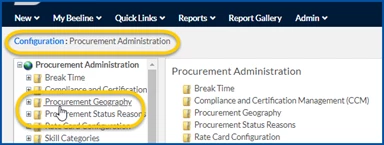
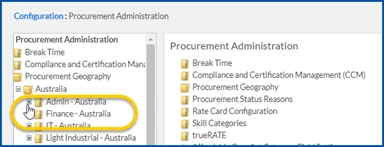
- From the left Navigation pane, find and expand the geographic location for which you want to create a work schedule.
- From the left Navigation pane, find and expand the industry for which you want to create a work schedule.
- From the left Navigation pane, find and select the Work Schedules option. A Work Schedules page displays.
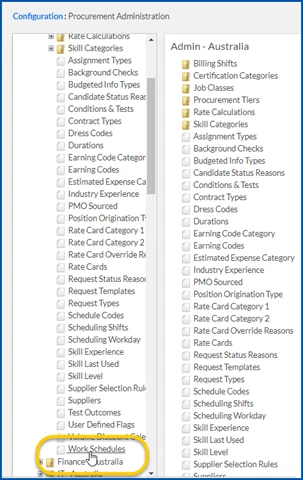
- Select Add New. An Add Procurement Work Schedule Screen page displays.
- Define these attributes for your work schedule.
- Number of days On
- Number of days Off
- Hours Per Day
- Title
- Is Active
- Exclude Holidays
- Display Order
- Select OK to save your work schedule.
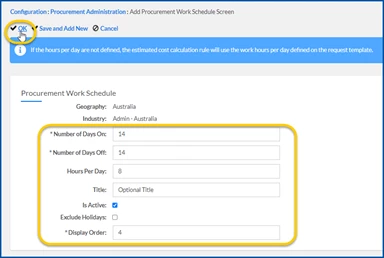
Your work schedule is added to Enterprise and available to users.
Documentation release: Beeline Enterprise | Q2 2021