


Beeline RTE is a collection of features that automatically allocate timesheet entries to multiple earning codes and rate premiums based on preconfigured rules. Each feature is designed to deliver value as a stand-alone solution or combined into a broader offering.
TIP: Use trueRATE with Beeline RTE to fully automate rates and timesheet processing, including complex bill rate calculations and timesheet allocation.
You can choose to implement some or all the Beeline RTE features as your program requirements and timeframes allow. For example, you might need to manage shift premiums and overtime rules with multiple earning codes, but you don’t need to pay premiums for holidays or need break time policies.
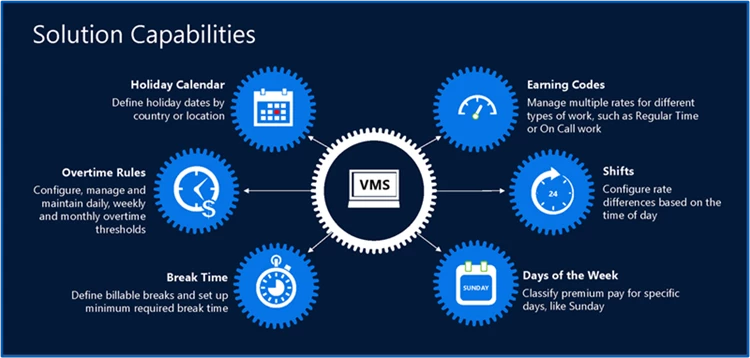
How to apply the features
| This feature... | Addresses this rate scenario... |
|---|---|
| Break time management Supports Break Times Policies, plus billable and non-billable breaks. For more information, go to About break time management. | Minimum break time regulations and rate variations based on break times. |
| Holiday calendars Support holiday dates, when workers receive premium pay for time worked, based on physical work location. You can create country-level or location-based calendars. For more information, go to About holiday calendars. | Rate premiums based on public holidays in the worker’s location. |
| Overtime thresholds Configure and manage daily, monthly, and weekly overtime thresholds. Or a combination of daily, monthly, and weekly thresholds. For more information, go to About overtime thresholds. | Overtime rate premiums based on the number of hours worked in a specific period. |
| Shift management Supports varying time periods and shift patterns that differ by work day and easily classifies shifts against pay differences. For more information, go to About RTE shifts. | Rate premiums based on the time of day and day of week worked. |
| Time classifications Supports schedules, drivers and rules that define how timesheet entries are automatically allocated to multiple rate variations. For more information, go to About time classifications and rules. | Stack rate variations based on the time worked driven by shifts, holidays, overtime, day of the week, or combinations of those items. |
About break time management
Your organization might be legally compelled in certain locations to allow contingent workers to take break or rest times. You might also need to support worker protection regulations that require workers to have a minimum break after working a specific number of hours. In addition, you may choose to pay for breaks or deduct breaks from the hours worked.
Beeline RTE supports Break Time Policies and Billable Breaks to ensure your organization adheres to regulations and collective labor agreements. You can choose to use one or both features.
If your organization chooses to use Break Time Policies and Billable Breaks, you must also use BTE Time In/Time Out timesheets.
About Break Time Policies
You can define Break Time Policies based only on industry. You can specify multiple thresholds for the minimum break required for the accumulated hours worked in a workday.
About Billable Breaks
You can specify Billable Breaks by industry, physical work location, or both. By default, breaks are non-billable.
When you use Billable Breaks, you must set up a Break Time earning code for the relevant industry. Then use rate cards to identify the break time rate as a manual rate or as a percentage of the regular time rate.
About timesheet validation
When time entries on BTE Time In/Time Out timesheets are processed, these events occur:
- Time entries are validated against your Break Time Policies.
- Minimum required breaks are validated against the accumulated hours submitted by a resource, not by individual assignments.
- Breaks are classified as billable or nonbillable based on individual assignments, not by resource.
- Applicable earning codes are applied to the time entries.
- Rates are invoiced per the rate card for all earning codes.
Break Time Policy violations
When you use Break Time Policies, you can set up two types of Advanced Notification Templates emails to Hiring Managers.
- You can choose to send Hiring Managers Break Time Policy in timesheet approval emails.
- Email approvals contain a Break Time Policy Violations section showing a breakdown of the time worked, time taken as break, and minimum required break times defined for your organization.
- Hiring Managers approve or reject timesheets and manage Break Time Policy violations offline.
- You can automatically reject timesheets that don’t meet your Break Time Policies. And send Hiring Managers an email notifying them a timesheet was rejected because it violated a Break Time Policy.
You can also show Break Time Policy violations in Approval Central via a Has Violations link. When you use that option, Hiring Managers can approve or reject timesheets and manage Break Time Policy violations offline with contingent workers.
Break time management example
Your organization has a location that requires two different break times based on the accumulative hours worked by a contingent worker. That location also uses billable breaks for the Information Technology (IT) industry.
You define a Break Time Policy with multiple hours-worked thresholds called the Six-Nine Rule to cover minimum required breaks, and you set up a BB-IT earning code for the IT industry.
Using the Six-Nine Rule, when a contingent talent works greater than 6 hours, they are entitled to a 30‑minute break or rest time. And when a contingent talent works greater than 9 hours, they are entitled to an additional 45‑minute break or rest time.
| Hours Worked Threshold | Break Time Minutes |
|---|---|
| Less than 6 hours | No required break or rest time |
| 6 hours | 30-minute break or rest time |
| 9 hours | An additional 45-minute break or rest time |
Next, you use rate cards to specify the applicable rates for the BB-IT earning code. You can specify a manual rate or a rate that is a percentage of the regular time rate.
An IT contingent worker submits a BTE Time In/Time Out timesheet with 8 hours worked during a shift and a 1-hour break. When the timesheet is processed, these events occur:
- The 1-hour break is automatically classified as billable.
- The BB-IT earning code is automatically applied to the 1-hour break.
- The rate you’ve defined in your rate cards is automatically applied to the 1-hour break.
- A Break Time Policy violation is not recorded because the minimum required break was met.
- The Client is billed for 8-hours of regular time and a 1-hour billable break time when an invoice is generated.
About holiday calendars
Paid holidays can differ by organization and by work location. Plus, many countries follow different holiday schedules for different regions within the same country.
You can set up Utility Calendars based on the Physical Work Location and automatically process state, in-country, or location-based holidays for your global locations. You can also create Global, Industry, and Request Type associations with Utility Calendars.
TIP: When you use Holiday Calendars and amend assignments to change the Physical Work Location, the relevant Holiday Calendar is applied to the amended assignments when the new Physical Work Location is related to a Holiday Calendar.
Holiday Calendar example
Corpus Christi is a holiday observed in the state of Bavaria, Germany. But it’s not a holiday observed in the state of Berlin, Germany.
You can create separate holiday calendars for each state with varying holidays. Then associate each work location in Bavaria with the Bavaria calendar and associate work locations in Berlin with the Berlin calendar.
A contingent worker is on an assignment associated with a physical work location in Bavaria. He or she works on Corpus Christi. When he or she submits his or her timesheet, the Bavaria calendar is used to classify the hours worked on Corpus Christi as a Holiday.
The Time Classification Schedules and Time Classification Rules you’ve defined determine which earning code is applied to time classified as a Holiday.
About overtime thresholds
Overtime Thresholds let you define how and when hours worked by a contingent worker are classified as regular time, overtime, or double-time. Beeline Enterprise supports daily, weekly and monthly overtime thresholds. Monthly thresholds to account for scenarios where overtime or double-time are calculated based on monthly thresholds for contingent workers paid an hourly rate.
You have two setup options for monthly thresholds:
- Define a variable monthly threshold based on the billable days per month.
- For a variable monthly threshold, your organization might consider the variations in the total number of business days per month, such as months with 20 days and months with 21, 22, or 23 business days. In that scenario, you would set up overtime rules based on the Utility Calendar. Overtime applies based on the standard hours in a day multiplied by the number of business days in a month.
- Define a set number of hours per month.
- For a set number of hours, your organization might define a work month as 155 hours regardless of the actual number of billable days and/or hours in the month. Overtime and double-time apply each month after 155 hours are worked.
You can combine and accumulate daily, weekly, and monthly overtime thresholds to support complex overtime calculations. Overtime Thresholds are weighted and applied to hours worked as follows: Consecutive Day Rule, Daily Rule, Weekly Rule and Monthly Rule.
Overtime thresholds example
Your organization has an Overtime Threshold of 40-hours per week. Plus, you have multiple Shifts defined, such as Night Shift and Day Shift. You also have a Time Classification Rule that associates overtime worked during a night shift to an NS-OT earning code.
Next, you use rate cards to specify the relevant rates applied to hours classified as overtime and to which the NS-OT earning code is applied. You can specify a manual rate or a rate that is a percentage of the regular time rate.
A contingent worker submits a timesheet with 44 hours where 4 hours were worked during a night shift. When the timesheet is processed, these events occur based on your time classification rules:
- 40 hours worked are automatically classified as regular time.
- The remaining 4 hours worked are automatically classified as overtime.
- The NS-OT earning code is automatically applied to the 4 overtime hours worked during the Night Shift, and the rate defined in your rate cards is automatically applied to those 4 hours.
About RTE shifts
Your organization may require a contingent worker to work various periods that require a different rate from their regular pay rate. Shifts might vary based on the industry and the day of the week. In addition, you might need shifts that span midnight, such as from 11:00 pm on Mondays to 08:00 am on Tuesdays.
You can define shifts to support multiple shift patterns and variations like these:
- Industry variations
- Day of the week patterns
You can also define Billing Shifts for an industry and apply Billing Shifts to all days of the week or only to specific days.
You can combine billing Shifts and Time Classification Rules to automatically adjust the pay rate or the bill rate that applies to various periods worked during a workweek. When you use those features, a shift definition is not required on System, Request, and Assignment rate cards because earning codes are generated using Time Classification Rules, which consider shifts.
If your organization chooses to use RTE Shifts, you must also use BTE Time In/Time Out timesheets.
RTE Shifts example
You define a Morning Shift from 9 am to 5 pm for each day of the workweek from Monday through Friday. You also have a Time Classification Rule that associates that Morning Shift to an MS earning code.
Next, you use rate cards to specify the relevant rates to which the MS earning code is applied. You can specify a manual rate or a rate that is a percentage of the regular time rate.
A contingent worker submits a timesheet with 40 hours. When the timesheet is processed, these events occur based on your time classification rules:
- Time entries are automatically validated against billing shifts configured in your VMS.
- Hours worked between 9 am to 5 pm are associated with the Morning Shift.
- The MS earning code is applied to hours worked during a Morning Shift from Monday through Friday, and the rate defined in your rate cards is automatically applied to those hours.
About time classifications and rules
Global organizations often need to accommodate complex rate structures and labor laws that protect a contingent worker. Frequently those organizations pay their contingent workers different rates over the course of a day based on the hours worked, the time of day, the day of the week, breaks taken, defined holidays, overtime thresholds, and much more.
You can create Time Classification Schedules and Time Classification Rules to support an advanced level of highly‑complex time allocation and multiple earning codes. Those features combined drive compliance with localized labor rules related to overtime, holiday pay, shifts, day of the week, roles, union agreements, regulations and other policies.
- Time Classification defines how timesheet entries are allocated automatically to various earning code and rate classifications.
TIP: You can manage earning code rates and applicable rate premiums from the System, Request, and Assignment rate card. - Time Classification Rules control how shift, holiday, overtime, and day of the week, or a blend of those variables, combine to determine the earning code applied to timesheet entries.
- Time Classification Schedules are groups of rules based on one or more drivers, such as geography, industry, supplier, job class, job title, request type, physical work location state, or physical work location. You must select Geography and Industry as the minimum drivers.
Setting up Time Classification Rules and Time Classification Schedules ensure:
- Time entries submitted or imported using BTE are correctly allocated to multiple earning codes.
- Hiring managers receive timesheets for approval already classified with overtime, shift, day of week, and holiday rules. In addition, hiring managers are viewing accurate rate details because relevant rate premiums based on the earning codes are applied.
- Rates are correctly invoiced.
Initially, Beeline will configure your Time Classification features. Later, your program office can manage those features via Self-Service by selecting Preferences > VMS Settings > Data Management > Time Classification. See this article to learn how to manage time classifications.
Related articles
Documentation release: Beeline Enterprise | Q4 2023