


Beeline’s Hiring Manager Experience gives hiring managers a feature-rich user interface (UI) for completing daily tasks in Beeline Enterprise in less time and with fewer clicks. And now your Enterprise Administrator can make it even simpler and more convenient to use!
As an Enterprise Administrator, you can customize the field labels in the Hiring Manager Experience and tailor them to match your program’s terminology, preferences and processes. This feature is entirely Self-Service, so you control when and what is changed. Just make sure you have permissions to access VMS settings for the Hiring Manager Experience by opening a Make a Change ticket, so your Client Operations Managers can grant users the appropriate permissions.
Best Practice Recommendation: Use the Banner Messages feature to post a system-wide message to your hiring managers before you customize field labels to let them know you’re updating the UI.
Customizing the field labels personalizes your hiring managers’ journey. Plus, customizing labels makes it easier for hiring managers to learn and adopt the experience because the UI labels and terms are already familiar to them. And making the UI easier to learn and use may increase your hiring managers’ productivity.
Customizing field labels also allows you to accommodate language variations, dialects, and cultural differences for your business site using various locales. The following characters can be used when you update values in the Override Label column.
|
|
|
|
|
|
|
|
|
|
|
When you customize field labels, your changes are applied to the Hiring Manager Experience UI only. They are not applied to Beeline Classic.
To customize field labels for the Hiring Manager Experience, complete these steps from your Enterprise dashboard.
- Select Preferences > VMS Settings > Hiring Manager Experience.
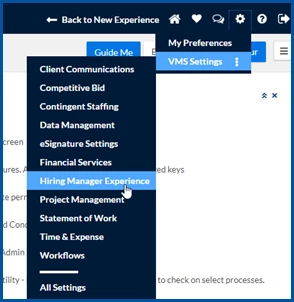
- Select Self-Service Field Labels.
- From the Culture list, select the locale for which you want to customize labels.
- Download the SelfServiceFieldLabel_culture .xls file.
- Navigate to your Downloads folder, and then open the SelfServiceFieldLabel_culture .xls file.
- Save a copy of the SelfServiceFieldLabel_culture .xls file to your device.
- Optional: After you open the file, freeze the top row to help you navigate the spreadsheet, resize the column headers and apply wrap text so you can view the full field label name.
Warning: Do NOT change the values in the header row or in the Culture Name, Field Label Code or Default Label columns in the spreadsheet. The values in those columns map to values in the Beeline Enterprise database. Changing those values will cause your update to fail.
- In the Override Label column, add a value on each row for each field you want to customize. For example, if your organization uses the term “work order” instead of “requisition” you would enter “Work Order” in row 171 in the Override Label column.
TIP: You can copy the values in the Default Label column into a new Microsoft Excel® file, and then use the Replace All button in the Find and Replace dialog in Excel to quickly update your values.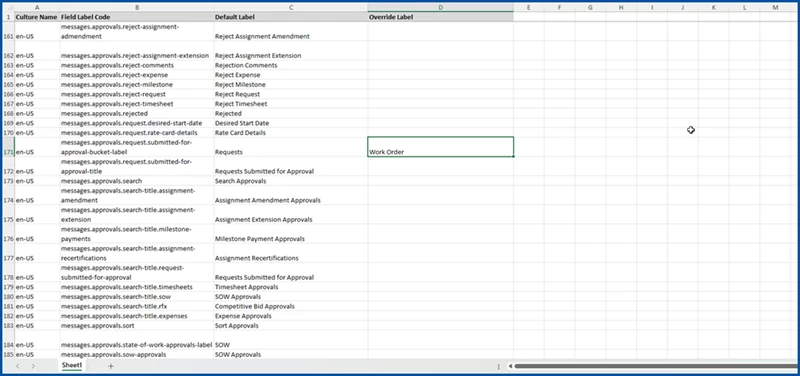
- Save your copy of the SelfServiceFieldLabel_culture .xls file.
- Navigate back to the Self-Service Field Labels page in Enterprise.
- Select the Upload link.
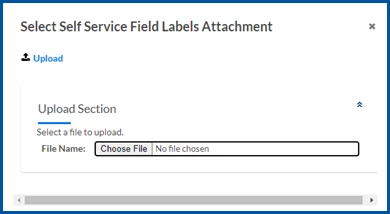
- Use the controls in the Select Self-Service Field Labels Attachment dialog to navigate to and upload your copy of the SelfServiceFieldLabel_culture .xls file that includes your customized field label values.
- Select OK.
Users will see your customized field labels the next time they refresh their browser or log in.
TIP: Your changes are not applied to Beeline Classic.
Documentation release: Beeline Enterprise | Q2 2024