


Topics on this page
Easily access key integration tools for faster, smarter configuration management
Your Beeline Enterprise site is built around your program data. Data covering your contingent workforce and the structural elements that support tracking talent, sourcing, spend, and more.
To make your data work smarter, most programs leverage Enterprise integrations and APIs to automate processes and synchronize data exchange with in-house systems. Using Enterprise integrations and APIs gives you flexibility, control, better visibility, and agility in managing your contingent workforce effectively.
As a program office user or system administrator, you can access integration details from the Integration Services page via self-service. Just select Preferences > VMS Settings > Integration Services and the Integration Services page displays.
The Integration Services page, you can drill down to the Integration Overview dashboard and monitor your Enterprise integrations and access APIs. You can also easily navigate to the Beeline Developers portal.
The Integration Overview dashboard delivers a consolidated spot for managing flat files, RaaS, Import Batch API integrations, and Client API errors. The Developer portal is your resource hub for all Enterprise APIs. Use the APIs to automate and streamline data exchange between Enterprise and your in-house systems.
Main benefits
- Manage your Enterprise configuration faster, more efficiently.
- Resolve issues faster with immediate visibility into integration runs and error logs.
- Troubleshoot in-app with visibility into flat file and API activity.
- Track API errors, access detailed logs.
- Simplify workflows with centralized access to core integration features.
- Access the business-aligned Beeline Developers portal from Enterprise.
Persona
Program office users and system administrators
Action required
The Integration Services page is automatically available. Access to the Integration Overview dashboard requires a Service Request ticket so that users can be granted the appropriate permissions.
Why Enterprise integrations matter
Integrating Enterprise data with your external in-house systems enables seamless data flow, reduces manual work, and improves decision-making. Here some key reasons why integrations are important.
- Increase efficiency by automating workflows like requisitions, approvals, and invoicing.
- Improve accuracy with real-time, consistent data across systems, minimizing errors and duplication in worker records, billing, and compliance tracking.
- Enhance visibility by connecting Enterprise with reporting and analytics tools to provide a unified view of workforce data for better tracking, reporting and decision-making.
- Ensure compliance by integrating with legal, tax, and background check systems to enforce policies and reduce risks related to worker classification, onboarding, offboarding, contracts, and audits.
How Enterprise integrations help
- Automate in-house workflows by syncing data across Human Resources Information System (HRIS), Enterprise Resource Planning (ERP), procurement, and finance systems.
- Streamline processes like requisition approvals, onboarding, invoicing, and payments.
- Improve accuracy by pulling data directly from source systems to reduce errors and ensure consistency in worker records, billing and compliance documentation.
- Enhance visibility with a unified view of workforce data through connected analytics dashboards.
- Enable scalability and flexibility by making it easier to onboard new suppliers, regions, or business units without disrupting operations.
How to steps
Information in this article reflects a standard Enterprise configuration. Your Enterprise platform is based on your organization’s configuration. Settings and/or data visibility rules may vary slightly from what is described.
As a program office user or system administrator, you can access the Integration Overview dashboard and monitor integrations and APIs via self-service.
To accomplish your task, complete these steps from your Enterprise dashboard.
- From the Navigation menu, select Preferences > VMS Settings > Integration Services.
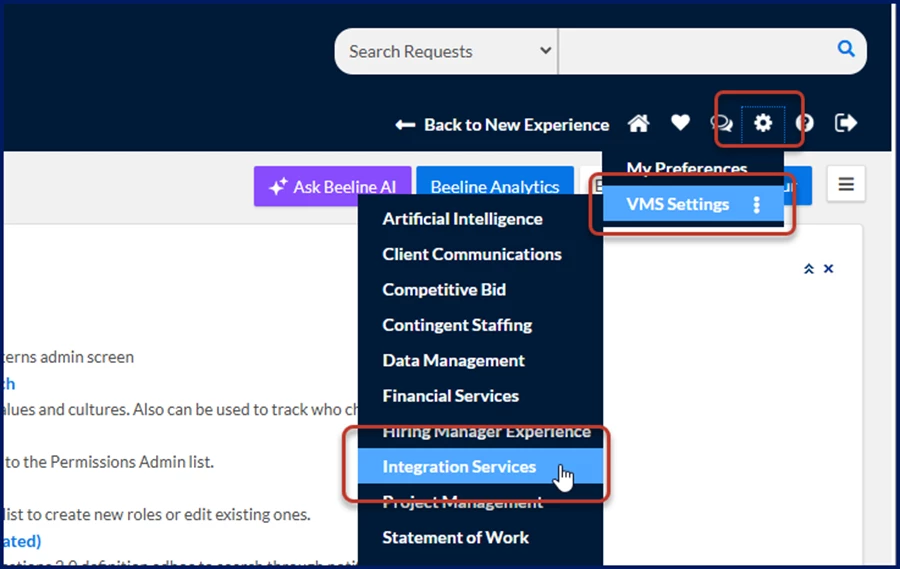
The Integration Services page displays.
- Optional. Select Beeline Developers portal to quickly access Enterprise APIs.
- Select Integration Overview to access the Integration Overview dashboard.
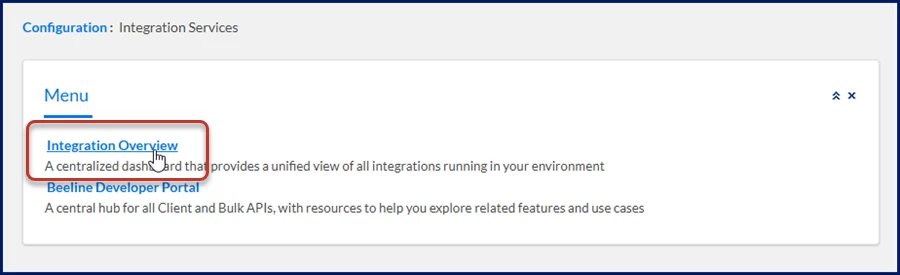
The Integration Overview dashboard displays.
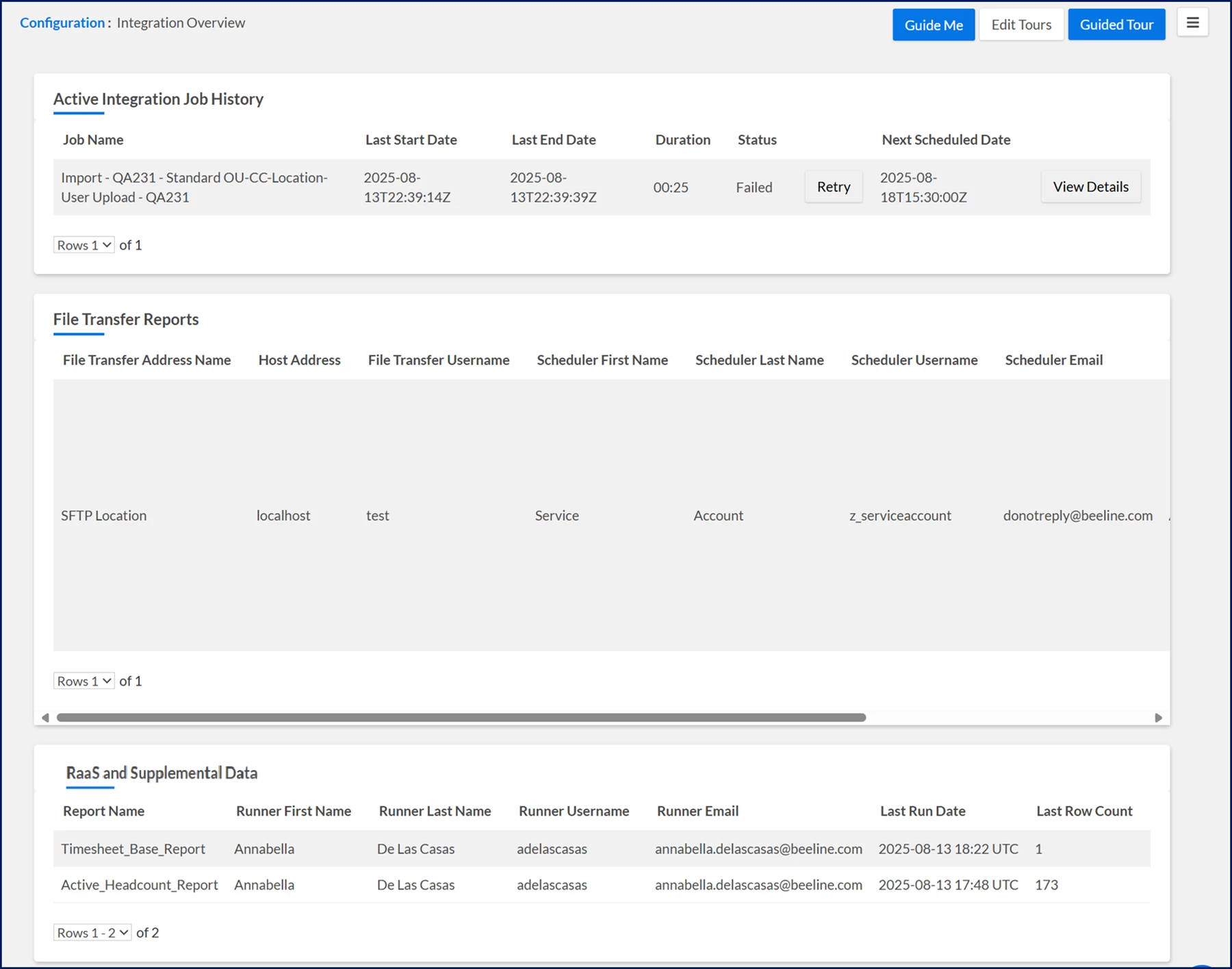
Based on the data that displays, take any of the following steps.
- In the Active Integration Job History section, select Retry to rerun an unsuccessful job.
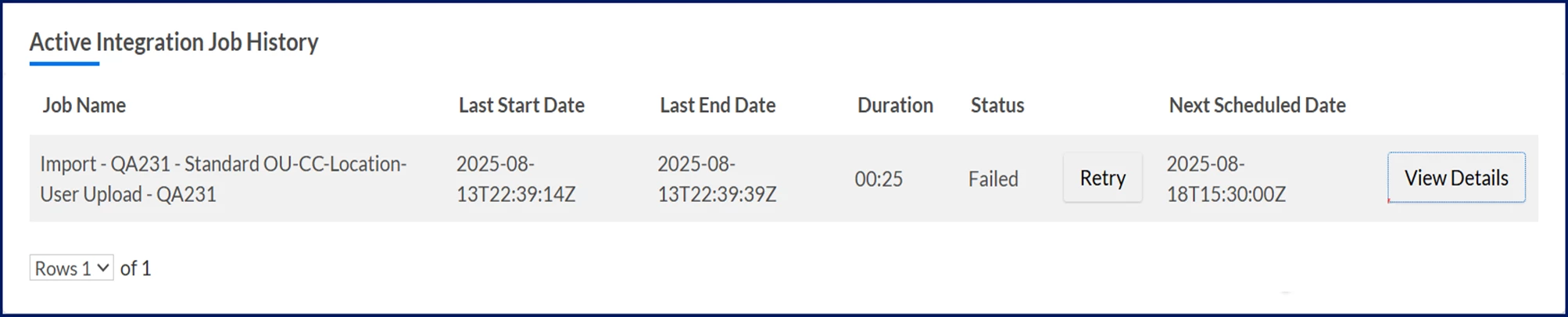
- In the Active Integration Job History section, select View Details for an individual job to see up to 25 of the most recently run processes.
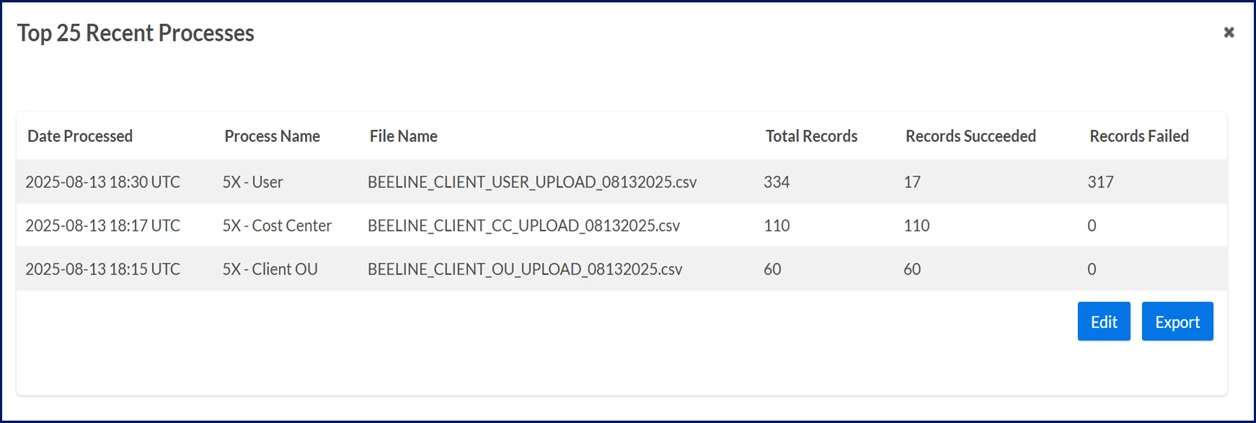
From there, you take one of these actions:
- Select Export to transfer the data to a .xls type file.
OR
- Select Edit to change the columns that display in the dialog.
- In the File Transfer Reports section, view and track the status of your flat file integrations. Track details of the most recent scheduled run and the upcoming scheduled run.
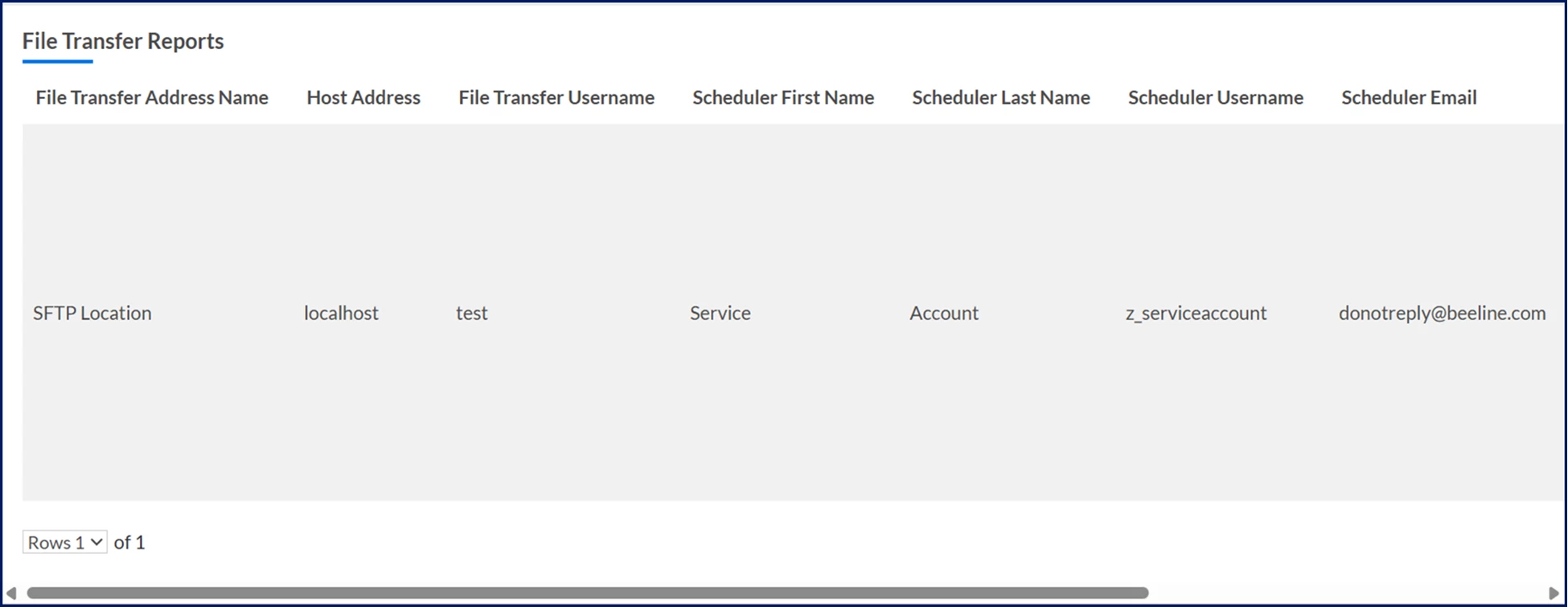
- In the RaaS and Supplemental Data section, where you can view RaaS reports recently run and any calls recently made to the Supplemental Data API endpoint.
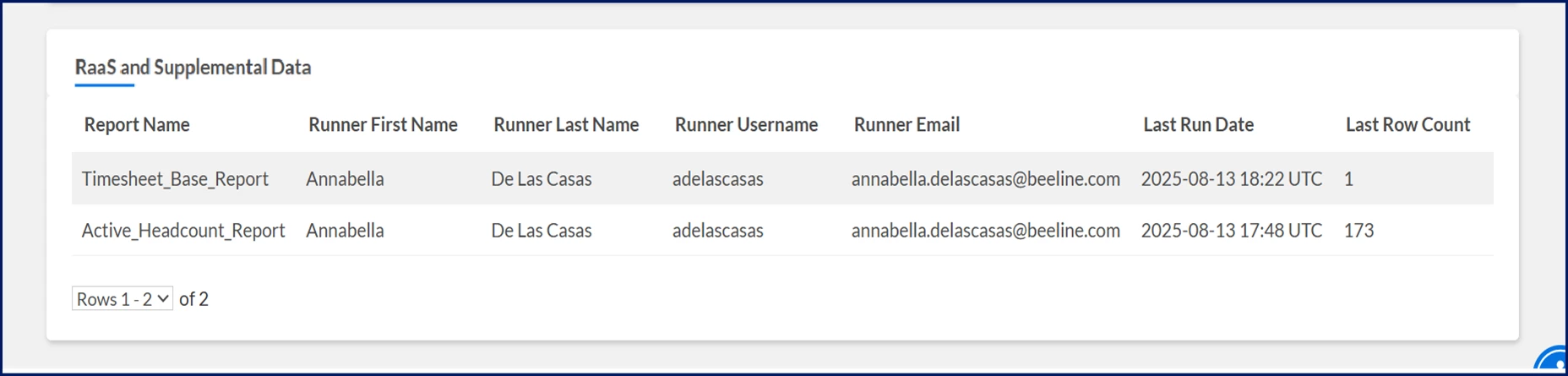
- In Client Bulk APIs section, view the last run date for each of your Import Batch API jobs listed in descending chronological order.
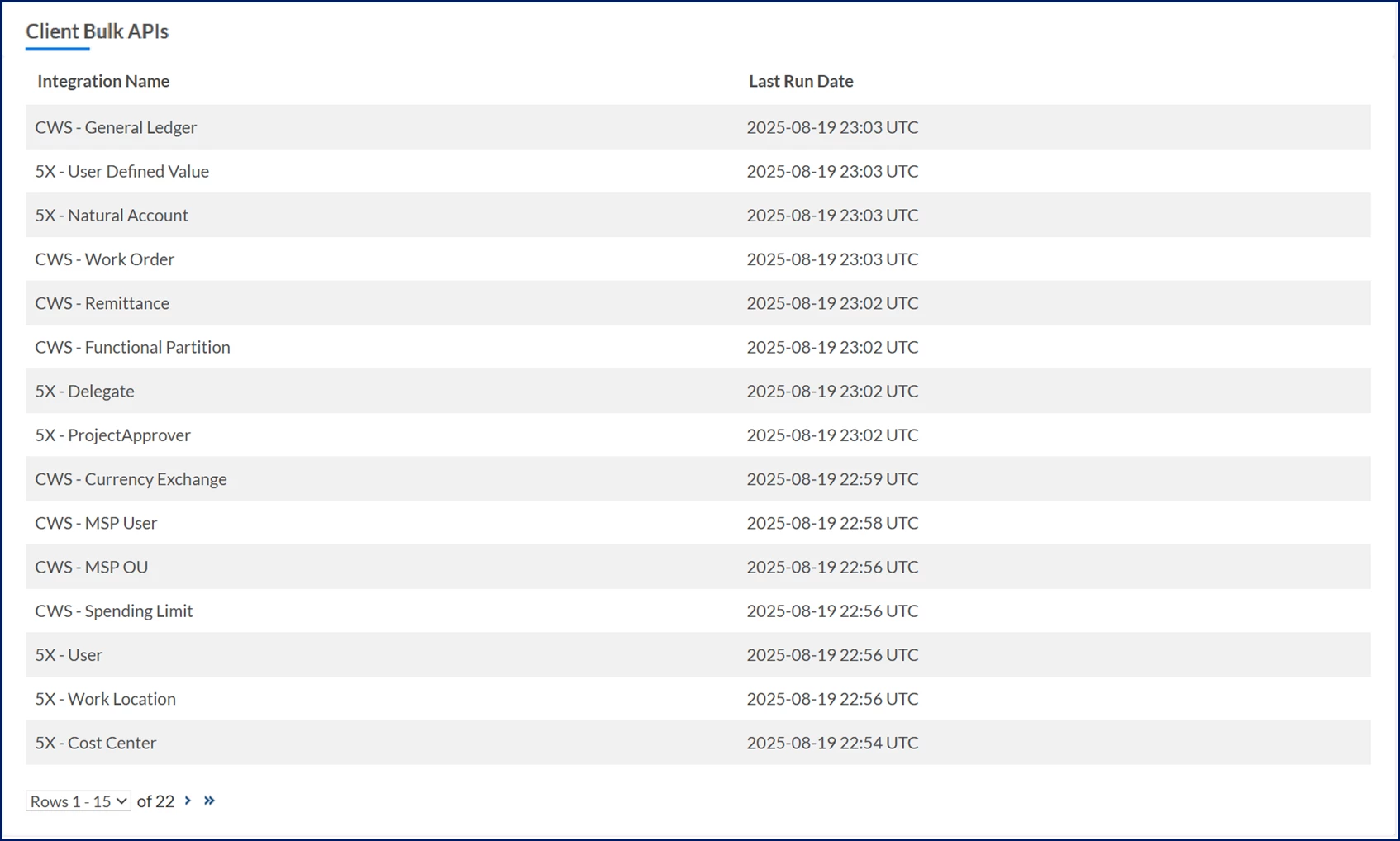
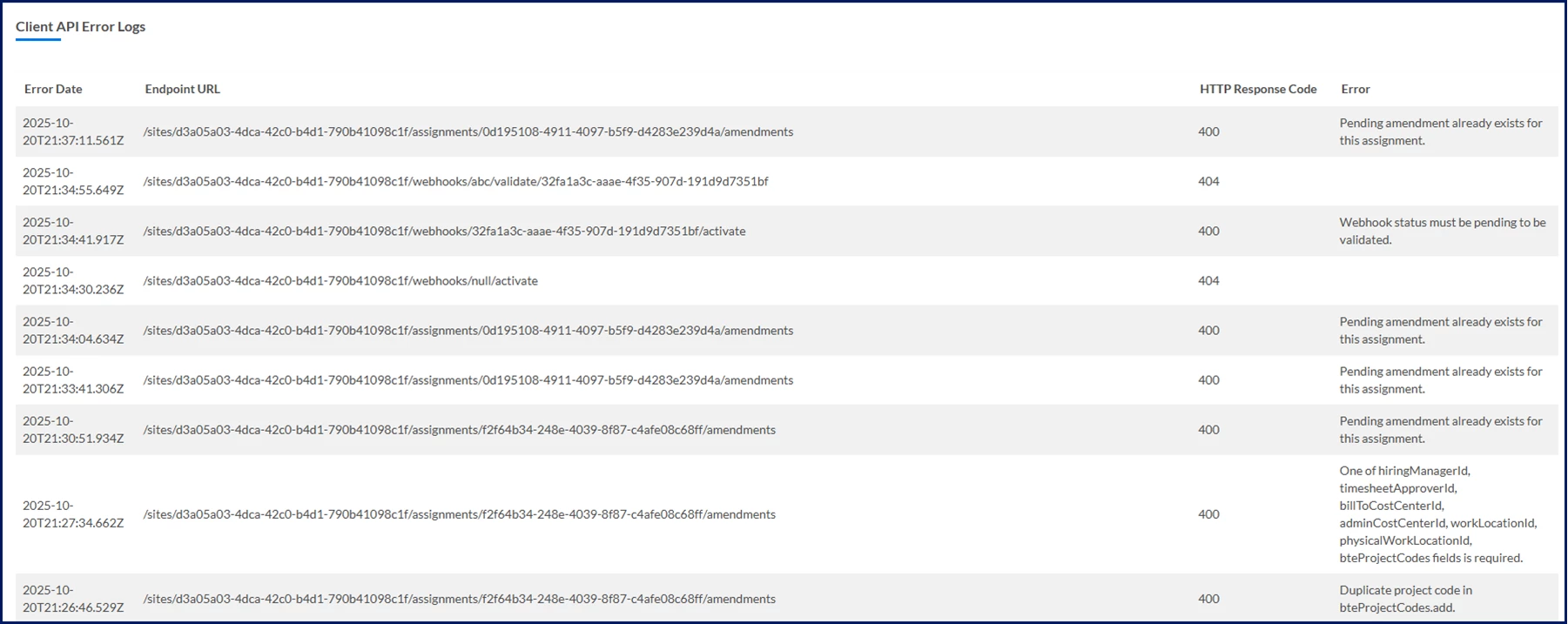
- In Client API Error Codes section, view these details for any unsuccessful Client API calls: date the error occurred, the invoked endpoint, the HTTP response code, and the error message.
Documentation release: Beeline Enterprise | Q4 2025