


Transparency and accuracy at your fingertips.
As a hiring manager or program office user, you’re responsible for managing multiple timesheets processed through Beeline Enterprise. Understanding and identifying changes to timesheets and approving timesheets quickly and efficiently is ideal. In addition, your organization needs accuracy, accountability, and transparency in time tracking—especially for payroll, billing, and compliance.
Approval Trackers are visual indicators that a time entry was changed. They put essential details at your fingertips and make timesheet review and approval more transparent. Your program can choose which time entry attributes matter the most and turn on flags, columns and filters that display in the Approvals app in the Hiring Manager Experience, and in Approval Central and in Beeline Time & Expense (BTE) in Beeline Classic.
Approval Trackers help you instantly identify these details about a timesheet submitted for approval:
- The source of the timesheet entry, such as a BTE entry, a mobile entry, web import record, or a record imported via an integration.
- When the hours were changed after the first submittal.
- When attributes (such as a pay code, the associated project, project type, cost center, cost allocation, shift, comments, task, or work breakdown structure (WBS)) were changed after the initial submittal.
- When a timesheet must be reapproved prior to invoicing.
- Whether a timesheet was reprocessed.
Each Approval Tracker can be independently enabled to deliver a customized user interface and user experience. In addition, you can include Approval Trackers in your timesheet and financial reports.
Why they matter
- Faster approvals: Easily identify changed timesheets and prioritize review.
- Clear auditability: Simplify verification and reduce payroll and compliance risk.
- Accurate reporting: Track and report changes to ensure correct financial data.
- Greater transparency: Improve visibility into time tracking and approval activity.
How they help
- Improved auditability & transparency: Quickly identify discrepancies and understand timesheet changes.
- Greater efficiency: Speed up approvals and gain clearer insights into time usage.
- Cost control & compliance: Detect time inflation, prevent time theft, and reduce payroll and regulatory risk.
- Enhanced accuracy: Ensure correct payroll and billing while minimizing errors.
- Better decision‑making: Reveal inefficiencies, resolve issues faster, and optimize resource planning.
Persona
Hiring managers and program office users
Action required
Adding Approval Trackers requires a Make a Change ticket and Enterprise configuration. The Reprocessed Identifier can be globally turned on or off separately from the other identifiers. Contact your Client Operations Manager (COM) to learn more.
How to steps
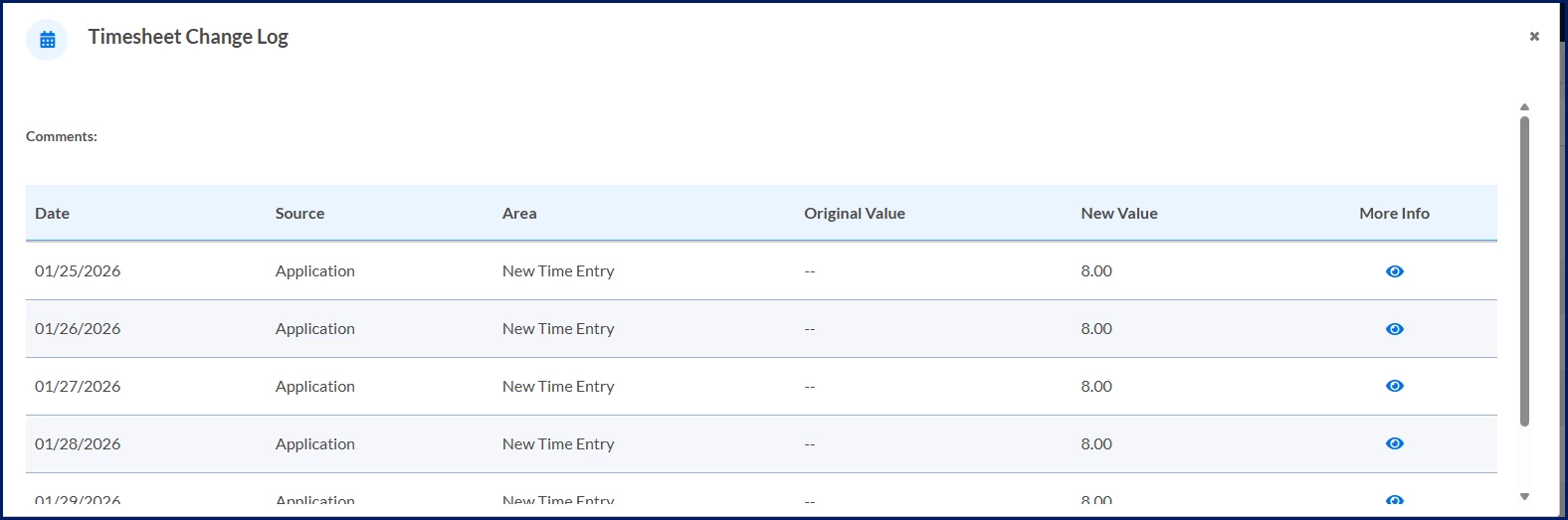
Approval Trackers help you quickly identify timesheets that have changed, so you can easily identify items that may require your immediate attention. Plus, you can use the Change Log link to quickly view Approval Trackers details in the Approvals app, Approval Central and BTE.
Information in this article reflects a standard Enterprise configuration. Your Enterprise platform is based on your organization’s configuration settings and/or data visibility rules and may vary slightly from what is described.
Leveraging Approval Trackers from Approval Central
To accomplish your task, complete these steps from your Enterprise dashboard.
- From your My To Do dashboard, select You have # timesheets to approve. The Approval Central displays.
- Select the Timesheet Modified header to quickly view modified timesheets.
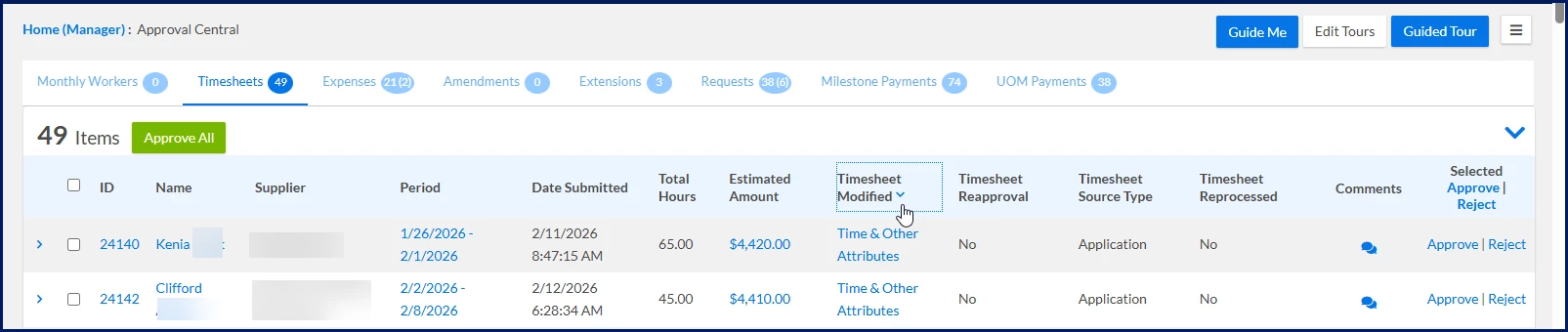
- Select the Timesheet Modified link for a specific timesheet to view the Change Log.
Leveraging Approval Trackers from the Approvals app
These steps explain how to use Approval Trackers from the Approvals app.
To accomplish your task, complete these steps from your Hiring Manager Experience dashboard.
- From the Apps panel at the left, select Approvals. The Approvals app displays.
- Navigate to Timesheets under Approval Categories. A Timesheet Approvals page displays. You can instantly view Approval Trackers that help you quickly distinguish timesheet changes.
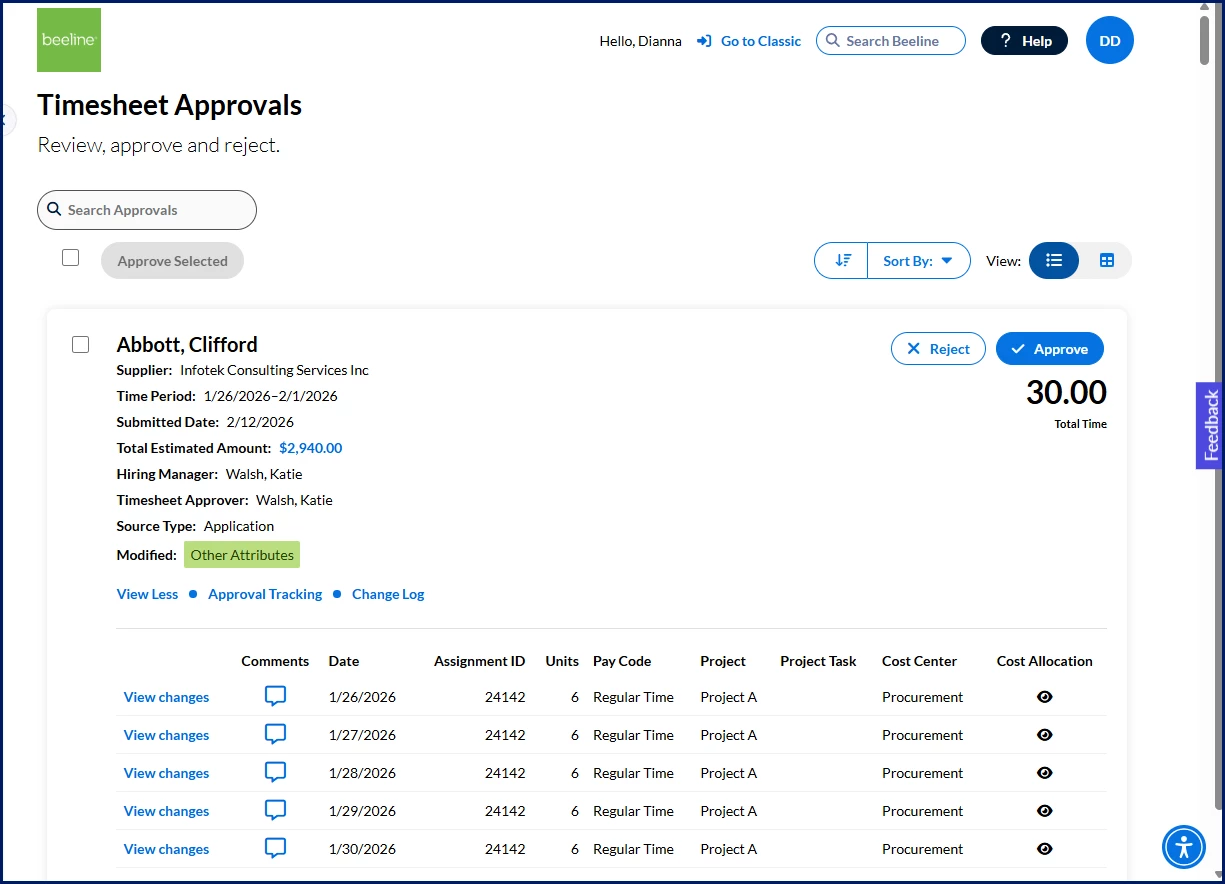
- By default, all changed entries are selected when you’re viewing a modified timesheet. Select or clear entries to view details for all changed entries or only a specific entry.
- To drill down into details, select the Change Log link for a specific modified timesheet or select the View changes link to view details for a specific entry.
Pro Tip: You’ll always see the Change Log link but it’s selectable only when time entries were modified. - From the Change Log that displays, view details about what was changed in each entry.
- Hover over the View More icon to investigate additional details.
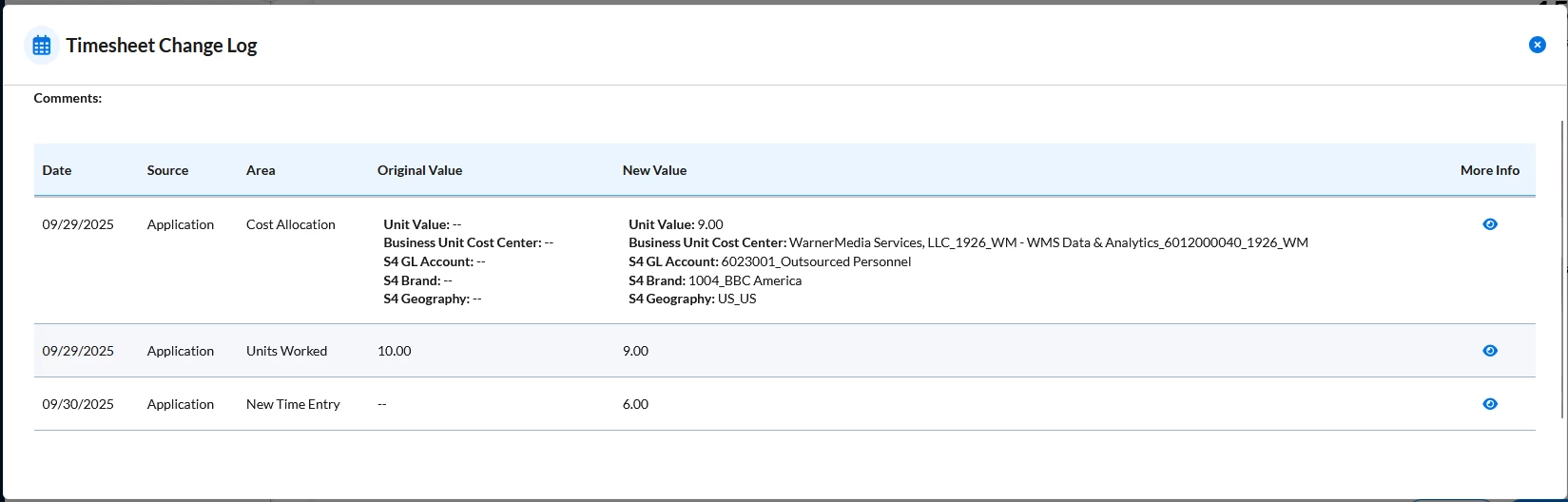
Tip: Fields visible in the Change Log dialog vary based on your Enterprise configuration and align with settings in BTE.
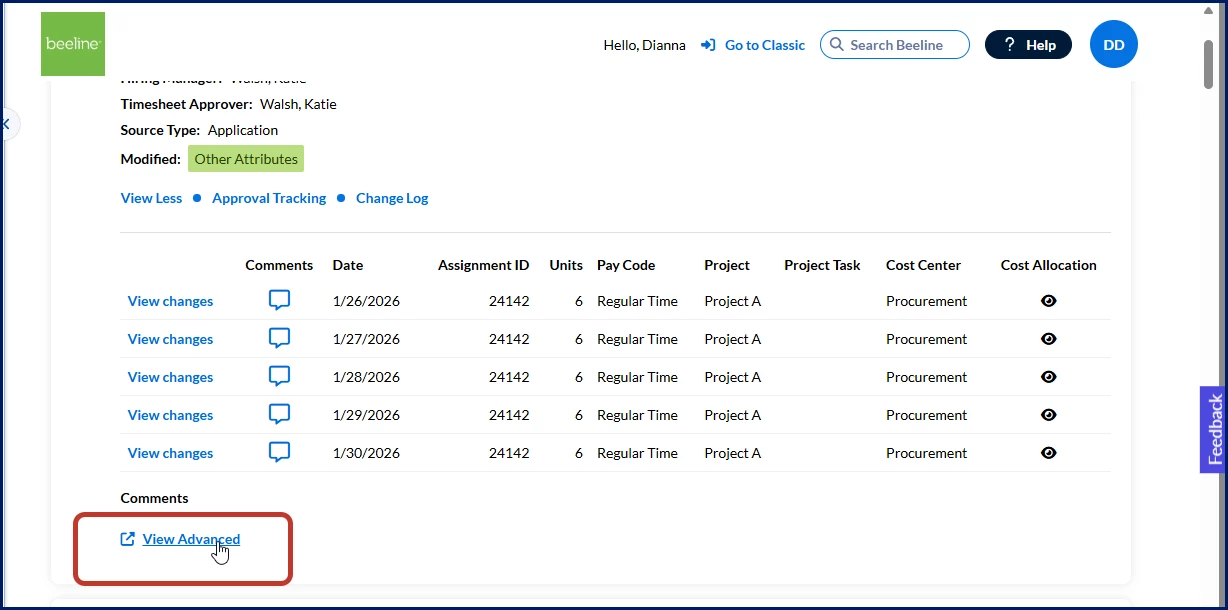
- Optional. To view entries for a modified timesheet in BTE, select View Advanced.
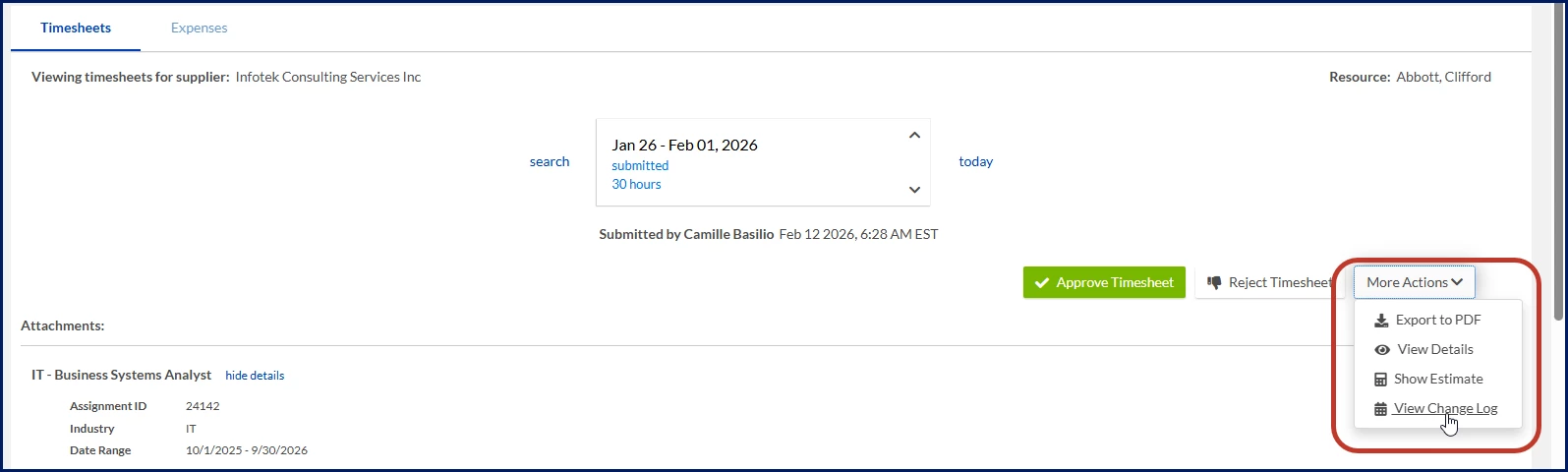
The Timesheets tab in BTE displays. Select More Actions > View Change Log to view details.
- After you’ve reviewed the changes for a modified timesheet, take any additional actions you want to from the Timesheet Approvals page such as add comments and approve or reject the timesheet.
| Persona | Modules | Documentation Release | Feedback? Email us: |
|---|---|---|---|
| Hiring managers, program office users | Cross-platform | Beeline Enterprise | Q1 2026 |