


Review and manage identity-verification inquiries from your workflow
Identity-verification inquiries help you review verification activity, support workflow decisions, and track inquiry progress throughout the hiring and onboarding process. Depending on your organization's workflow configuration, you may be able to review inquiry history, select an identity-verification template, provide inquiry status information during workflow tasks, receive notifications about inquiry activity, and resubmit inquiries when additional verification is required.
Jump to what you want
Why it matters
- Confirm that candidates have satisfied identity-verification requirements before proceeding through the workflow.
- Identify inquiries that require additional review or action.
- Verify that candidates complete required identity-verification activities.
- Maintain a record of identity-verification activity throughout the worker lifecycle.
- Track identity-verification progress throughout the hiring process.
Who it's for
- Program Office users
- Hiring managers and approvers
- Client users
How it helps
- Select an inquiry template when workflow configuration allows it.
- Select an inquiry status during workflow approval tasks when status selection is available.
- View identity-verification information from request, assignment, and resource records.
- Review inquiry history, status, and completion details.
- Resubmit an inquiry when an additional verification attempt is required.
When identity verification can occur
Depending on your organization's workflow configuration, identity-verification inquiries can be initiated during the following workflow stages:
- Candidate Submitted To Client
- Candidate Interview
- Candidate Offer
- Candidate Onboarding Approval
- Assignment Created
You can use the procedures in this article at any workflow stage that initiates an identity-verification inquiry.
Before you begin
Before working with identity-verification inquiries, verify that:
- Identity verification has been initiated for the candidate or resource.
- Access to the applicable candidate, assignment, or resource record is available.
- Permissions required to view identity-verification information have been assigned.
Information in this article reflects a standard Enterprise configuration. Your Enterprise platform is based on your organization’s configuration settings and/or data visibility rules and may vary slightly from what is described.
Select an inquiry template
Depending on your organization's workflow configuration, you may be able to select an inquiry template when submitting a candidate or completing an approval task.
- Open the candidate submission form or applicable workflow task.
- Select an inquiry template.
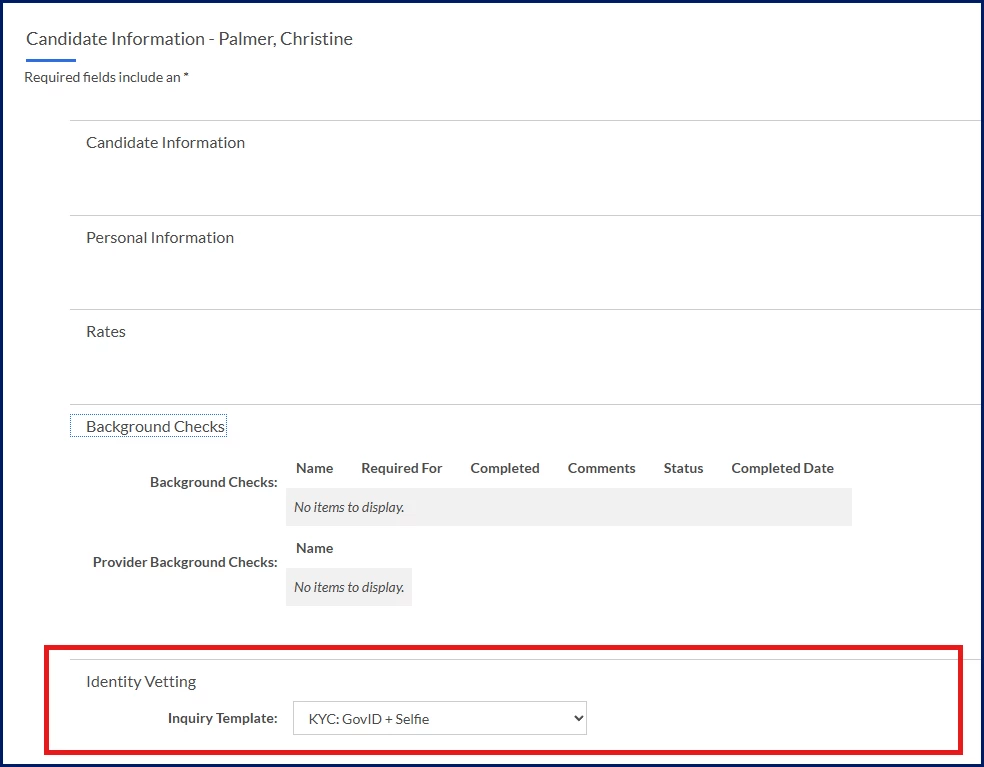
Candidate Submit: select an Inquiry Template 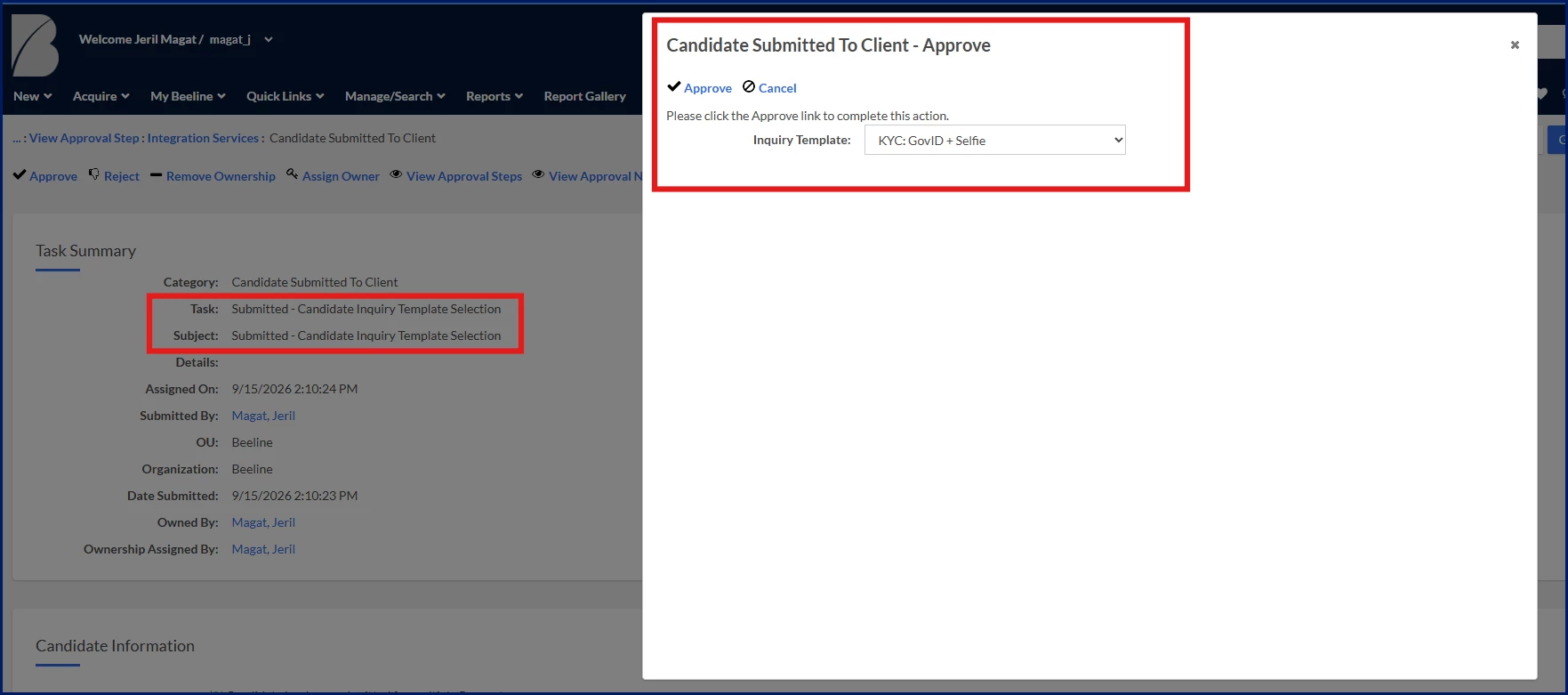
Approval step: select an Inquiry Template - Complete the task.
What this does: Assigns the selected identity-verification process to the candidate.
Why this matters: Different templates can apply different identity-verification requirements.
The selected inquiry template is used when the identity-verification inquiry is created.
Select an inquiry status
Depending on your organization's workflow configuration, you may be able to select an inquiry status or view a read-only status value.
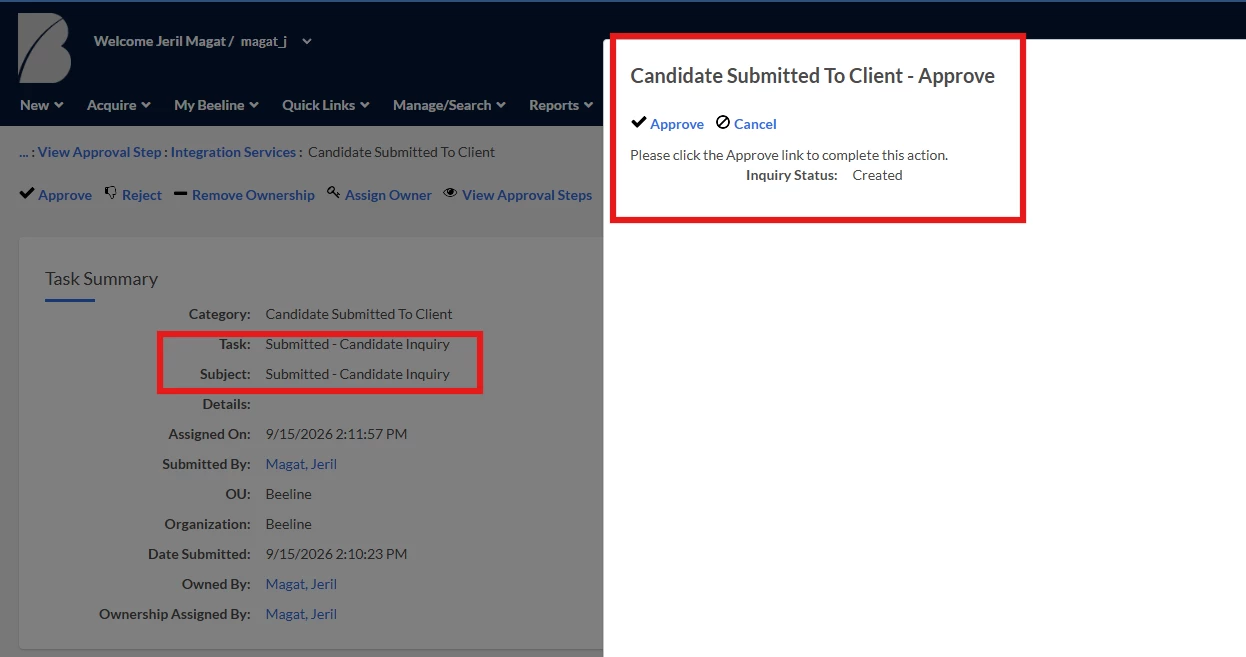
- Open the applicable identity-verification approval task.
- Locate the Inquiry Status field.
- Select the appropriate status.
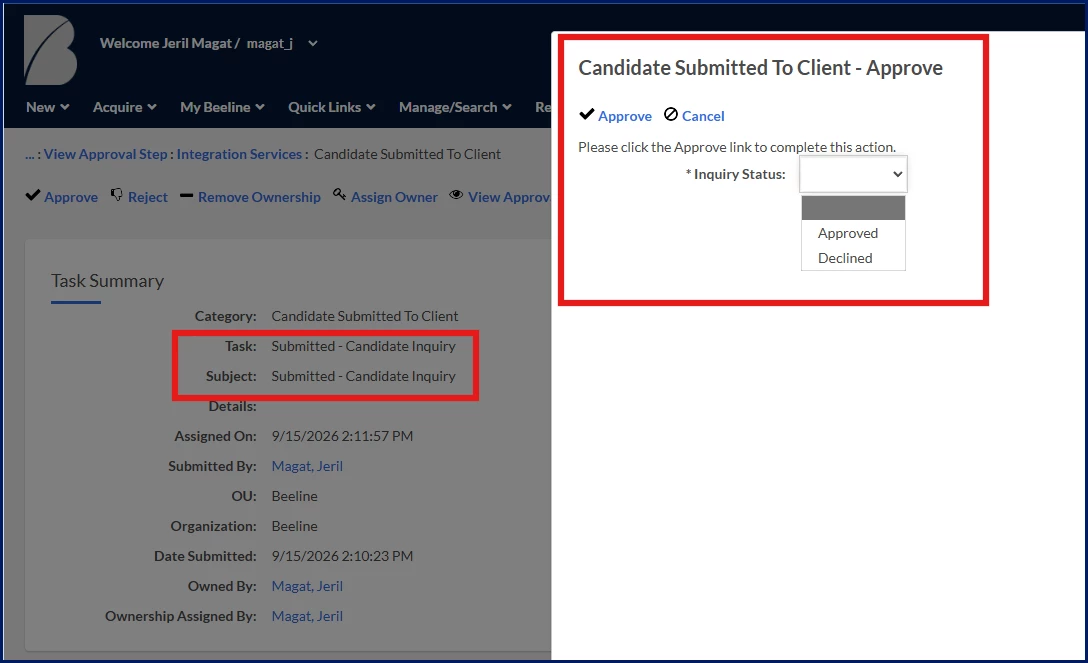
Select the appropriate status from the Inquiry Status field - Complete the task.
What this does: Records an inquiry status during workflow processing.
Why this matters: Supports workflow progression when inquiry status information is managed manually.
The selected inquiry status is applied to the workflow.
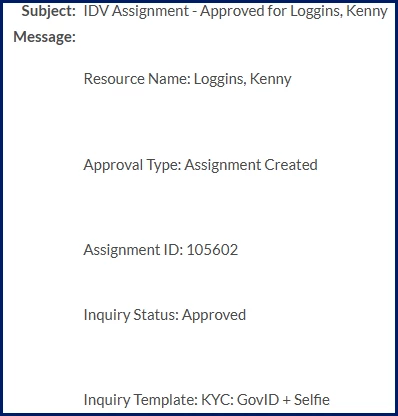
Review identity-verification notifications
Depending on your organization's configuration, you may receive notifications when inquiry statuses change or when identity-verification activities are completed.
Notification details can include:
- Resource Name
- Approval Type
- Assignment ID
- Inquiry Status
- Inquiry Template
These notifications can help you monitor identity-verification outcomes and identify inquiries that may require additional review or action.
Review identity-verification results and details
- Open one of the following records:
- Request
- Assignment
- Resource
- Navigate to the identity-verification information for the record.
Record type Location Request Candidates tab > Identity Inquiry History - Request > View
Assignment Identity Vetting Management tab > Identity Inquiry History - Assignment
Resource Identity Vetting Management tab Identity-verification information is available for review.
- Review the available inquiry information.
What this does: Displays identity-verification activity associated with the selected record.
Why this matters: Provides visibility into identity-verification progress, outcomes, and history from within the workflow.
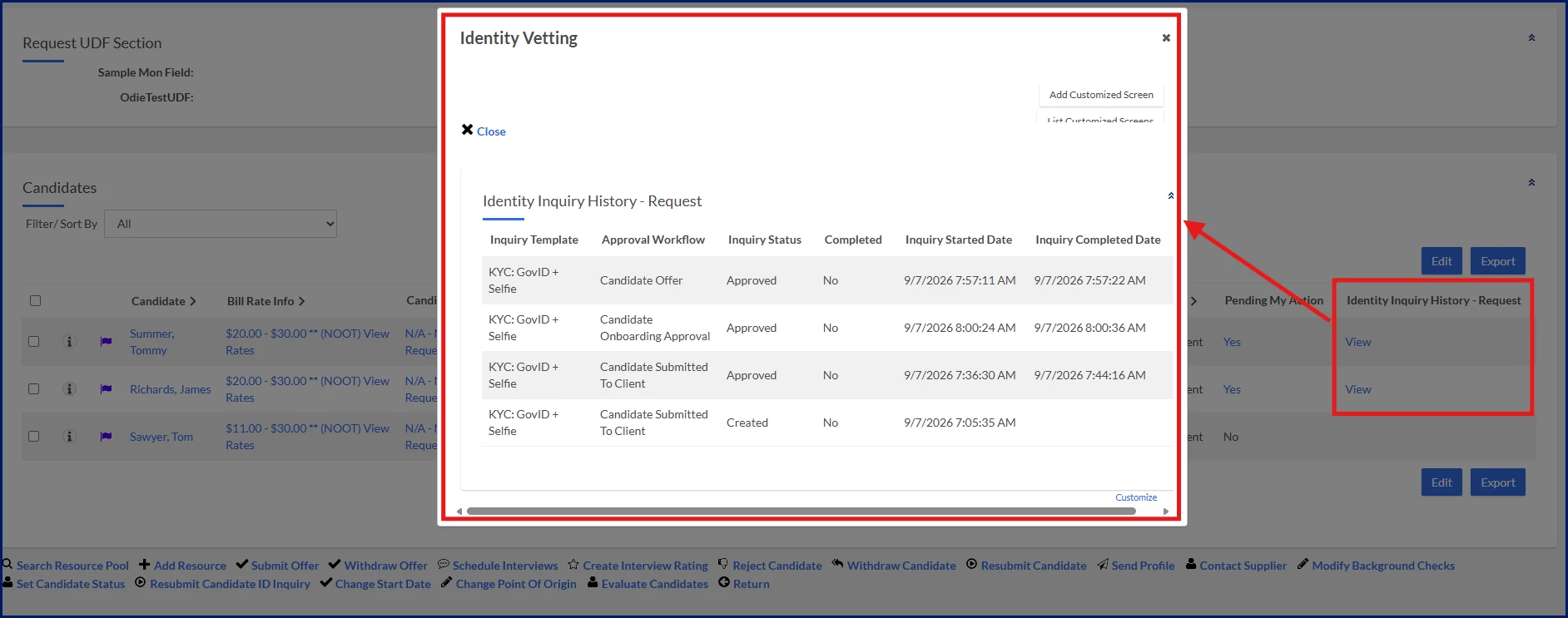
Request: identity vetting history 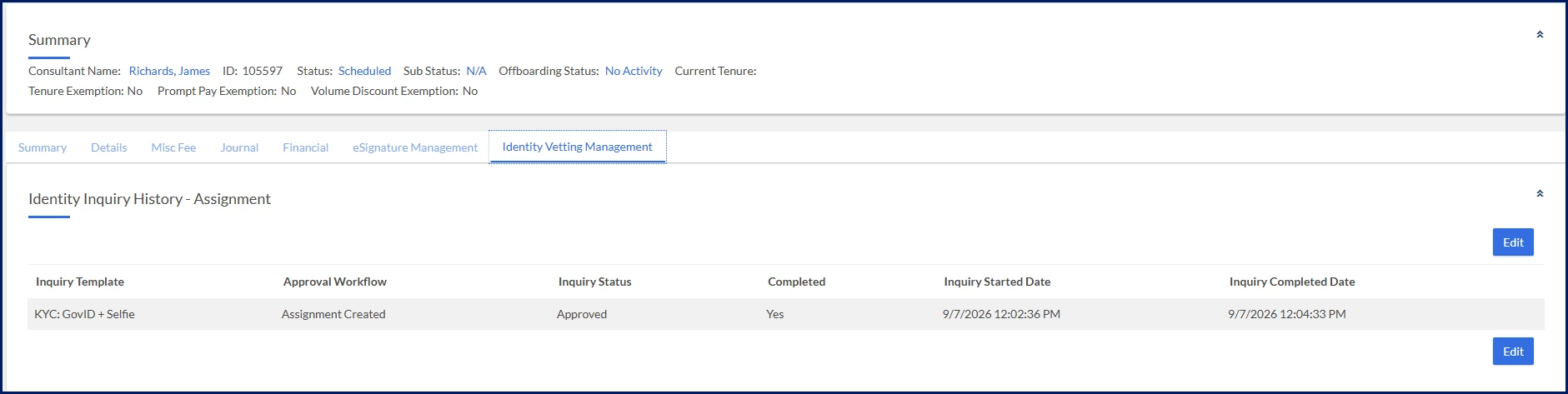
Assignment: Identity vetting history 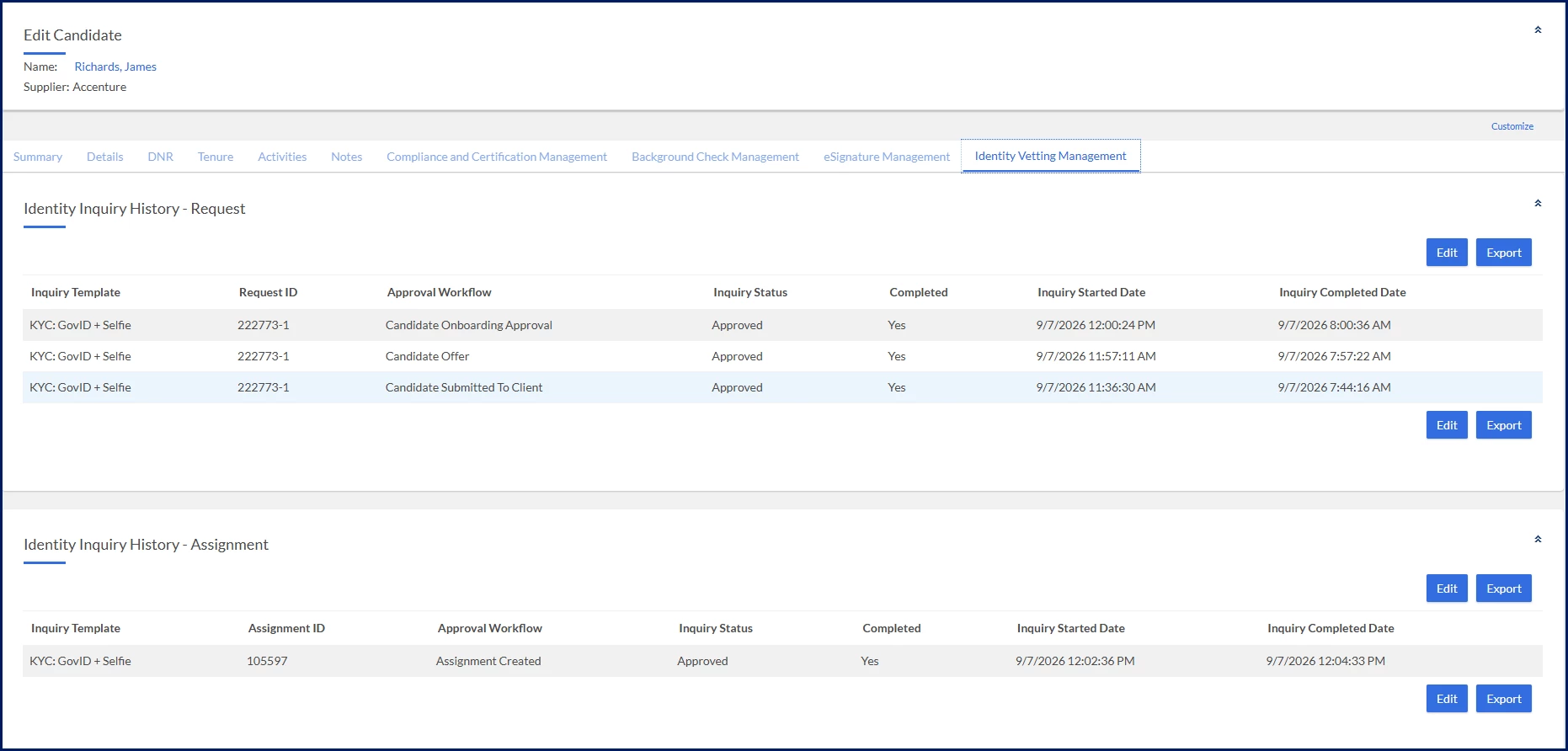
Resource Profile: identity vetting history - Review inquiry details. Identity-verification history can include:
- Inquiry Template
- Approval Workflow
- Inquiry Status
- Completed
- Inquiry Started Date
- Inquiry Completed Date
TIP: The Identity Vetting Management tab can display both request-level and assignment-level inquiry history for a resource. View inquiry history from a request to see inquiries for that request only. View inquiry history from a resource record to see all identity-verification inquiries associated with that resource.
Resubmit an identity-verification inquiry
If your organization's process allows it, you can resubmit an inquiry when a previous inquiry requires another verification attempt.
- Open the request.
- Select the Candidates tab.
- Select the candidate.
- Select Resubmit Candidate ID Inquiry.
- Select the inquiry to resubmit.
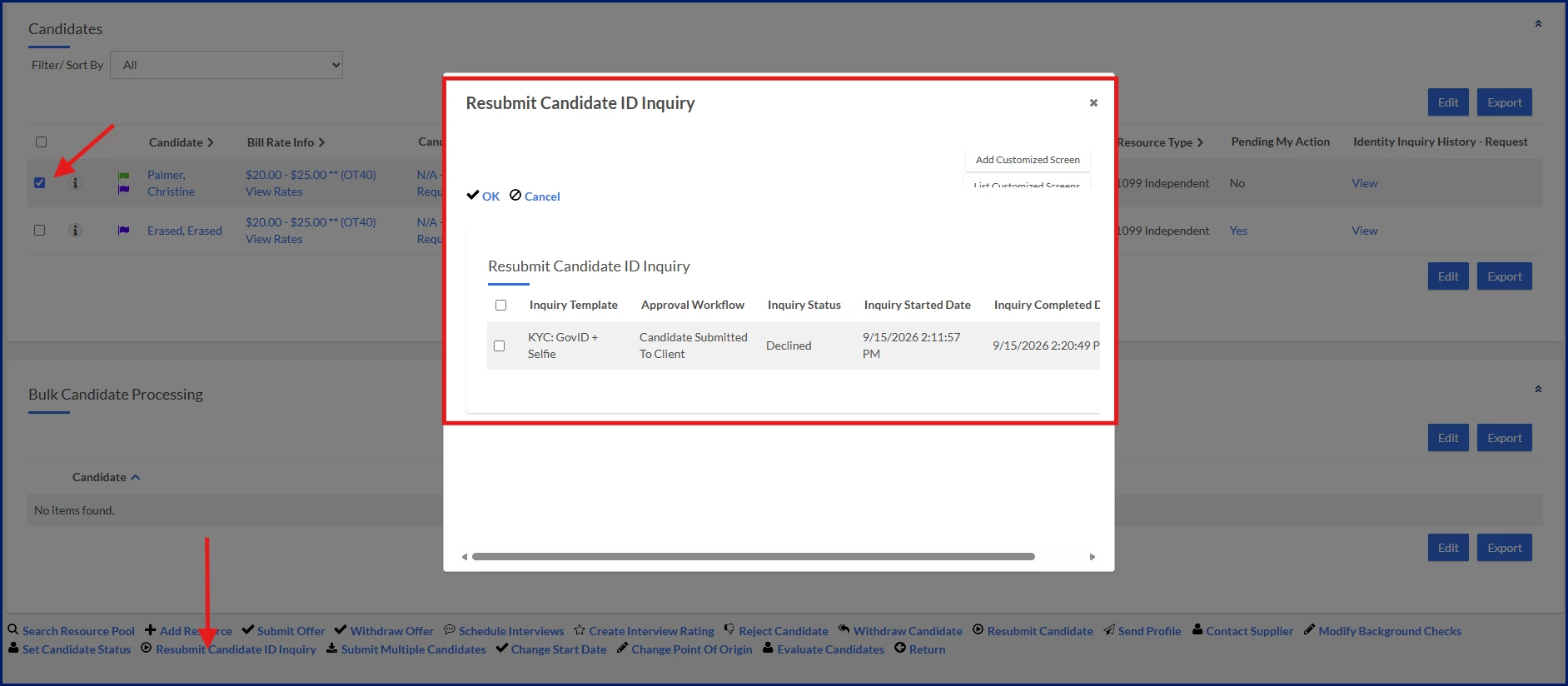
- Select OK.
What this does: Creates a new inquiry using information from a previous inquiry.
Why this matters: Allows you to initiate another verification attempt when needed.
A new identity-verification inquiry is created for the candidate.
Review inquiry statuses
Additional statuses may be available depending on your identity-verification provider and workflow configuration.
| Status | Description |
|---|---|
| Created | The inquiry has been created and is awaiting further processing. |
| Approved | The inquiry met the configured verification requirements. |
| Declined | The inquiry did not meet the configured verification requirements. |
| Completed | The inquiry process has finished. |
Next steps
After working with identity-verification inquiries, you may need to:
- Continue processing the candidate through the workflow.
- Review workflow approval requirements.
- Follow your organization's procedures for declined or incomplete inquiries.
- Monitor the status of a resubmitted inquiry.
Learn more
| Persona Program Office users Hiring managers and approvers Client users | Modules APIs & Integrations | Documentation release Beeline Enterprise | Q4 2026 | Feedback? Email us: |