


Persona
Clients, program office users and system administrators
How to steps
Information in this article reflects a standard Enterprise configuration. Your Enterprise platform is based on your organization’s configuration. Settings and/or data visibility rules may vary slightly from what is described.
As a program office user, you may be responsible for prescreening candidates submitted to a requisition before the requisition is released to hiring managers. Prescreening lets you perform an evaluation to ensure that only qualified, available, and interested candidates are presented for consideration.
To accomplish your task, complete these steps from your Enterprise dashboard.
-
From the My To Do List, select the New Resumes awaiting review link. The Candidate Review Tool dialog displays. You can instantly view candidates submitted to requisitions, the job title of the requisition, any shortlisted candidates, the candidate’s name, the supplier
-
Optional. To view more information about a requisition, select the Request ID link to open a Request Profile page.
-
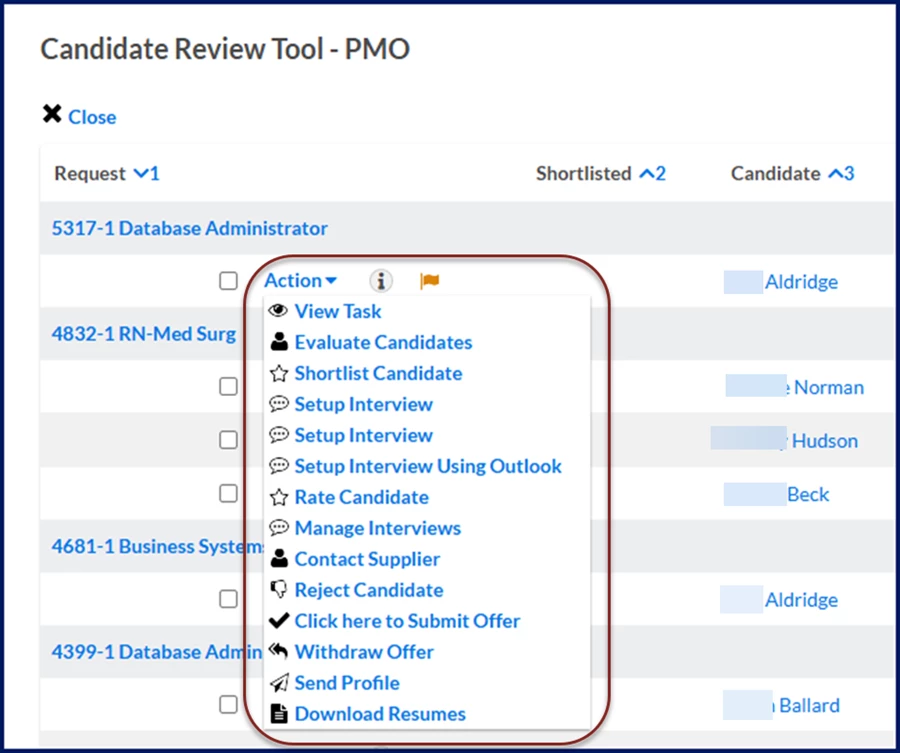
Optional. To act on a candidate, expand the Action menu. Available Actions vary based on the candidate status, your role, and your client’s workflow configuration.
-
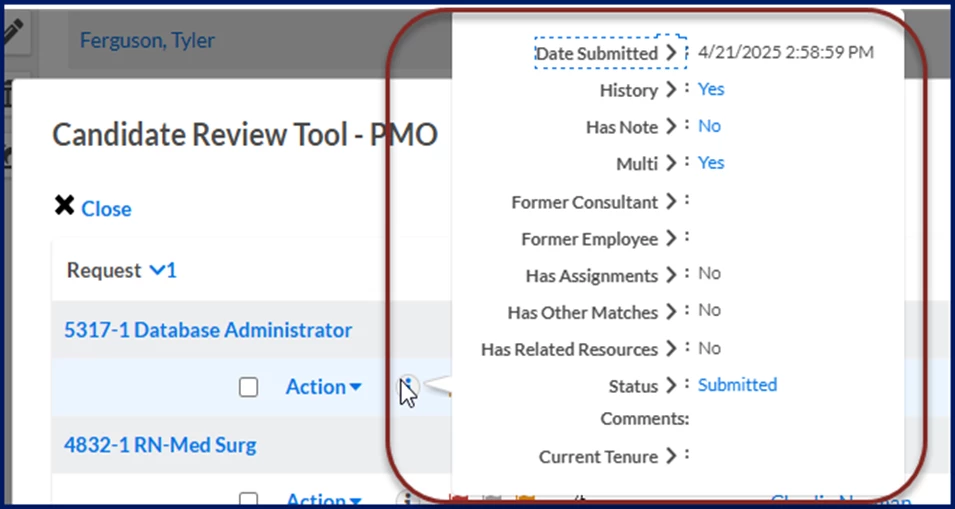
Optional. Hover over the Tooltip icon to view more details about a candidate.
-
Optional. Hover over a Flag icon to view details about the flag. The Flag icon color indicates information, alerts and warnings.
-
Optional. Select the Candidate Name link to open Candidate Evaluation.
-
Optional. Select the Resume icon to view a candidate’s resume, curriculum vitae or other attachments.
-
Optional. Select the Rate link to view the rate card details.
-
Optional. Select the Interview link to open Interview Manager.
-
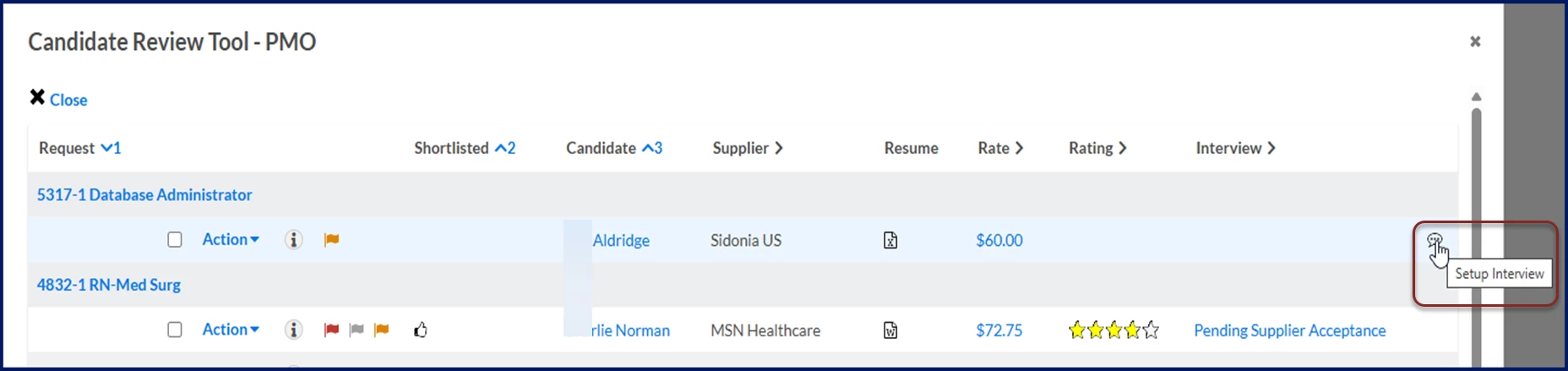
Optional. Select the Setup Interview to open Interview Manager.
-
Select Close to exit the Candidate Review Tool dialog.
Qualified candidates are submitted to the manager for review.
Documentation release: Beeline Enterprise | Q3 2025