Create, update, and manage Competitive Bid Templates directly in your VMS so users can create consistent, compliant, and efficient competitive bids every time.
Competitive Bid Templates provide a standardized foundation for managing competitive bidding events. Templates help ensure users capture the required information, follow established sourcing processes, and create bids that align with organizational requirements.
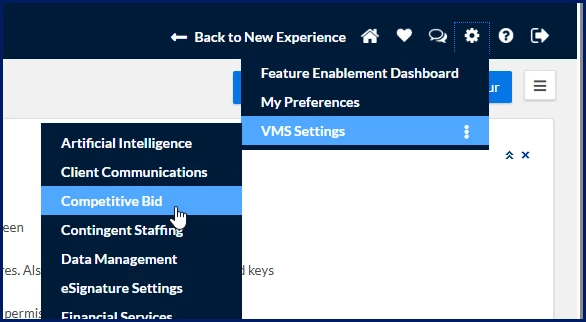
Manage templates from Preferences > VMS Settings > Competitive Bid and make updates whenever business needs change. Competitive Bid self-service management gives administrators more control over how bids are created, evaluated, and awarded.
Reduce administrative effort by reusing standardized bid structures.
Ensure users collect consistent information across bidding events.
Improve compliance with sourcing and procurement requirements.
Reduce errors caused by manual setup and inconsistent processes.
Adapt quickly to changing business requirements.
Improve reporting and data quality through standardized bid configuration.
Who it's for
Managed Service Providers (MSPs)
Program office users
Procurement, operations, or program leads
Any user with permissions to edit Competitive Bid components
How it helps
Competitive Bid Templates help you:
Standardize bid creation with predefined configurations and default content.
Reduce setup time by reusing existing templates.
Guide users through a consistent bidding process.
Improve supplier evaluations through configurable evaluation settings.
Support compliance with required business and legal requirements.
Increase efficiency by managing templates directly in the application.
Example capabilities
With Competitive Bid Templates, you can:
Create reusable templates for common sourcing events.
Standardize bidding requirements across projects.
Configure supplier evaluation settings.
Enable multi-round bidding.
Control bid visibility and Q&A options.
Associate bid templates with applicable geographies, industries, and project types.
Define legal acceptance requirements for clients and suppliers.
Reuse existing templates by copying and modifying them.
Action steps
Before using self-service SOW management:
Users must have the appropriate roles and permissions
Your organization must enable SOW self-service features
Contact your COM to grant access (initial setup only)
How to steps
Information in this article reflects a standard Enterprise configuration. Your Enterprise platform is based on your organization’s configuration. Settings and/or data visibility rules may vary slightly from what is described.
To accomplish your task, complete these steps from your Enterprise dashboard.
Competitive Bid Templates help standardize how users create competitive bids and ensure required information is collected consistently.
Navigating
Navigate to Preferences > VMS Settings > Competitive Bid.
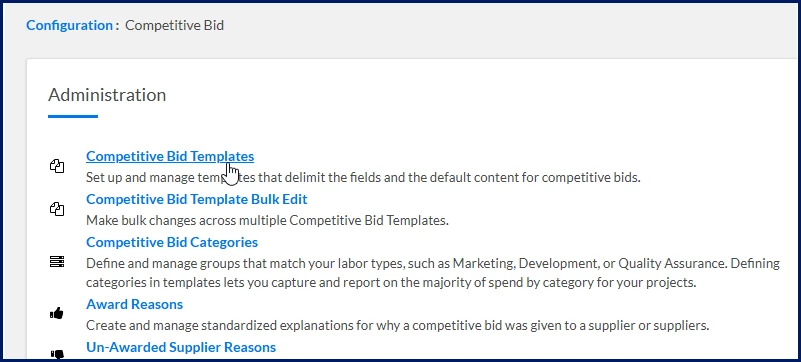
A Competitive Bid page displays.
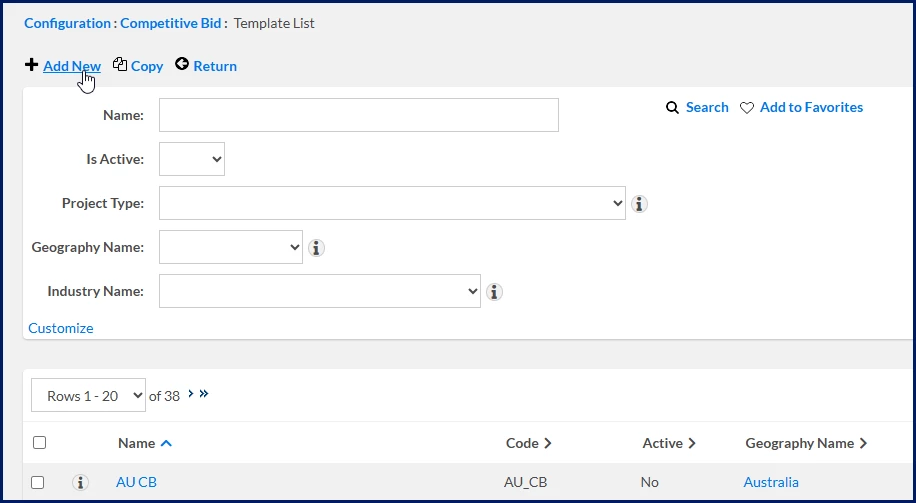
Select Competitive Bid Templates. A Template List page displays.
Select Add New.
The Add Template page displays.
Completing the General Information section
Enter Name ⚠️
What this does: Identifies the Competitive Bid Template throughout the application.
Why this matters: Helps administrators and users quickly identify the correct template.
In simple terms: You're giving the template a recognizable name.
Enter Code ⚠️
What this does: Assigns a unique identifier to the template.
Why this matters: Helps distinguish the template from other templates.
In simple terms: You're creating a unique short name for the template.
Optional. Enter Business Justification.
What this does: Provides additional context about the purpose of the template.
Why this matters: Helps administrators understand when and why the template should be used.
Select Active
What this does: Makes the template available for use.
Why this matters: Users can only select active templates when creating a competitive bid.
Completing the Export Templates section
Optional. Choose Select next to Client Export Template. The Select Standard Attachment box displays.
What this does: Associates a client-facing document template with the Competitive Bid Template.
Why this matters: Helps maintain consistent formatting, branding, and exported bid documentation.
Choose the export template file and select Upload.
What this does: Uploads the file used for client exports.
Why this matters: Ensures client-facing documents follow a standardized format.
Optional. Choose Select next to Supplier Export Template. The Select Standard Attachment dialog displays.
What this does: Associates a supplier-facing document template with the Competitive Bid Template.
Why this matters: Helps ensure consistency across supplier communications and exported documents.
Choose the export template file and select Upload.
What this does: Uploads the file used for supplier exports.
Why this matters: Creates a consistent experience for participating suppliers.
Completing the Signature Page Templates section
Optional. Choose Select next to Signature Page Template. The Signature Page Template Selection box displays.
What this does: Associates a signature page template with the Competitive Bid Template.
Why this matters: Helps standardize signature and approval documentation.
Choose the signature page template file and select Upload.
What this does: Uploads the signature page template.
Why this matters: Ensures approved documents use a consistent signature format.
Completing the Main Drivers section
Select Geography ⚠️
What this does: Defines the geographic region where the template is available.
Why this matters: Helps ensure users only see templates that apply to their location.
In simple terms: You're telling the system where this template can be used.
Select Industry ⚠️
What this does: Defines the industry associated with the template.
Why this matters: Helps users find the most relevant template for their sourcing activity.
Select Project Type ⚠️
What this does: Defines the type of project the template supports.
Why this matters: Helps ensure users select a template that matches the work being sourced.
Optional. Select an SOW Template
What this does: Associates a Statement of Work template with the Competitive Bid Template.
Why this matters: Supports consistency when a competitive bid progresses to a Statement of Work.
Completing the Category Filter section
Optional. Select Filter Categories. The Allowed Categories selection controls become available.
What this does: Restricts the template to specific categories.
Why this matters: Helps users find the most appropriate template and supports more consistent reporting.
In simple terms: You're limiting where the template can be used.
Select one or more categories from the Available list.
What this does: Identifies the categories that can use the template.
Why this matters: Helps ensure the template is available only for applicable work types.
Use the arrow controls to move categories to the Selected list.
What this does: Associates the selected categories with the template.
Why this matters: Only categories in the Selected list can use the template.
In simple terms: You're defining where the template can be used.
Completing the Milestone Type Filter section
Optional. Select Filter Milestone Types. The Allowed Milestone Types selection controls become available.
What this does: Restricts the template to specific milestone types.
Why this matters: Helps ensure the template is used only for appropriate project structures.
Select one or more milestone types from the Available list.
What this does: Identifies the milestone types that can use the template.
Why this matters: Helps align template usage with business requirements.
Use the arrow controls to move milestone types to the Selected list.
What this does: Associates the selected milestone types with the template.
Why this matters: Only milestone types in the Selected list can use the template.
In simple terms: You're controlling which milestone-based projects can use this template.
Completing the Behaviors section
Optional. Select Hide Tax Information On Project Agreement
What this does: Hides tax-related information on project agreement records.
Why this matters: Supports organizations that exclude tax information from project agreements.
Optional. Select Limit Job Titles
What this does: Restricts the job titles available during the sourcing process.
Why this matters: Helps suppliers submit resources that align with approved roles.
Optional. Select Set Hiring Manager to User That Created SOW If Not Defaulted
What this does: Automatically assigns the creator as the hiring manager when no default hiring manager exists.
Why this matters: Helps ensure ownership is assigned during the process.
Optional. Select Enable Multi-Round Bidding
What this does: Allows suppliers to participate in multiple bidding rounds.
Why this matters: Supports bid refinement and negotiation activities.
In simple terms: Suppliers can improve or adjust their bids over multiple rounds.
Optional. Select Allow Closing of Competitive Bid when Bid is Promoted to SOW
What this does: Automatically closes the competitive bid when it is converted into a Statement of Work.
Why this matters: Reduces manual administration and keeps records aligned.
Select a value for Q&A Mode ⚠️
Available options include:
PublicPrivatePrivate with Option to Make Public
Why this matters: Determines the level of visibility suppliers have to questions and responses.
In simple terms: You're deciding who can see supplier questions and answers.
What this does: Controls how questions and answers are shared during the bidding process.
Optional. Select Allow Milestone Override of Tax Job Category and Location
What this does: Allows milestone-level tax overrides.
Why this matters: Supports projects that require different tax treatments at the milestone level.
Optional. Select Allow Bid Deadline Extensions
What this does: Allows bid submission deadlines to be extended after the bid is created.
Why this matters: Provides flexibility when suppliers require additional response time.
Optional. Select Allow Financial Scoring
What this does: Includes pricing information as part of the evaluation process.
Why this matters: Helps evaluators compare supplier costs more objectively.
Optional. Select Apply Financial and Assessment Weighting
What this does: Allows financial and assessment scores to be weighted during evaluations.
Why this matters: Helps align supplier evaluations with organizational priorities.
Optional. Select Allow Open Bid
What this does: Enables open-bid functionality.
Why this matters: Supports sourcing strategies that require greater bid visibility.
Completing the Evaluation Team section
Optional. Select Enable Evaluation Team. Additional evaluation settings become available.
What this does: Allows multiple evaluators to participate in supplier evaluations.
Why this matters: Supports collaborative and balanced award decisions.
Optional. Select Require Consensus
What this does: Requires evaluators to reach agreement before evaluation activities can be completed.
Why this matters: Encourages consistent scoring and decision-making.
Enter Minimum Evaluators
What this does: Defines the minimum number of evaluators required.
Why this matters: Helps ensure sufficient oversight during bid reviews.
Optional. Select Hide Financials Until Evaluation
What this does: Prevents evaluators from viewing supplier pricing during initial assessments.
Why this matters: Helps reduce bias during the evaluation process.
Completing the Project Agreement Statuses section
Optional. Select an Initial Status
What this does: Defines the default status assigned to newly created competitive bids.
Why this matters: Helps ensure bids enter the correct workflow automatically.
Completing the Reasons section
Optional. Select a Request Cancellation Reason
What this does: Defines the default reason used when requests are cancelled.
Why this matters: Supports more consistent reporting and auditing.
Optional. Select an Assignment Cancellation Reason
What this does: Defines the default reason used when assignments are cancelled.
Why this matters: Helps standardize historical records and reporting metrics.
Completing the Legal Acceptance section
Optional. Enter a Client Legal Acceptance Message
What this does: Displays legal, compliance, or participation requirements to client users.
Why this matters: Ensures users review important information before participating.
Optional. Enter a Supplier Legal Acceptance Message
What this does: Displays legal, compliance, or participation requirements to suppliers.
Why this matters: Helps communicate expectations before suppliers submit responses.
Optional. Select Show Client Legal Acceptance Message
What this does: Displays the client acceptance message during participation.
Why this matters: Helps ensure users acknowledge important requirements.
Optional. Select Show Supplier Legal Acceptance Message
What this does: Displays the supplier acceptance message during participation.
Why this matters: Helps ensure suppliers review required terms before participating.
Saving the template
Select one of the following options:
Option
Result
OK
Saves the template and returns you to the Template List page.
Save and Add New
Saves the template and opens a new Add Template page.
Save and Edit Default Content
Saves the template and opens the default content configuration page.
Cancel
Closes the page without saving your changes.
The template is saved and becomes available based on the Geography, Industry, Project Type, and filter settings you configured. Users can now select the template when creating Competitive Bids.
Final result
After setup:
Users can select the Competitive Bid Template when creating competitive bids.
Suppliers participate using a consistent bidding experience and evaluation process.
Administrators gain greater control over compliance, reporting, and bid standardization.
✅ Key takeaway
A Competitive Bid Template controls the structure, behavior, evaluation settings, and workflow used during the competitive bidding process.
By standardizing how bids are created and managed, organizations improve consistency, reduce administrative effort, and support more effective supplier selection.
Frequently asked questions
Why doesn't a user see a Competitive Bid Template when creating a bid?
The template is typically unavailable because one or more matching criteria do not align with the user's bid configuration. The system evaluates factors such as Geography, Industry, Project Type, template status, and any configured filters.
Verify that:
The template is active.
The Geography matches the bid.
The Industry matches the bid.
The Project Type matches the bid.
Category and milestone filters are configured correctly.
When do template changes take effect?
Template changes take effect after the template is saved.
The system uses the updated configuration for future Competitive Bids created from the template. Existing Competitive Bids may continue using the settings that were in place when the bid was originally created.
Verify that:
The template was saved successfully.
Users are creating a new Competitive Bid after the update.
The correct template is being selected.
What happens if I deactivate a Competitive Bid Template?
When a template is inactive, users can no longer select it when creating new Competitive Bids.
The system retains the template for administrative purposes and historical records, but it is removed from available template selections.
Verify that:
The Active checkbox is selected if the template should be available.
Users are accessing the correct environment.
The template was not unintentionally deactivated.
Why are category or milestone filter options unavailable?
Category and milestone selections become available only after their corresponding filter options are enabled.
The system hides dependent configuration controls until filtering is turned on.
Verify that:
Filter Categories is selected before configuring categories.
Filter Milestone Types is selected before configuring milestone types.
Required categories and milestone types already exist in your environment.
Why can't suppliers participate in multiple bidding rounds?
Multi-round bidding is controlled at the template level.
If the feature is not enabled, suppliers can participate only in the initial bidding cycle.
Verify that:
Enable Multi-Round Bidding is selected.
The Competitive Bid was created using the correct template.
Your organization's bidding process allows multiple rounds.
Why isn't financial information included in supplier evaluations?
Financial scoring must be enabled in the template before pricing can be incorporated into evaluation scoring.
When financial scoring is disabled, evaluators review only the configured non-financial assessment criteria.
Verify that:
Allow Financial Scoring is selected.
Financial weighting settings are configured when required.
Evaluators have access to financial scoring features.
Why can't evaluators see supplier pricing during the evaluation process?
The template may be configured to hide financial information until evaluations are completed.
The system suppresses supplier pricing visibility to help reduce evaluation bias.
Verify that:
Hide Financials Until Evaluation is enabled.
The evaluation process has reached the appropriate stage.
Evaluators have the necessary permissions.
What happens when a Competitive Bid is promoted to a Statement of Work?
The system can automatically close the Competitive Bid if the corresponding template setting is enabled.
This helps prevent duplicate administrative activities and keeps sourcing records aligned with downstream project documentation.
Verify that:
Allow Closing of Competitive Bid when Bid is Promoted to SOW is selected.
The Competitive Bid was promoted successfully.
Any required SOW templates are properly configured.
Why are legal acceptance messages not appearing for users or suppliers?
Legal acceptance text can be entered without being displayed.
The system shows the message only when the corresponding display option is enabled.
Verify that:
A legal acceptance message has been entered.
Show Client Legal Acceptance Message is selected when applicable.
Show Supplier Legal Acceptance Message is selected when applicable.
Why is an evaluation team not available on a Competitive Bid?
Evaluation team functionality must be enabled within the template. If the feature is disabled, the system uses the standard bid evaluation process instead of a team-based evaluation model.
Verify that:
Enable Evaluation Team is selected.
The template was saved after configuration changes.
The Competitive Bid was created from the correct template.
Required evaluators have appropriate permissions.
Can I reuse an existing Competitive Bid Template instead of creating a new one?
Yes. You can copy an existing template and modify only the settings that need to change. The system creates a new template while preserving the original configuration, which reduces setup time and helps maintain consistency.
Verify that:
The source template contains the desired configuration.
The copied template has a unique Name and Code.
Any project-specific settings are updated before use.
How do Competitive Bid Templates affect reporting?
Templates help standardize the information captured during bid creation, supplier evaluations, and award activities. The system uses this consistent data to support operational reporting, sourcing analysis, compliance reviews, and program governance.
Verify that:
Users consistently select the appropriate template.
Categories and project types are configured correctly.
Standard cancellation reasons and evaluation settings are being used where applicable.
Persona Clients, program office users, system administrators
Please complete the following fields as part of your Beeline Community registration. Unless noted as private, this information will be displayed on your user profile within the community.