This content reflects non-client specific Beeline Enterprise functionality which may vary from what you see when logged into Beeline Enterprise depending on any client-specific settings or adjustments.
Navigate to your Beeline Enterprise Home dashboard. Your Home page displays showing the timesheet entry view.
Complete the timesheet as indicated. Features and options for filling in a standard timesheet are explained in the Time Entry Features section below. Instructions for entering time based on a monthly timesheet are explained in the How to enter time based on a monthly schedule article.
Click Save Changes to store your entries if you plan to submit the timesheet at a later time. OR Click Submit for Approval when the timesheet is complete and ready to send to the Timesheet Approver.
Time Entry Features
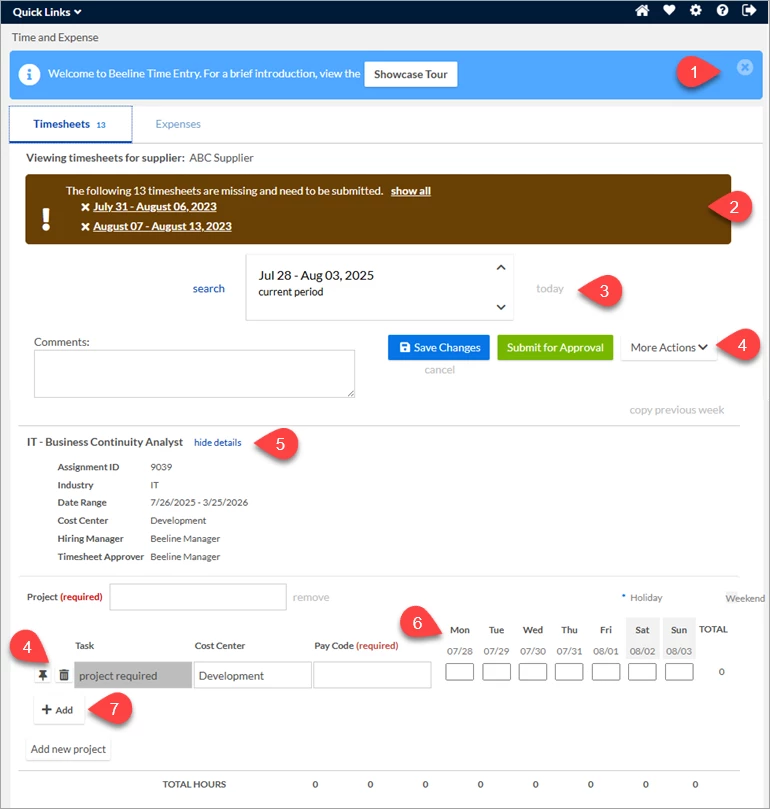
Showcase Tour To become familiar with standard timesheet features, you can start by viewing our showcase tour. Once you are familiar with these features, you can click the “x” to hide this section from displaying in the future.
Alerts An alert displays to notify you of any missing or rejected timesheets. Click the timesheet link to view each referenced timesheet. A small blue number also displays in the Timesheets tab when there are alerts. The number in blue indicates the total number of alerts.
Navigation The Date Picker provides for easy navigation between timesheets. Use the “up” or “down” arrows to locate previous or future timesheets. Click the “today” link to return to your current timesheet.
Actions (Timesheet) The Save Changes button lets you make multiple adjustments to your timesheet before you submit it for approval. When you save changes the Date Picker section updates to a status of “not submitted” and indicates the total number of hours for the week. Multiple changes may be made to a timesheet before submittal.
When your timesheet entries are complete, click Submit for Approval. The status will update in the Date Picker section, and the timesheet is forwarded to your timesheet approver. You may save a copy of your submitted timesheet by clicking the “view printable pdf” link and then use the save feature.
Actions (Line Item) Individual line items in a timesheet include the ability to “pin” them so they appear on each subsequent timesheet. Click the pin icon to select which line items should repeat. Use the trashcan icon to select which line items to delete.
Details The “show details” link next to the assignment job title name displays additional details related to the assignment record.
Hours Enter the total number of hours worked under the date for the matching day of the week. There is an optional Comment box if needed. The total number of hours entered for each day will also display beneath the timesheet entry section and indicate the total for that calendar week.
Add New Task or Project Click the “+” (plus) sign to add a new line item (i.e., task) to your existing project or use the “add new project” link to add a new section to your timesheet. A new line-item needs be added for each task or Pay Code (for example, Holiday Time or Paid Time Off). To make selections for Project, Task, etc. just start typing and a list of suggestions will appear for your selection.
Remember to click Submit for Approval when the timesheet is complete!
This topic has been closed for replies.
Beeline Community Registration
Please complete the following fields as part of your Beeline Community registration. Unless noted as private, this information will be displayed on your user profile within the community.