


As an SOW owner or a project manager, tracking cost allocation details is easier. You enter them once under the General Information tab on an SOW and they persist to all SOW financials.
You can even add cost allocations for milestone payments, units of measure (UoMs) and SOW resources. Plus, you can still edit cost allocation values on individual SOW financials when you need to.
TIP: Existing force flags for cost allocation on project units of measures are not affected by this feature.
Prerequisite: Your Enterprise site must be configured to allow you to edit cost allocation details.
Information in this article reflects a standard Enterprise configuration. Your Enterprise platform is based on your organization’s configuration. Settings and/or data visibility rules may vary slightly from what is described.
To add cost allocation details to an SOW, complete these steps from your Enterprise dashboard.
This topic shows you how to add cost details to an SOW from Beeline Classic.
If you’re starting in the Hiring Manager Experience, use the Go to Classic link at the upper right of the Home page.
-
From the New menu, select an SOW template from the New SOW list. A Welcome page displays.
-
Select Start SOW. A SOW Draft page displays showing the General Info tab by default.
-
Follow your program’s business processes for completing the required fields.
-
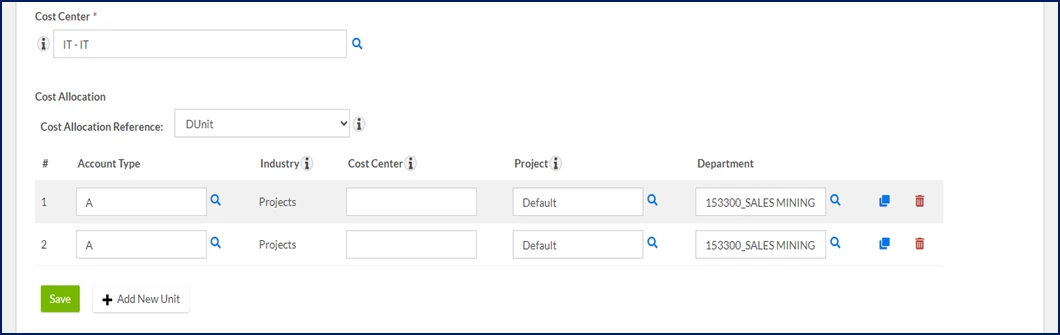
Scroll down to the Cost Allocation section. Information is automatically populated based on your profile and your program’s configuration.
-
Optional. Select a cost allocation template from the Cost Allocation Reference list.
-
Complete the required segments for the cost allocation string. Segments vary based on your organization’s cost allocation template and in-house systems.
-
Optional. When available, select the Search icon to locate the value you want to choose for a segment.
-
Optional. Use the Copy or Delete icons to duplicate or remove a string, respectively.
-
Select Add New, and then complete the required segments for the cost allocation string.
-
Repeat step 9 for each additional cost allocation string you want to add.
-
Select Save in the Cost Allocation section.
-
Select Next to continue building your SOW.
-
Follow your program’s business processes for adding all data required for your SOW.
Documentation release: Beeline Enterprise | Q4 2024