As a hiring manager or program office user, you need to evaluate candidates quickly and effectively. Skills Proximity helps you assess candidate qualifications and identify skills alignment at a glance, enabling faster and more informed hiring decisions.
You can use Skills Proximity data from the Candidates app or the Candidate Evaluation feature to streamline your evaluation workflow. To learn more about the Skills Proximity feature and the analysis you see, go to this Overview article and this Components article.
Before you begin
Before using Skills Proximity, check with your system administrator to ensure the following:
A Premium AI package is activated in Beeline Enterprise
The Skills Proximity feature in available to your Enterprise VMS
How to steps
Information in this article reflects a standard Enterprise configuration. Your Enterprise platform is based on your organization’s configuration. Settings and/or data visibility rules may vary slightly from what is described.
Use Skills Proximity in the Candidates app
Use Skills Proximity data from the Candidates app allows you to review candidate qualifications and quickly assess skills alignment.
To maximize the Skills Proximity feature from the Candidates app, complete these steps from the Hiring Manager Experience.
Select the Candidates app from the left navigation.
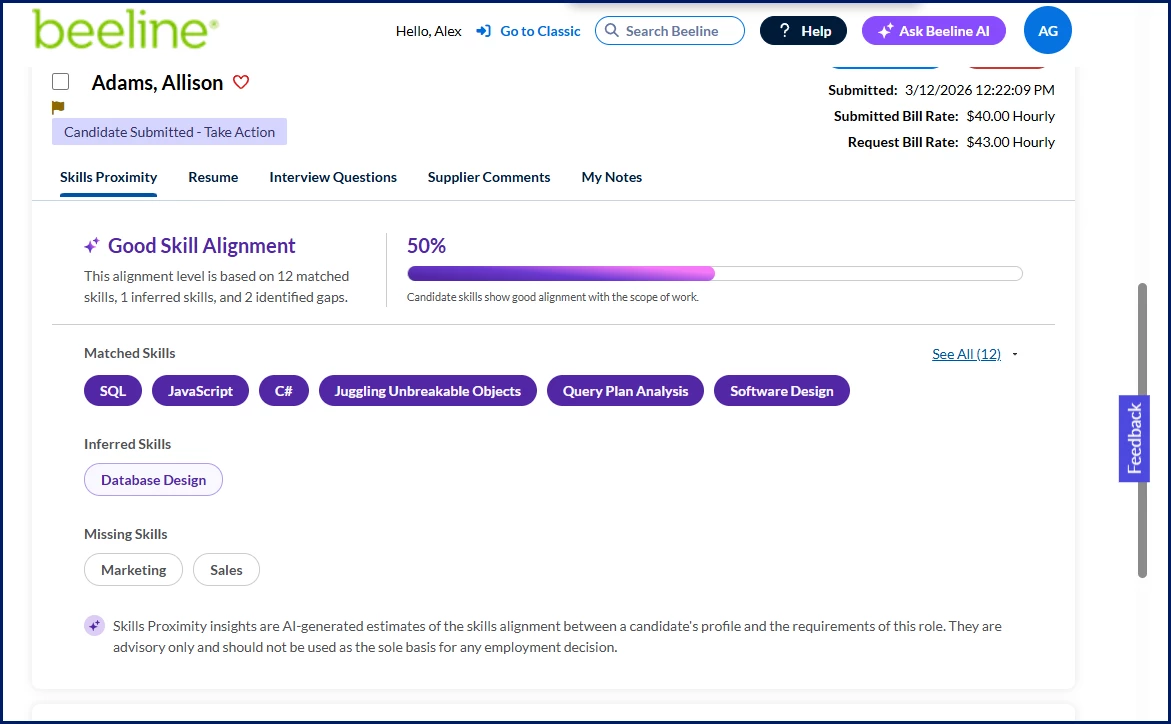
Select AI Skills Match to view detailed alignment information.
You can view:
Matched skills
Inferred skills
Missing skills
Skills Alignment Score, if enabled
Optional. Select See All to view all skills within a category.
Repeat for additional candidates as needed.
Follow your organization’s process to evaluate and act on candidates.
Use Skills Proximity in the Candidate Evaluation feature
The Candidate Evaluation feature provides additional tools and shortcuts to review and act on submitted candidates.
To optimize Skills Proximity data from the Candidate Evaluation feature, complete these steps.
Access Candidate Evaluation
Use one of the following options.
From the Candidates app:
Open a requisition
Select View Advanced
From Beeline Classic:
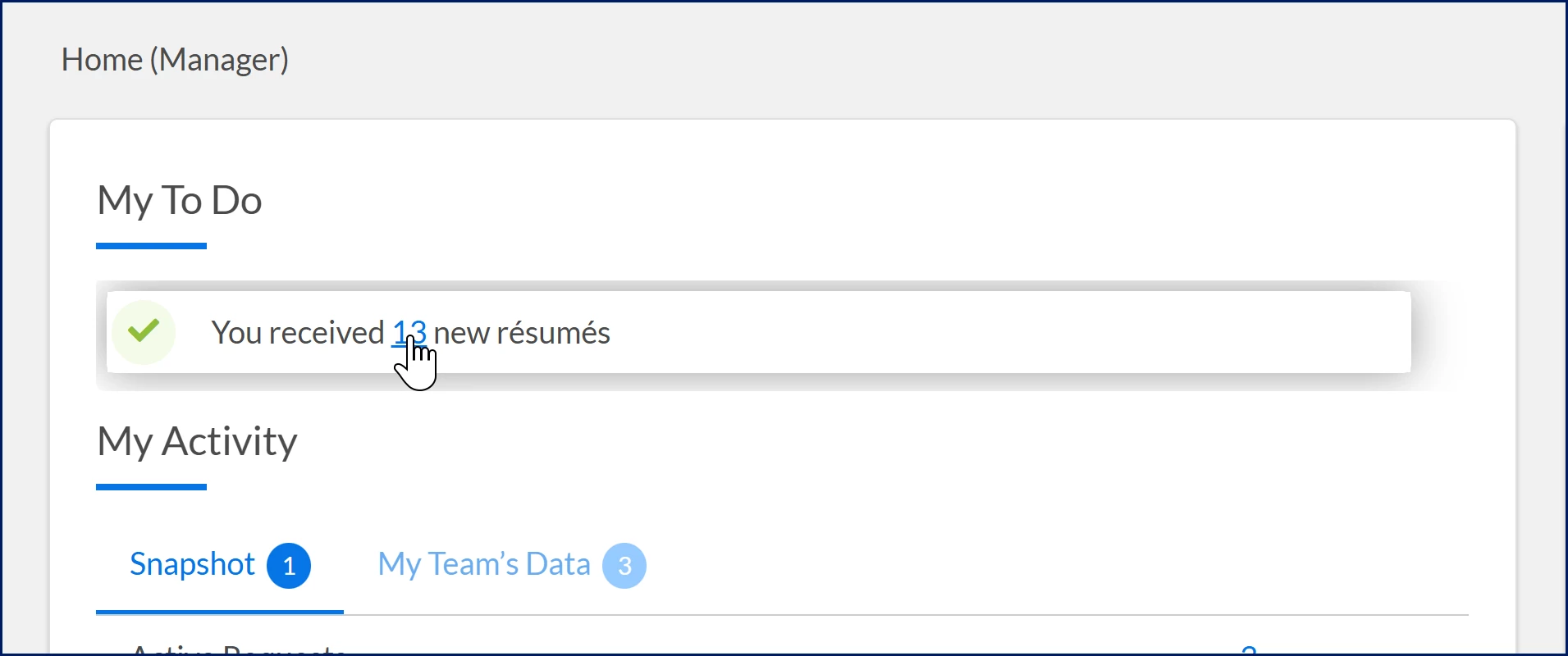
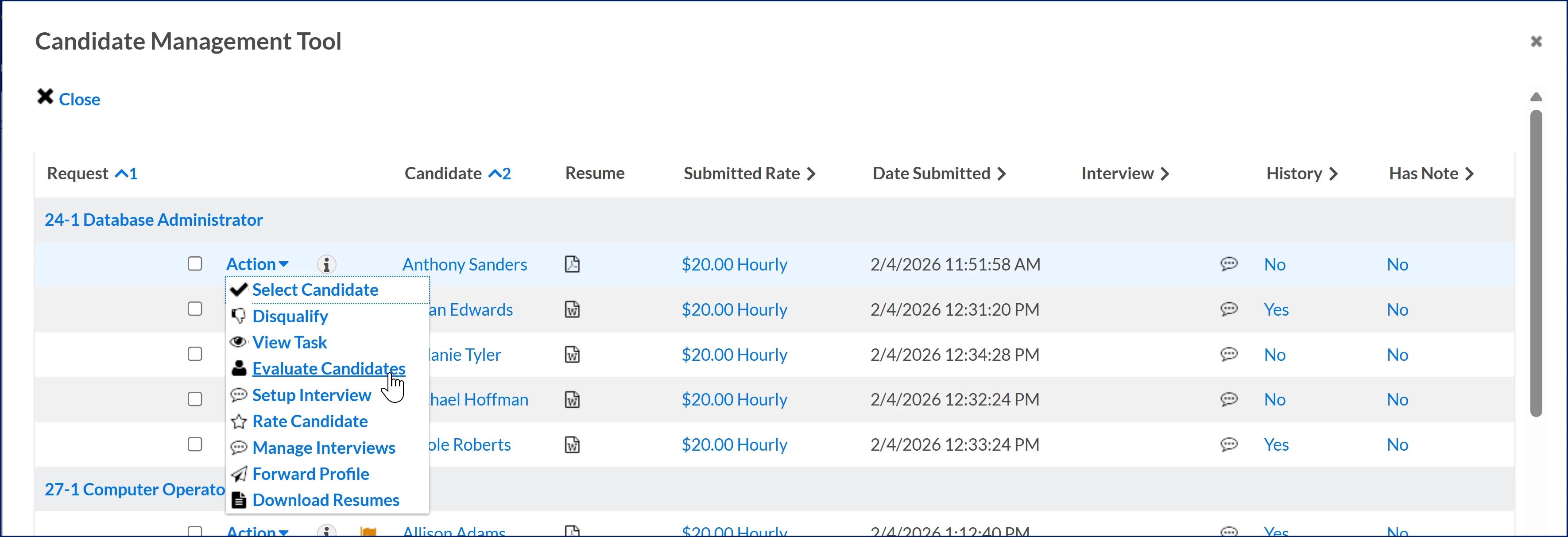
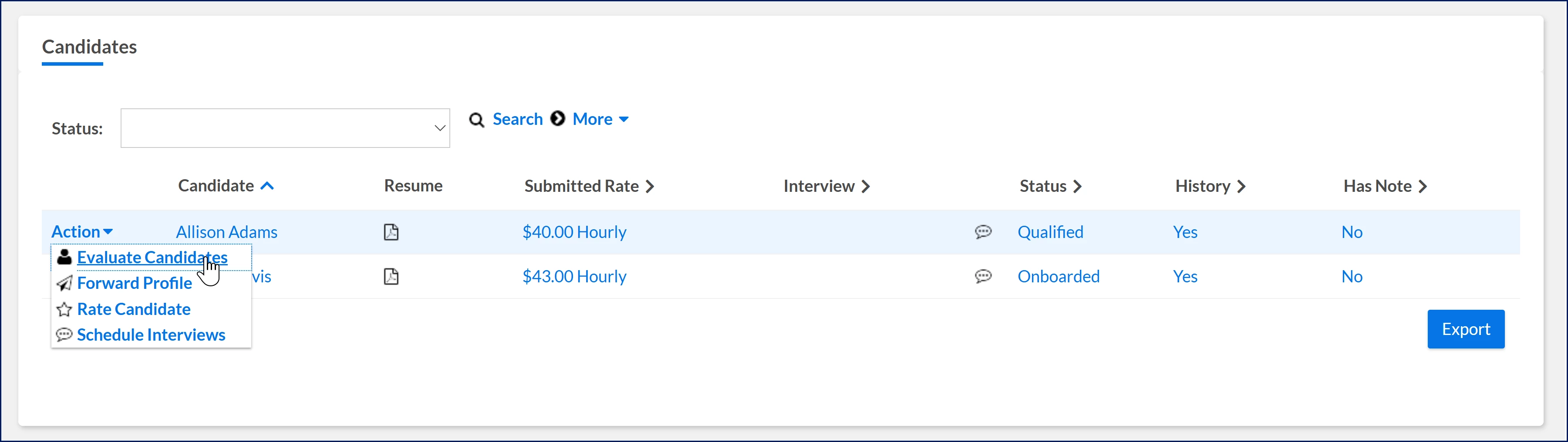
In My To Do, select the You received # new résumés link. The Candidate Management Tool displays. Locate the candidate you want to review and then select Evaluate Candidates from the Action menu.
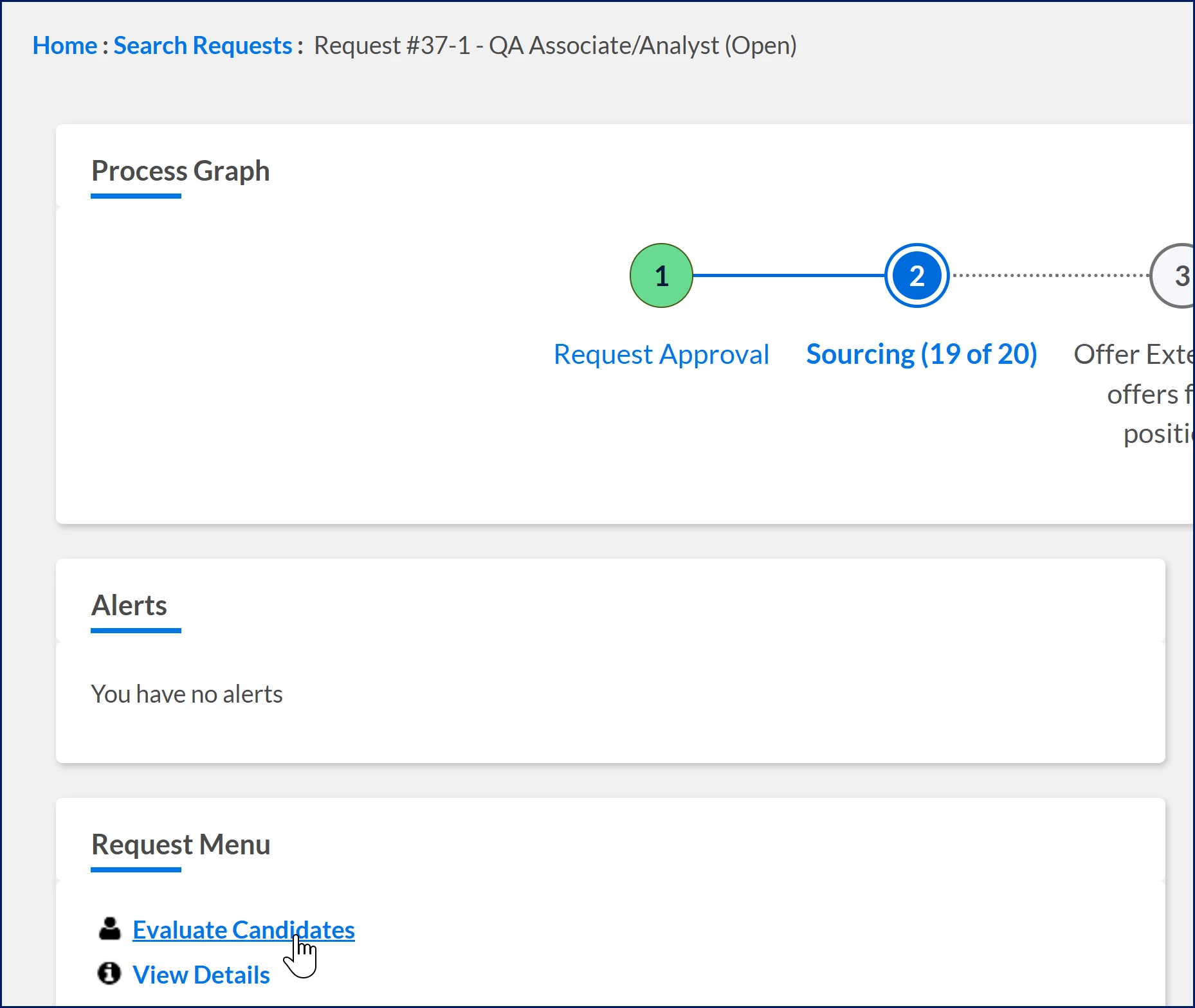
OR navigate to the Request Dashboard and select Evaluate Candidates from the Request Menu.
OR scroll down on the Request dashboard to the Candidates section, and then select Evaluate Candidates from the Action menu.
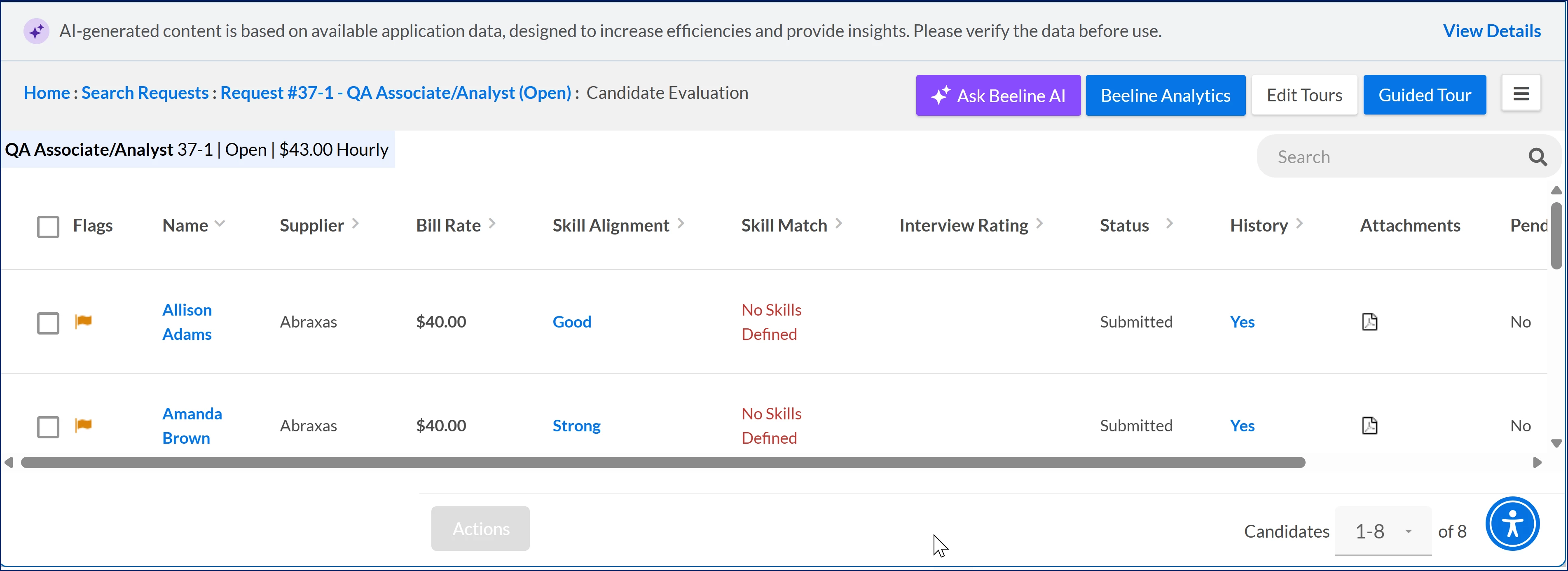
You can instantly see a candidate's Skills Alignment and Skills Match percentage. [Need help with a new graphic]
Review Skills Alignment
Locate the candidate you want to evaluate.
View the candidate’s:
Skills Alignment match
Skills Alignment percentage
Select Skills Alignment to open detailed results.
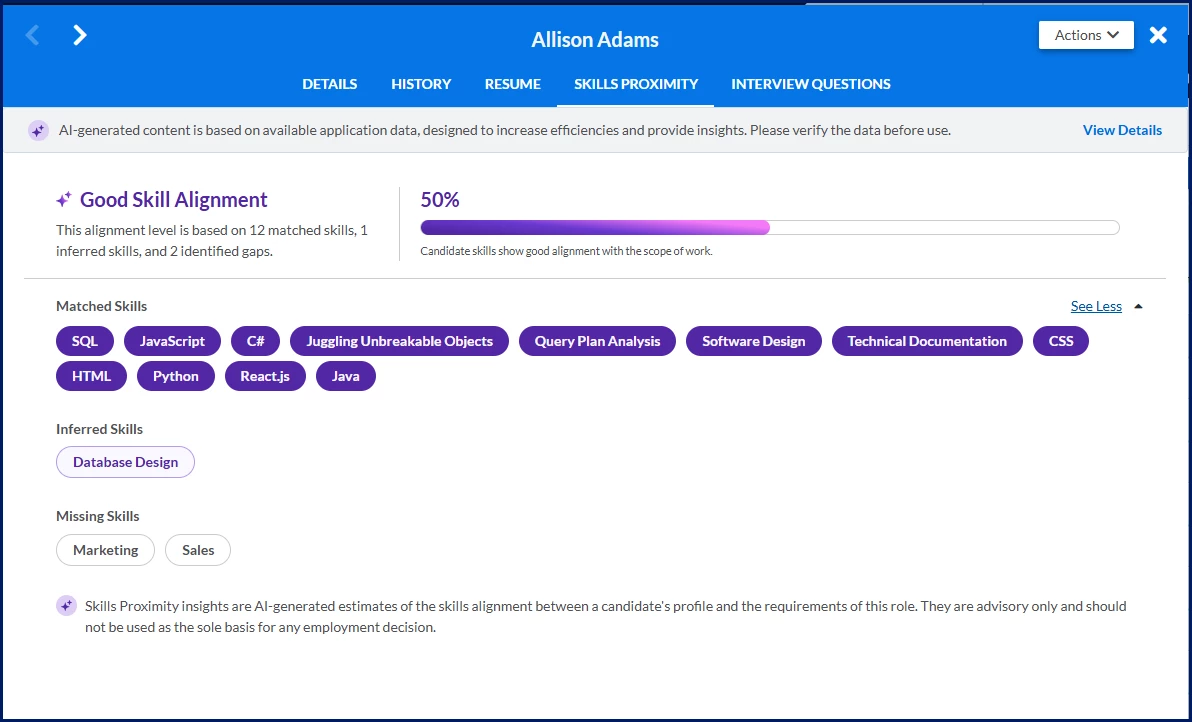
View these details from the Skills Proximity tab on the Candidate Details dialog:
Matched skills
Inferred skills
Missing skills
Use the navigation arrows to move between candidates submitted to the requisition.
Follow your organization’s process to evaluate and act on candidates.
Please complete the following fields as part of your Beeline Community registration. Unless noted as private, this information will be displayed on your user profile within the community.