


The first screen you see when you navigate to the Beeline Enterprise Hiring Manager Experience is Home. It is divided into two areas, the navigation panel on the left and the work area on the right.
This content reflects standard Beeline Enterprise functionality which may vary from what you see when logged into Beeline Enterprise depending on any client-specific settings or adjustments.
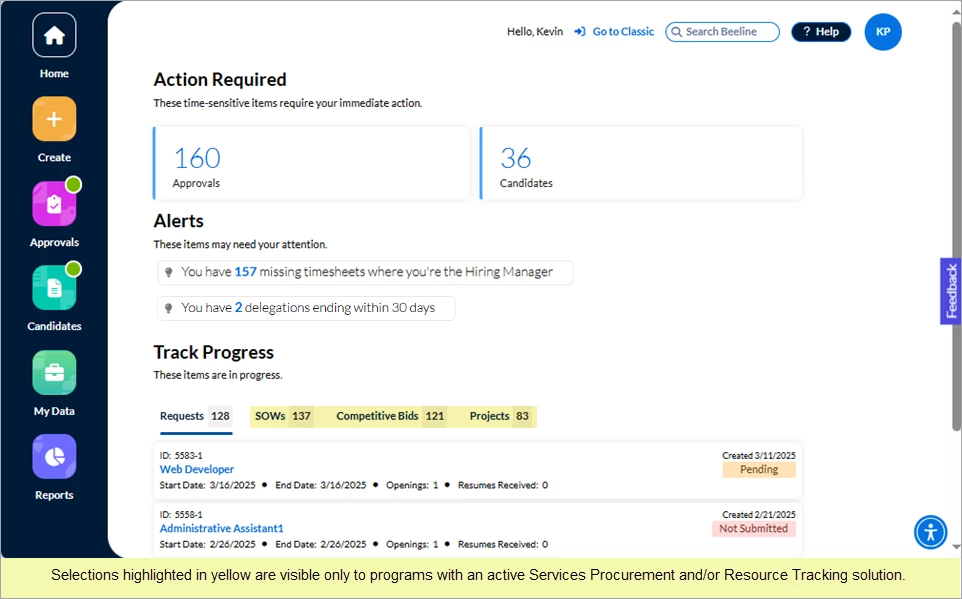
Each button in the navigation panel is a separate, direct link to one of the My Apps allowing you direct access to the Home, Create, Approvals, Candidates, My Data, and Reports Apps from almost every screen within the Hiring Manager Experience. If a green circle is visible in the upper right corner of any App button, it indicates that there are items within that App that need your attention.
Click the Home button from any location throughout the Hiring Manager Experience application to navigate directly back to your Home screen.
Home Highlights: Action Required, Alerts, and Track Progress
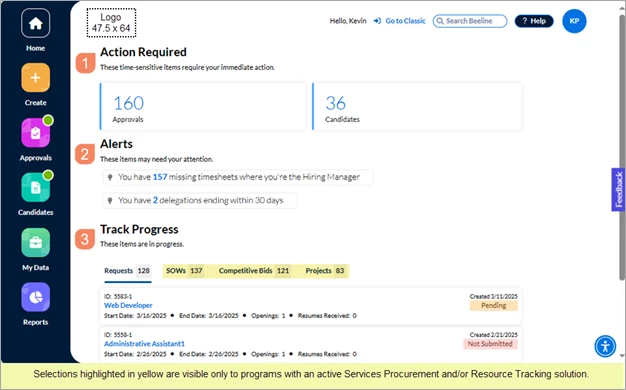

| Action Required – This section shows the total number of standard approvals and submitted candidates waiting for your review and action. Click the number to navigate directly to the complete list. |

| Alerts – This section shows activity you need to be aware of, even if you are not the designated system approver. Click the number to drill down for details. Alerts can inform you of a variety of system issues such as missing timesheets or even of upcoming events such as assigned delegation rights that are about to expire. Each line item indicates the number of associated items but also the reason for the posting. |

| Track Progress – This section displays key information for each of your active records. Click the Status link to drill down and view the associated Process Graph where you can check to see which workflow steps still remain to be completed. |

| Alert button – The green button indicates which Apps have actions waiting on your attention. |

| Click the Help button for access to standard Beeline Help or for access to a Guided Tour, client-specific guides, forms, etc. Can’t find what you need? Use the Feedback button link to submit your questions or reach out to your Program Office. |

| Click the button with your initials (or photo) in the upper right corner to access/edit your Manage Preferences options on your Beeline Enterprise account record—or to use the Reset Password link. Need to delegate your tasks/approvals while you’re away? Click Delegates under Manage Preferences, then click + Add New. Follow the prompts to fill in the Delegate, Date, and Approvals sections. Additional settings can be added for Reports, Delegate Subordinate, Visibility, and Impersonation. Click OK to save your changes. When you are ready to exit Beeline Enterprise, use the Log Out option. |

| Help us, help you! Use the Feedback button option to share your insights, make suggestions, or just let us know how we can make the Hiring Manager Experience better to suit your needs. |

| Click the Home button to navigate directly back to your Home dashboard at any time. |

| Click any App button to navigate directly to it. Remember, the green alert circle identifies which Apps have items that need your attention. |
| Clients or a Program Office can now brand the Hiring Manager Experience with their company logo to replace the Beeline logo displayed in the upper left corner of the work area. Instructions to add a logo are posted in Beeline Community. |

| Click the UserWay® Widget button located at the bottom right corner of the screen to open the slide-out panel. The widget lets you adjust accessibility features and functionality for a variety of disability profiles and adjust settings to your personal preferences. |
Product Release Announcements
Keep informed of new Hiring Manager Experience features and functionality as they are released by viewing items posted in the Product Release Announcement’s scroll display. Use the Back or Next button to move from one item to the next. The “dots” next to the rotation buttons indicate the total number of items and which item is the current display. Use the checkbox in the lower left corner to activate the “Don’t show this again” option. Use the X button in the upper right corner to close the window and return to your Home screen.
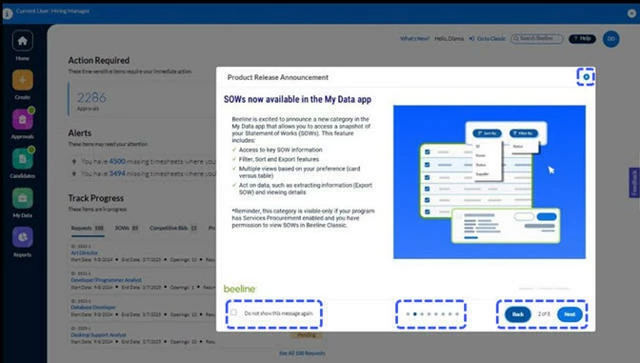
When you want to restore the display, just select the What’s New? label at the top of your screen.

| Persona | Module | Date Posted | Feedback? Email us: |
| Hiring Manager | Hiring Manager Experience | Beeline Enterprise | Dec 2025 |