


The Hiring Manager Experience gives hiring managers like you a feature-rich user interface (UI) for completing your daily Beeline tasks in less time and with fewer clicks. Although the Hiring Manager Experience makes it easier to get your job done, you might have questions about how to get to it from a mobile device.
Mobile device support
Your Hiring Manager Experience apps are mobile-responsive, which means you don’t need to download them from an app store. Plus, the Hiring Manager Experience apps are designed to run inside your web browser so you can use any supported web browser.
Because the Hiring Manager Experience apps are not native apps, they don’t interact with other native apps on your mobile device. For example, your Hiring Manager Experience apps cannot access the camera on your device.
Getting started
Accessing the Hiring Manager Experience apps is as simple as navigating to your organization’s Beeline Enterprise site URL from your web browser. This article walks you through the steps from a Microsoft Edge® browser.
To use the Hiring Manager Experience on a supported device, complete these steps from any supported web browser.
- Open a supported web browser.
- In the Search field at the top of your browser, enter the website address for your organization’s Beeline Enterprise site.
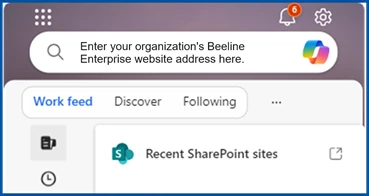
Browser Search field The Welcome page for your organization displays.
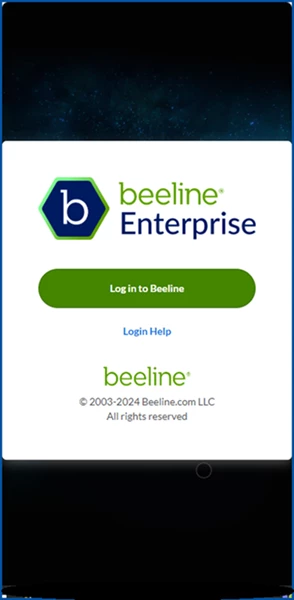
Beeline Enterprise Welcome page - Follow your organization’s instructions for logging in to Enterprise.
The Hiring Manager Experience Landing page displays, and you can quickly go about completing your tasks in Beeline Enterprise.
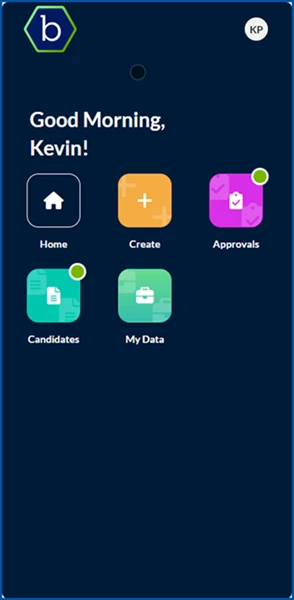
About your mobile experience
When you’re using the Hiring Manager Experience from a mobile device, you can complete these tasks.
| Supported on a mobile device | |
|---|---|
|
 | Review alerts from the Home page. |
| Initiate a quick request from the Create app on your mobile device. Quick Request must be set up in Enterprise. | |
| Review and act on candidates. | |
| Review your requests and assignments. | |
| View and act on these types of approvals:
| |
Here are some differences you’ll encounter when using the Hiring Manager Experience from a mobile device.
| Not supported on a mobile device | |
|---|---|
 | You can’t use the Help icon or the Manage Profile option from the Landing page. |
| When you Expand Details on a timesheet from the Approvals app, you can’t use the View Timesheet link to go to the timesheet in Classic. | |
| Cannot view and act on these types of approvals:
| |
| When you create a Quick Request, the Edit All Fields isn’t available. | |
| You can view but cannot act on assignments from the My Data app. | |
Documentation release: Beeline Enterprise | Q3 2024