


Navigate through your data like a pro! Easily choose the data you’re viewing and understand why you’re seeing it.
Topics on this page
As a hiring manager, you can access crucial information for all the work you manage from the My Data app.
Not only can you see data for which you’re the direct hiring manager, SOW owner or project manager, you might also see data delegated to you, data assigned to your subordinates, and data for which you’re a requestor, a timesheet approver, a sponsor, or a contributor. Plus, you probably have multiple types of data related to different workflows, like requisitions, assignments, SOWs, and projects.
That’s a lot of data! But wait...
The My Data app has visual aids, labels, fields and controls you can use to find exactly what you want and to understand precisely why you’re seeing specific data. Not only can you control what data you’re viewing, you can also ensure your delegates can access and manage your data when and how they need to.
Here are the controls you can use to filter and understand data.
| Control | Description | |
|---|---|---|
| Visibility Settings filter | Dropdown list filter from which you can use to choose how you want to view data. Learn how | 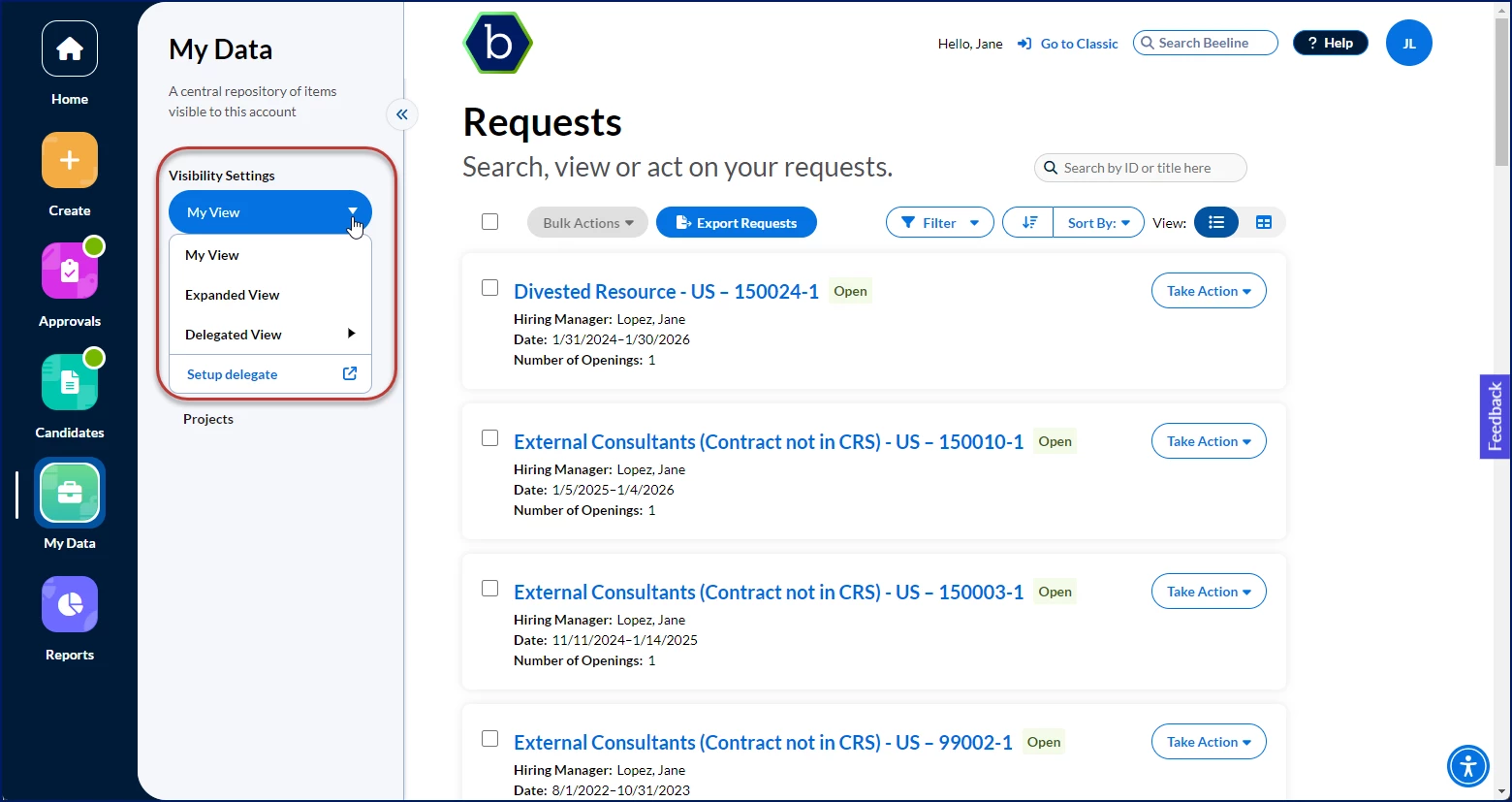 |
| Visibility icon | Icon that displays on items throughout the My Data app. Learn more | 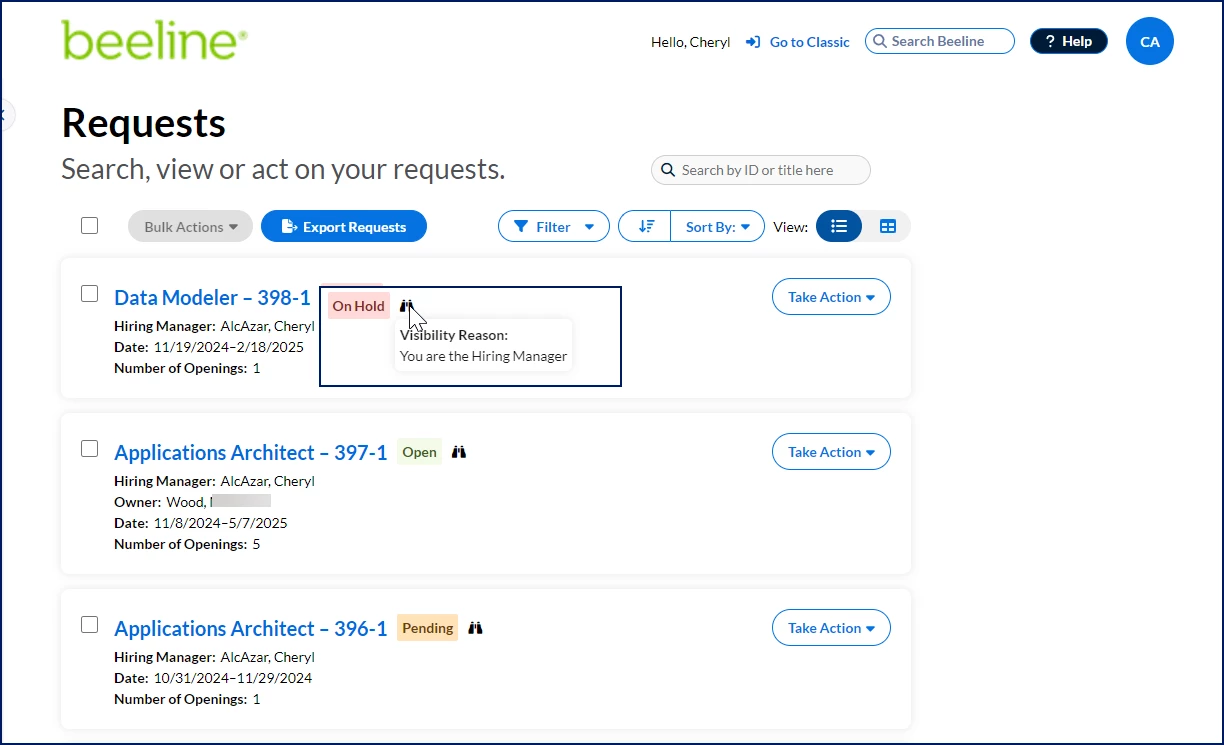 |
Choosing a Visibility Settings
The My Data app puts a lot of data at your fingertips, but you can easily choose exactly what data you want to view. Just use the Visibility Settings filter to apply a view to all categories in the My Data app, focus on the data you want and increase your productivity.
You can choose to apply a visibility setting at any time and from any category in the My Data app. Here are your options.
| View | Description | Duration | |
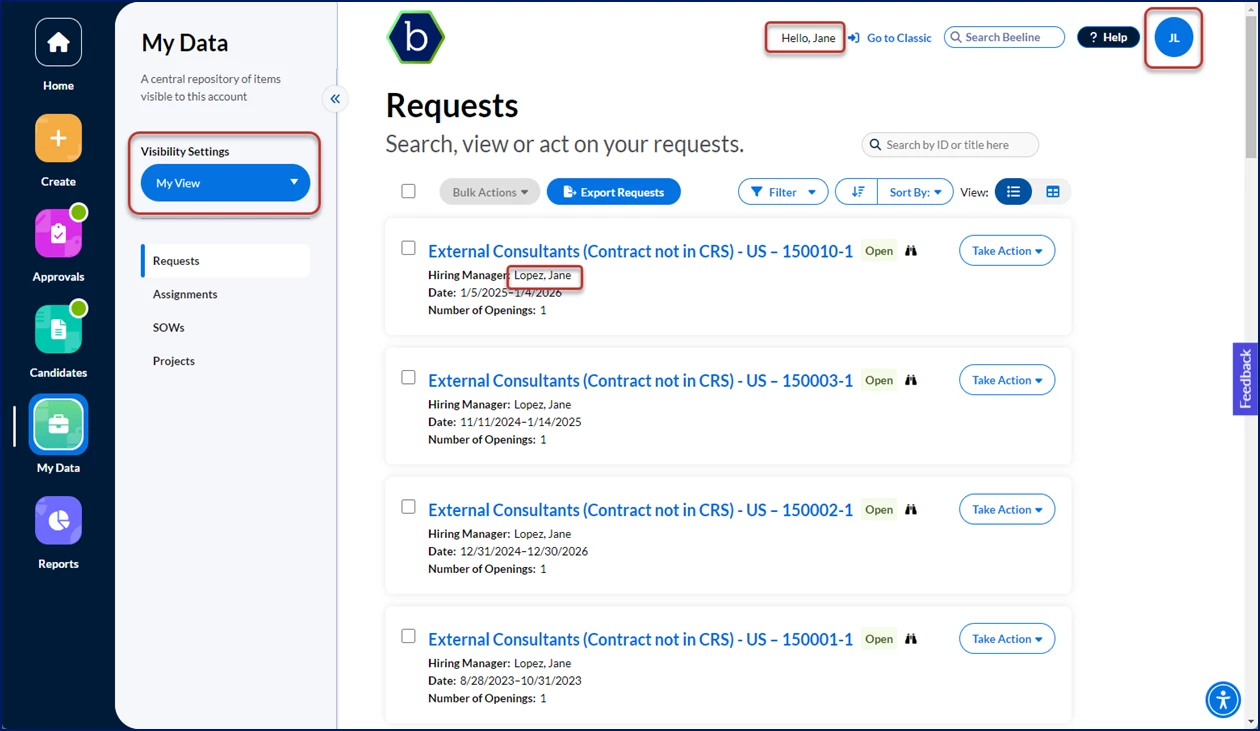
| My View | When you access the My Data app, My View is your default data view. It shows you requests, assignments, SOWs, and projects for which you’re the direct hiring manager, SOW owner or project manager. Data in this view belongs only to you. Use the Visibility icon to quickly understand why you’re seeing a specific piece of data. | Once you select My View from the Visibility Settings filter, it becomes your favorite or preferred view. Just like when you choose the Card and Table views as the way you like to view and work with data. My View is retained in these scenarios:
| 
|
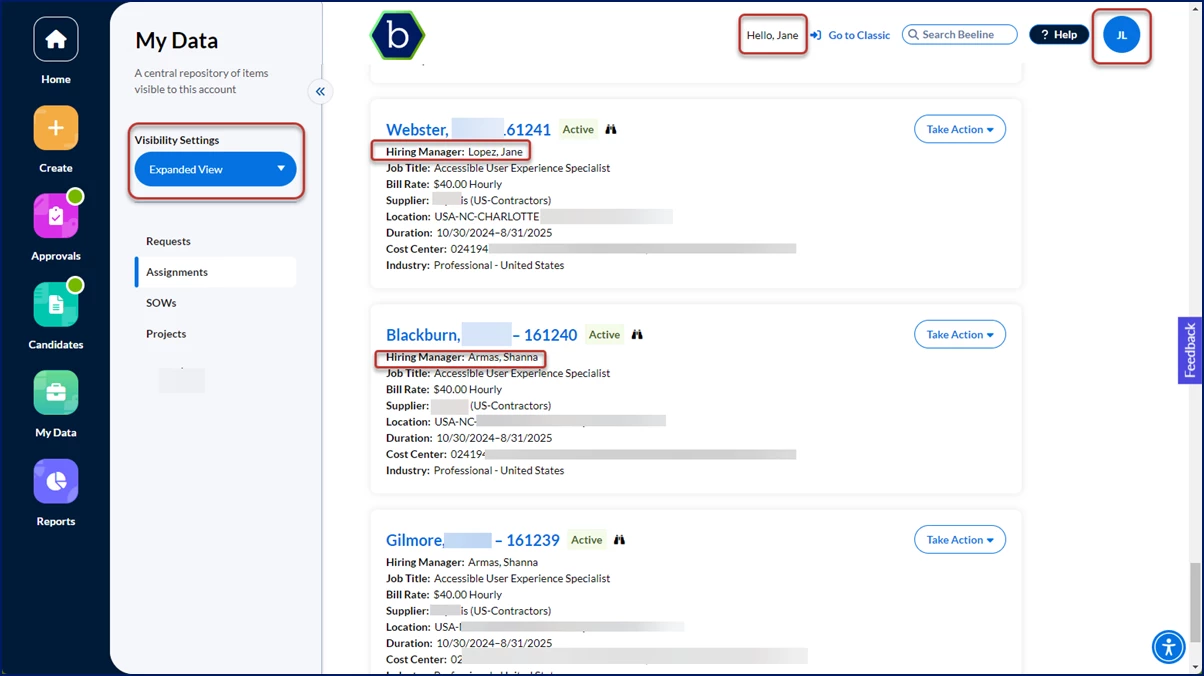
| Expanded View | This view shows you all the data included in My View, plus your subordinate’s data and data where you’re a requestor, a timesheet approver, a sponsor, or an SOW contributor. Use the Visibility icon to quickly understand why you’re seeing a specific piece of data. | Once you select Expanded View from the Visibility Settings filter, it becomes your favorite or preferred view. The Expanded View is retained in these scenarios:
|  |
| Delegated View | Focus on requests, assignments, SOWs, and projects delegated to you by other users. This option gives you access to a list of all users who have delegated items to you. Learn more Use the Visibility icon to quickly understand why you’re seeing a specific piece of data. | When you select a user who has delegated data to you, the view of their data applies only as you navigate between data categories in the My Data app. It is not retained when you navigate away from the My Data app, when you use the Back to My Apps or Return buttons or when you log out and back in to your Hiring Manager Experience. | 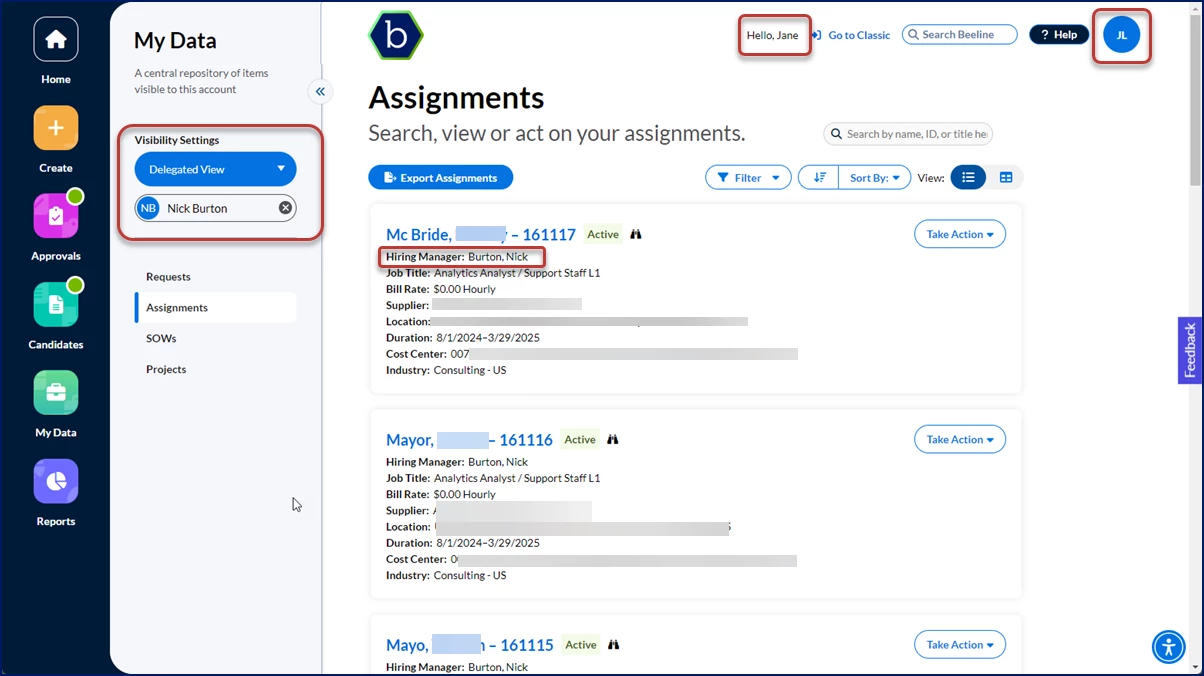 |
| View | Description | Duration | |
| My View | When you access the My Data app, My View is your default data view. It shows you requests, assignments, SOWs, and projects for which you’re the direct hiring manager, SOW owner or project manager. Data in this view belongs only to you. Use the Visibility icon to quickly understand why you’re seeing a specific piece of data. | Once you select My View from the Visibility Settings filter, it becomes your favorite or preferred view. Just like when you choose the Card and Table views as the way you like to view and work with data. My View is retained in these scenarios:
|
|
| Expanded View | This view shows you all the data included in My View, plus your subordinate’s data and data where you’re a requestor, a timesheet approver, a sponsor, or an SOW contributor. Use the Visibility icon to quickly understand why you’re seeing a specific piece of data. | Once you select Expanded View from the Visibility Settings filter, it becomes your favorite or preferred view. The Expanded View is retained in these scenarios:
| |
| Delegated View | Focus on requests, assignments, SOWs, and projects delegated to you by other users. This option gives you access to a list of all users who have delegated items to you. Learn more Use the Visibility icon to quickly understand why you’re seeing a specific piece of data. | When you select a user who has delegated data to you, the view of their data applies only as you navigate between data categories in the My Data app. It is not retained when you navigate away from the My Data app, when you use the Back to My Apps or Return buttons or when you log out and back in to your Hiring Manager Experience. | |
Managing delegated tasks and data
You may have tasks delegated to you by one or more hiring managers in your organization. From the My Data app, you can easily sort out, navigate to and manage data for each user who delegated items to you. You can view data delegated to you by only one user at a time.
To view and manage data delegated to you, complete these steps from the My Data app.
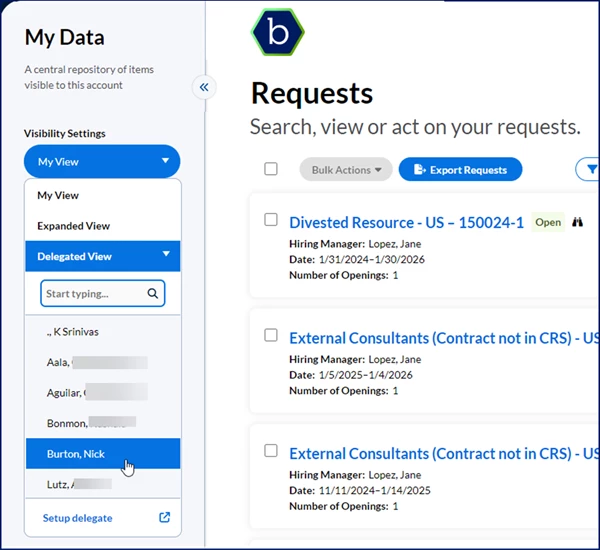
- Go to the Visibility Settings, and then expand the Delegated View option. When more than six users have delegated data to you, a list of users displays along with a Search field.
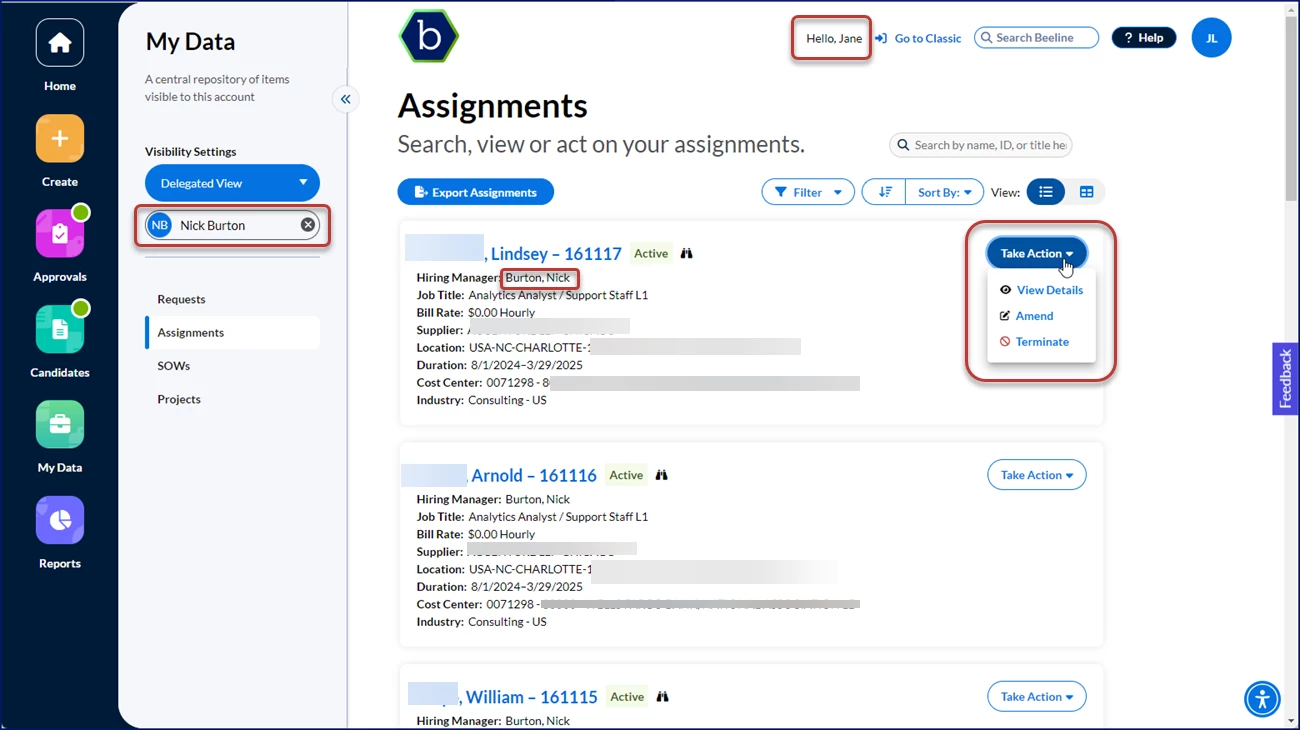
- Select the user’s name whose data you want to view and manage. That user’s data displays for you in the My Data app. Their view of data is retained only as you navigate between data categories.
TIP: If you know the name of a specific user you’re looking for, type their name in the list to go instantly to their name.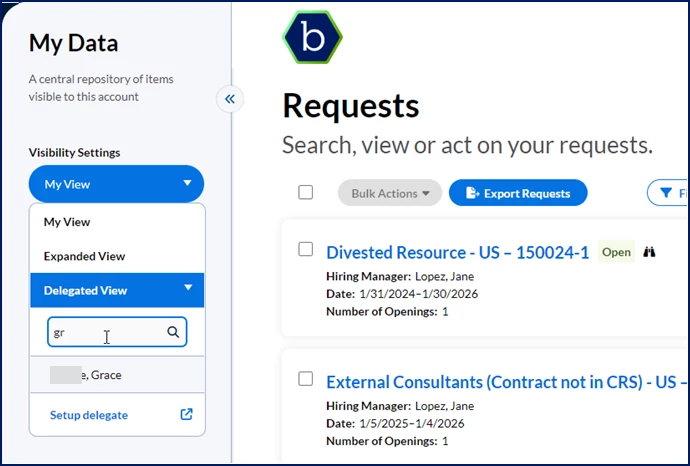
- Navigate through and act on the data as you need. For example, select the Assignments category and then act on an assignment.
Granting your delegates access
As a hiring manager, you may need to designate another hiring manager in your organization as your delegate. When you designate a delegate, you can allow that user to manage and act on your data from the My Data app. Use the Visibility option extends your delegate’s access from just viewing and approving to managing and acting on your behalf. Plus, you can manage visibility for your delegates via self-service.
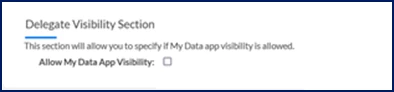
Alert: The Visibility option applies to actions a delegated user can perform from the My Data app in the Hiring Manager Experience only. It doesn’t extend to other apps in the Hiring Manager Experience nor to Beeline Classic.
To set up a delegate, complete these steps from the My Data app.
- Expand the Visibility Settings list, and then select Setup delegate. A My Preferences page displays with the Delegates tab selected by default.
- Select Add New. An Add Delegate page displays.
- Locate the hiring manager to which you want to delegate your work using one of these options:
- Click in the User field to display a list of users in your organization.
OR - Select the Search icon to open a User Select dialog, use the fields in the User Select dialog to locate a user, and then select OK.
- Click in the User field to display a list of users in your organization.
- In the Date section, use the Start Date calendar and time field to set when you want delegation to begin.
- Optional. In the Date section, use the End Date calendar and time field to set when you want delegation to stop.
- Optional. To allow the user to approve tasks on your behalf, take these steps:
- Select the Allow Approvals checkbox.
- From the Send Notifications list, choose whether to send email notifications about approvals to your delegate.
- If you want to restrict the approval types, select the Limit to Specific Approval Categories checkbox and then move the approval type from the Available Approval Categories list to the Selected Approval Categories list.
- Optional. To allow the user to view your reports, select the Allow Reports checkbox in the Reports section.
- Optional. To allow the user to manage your subordinates, select the Delegate Subordinates checkbox in the Delegate Subordinates Section.
- Optional. To allow the user to view and act on your data in the My Data app, select the Allow My Data App Visibility checkbox in the Visibility section.
- Optional. To allow the user to proxy as you in Enterprise, take these steps:
- Select the Allow Impersonation checkbox.
- Select the Delegate All Roles checkbox.
OR
Move the role type from the Available Delegate Roles list to the Selected Delegate Roles list.
- Select OK to return to the My Preferences page.
- Select Back to My Apps to return to the My Data app.
Understanding why you’re seeing specific data
You can efficiently manage data you’re responsible for directly or indirectly from the My Data app. Plus, you can quickly understand why you have visibility into specific data and easily prioritize tasks you want to complete first.
For example…
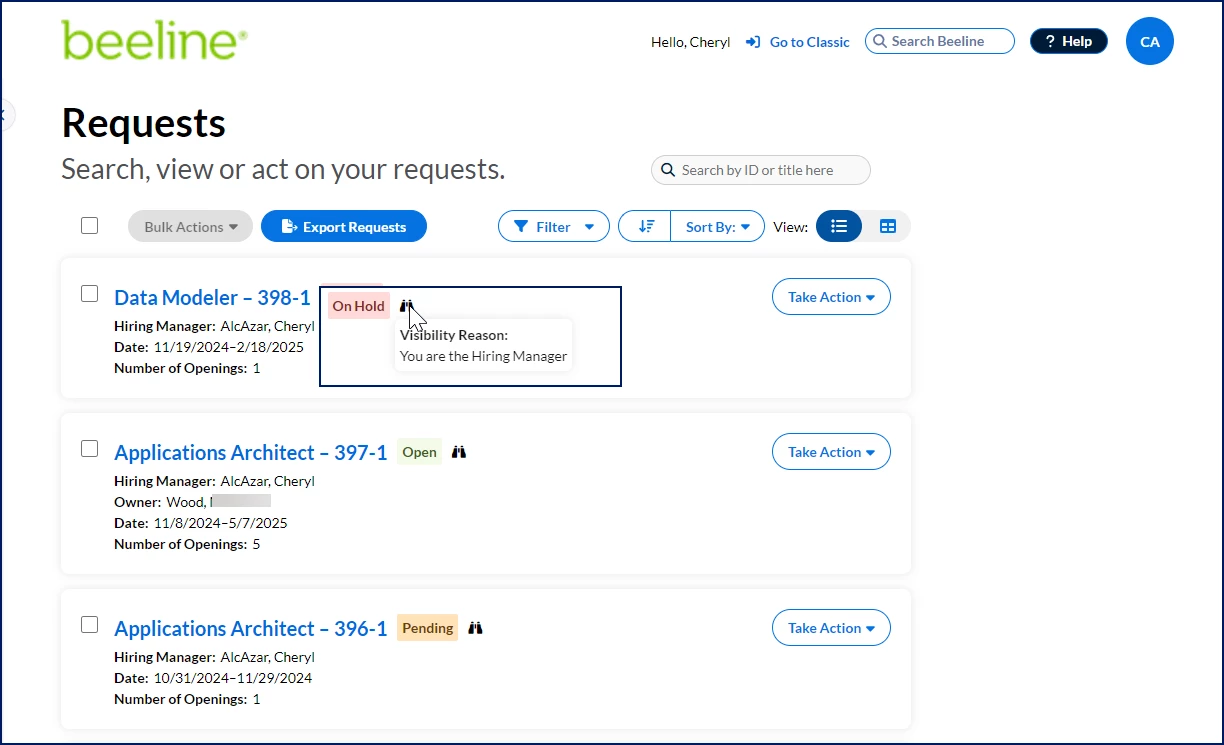
Simply hover over the Visibility icon and instantly discern whether you’re the hiring manager, requestor, timesheet approver, SOW contributor, sponsor or the hiring manager’s direct manager for a specific piece of data.
Documentation release: Beeline Enterprise | Q4 2024