


After you’ve initiated amendments for multiple assignments, you can view the status of the amendments, monitor progress and occasionally make adjustments.
Topics on this page
Viewing amendment statuses
Use the View Details command to view the progress of multiple assignments you amended quickly.
To view the status of amendments, complete these steps from your Enterprise dashboard.
- Select the Preferences gear, and then select Self-Service > Mass Amendments > View Details. An Assignment Amendment Progress page displays. Only the amendments you’ve made display by default.
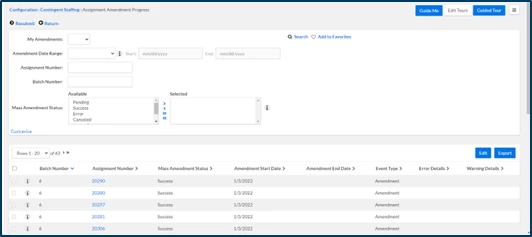
- Optional: From the My Amendments list, select Yes or No. Selecting Yes limits the list of amendments to only assignments you updated. Selecting No lets you see all amendments submitted by users in your organization.
- Optional: From the Amendment Date Range list, select the span of dates you want to view.
- Optional: In the Assignment Number field, enter the ID for a specific assignment you want to view.
- Optional: In the Batch Number field, enter ID for a group of processed amendments you want to view.
- Optional: From the Work Status lists, choose the rankings you want to view. Work Statuses show you the standing for amendments you’ve submitted, such as Success, Error, Canceled, and more.
- Select the Information icon to see details about what was changed.
- Optional: Select the Assignment Number to view details on a specific assignment.
- Resolve any errors and/or warnings.
TIP: If your amendments have a Canceled status, you must manually resubmit your updates. - Optional: If you want to change the columns you’re viewing, take these steps:
- Click Edit. A Select Columns to Display dialog displays.
- Add or remove columns.
- Define the order in which you want to view columns.
- Choose the number of results you want to see per page.
- Select any categories you want to flag.
- Select OK.
- Select Export to create and download a Microsoft Excel® spreadsheet.
Resubmitting or overriding an amendment
Occasionally when changing assignments using Mass Amendments, you might affect an assignment with an existing amendment that conflicts with your change. For example, there’s an existing amendment scheduled for a future effective date or there’s an amendment pending approval.
When you do, an alert notifies you about assignments with an existing pending amendment. You can choose to proceed with the mass amendment you’re applying.
To navigate to Mass Amendments and find the assignments you want to resubmit or override, complete these steps from your Enterprise dashboard.
- Select the Preferences gear, and then select VMS Settings > Contingent Staffing.
- Expand the Mass Amendments list, and then select View Details.
- From the Amendments list at the bottom of the Assignment Amendment Progress page, select the checkbox next to the assignment you want to override.
- Select the Resubmit link at the top of the Assignment Amendment Progress page.
Next steps...
- Find out how to manage rates on multiple assignments.
- Discover how to manage assignment event reasons.
Documentation release: Beeline Enterprise | Q3 2024