


Define how miscellaneous fees are applied, processed, and billed throughout the assignment lifecycle
A Miscellaneous Fee Definition determines how a miscellaneous fee is used within assignments. While a Miscellaneous Fee Code identifies the type of fee, a Miscellaneous Fee Definition contains the processing rules, configuration settings, and billing information that control how the fee behaves.
Miscellaneous Fee Definitions build on existing Miscellaneous Fee Codes and are used when adding miscellaneous fees to assignments.
Jump to what you want
Why it matters
- Establishes how miscellaneous fees are processed and billed.
- Promotes consistent fee handling across assignments.
- Supports accurate fee tracking and reporting.
- Provides reusable fee configurations for assignment administration.
Who it's for
- Program Office users
- System Admins
How it helps
- Create reusable Miscellaneous Fee configurations.
- Associate processing rules with fee types.
- Support assignment-level fee management.
- Prepare fees for use on assignments.
Additional considerations
- Verify that an appropriate Miscellaneous Fee Code already exists before creating a definition.
- Use descriptive names that clearly identify the fee configuration.
- Review existing fee definitions before creating new ones.
- Follow established fee naming and governance standards.
Availability and setup
- Access to Admin > Assignments is required.
- A Miscellaneous Fee Code must already exist before creating a Miscellaneous Fee Definition.
Before you begin
- Identify the Miscellaneous Fee Code that will be associated with the definition.
- Determine the business purpose of the fee.
- Review any billing, reporting, or assignment-processing requirements associated with the fee.
Create a miscellaneous fee definition
Information in this article reflects a standard Enterprise configuration. Your Enterprise platform is based on your organization’s configuration. Settings and/or data visibility rules may vary slightly from what is described.
- Select Admin > Assignments. An Assignment Administration page displays.
- From the left Navigation, expand the Assignment Geography folder.
- Expand the appropriate geographic location.
- Expand the appropriate Industry.
- Select Misc Fee Definition. A Misc Fee Definition page displays.
- Select Add New. A Misc Fee Definition Edit page displays.
-
Select Add New. The Misc Fee Definition Edit Screen displays.
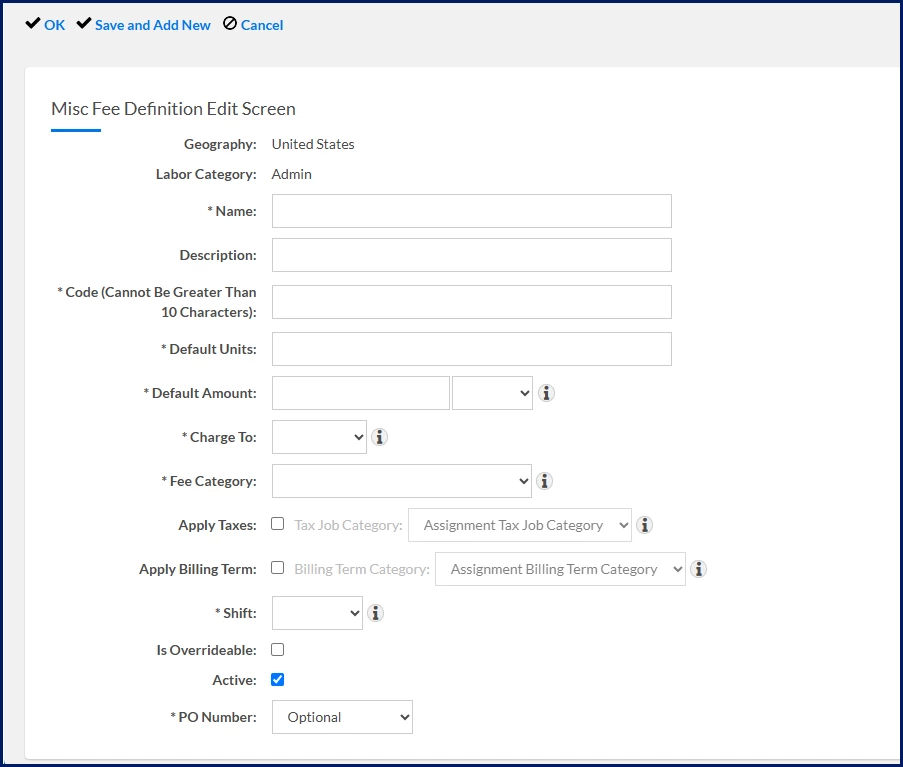
- Enter Name ⚠️
What this does: Creates the display name for the Miscellaneous Fee Definition.
Why this matters: Users rely on the name to identify the correct fee configuration.
In simple terms: This is the name users see when selecting the fee.
Tip: Keep names short but descriptive.
- Enter Description.
What this does: Documents the purpose of the fee definition.
Why this matters: Descriptions help users understand when the fee should be used.
- Enter Code ⚠️
What this does: Creates the identifier associated with the fee definition.
Why this matters: Codes are used throughout administration and reporting.
Tip: Use a concise identifier with no spaces or punctuation. The field allows a maximum of 10 characters.
- Enter Default Units ⚠️
What this does: Defines the default quantity applied when the fee is added.
Why this matters: Default Units determine the starting quantity of the fee.
In simple terms: Use 1 unless multiple units are typically required.
- Enter Default Amount ⚠️
What this does: Defines the default fee amount.
Why this matters: The amount is automatically populated when the fee is selected.
In simple terms: This is the starting fee amount users will see.
Note: Enter 0 if the amount is not known in advance.
- Select the appropriate Currency ⚠️.
What this does: Associates a currency with the default amount.
Why this matters: The fee amount and currency are used together when the fee is applied.
- Select Charge To ⚠️.
What this does: Determines who is responsible for the charge.
Why this matters: The selected value affects how the fee is billed.
Available values
Value Meaning Client The fee is charged to the client. Supplier The fee is charged to the supplier. - Select Fee Category ⚠️.
What this does: Classifies the fee for billing and reporting purposes.
Why this matters: Fee Categories provide consistent fee classification across the program.
Tip: Use the information icon next to the field to review available Fee Category descriptions.
- Configure Apply Taxes, if applicable.
What this does: Enables tax processing for the fee.
Why this matters: When selected, an Assignment Tax Job Category must be specified.
In simple terms: Use this setting when the fee should be subject to tax calculations.
- Select Assignment Tax Job Category, if applicable.
- Configure Apply Billing Term, if applicable.
What this does: Enables billing-term processing for the fee.
Why this matters: When selected, an Assignment Billing Term Category must be specified.
- Select Assignment Billing Term Category, if applicable.
- Select Shift ⚠️.
What this does: Associates the fee with a shift designation.
Why this matters: Shift selection can affect how the fee is applied within assignment processing.
- Configure Is Overridable.
What this does: Allows users to change the fee amount when the fee is added to an assignment.
Why this matters: Overridable fees provide flexibility when actual fee amounts vary.
In simple terms: Users can replace the default amount with a different amount when necessary.
- Verify that Active is selected.
Why this matters: Only active fee definitions are available for use.
-
Select PO Number ⚠️.
What this does: Controls whether a purchase order number is required for the fee.
Why this matters: Purchase-order requirements are enforced based on the selected option.
Available values
Value Meaning Optional A purchase order number may be entered. Required A purchase order number must be entered. Does Not Apply Purchase-order tracking is not used for the fee. In simple terms: You're deciding whether this fee must be associated with a purchase order.
- Select OK to save and exit.
OR
Select Save and Add New to create multiple Miscellaneous Fee Definitions during the same session.
Result
The Miscellaneous Fee Definition is created and becomes available for use when adding miscellaneous fees to assignments.
What's next
After creating a Miscellaneous Fee Definition, you can:
- Add miscellaneous fees to assignment records.
- Associate fee processing with assignment activities.
- Review miscellaneous fee reporting.
- Reprocess miscellaneous fees when necessary.
- Continue configuring assignment-related fee administration.
| Persona Program office users | Modules Administration | Documentation release Beeline Enterprise | Q3 2026 | Feedback? Email us: |