


Run a standard report
Run predefined reports to quickly access the information you need without modifying report settings
Standard reports provide ready-to-run reporting options for common business and operational needs. They are created from existing reporting structures and can be run using the predefined configuration supplied with the report.
Use standard reports when the information you need is already available through an existing report and you do not need to customize the report structure or fields.
Why it matters
- Provides quick access to commonly requested information.
- Reduces the need to create custom reports.
- Supports consistent reporting across users and teams.
- Helps users access reporting data with minimal configuration.
Who it's for
- Program Office users
- Reporting administrators
- Hiring Managers
- Business users
How it helps
- Run existing reports quickly.
- Filter report results using report parameters.
- Access operational and business reporting information.
- Reduce reliance on custom report creation.
Availability and setup
- Access to the appropriate report is required.
- Available reports vary based on permissions, configuration, and enabled modules.
Before you begin
- Identify the report you want to run.
- Determine whether any report parameters are needed.
- Verify you have access to the report.
Run a standard report
Information in this article reflects a standard Enterprise configuration. Your Enterprise platform is based on your organization’s configuration. Settings and/or data visibility rules may vary slightly from what is described.
-
Navigate to the Report Gallery.
-
Locate the standard report you want to run.
-
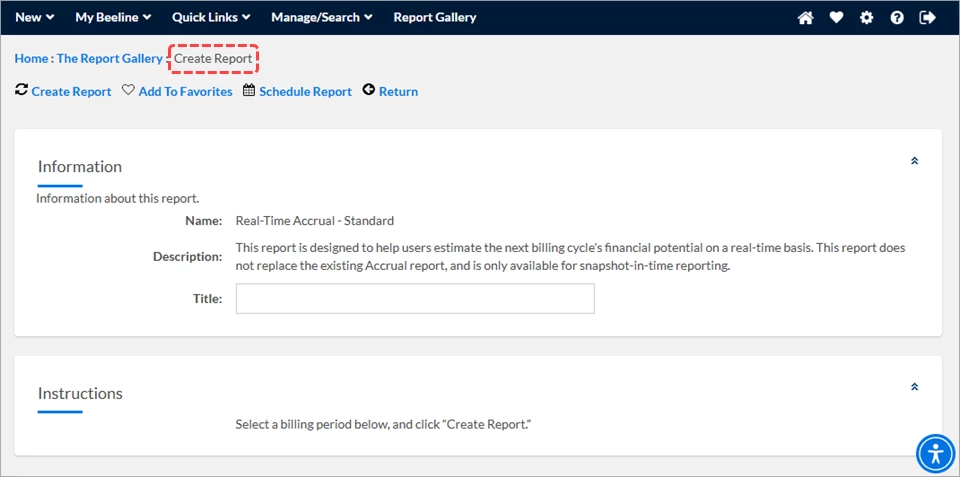
Select Run. The Create Report page displays.
-
Optional. Enter an alternate Title to make the report easier to identify later.
-
Review the Instructions section.
Why this matters: Report-specific guidance and usage information may be provided here.
-
Configure report Parameters. ⚠️
What this does: Filters the report results.
Why this matters: Parameters determine which data is included in the report output.
In simple terms: Use parameters to limit the report to the information you want to see.
Note: Required parameters are identified with an asterisk (*). Reports may return no results if required parameters are not completed.
-
Select Create Report.
Result
The report runs using the selected parameters and displays the data available to you based on your permissions and configuration.
Learn more
- Reporting basics
- Gathering reporting requirements
- Base reports
- Create and run an ad hoc report
- Report access and permissions
- Scheduling reports
| Persona System Administrators | Modules Time & Expense | Documentation release Beeline Enterprise | Q3 2026 | Feedback? Email us: |