Resend failed worker downloads in seconds—keep downstream systems in sync without waiting on support.
Worker Download Resend gives you a fast, self‑service way to correct worker records when something doesn’t send correctly. If a record fails or is sent with the wrong action—like New, Rehire, Change, or Terminate—you simply update the record, choose the correct action, and the system resends it in the next scheduled worker download.
Worker Download Resend acts like a quick reset button for individual worker records, letting you fix only what needs attention without rerunning entire files or disrupting your integration flow. Because it’s built into your existing Beeline Enterprise workflow, it keeps your data accurate, your systems in sync, and your processes running smoothly with minimal effort.
Why it matters
Recover from integration issues fast—no manual file reprocessing.
Lower‑overhead operations and improved consistency with built‑in retry and clear visibility.
Keep downstream systems (payroll, access, onboarding) aligned.
Maintain governed workflows and audit trails.
What you can do
Correct and resend records: Resubmit a specific individual record to fix incorrect create, update, or termination actions before the next scheduled worker download (WDL) run.
Update action flags and queue specific individual records for automatic resend in your next scheduled download.
Resend multiple records with new import IDs for tracking.
Audit confidently by viewing per‑record processing and transmission status directly in Enterprise—no need to locate the original flat file.
Best practices
Match the business intent: Pick the action (New, Rehire, Term) that your downstream systems expect to avoid duplicates or unintended removals.
Correct the source first: If the failure was caused by bad data, fix the data before resending to prevent repeated errors.
If the error was caused by incorrect data in your internal system, fix the incorrect data in your system first, then resend the specific individual worker record.
If the failure was caused by incorrect data in Enterprise, update the assignment first. The corrected transaction must flow through your next scheduled worker download before you can resend the specific individual worker record.
How to use Resends
Designed to work with delta-only WDLs, ensuring efficient processing without full‑file resends.
Supports one active resend per worker at any given time to maintain predictable workflow management.
Resends are queued for the next scheduled run, providing consistent, scheduled delivery behavior without ad‑hoc dispatches.
Persona
Clients, program office users, system administrators
How to steps
Before you begin
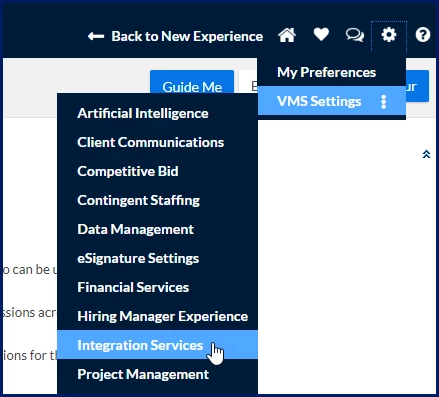
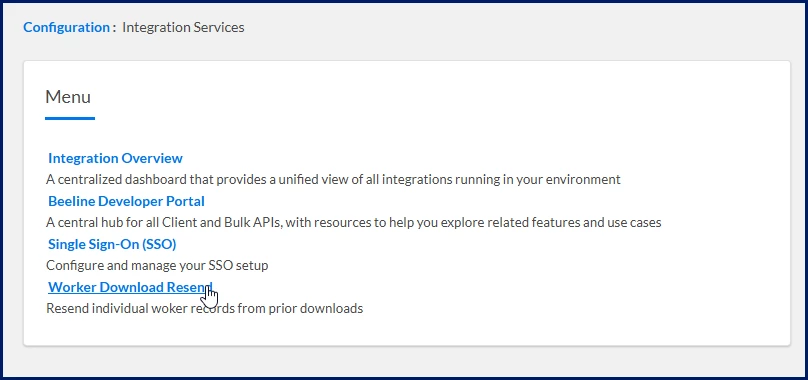
Confirm you have access to VMS Settings > Integration Services > Worker Download Resend.
Know the worker identifiers you’ll search by, such as the Resource ID, Log Import ID, or Request Group Number.
Information in this article reflects a standard Enterprise configuration. Your Enterprise platform is based on your organization’s configuration. Settings and/or data visibility rules may vary slightly from what is described.
To accomplish your task, complete these steps from your Enterprise dashboard.
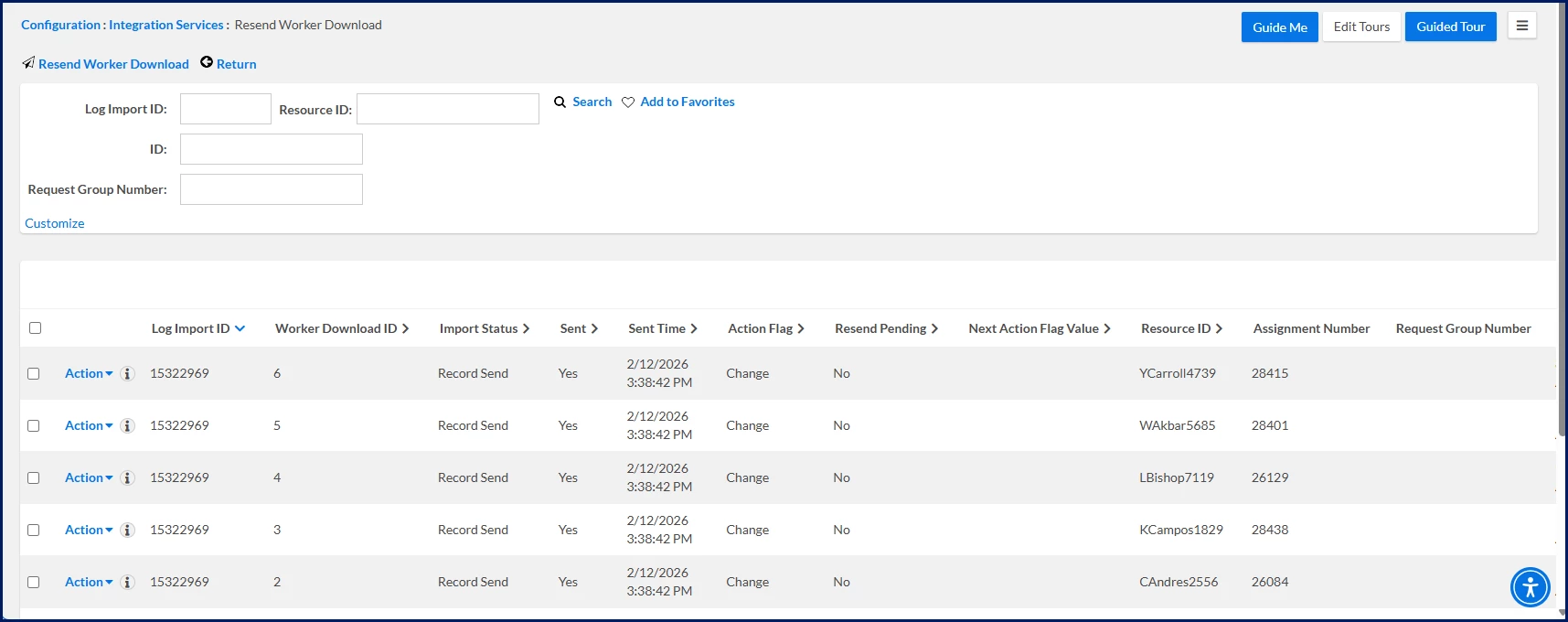
Select Worker Download Resend. A Resend Worker Download page displays.
Validate WDL outcomes without locating the original flat file; the grid shows per‑record transmission state for quick verification. You can instantly see these details about recent worker downloads:
Log Import ID
Worker Download ID
Import Status
Sent
Sent Time
Action Flag
Resend Pending
Next Action Flag Value
Resource ID
Assignment Number
Request Group Number
Filter by Log Import ID, Resource ID, ID, or Request Group Number, and then select Search to find the record. Pro Tip: Use Customize to show the columns you rely on most, then select Add to Favorites if you’ll be here often.
In the Worker Download grid, verify the Import Status, Sent, Sent Time, and Action Flag to review the processing details. Tip: Resend Pending = No means a resend transaction isn’t currently queued.
Optional. Use Log Import ID/Worker Download ID to confirm you’re on the right transaction.
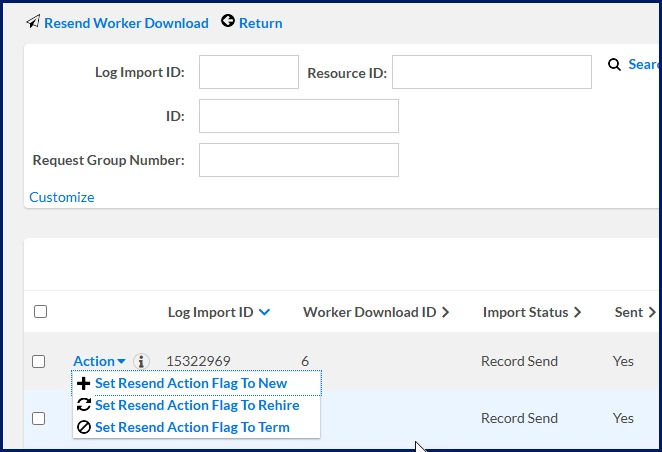
From the Action menu on the target row, choose one of these per‑record options to set the correct action for the resend:
Set Resend Action Flag to New for a corrected create.
Set Resend Action Flag to Rehire for a corrected rehire.
Set Resend Action Flag to Term for a corrected termination.
The selected worker is included in the next scheduled WDL with the action you set—using your existing validation and delivery controls. A new Log Import ID/run ID reflects the resend.
Watch Resend Pending transition and confirm the new Sent/Sent Time values.
References
Browse through these topics to learn more about the Worker Download Resend page and about resend statuses.
About the Worker Download Resend page
Field
Description
Log Import ID and Worker Download ID
Identify the specific run/record.
Import Status
State of the send operation, such as Record Send.
Sent and Sent Time
Whether the record was transmitted and when.
Action Flag
Current action type, such as Change.
Resend Pending
Indicates whether a resend is queued but not yet processed.
Next Action Flag Value
What action will be used on resend (populated after you choose it).
Resource ID, Assignment Number and Request Group Number
Allow you to trace workers and transactions across systems, linking their point of origin to their current location in Enterprise.
About the actions
Use these options in Resend Worker Download to force a specific action type to be re‑sent through your standard WDL process. Each option queues the worker for the next run, even if no new change is detected.
Pro tip: These flags override the usual "only send changes" detection for the selected record and route the resend through your governed WDL validation and delivery pipeline.
Action
What it does
When to use it
How it’s interpreted downstream
Set Resend Action Flag to NEW
Treats the worker as newly created and re‑sends in the next WDL run, even if no fields changed.
Downstream missed the original add
Prior transmission failed or wasn’t processed
You corrected source data and need it pushed again
You must force a manual resend of the add record
Add/create worker; kick off initial provisioning as designed
Set Resend Action Flag to Rehire
Sends the record as a Rehire using rehire‑specific logic/fields, even without a new rehire event.
Downstream missed or rejected the rehire
File failed to transmit or was corrupted
Rehire data was corrected and needs a full rehire resend
Event‑driven flow missed the trigger
Reopen/reactivate worker; process as a rehire with the expected rehire attributes
Set Resend Action Flag to Term
Sends the record as a Termination with termination‑specific fields in the next run.
Downstream missed the termination
Need to reflow a termination after fixing an error
Retro termination required for a record sent before activation
Inactivate/end worker; downstream systems remove access/stop services per design
Persona
Modules
Documentation release
Feedback? Email us:
Clients, program office users, system administrators
Please complete the following fields as part of your Beeline Community registration. Unless noted as private, this information will be displayed on your user profile within the community.