


Copying a Milestone Type
Configure once. Reuse everywhere.
When you’re working in Milestone Types, the Copy button gives you a fast, reliable way to build new milestone types without starting from a blank form. Instead of entering every field manually—name, code, billing term categories, type, unit of measure, and dozens of settings—you can duplicate an existing milestone type with one click. The system instantly creates a new version with all applicable fields pre‑filled, so you only adjust what you need and save it as a new milestone type.
This streamlined approach removes the repetitive work of recreating the same configuration for each geography or industry. By reusing a proven setup, you reduce errors, ensure consistency, and complete updates in a fraction of the time. It’s a simple, powerful way to speed up your milestone setup process and maintain accuracy across projects.
Why it matters
- Efficiency
- Get setup done faster by reusing milestone configurations instead of rebuilding them for every region.
- Make quick updates with pre‑populated fields that help you move confidently from one milestone to the next.
- Accuracy
- Cut down on manual‑entry mistakes, including incorrect milestone codes or missing billing categories.
- Keep milestone data clean and consistent across your entire setup.
- Consistency
- Stay aligned across geographies with standardized milestone configurations.
- Maintain compliant, accurate billing and milestone rules without extra effort.
What you can do
- Duplicate an existing milestone type and update it in minutes—without rebuilding configurations from scratch.
- Copy milestone types at both the industry and project levels to fit your setup needs.
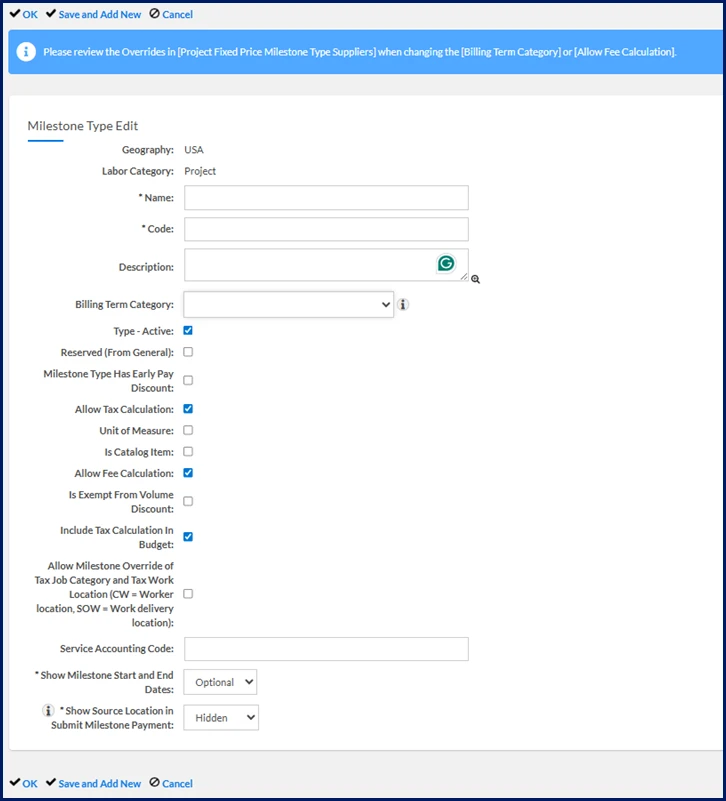
- Work from pre‑populated fields and update only unique identifiers (milestone type, code, description) making edits fast and simple.
How it works
When you copy a milestone type, the system streamlines setup by reusing most of the original configuration while clearing only the fields that must be unique.
| Behavior | Details |
|---|---|
| Reset fields |
|
| Copied fields | All other fields are copied from the original milestone type and remain fully editable. |
Best practices
- Always review copied fields for region-specific or industry-specific adjustments.
- Maintain naming conventions to keep milestone types easy to find.
- Document your preferred templates to guide other administrators.
- Regularly audit copied milestone types to ensure they remain up to date.
Persona
System administrators
How to steps
Before you begin
- Confirm you have access to Admin > Project
- Know the milestone type you want to copy
Information in this article reflects a standard Enterprise configuration. Your Enterprise platform is based on your organization’s configuration. Settings and/or data visibility rules may vary slightly from what is described.
To accomplish your task, complete these steps from your Enterprise dashboard.
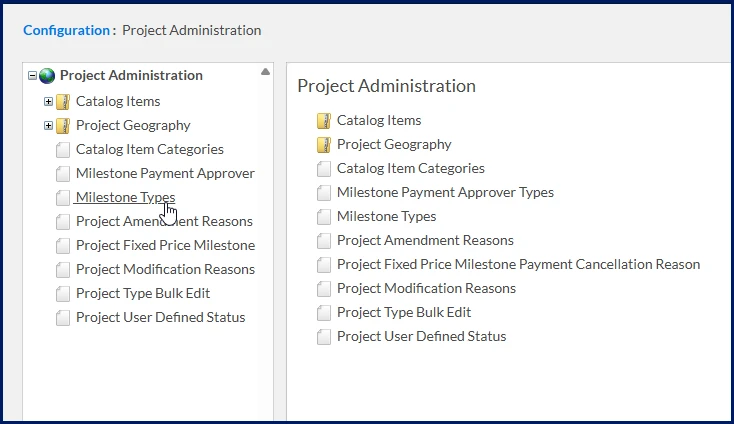
- Select Admin > Project. A Project Administration page displays.
- From the left Navigation, select Milestone Types under the Project Geography folder.
A Milestone Types page displays.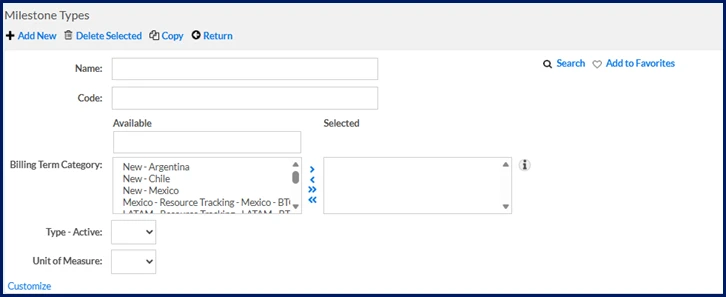
- Select Copy. A Milestone Type Edit page displays.
-
Update the fields you need—only unique identifiers are blank.
-
Select OK to save your new milestone type.
| Persona | Modules | Documentation release | Feedback? Email us: |
|---|---|---|---|
| System administrators | Cross-platform | Beeline Enterprise | Q1 2026 | beelinecommunity@beeline.com |