


Copying a Project Type
Copy smarter. Configure faster.
As someone responsible for keeping your Beeline Enterprise environment running smoothly, you need tools that help you work quickly, confidently, and with minimal rework. Copying a project type lets you build new configurations in seconds, so you can maintain a clean, reliable structure that grows with your program’s needs.
Why it matters
- Ensures consistent data collection across projects and SOWs
- Reduces operational complexity
- Minimizes configuration and workflow errors
- Supports scalable, repeatable project structures
- Enables rapid adjustments to changing program needs
How it helps
- Streamlines creation of new project type variations
- Preserves trusted configurations through inherited fields
- Improves accuracy by reducing manual entry
- Enhances consistency across sourcing and compliance workflows
- Supports efficient administration of project-related settings
How it works
Managing project types effectively means knowing exactly what carries over when creating a new version. The copy process is designed to save time, reduce manual updates, and help maintain consistency across your program. By understanding how fields behave—what’s copied, what’s excluded, and what resets—you can confidently build new project types that stay aligned with your sourcing strategy, compliance needs, and overall configuration standards.
| Category | Fields |
|---|---|
| Copied fields | Project industry Country Project currency code Is active flag Enforce procurement cap Milestone, UOM, and T&M behavioral settings Resource configuration settings Budget, pricing, and sourcing logic Compliance and classification rules Field defaults and optional field rules Associated workflow and processing logic |
| Not copied fields | Project type name Project code Project description |
| Reset fields | Project type (blank) Project code (blank) Project description (blank) |
Best practices
- Maintain clear naming conventions for project types and codes
- Group similar project types by sourcing model (e.g., T&M, Milestone, Hybrid)
- Standardize fields that should remain consistent across the program
- Limit project type variations to those with meaningful functional differences
- Review inherited fields before activation to ensure compliance alignment
- Archive outdated project types to reduce clutter and selection errors
- Align SOW templates to project types using a one‑to‑one or controlled one‑to‑few mapping
Persona
System administrators
How to steps
Before you begin
- Confirm you have access to Admin > Project
- Know the project type you want to copy
Information in this article reflects a standard Enterprise configuration. Your Enterprise platform is based on your organization’s configuration. Settings and/or data visibility rules may vary slightly from what is described.
To accomplish your task, complete these steps from your Enterprise dashboard.
- Select Admin > Project. A Project Administration page displays.
- From the left Navigation, expand the Project Geography folder so you can locate the corresponding geography where your project type is set up.
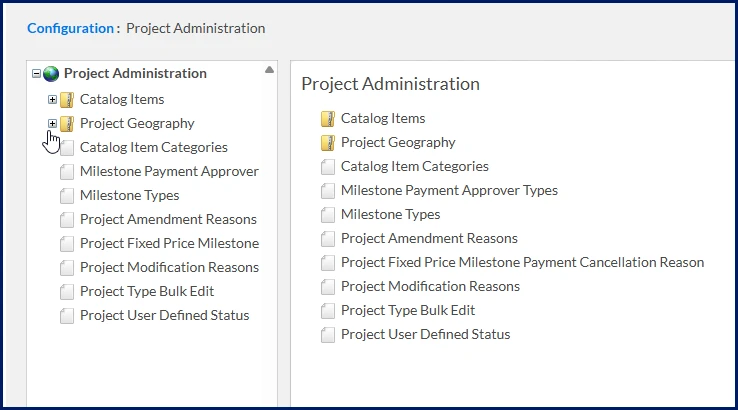
- From the left Navigation, locate and expand the Geography folder for the location you want to manage.
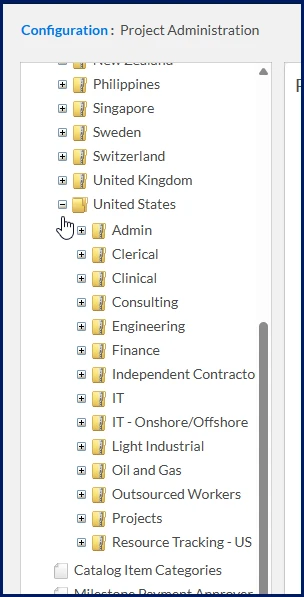
- From the left Navigation, locate and expand the Industry folder for the line of business you need to manage.
- From the left Navigation, select Project Types.
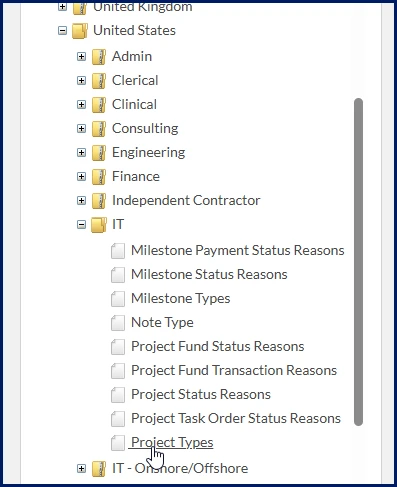
A Project Types page displays. - Locate and select the checkbox next to the name of the project type you want, and then select Copy.
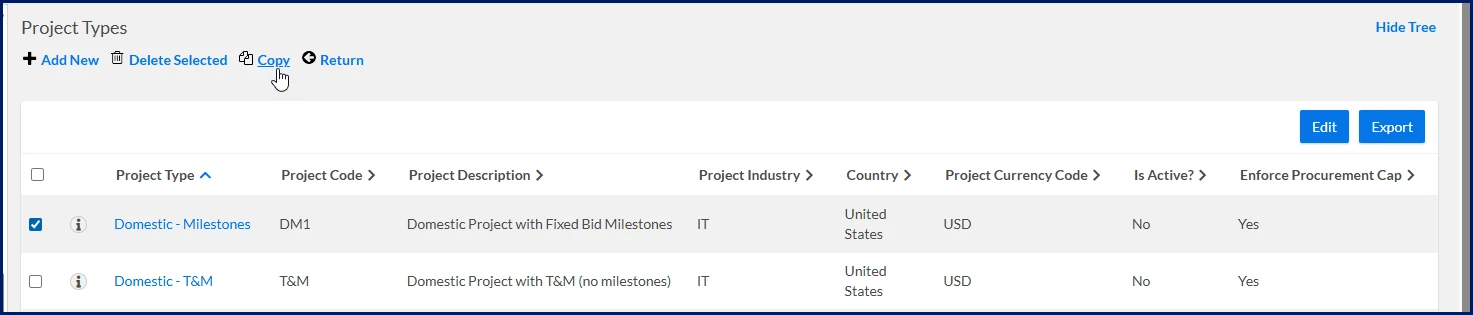
An Add Project Type page displays.
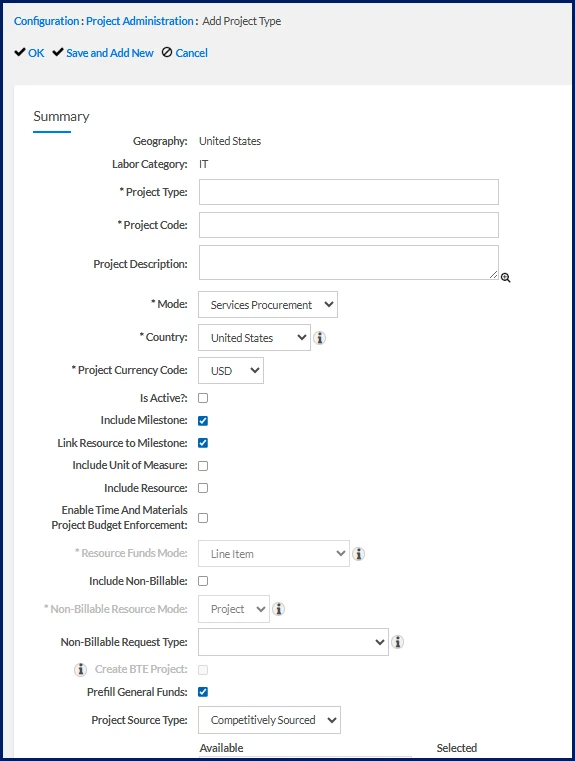
- Make any changes you need, and then select OK to save your new project type.
| Persona | Modules | Documentation release | Feedback? Email us: |
|---|---|---|---|
| System administrators | Cross-platform | Beeline Enterprise | Q1 2026 | beelinecommunity@beeline.com |