


This article provides hiring managers / timesheet approvers with the steps necessary to manage a timesheet using Approval Central in Beeline Classic.
If you’re using the Hiring Manager Experience, see the Beeline Hiring Manager Experience – The Basics guide for instructions.
Persona
Clients, program office users and project managers
How to steps
Information in this article reflects a standard Enterprise configuration. Your Enterprise platform is based on your organization’s configuration. Settings and/or data visibility rules may vary slightly from what is described.
To accomplish your task, complete these steps from your Enterprise dashboard.
- From the My To Do List, select the You have timesheets to approve link. The Approval Central page displays.
- Select the Arrow to the left of the contractor’s name to view details for the selected timesheet.
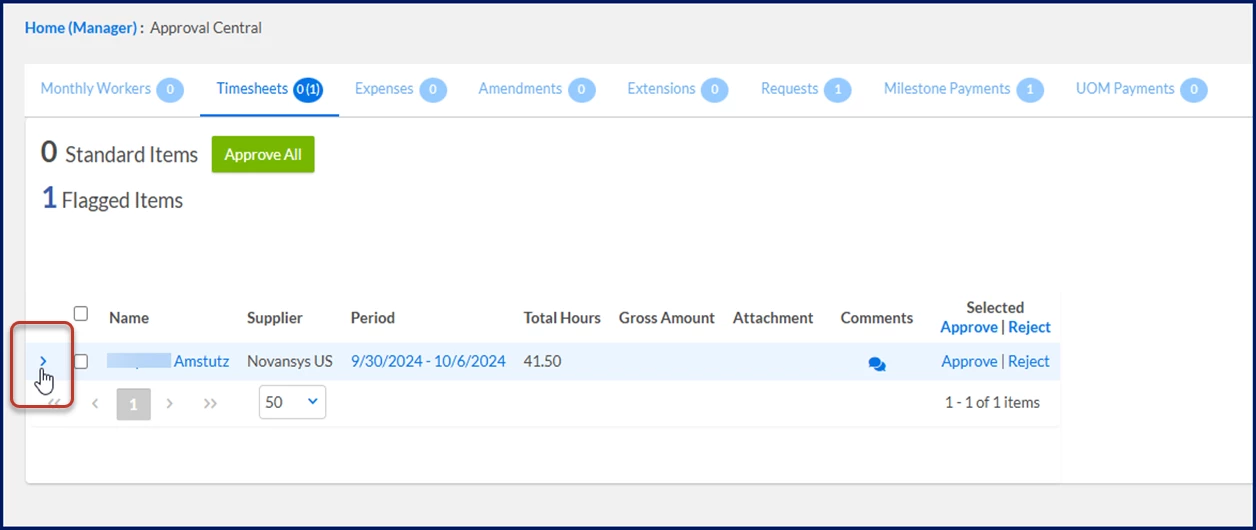
- Optional. View detailed timesheet details by select the Contractor Name or the Timesheet Period link. Review all information related to the timesheet.
- Optional. Select the Comments icon to enter remarks about the timesheet.
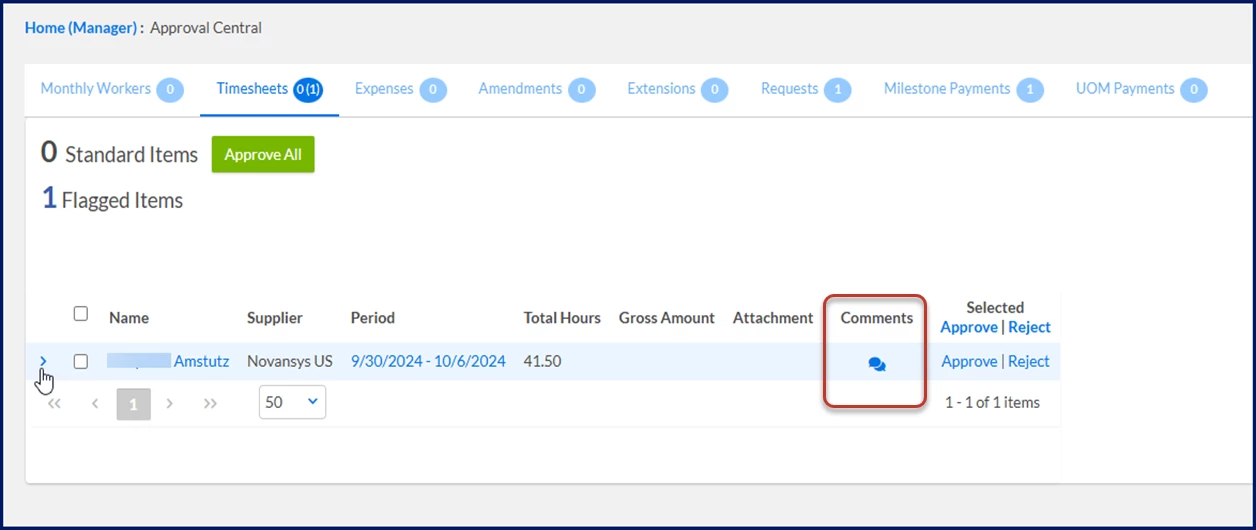
- Select Approve.
TIP: Select the Approve All button to approve all timesheets.
Caution: You’re not prompted to approve this action.
OR
Select the checkbox for each line item and then select Approve to approve a group of timesheets.
OR
Select Reject and then add an explanation for why you’re declining the timesheet.
The timesheet status updates and the timesheet is removed from the list. Notifications are sent to the contractor and supplier for all rejected timesheets.
| Persona | Module | Date Posted | Feedback? Email us: |
| Clients Program Office Users | Approval Central | Beeline Enterprise |