


Reprocess a timesheet
Reprocess timesheets with confidence
Quickly unlock and reprocess timesheets to correct errors, update assignment details, and keep time and expense data accurate without administrative delays.
The Reprocess a Timesheet self-service feature gives you a fast way to reopen approved timesheets when updates are needed. Whether you need to correct time details, update a cost center or project, or apply assignment changes, you can reprocess the timesheet directly from Time & Expense Self-Service and select the option that best matches your business need.
Jump to what you need
Why it matters
- Correct timesheet errors without creating a new timesheet.
- Keep billing, project, and cost center information accurate.
- Reduce delays caused by routing issues or incorrect submissions.
- Apply assignment-related updates to previously approved timesheets.
- Resolve common timesheet discrepancies through a guided self-service process.
Who it's for
- Hiring managers using Beeline Classic
- Program office users
How it helps
- Gives you direct access to timesheet reprocessing tools.
- Lets you locate timesheets quickly using flexible search filters.
- Provides reprocessing options tailored to different correction scenarios.
- Helps you avoid unnecessary reapproval cycles when assignment-only updates are needed.
- Allows you to notify stakeholders through an optional email notification.
Before reprocessing a timesheet
Before you begin, make sure you:
- Have access to the Time & Expense Self-Service features.
- Are authorized to reprocess timesheets.
- Understand whether the change requires a Timesheet Update or an Assignment Update.
-
Confirm whether the timesheet has already been invoiced. Timesheet changes made before invoicing are typically handled through the amendment process. Once a timesheet reaches Locked status, use reprocessing to make corrections.
- Review the timesheet details before authorizing reprocessing.
- Ensure the timesheet you want to update exists in your Beeline Enterprise VMS.
How to steps
Information in this article reflects a standard Enterprise configuration. Your Enterprise platform is based on your organization’s configuration. Settings and/or data visibility rules may vary slightly from what is described.
To accomplish your task, complete these steps from your Enterprise dashboard.
- Open the Reprocess Timesheets page.
Depending on your Enterprise configuration, you can access Reprocess Timesheets from:
- Admin > BTE Management > Reprocess Timesheets
- Preferences > VMS Settings > Time & Expense > Reprocess Timesheets
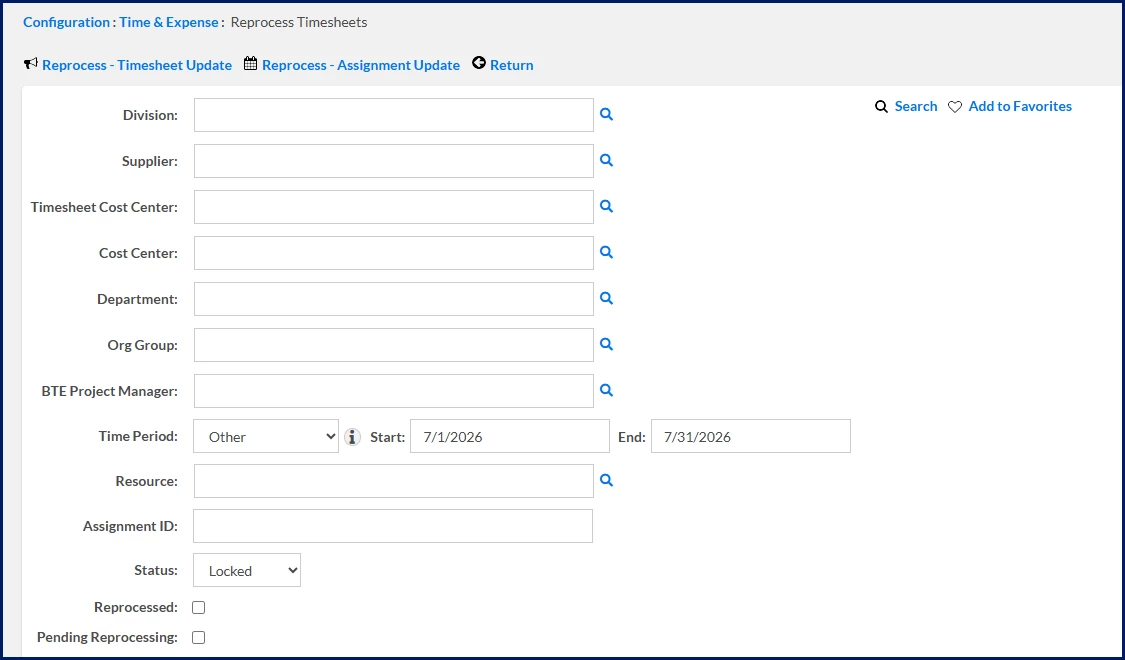
The Reprocess Timesheets page displays.
-
Search for the timesheet
- Use available filters such as:
- Division
- Supplier
- Timesheet Cost Center
- Cost Center
- Department
- Org Group
- BTE Project Manager
- Time Period
- Resource
- Assignment ID
- Status
- Reprocessed
- Pending Reprocessing
- Optional. Use the Lookup icon 🔍 next to supported fields to search for and select values.
- Specify a Time Period to narrow the search results.
- Optional. Use the Status filter to find timesheets in a specific state, such as Locked.
- Optional. Select Reprocessed to find timesheets that have already been reprocessed.
- Optional. Select Pending Reprocessing to find timesheets with a reprocessing request in progress.
- Select Search.
- Review the search results.
- To review a timesheet before reprocessing, select the Time Period date link.
Choose a reprocess option - Select the checkbox next to the timesheet you want to reprocess.
- Select the appropriate reprocess action from the toolbar.
If you need to... Select... Result Correct timesheet details, such as time entries, cost centers, or project information Reprocess – Timesheet Update Unlocks the timesheet and changes the status to Not Submitted so it can be updated in BTE and approved again. Apply assignment changes that do not require updates to timesheet details Reprocess – Assignment Update Unlocks the timesheet and keeps it in Approved status so reapproval is not required.
Confirm and submit the reprocess request -
Review the information in the Timesheet Reprocess Confirmation dialog.
-
Enter Comments ⚠️
What this does: Documents the reason for reprocessing.
Why this matters: Comments are required before the reprocessing request can be submitted.
In simple terms: Explain why the timesheet needs to be reprocessed.
-
Verify that you selected the correct reprocess option.
-
Optional. Select Send Email Notification to notify stakeholders.
-
Select OK. You’re returned to the Reprocess Timesheets page, and the selected timesheet is reprocessed.
Common reasons to reprocess a timesheet
- Correct incorrect time entries.
- Update an incorrect cost center.
- Update an incorrect project.
- Apply assignment changes after a timesheet has been approved.
After reprocessing is complete, the adjustment is reflected during a future invoice cycle. When invoice processing finishes, the timesheet returns to Locked status and displays an additional(reprocessed) indicator.
| Persona Hiring managers Program office users | Modules Time & Expense | Documentation release Beeline Enterprise | Q2 2026 | Feedback? Email us: |