


The background check provider synchronization process matches background check packages between Beeline Enterprise and your Accurate® integration. Background check package details are retrieved from your Accurate integration and sent to Enterprise.
Information in this article reflects a standard Enterprise configuration. Your Enterprise platform is based on your organization’s configuration. Settings and/or data visibility rules may vary slightly from what is described.
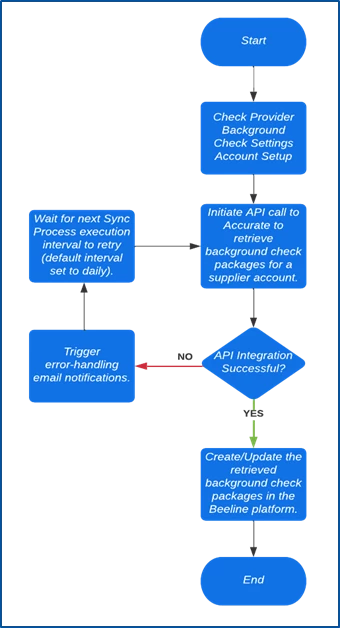
This topic outlines integration errors that might occur during provider synchronization when background check packages are retrieved from Accurate. Recommended actions and remediation steps are included.
Invalid API Base URL
Beeline was unable to establish a successful connection to the configured API Base URL. The configured API Base URL was either invalid or doesn’t exist.
Error message
Received error HTTP response. Status Code: NotFound. Response Body: {"errors":[{"code":"107",
"message":"invalid resource","param":null}]}
Recommended action
Review and confirm that the correct Accurate API Base URL is configured in the Provider Account Settings for the Supplier.
Remediation steps
- From Enterprise, select Preferences > VMS Settings > Contingent Staffing.
- From the Contingent Staffing page, select Background Check Provider Settings.
- Locate and select the Supplier account associated with the failed synchronization integration.
- Review the configured value for the Provider Base Location URL on the View Background Check Provider page.
Invalid Authentication Credentials (Client ID, Sub Company ID, Client Secret)
Beeline was unable to authenticate into the Accurate API URL due to invalid credentials.
Error message
Access denied. The credentials do not provide access to the requested resource.
Recommended action
Review and confirm that the correct Accurate API credentials are configured in the Provider Account Settings for the Supplier.
Remediation steps
- From Enterprise, select Preferences > VMS Settings > Contingent Staffing.
- From the Contingent Staffing page, select Background Check Provider Settings.
- Locate and select the Supplier account associated with the failed synchronization integration.
- Review the configured values for the Client ID, Sub Company ID, and Secret Key on the View Background Check Provider page.
Malformed API JSON Response
Beeline was unable to process the response retrieved from Accurate while synchronizing background check packages. The response payload either contains an invalid property or isn’t in the correct JSON format.
Error message
Error in Deserializing Accurate Response.
Recommended action
Contact your Beeline representative and/or create a support ticket.
Remediation steps
- Navigate to Beeline’s website.
- From the Navigation ribbon, select Support.
- From the Customer service and support page, select Request Assistance under Beeline Support.
- Select the type of assistance you need.
- Include the Beeline Background Checks–Accurate Integration in the description of your support ticket.
Database Timeouts/Violations
Beeline was unable to correctly process and store the retrieved data from Accurate while synchronizing background check packages. Potential causes are unique constraint validation on database columns or database timeouts.
Error message
The Name/Code with Labor Category must be unique.
Recommended action
Contact your Beeline representative and/or create a support ticket.
Remediation steps
- Navigate to Beeline’s website.
- From the Navigation ribbon, select Support.
- From the Customer service and support page, select Request Assistance under Beeline Support.
- Select the type of assistance you need.
- Include the Beeline Background Checks–Accurate Integration in the description of your support ticket.
Provider Internal Server Error
Beeline was unable to establish a successful connection to the configured Accurate API URL. This is a generic error message.
Error message
Generic system error
Recommended action
Contact your Beeline representative and/or create a support ticket.
Remediation steps
- Navigate to Beeline’s website.
- From the Navigation ribbon, select Support.
- From the Customer service and support page, select Request Assistance under Beeline Support.
- Select the type of assistance you need.
- Include the Beeline Background Checks–Accurate Integration in the description of your support ticket.
Documentation release: Beeline Enterprise | Q2 2022