


After Beeline Enterprise is configured and the designated users are given permissions, Program Office users can add end client data to Enterprise.
As a Program Office user with the appropriate permissions, you might want to enter the data manually if you have only a few clients.
If you have multiple clients, you can save time by importing your end client data. Go to Importing end client data for instructions.
Beeline Best Practice. As a Program Office user, consider these criteria when creating end client data.
| Data element | Description |
|---|---|
| Name | Create a concise yet descriptive label so your users can easily recognize which entry to select when they’re choosing a client. |
| Code | Caution: The end client Code cannot be changed after you create it. Avoid spaces and special characters when you create a code. Use the formatting or style from the system of record if Enterprise is not the system of record and your data will be integrated with another system, such as worker upload, worker download, invoice, or other feed. |
| Description | Add an explanation for when and why a user might choose a particular end client. Or use the Description to link the Name and Code fields into one data field. For example, Client A has 123456 as their accounts payable system code. You might add Client A-123456 in the Description field. |
To manually add end client data, complete these steps from your Enterprise dashboard.
- Select Admin > Procurement.
- Under Procurement Administration, navigate to and select Procurement Client.
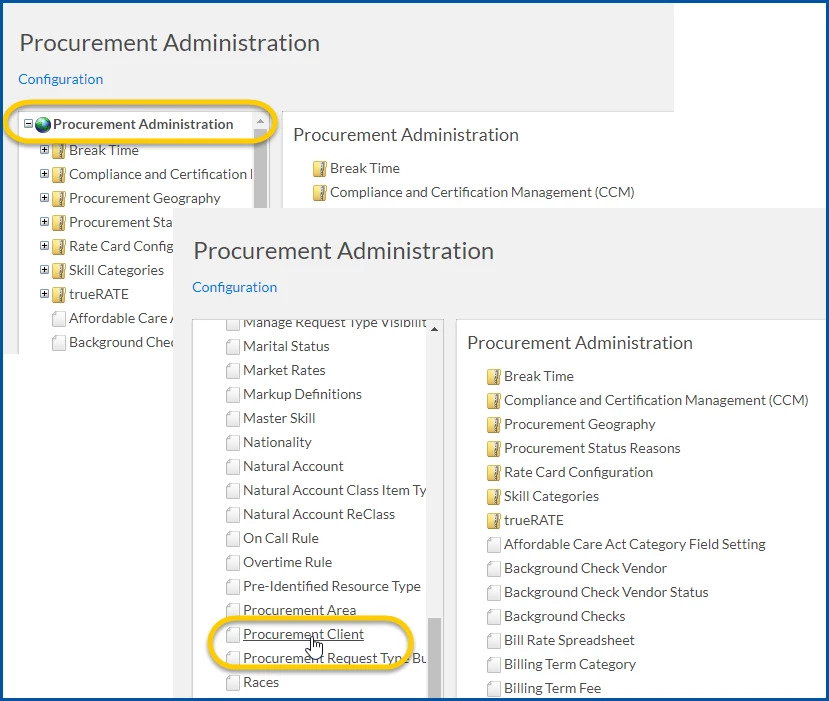
- From the Procurement Client panel, select Add New. An Add Client page displays.
- In the Name field, add a concise yet descriptive label so your users can easily recognize with entry to select when they’re choosing a client.
- In the Code field, add an acronym for the client. Be sure to avoid spaces and special characters.
Caution: The end client Code cannot be changed after you create it.
- In the Description field, add an explanation for when and why a user might choose a particular end client. Or use the Description to link the Name and Code fields into one data field. For example, Client A has 123456 as their accounts payable system code. You might add Client A-123456 in the Description field.
- Make sure the Is Active checkbox is selected.
- Select OK.
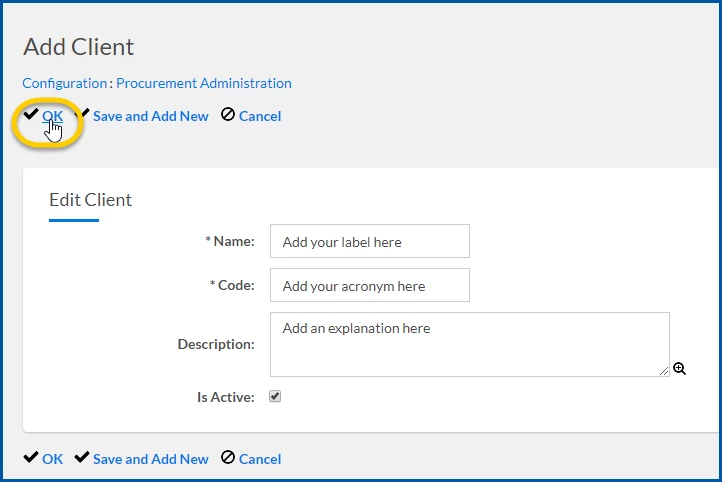
The end client data is added to Enterprise and available to users when they’re creating requests or amending assignments.
Related articles
Documentation release: Beeline Enterprise | Q2 2019