


Topics on this page
As a Beeline Enterprise Administrator, you may need to assist another user with their Beeline Identity. You can manage Beeline Identity information for a user’s Beeline Enterprise account before and after their Beeline Identity is created.
About Beeline Identities
A user’s Beeline Identity is a unique email address used to access Beeline Enterprise. A user’s Beeline Identity can be linked to one or more Enterprise accounts.
The Beeline Identity for an MSP, a PMO or a supplier who logs in to multiple Enterprise sites can be linked to all their Enterprise accounts eliminating the need to juggle several Enterprise credentials.
Beeline Enterprise user authorization authorizes a user, verifies the user is active, determines if single sign‑on (SSO) is required, confirms access rights/permissions to pages, and much more. To ensure an individual user is correctly authenticated and authorized, a Beeline Identity used in a single instance of Enterprise cannot be associated with multiple email accounts.
Beeline accounts without a Beeline Identity
If a user’s Enterprise account hasn’t been linked to a Beeline Identity, you can use the Identity tab on the Edit User Details page to add a user’s login email address. Adding the login email address generates a Beeline Identity and consolidates the user’s Enterprise credentials.
Beeline accounts linked to a Beeline Identity
If a user’s Enterprise account is already linked to a Beeline Identity, you can use the Identity tab on the Edit User Details page to take these actions:
- Resend a Welcome email to a user.
- View historical details about a user’s Beeline ID.
- Unlink a user’s Beeline Identity and correct any misspelled emails or incorrectly linked accounts.
How to steps
Persona
Beeline Enterprise administrator
Information in this article reflects a standard Enterprise configuration. Your Enterprise platform is based on your organization’s configuration. Settings and/or data visibility rules may vary slightly from what is described.
Adding a login email and generating a user’s Beeline Identity
If a user’s Enterprise account does not have a Beeline Enterprise Login Email address, you can add a user’s login email address, generate a Beeline Identity and consolidate the user’s Enterprise credentials.
To add a login email and generate a Beeline Identity for another user, complete these steps from your Enterprise dashboard.
- From the General Configuration section, expand the Users List and select the user type associated with the user whose Beeline Identity want to manage.
- Select the Search Options link to open a Search page.
- Enter data to locate the user you want, and then select Search.
- From the list of search results, select the user you want to update. An Edit User page displays with the Summary tab selected by default.
- Select the Identity tab.
- Select Edit.
- In the Login Email field, enter the email address the user will use to log in to Enterprise.
- Select OK.
A Welcome email is sent to the user. They must create a password before they can log in to Enterprise.
Resending a Welcome email
Occasionally, you might need to resend a Welcome email to a user. For example, the link in the Welcome email they initially received expired before they could verify their email.
To resend a Welcome email, complete these steps from your Enterprise dashboard.
- From the General Configuration section, expand the Users List and select the user type associated with the user you whose Beeline Identity want to manage.
- Select the Search Options link to open a Search page.
- Enter data to locate the user you want, and then select Search.
- From the list of search results, select the user you want to update. An Edit User page displays with the Summary tab selected by default.
- Select the Identity tab.
- Select the Resend Welcome Email link.
A new Welcome email is generated and sent to the user.
Viewing historical log details
During Beeline Enterprise ’s user login process, Enterprise ’s authentication provider authenticates the user and validates their identity as they attempt to access their profile on Enterprise. Enterprise ’s authentication provider verifies a user’s username and password, and then transmits results to Enterprise.
Next, processes on Enterprise authorize the users, verify the user is active, determine if single sign-on (SSO) is required, confirm access rights/permissions to pages, and much more.
Sometimes Beeline Identity users encounter authentication or authorization issues, and you might want to look at log information to get to the root of the issue. Using the comprehensive list of related errors in the User Identity History dialog simplifies troubleshooting.
You can view Enterprise authorization errors or Enterprise authorization and Beeline’s authentication provider authentication errors for a Beeline Identity user you’ve selected and the Enterprise site you’re currently logged in to.
To view historical authentication or authorization log details, complete these steps from your Enterprise dashboard.
- From the General Configuration section, expand the Users List and select the user type associated with the user you whose Beeline Identity want to manage.
- Select the Search Options link to open a Search page.
- Enter data to locate the user you want, and then select Search.
- From the list of search results, select the user you want to update. An Edit User page displays with the Summary tab selected by default.
- Select the Identity tab.
- Select the User Identity History link.
A User Identity History dialog displays showing you Beeline platform authorization errors. You can view up to 100 log entries. Only the most recent entries dated after September 9, 2022, display. Log entries display in your localized time and date format. - Optional: To view Beeline platform authorization errors and Auth0 authentication failed login attempts, select the Show Beeline and Auth0 events checkbox.
- Optional: If a Beeline Identity is used in a single instance of a Beeline platform and is associated with multiple email accounts, a warning displays near the top of the User Identity History dialog. And the most recent email becomes the primary email associated with the user’s Beeline Identity. If you need to modify that email, go to Changing a user’s login email address for instructions.
TIP: Because Enterprise user authorization ensures that a user has the appropriate permissions, a Beeline Identity used in a single instance of a Enterprise cannot be associated with multiple email accounts. - Optional: Select Export to open a Save As dialog so you can download the information as a Microsoft Excel® worksheet.
- Select the Close icon to return to the Edit User page.
Changing a user’s login email address
Occasionally you may need to resolve linking errors between a user’s Beeline Identity and their login email. For example, the supplier’s email address was initially used for the talent’s login email. The talent has been onboarded, and you need to update the login email with the talent’s email. Or the original login email address might have been inadvertently misspelled.
You cannot change another user’s login email address if you’re impersonating an MSP, a PMO or a supplier administrator.
To change the login email associated with a user’s Beeline Identity, complete these steps from your Enterprise dashboard.
- From the General Configuration section, expand the Users List and select the user type associated with the user you whose Beeline Identity want to manage.
- Select the Search Options link to open a Search page.
- Enter data to locate the user you want, and then select Search.
- From the list of search results, select the user you want to update. An Edit User page displays with the Summary tab selected by default.
- Select the Identity tab.
- Select the Unlink Login Account link. A dialog displays prompting you to confirm your action.
- Select OK. The user’s Beeline account is unlinked from their related authentication profile. An Edit link displays below the Beeline Identity frame.
- Select Edit. A Login Email field displays.
- Enter the new email address.
- Select OK.
A message displays indicating your changes were saved and that the user must log out and log in to Enterprise for the changes to be applied. When you change a user’s login email, a Welcome email is sent to the user.
About MFA authentication
The company you work for may require an extra layer of security to verify your identity. You and your users may need to log in to Beeline Enterprise with your Beeline Identity and multifactor authentication (MFA). Using MFA requires you to verify your identity using more than one method before you’re logged in.
Resetting MFA information
Every now and then you may need to reset the multi-factor authentication (MFA) information associated with a user’s Beeline Enterprise account. For example, the user may have received a new device from which they will log in to Enterprise.
To reset MFA information, complete these steps from your default Enterprise dashboard.
- From the General Configuration section, expand the Users List and select the user type associated with the user you whose Beeline Identity want to manage.
- Select the Search Options link to open a Search page.
- Enter data to locate the user you want, and then select Search.
- From the list of search results, select the user you want to update. An Edit User page displays with the Summary tab selected by default.
- Select the Identity tab.
- In the Multifactor Authentication section, select Reset MFA. A Reset User MFA warning displays prompting you to confirm updating the MFA enrollment.
Caution: You cannot undo resetting an MFA enrollment. - Select OK.
The user’s MFA information and their Auth0 enrollment are removed. Then next time they log in to Enterprise, they’ll need to enroll with Auth0.
Troubleshooting a user’s MFA authentication
Sometimes, users continue to have issues with the multi-factor authentication (MFA) information associated with their Beeline Enterprise account. As a Beeline Enterprise Administrator, you may need to take additional steps to help users troubleshoot their MFA information.
Here are some basic steps you can try after you’ve reset the user’s MFA information.
Make sure the user has removed the existing MFA entry from their authenticator app.
Ask the user to open the Authenticator app on their phone. Next, find the current entry for Enterprise. Then delete the entry.
Have the user check the accuracy of the clock on their phone.
The clock on the user’s phone must be accurate because the current time is used to generate an MFA code. If the clock on the user’s phone is more than 30 seconds off the standardized international time used by the authentication server, a valid code cannot be generated. And the user needs to synchronize the clock on their phone using the National Institute of Standards and Technology (NIST) Official U.S. Time
- Ask the user to check the Clock that displays in the panel at the right and tell you the value that displays in the Your clock is off by field.
- Instruct the user to set up their phone to automatically set its clock. Direct the user to the Rejected Codes section in this Auth0 Docs article.
TIP: The user can also manually set the clock on their phone.
Remind the user to be prompt when entering a generated MFA code.
If a user doesn’t promptly enter a generated MFA code in Enterprise, it may have expired, and they’ll need to generate a fresh, valid code.
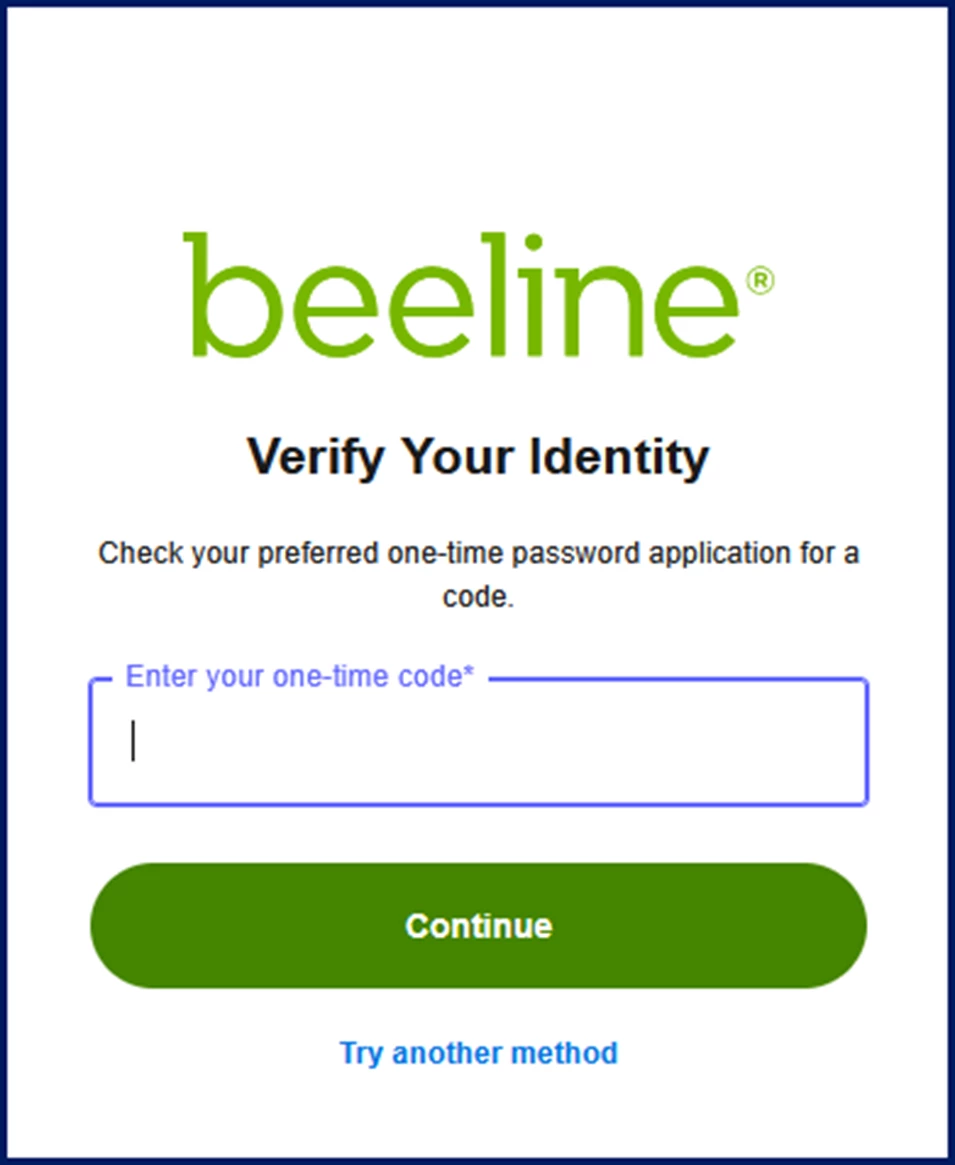
Ask the user to authenticate using one of these supported web browser extensions and record their steps.
- Apple® Safari® built-in Two-Factor Authenticator
- Google© Chrome© Authenticator with Authenticator.cc
- Microsoft® Edge® with Authenticator.cc
- Mozilla© Firefox© with Authenticator.cc
You might have a live call with the user and use Microsoft Teams® or Cisco® Webex® to record the meeting. Recording their authentication actions allows you to verify how the user is logging in to Enterprise using MFA. That may give you insights into whether the issue is with the user’s phone.
After the test, you can reset the user’s MFA information. Next, the user can set up MFA again using their phone and then uninstall the web browser plugin.
Documentation release: Beeline Enterprise | Q3 2023