


Topics on this page
After Beeline Enterprise is integrated with your background check provider, you can quickly view the details and the status of a background check anytime you like from a candidate’s profile. As a supplier, you may want to use that data to follow up with the candidate or the background check provider if processing progress seems delayed.
To keep you informed about the progress of your background check orders, you’ll also receive email notifications during these steps in your workflow if you’re the hiring manager, the program office or the supplier associated with a requisition.
- A background check is ordered
- A background check order fails
- The status of an ordered background check change
- The result of an ordered background check change
When you view details for an ordered background check, you may see statuses like these.
| Status | Description |
|---|---|
| Completed | All checks are finalized and finished. |
| Pending | Ordered and submitted to Accurate but not processed. |
TIP: Acceptable statuses and status names vary based on your organization’s background check provider account configuration.
Information in this article reflects a standard Enterprise configuration. Your Enterprise platform is based on your organization’s configuration. Settings and/or data visibility rules may vary slightly from what is described.
Reviewing email notifications
The details in email notifications about an ordered background check vary based on your background check provider.
To view the progress of an ordered background check in an email notification, complete these steps.
- Navigate to the email account associated with your Enterprise account.
- Open the email notification titled: Background Check Status.
- You can view these details from the email notification.
| Accurate notifications | HireRight notifications | Sterling notifications |
|---|---|---|
|
|
|
Checking the status for a specific candidate’s order
From Beeline Enterprise, you can review the status of a background check order anytime you like from a candidate’s profile. For example, you might wonder why a specific candidate hasn’t progressed in the onboarding process.
Sometimes a candidate’s background check results may not meet your program’s acceptance criteria. When that occurs, the candidate is routed to your program office so they can review the background check results and reject the candidate. If a candidate with unsatisfactory results is inadvertently approved, your background check provider integration may prevent them from progressing to an onboarding status.
TIP: Based on your background check provider, candidates may be prevented from progressing in the onboarding process without completed background checks and results that meet your program’s acceptance criteria.
To review the status of a candidate’s background check order, complete these steps from your Enterprise dashboard.
You have several options for locating a candidate. This topic assumes you have a candidate name.
- From the Simple Search option at the upper right of your dashboard, select Search Resources, enter the candidate’s name and then select the candidate from the autosuggest list that displays. A View Candidate Summary page displays.
- Select the Background Check Management tab.
- Scroll down to the Provider Background Check History–Requests section where you can view details for all background checks ordered for a candidate.
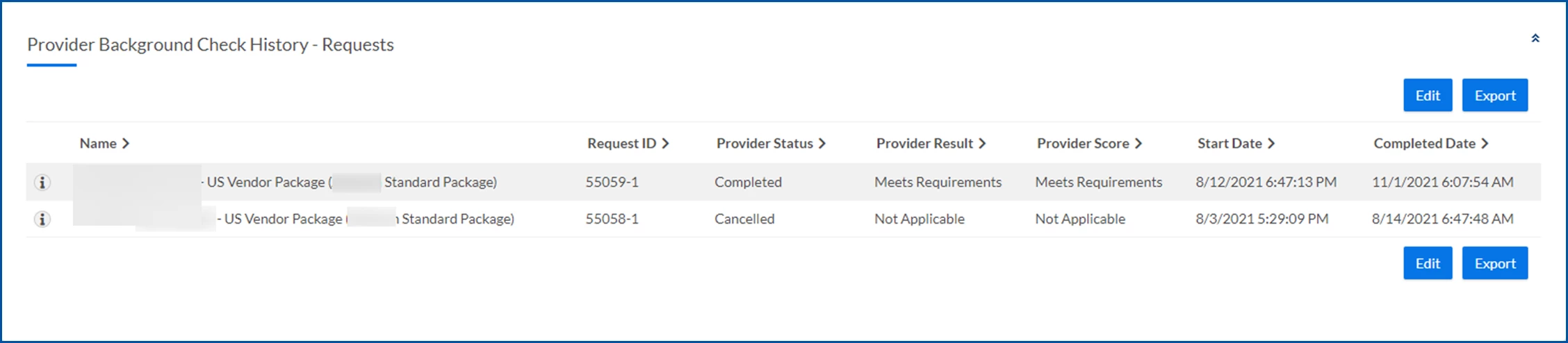
- Hover over the Help icon to view the Order ID and the Reference URL link to the background check report.
- Optional. Select the Reference URL link to open a Login page for the background check provider’s system. Enter your credentials so you can view the background check report.
Reviewing orders during onboarding
When a candidate’s background check results meet your program’s acceptance criteria, they’re routed for onboarding approval. You can quickly review background check results when you onboard a candidate.
To review background check orders when you onboard a candidate, complete these steps from your Enterprise dashboard.
- Select the Candidate On/Offboarding tasks to complete link in the My To Do section of your dashboard. A Review Alerts dialog displays.
- Locate the candidate for whom you want to submit an offer, and then select View Details from the Action list.
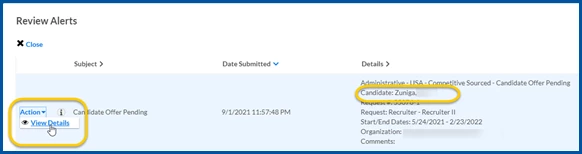
A Candidate Offer page displays. - Scroll down to view the background check categories in the Background Checks section and the package status and the background check provider results in the Provider Background Checks section.
Documentation release: Beeline Enterprise | Q1 2024