


Once a candidate is onboarded and an assignment is created, cost allocation details are locked in on an assignment. You must amend an assignment if you want to change the cost allocation details.
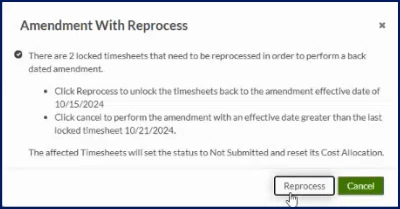
If you’re amending an assignment with submitted, approved or invoiced financials, a warning displays. You're alerted that the status of any existing financials will change, that existing timesheets and/or expenses must be reprocessed, and that costs must be reallocated on existing financials if you proceed with your amendment. You cannot proceed with your amendment without acknowledging the warning.
TIP: If your organization uses the Batch Reprocessing feature, the warning displays for all assignment amendment with submitted, approved or invoiced financials.
Prerequisite: Your Enterprise site must be configured to allow you to edit cost allocation details.
Information in this article reflects a standard Enterprise configuration. Your Enterprise platform is based on your organization’s configuration. Settings and/or data visibility rules may vary slightly from what is described.
To amend an assignment and change the cost allocation details, complete these steps from your Enterprise dashboard.
This topic shows you how to amend cost allocation details from Beeline Classic for an assignment that uses a unit cost distribution.
If you’re starting in the Hiring Manager Experience, use the Go to Classic link at the upper right of the Home page.
-
Initiate your amendment using one of these options:
Beeline Classic-
From the Simple Search option at the upper right of your dashboard, select Search Assignments and then select the Search icon to locate the user whose profile you want to view. Search results display at the bottom on a Search Assignments page.
-
Locate the assignment you want to change, and then select the Assignment ID link. An Assignment page displays.
-
Select Amend from the Assignment Menu section. A Modify Assignment page displays.
OR
Hiring Manager Experience-
Select the My Data app, and then select the Assignments link. An Assignments page displays.
-
Locate the assignment you want to change, and then select Amend from the Take Action list. A Modify Assignment page displays.
-
-
Select the Amend checkbox in the Modification Type section.
-
Select Next.
-
Optional. If you’re amending an assignment with submitted, approved or invoiced financials, a warning displays alerting you to the consequences if you proceed. Select Reprocess to continue with your amendment.
-
Select an explanation for the amendment from the Modification Reason list.
-
Enter details about the amendment in the Comment field.
-
Choose an option from the Budget Adjustment list.
-
In the Amendment section, select Edit on the Cost Allocation row.
-
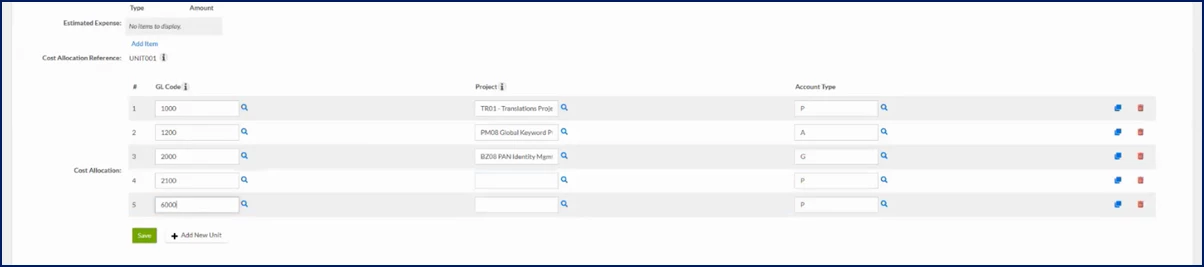
Complete the required segments for each cost allocation string you’re altering.
-
Optional. Use the Copy or Delete icons to duplicate or remove a string, respectively.
-
Complete any remaining required fields on the Modify Assignment page.
-
Select Next. An Amendment Summary page displays.
-
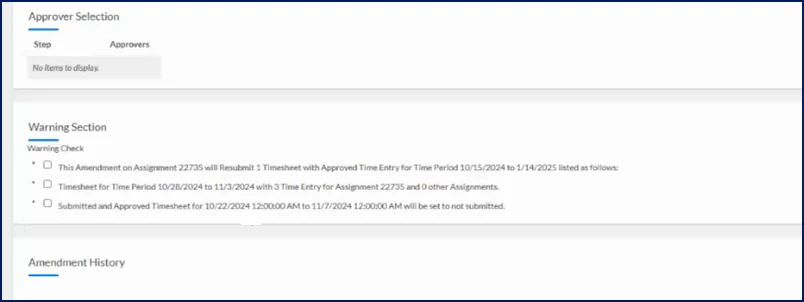
Optional. If you’re amending an assignment with submitted, approved or invoiced financials, alerts display in the Warnings section. You must select the checkbox to acknowledge each alert before you can proceed.
-
Another warning displays asking you to confirm your actions. Select OK to proceed with your amendment.
-
Select OK at the bottom of the Modify Assignment page.
Your amendment is routed for approval per your organization’s approval workflows. After the amendment is approved, the status of any existing financials present when your amendment is processed is changed to Not Submitted. Those timesheets and/or expenses must be reprocessed and costs must be reallocated.
Documentation release: Beeline Enterprise | Q4 2024