


Standardize smarter with CDFs and CDVs that guide every choice.
Client-defined fields (CDFs) let you capture the data that matters most to your program, while client-defined values (CDVs) are the selectable options within those fields.
Make everyday work easier by automatically guiding users to the most relevant choices. With smart defaults for dropdown CDVs built into your workflows, your team spends less time searching and more time getting things done—while still keeping the flexibility to adjust when needed.
Why it matters
- Eliminates repetitive decisions when selecting commonly used CDVs.
- Promotes consistent data across CDFs, workflows, and teams.
- Makes CDF-driven workflows easier to learn and use.
- Scales with your program as CDFs and CDVs evolve.
- Keeps data aligned with established business standards.
Who it’s for
- Enterprise admins: Configure CDF defaults and manage CDVs to keep data consistent across workflows.
- Managed service providers and program office users: Maintain CDFs and CDVs in real time, including editing, activating, and deactivating values.
- Hiring managers: Move faster through CDF-driven forms with preselected CDVs
- Suppliers: Navigate CDF fields more easily with clearer, guided CDV selection
- Program stakeholders: Rely on standardized CDF data for more accurate reporting and insights.
How it helps
- Speeds up everyday tasks: Users can accept default CDVs instead of searching through dropdown CDFs.
- Reduces errors and rework: Standardized CDVs improve CDF data accuracy and consistency.
- Improves user experience: Preselected CDVs reduce effort across CDF-driven workflows.
- Keeps flexibility intact: Users can override default CDVs in any CDF when needed.
- Empowers program teams: MSP and PMO users can manage CDFs and CDVs without submitting requests.
How it works
- Set a default CDV: Use Self-Service to define a default value for a dropdown CDF.
- Apply across supported workflows: Let default CDVs carry through requisitions, candidates, assignments, and milestone payments (when configured in Services Procurement).
- Present a preselected CDV: Show the most commonly used value in each CDF to guide faster decisions.
- Allow user flexibility: Enable users to accept or override the default CDV within the CDF.
- Manage CDVs in real time: Update, activate, or deactivate CDVs directly from VMS Settings.
- Understand limitations: Default CDVs don’t apply to SOW or project template CDFs but can be extended to supported Project components with COM support, like Requests, Candidates, Assignments, and Milestone Payments.
Before you begin
- Request permissions: Submit a Make a Change ticket and have your COM enable access.
- Confirm administrator access: Ensure you can manage CDFs in Self-Service and Data Management.
- Verify dropdown CDF setup: Confirm the CDF includes available CDVs.
- Optional. Enable MSP/PMO access: Allow access to manage CDFs and CDVs from VMS Settings.
How to steps
Information in this article reflects a standard Enterprise configuration. Your Enterprise platform is based on your organization’s configuration. Settings and/or data visibility rules may vary slightly from what is described.
To accomplish your task, complete these steps from your Enterprise dashboard.
Helpful tips
- Default CDVs apply only to new transactions, not items already in progress.
- Each dropdown CDF supports one default CDV.
- Defaults apply only to dropdown CDFs (not text fields or multi-select CDFs).
- Users can override default CDVs at any time.
Setting default CDVs for a dropdown CDF
As an Enterprise admin, you can quickly default CDV so users can move faster through CDF-driven workflows.
- Select Preferences > VMS Settings > Data Management.
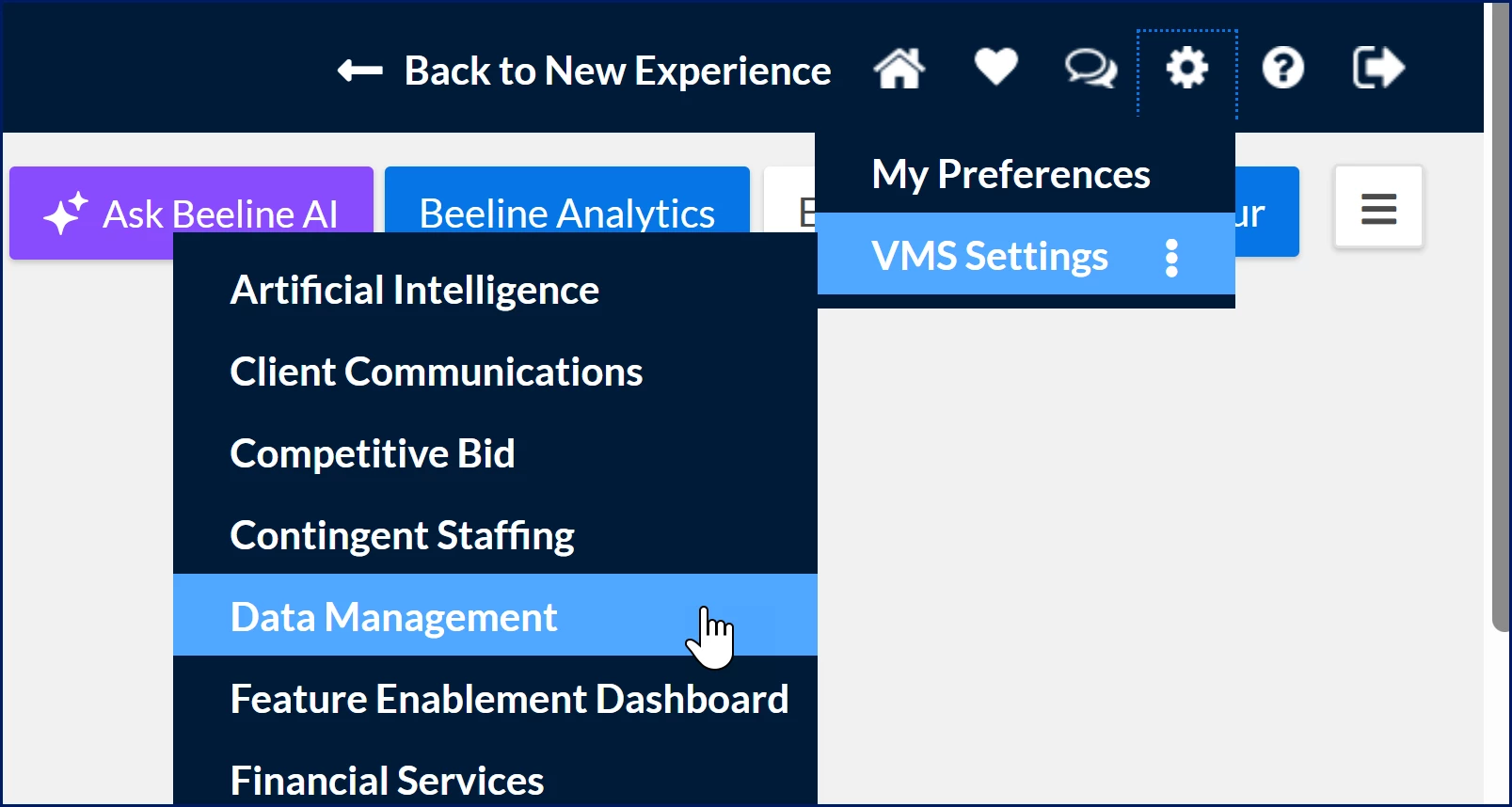
A Data Management page displays. - Select Client Defined Field Items Self-Service.
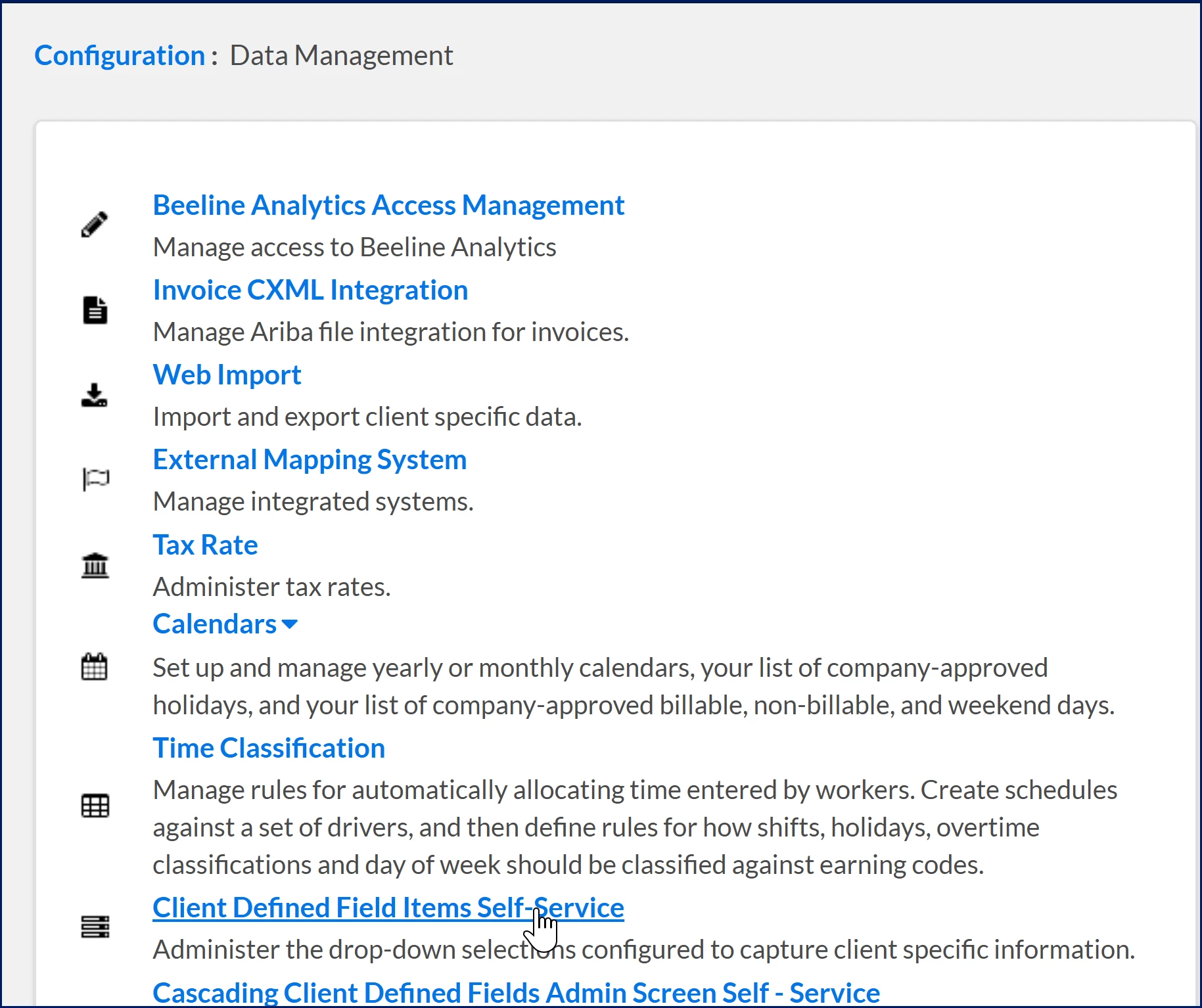
A Client Defined Field Items Self-Service page displays. -
Find the CDF that contains the CDVs you want to manage.
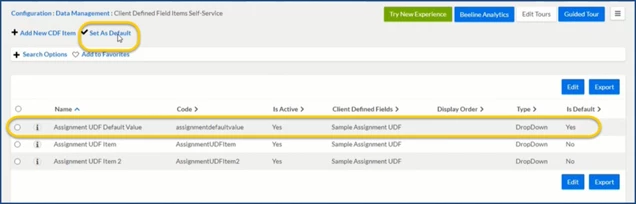
- Find the CDF dropdown list you want to update.
- Locate the value you want users to see first, and then select Set as Default to prepopulate that value in the CDF.
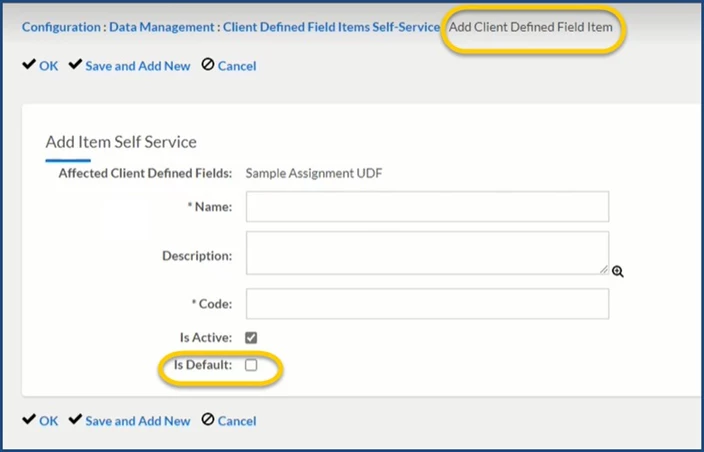
- Optional. You can also set a value as the default when you’re creating a new value.
Managing CDF items
As an MSP or program office user, you can keep your CDF values accurate and up to date as your program evolves.
- Select Preferences > VMS Settings > Data Management. A Data Management page displays.
- Select Client Defined Field Items Self-Service. A Client Defined Field Items Self-Service page displays.
-
Choose the CDF that contains the CDVs you want to modify.
Edit or manage CDVs
Select Edit to update CDV names
Activate or deactivate CDVs to keep options currentSave your changes
Select OK to apply updates to the CDF and its CDVs
- Locate and select the link for the CDF that contains the CDVs you want to modify.

A View Client Defined Item Self-Service page displays.
- Select Edit. An Edit Client Defined Item Self-Service page displays.
- Update the CDV name.
- Activate or deactivate CDVs to keep options current
- Select OK to apply updates to the CDF and its CDVs.
| Persona Clients, program office users | Modules Contingent Staffing | Documentation release Beeline Enterprise | Q2 2026 | Feedback? Email us: |