Your organization may use Beeline Enterprise VMS calendars to ensure costs for your contingent workforce program are estimated, calculated, and invoiced correctly. Each year application calendars must be updated in advance of the calendar year to avoid data related issues that can cost your organization and your users time and money.
As an Enterprise administrator, you can manage your Calendars via self-service. Your organization can manage Calendars in advance and make sure costs for requests, amendments, and extensions are accurately estimated, and that timesheets are correctly invoiced.
Why they matter
Tracking weekends, billable dates, non-billable dates, and holidays ensures your contingent workforce is accurately paid when a timesheet is invoiced. For example, your organization might pay contingent workers premiums that vary by workday and worker rates, such as weekend work or monthly rate workers.
Using the Calendars feature, you can complete these tasks.
Update and maintain yearly or monthly calendars.
Manage your list of company-approved holidays.
Maintain your company-approved list of billable, non-billable, and weekend days.
Enterprise Best Practice—Contact your COM to set up a Calendar Reminder to automatically notify you when to update Calendars before your organization encounters data issues.
Persona
After their account has been configured, Program Office users can manage Calendars via self-service from the VMS Settings menu.
Action required
Open a Service Request ticket so your Client Operations Manager (COM) can grant users access to the manage your Enterprise VMS Calendars.
About Calendar Types
Some organizations use simple yearly calendars that track only holidays and weekends. Other organizations use complex monthly calendars that track holidays, weekends, and company-approved billable and non-billable dates. Self-Service Calendars supports both yearly and monthly calendars.
Each Calendar includes a CalendarType and associated settings, such as DayTypes and more. Options available to you when you edit your Calendar vary based on how your calendars were originally set up when your VMS was configured.
About Day Types
Some organization use complex monthly calendars that track holidays, weekends, company-approved billable dates, non-billable dates, and fiscal year end. Those calendar types include a DayTypes option configured for your monthly calendars by Beeline.
When the DayTypes option is turned on, you can designate these kinds of days.
Weekends
Holiday dates
Billable dates
Non-billable dates
Fiscal year
How to steps
Updating a yearly calendar
Quickly copy and update new calendars for upcoming years via self-service. If your organization uses a simple calendar that tracks only holidays, just copy the calendar from the previous year, and then update the days of the week on which holidays occur.
To accomplish your task, complete these steps from your Enterprise dashboard.
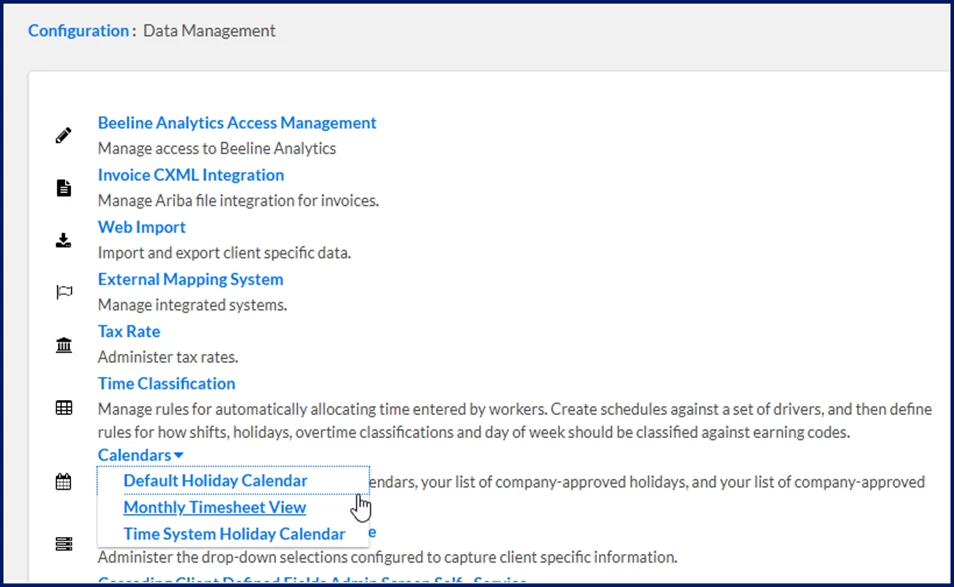
Select Preferences > VMS Settings > Data Management. A page Data Management displays.
Expand the Calendar list and select the calendar you want to update. A View Calendar Details page displays for the calendar you selected.
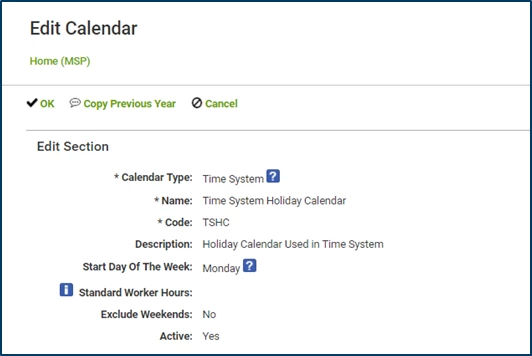
Select Edit. An EditCalendar page displays. TIP: The Calendar Type, Name, Code, Description, and the Start Day Of The Week are preconfigured and cannot be changed.
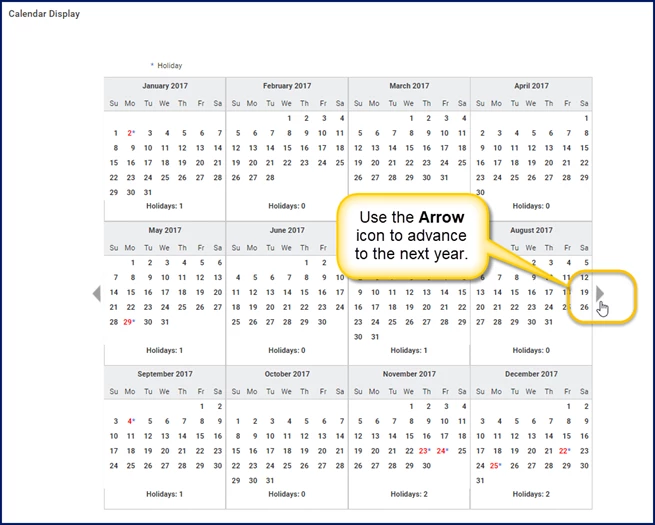
In the CalendarDisplay frame, use the Arrow icon to advance the view to the year for which you want to create a calendar.
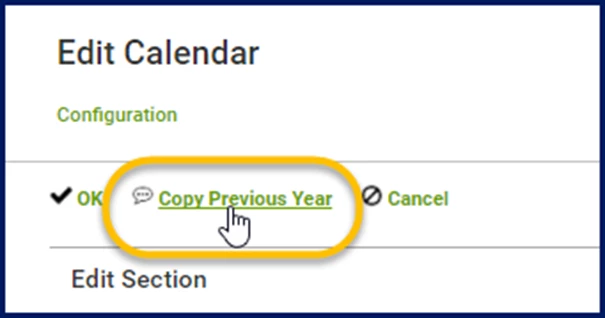
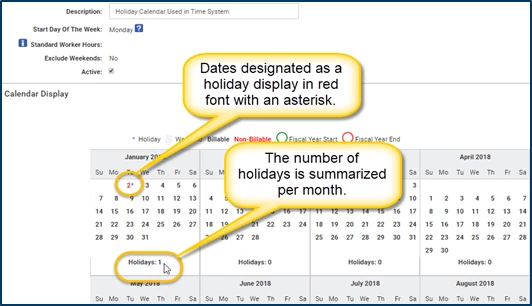
Select the Copy Previous Year link. The holiday dates from the previous year are replicated in a new calendar for the year you selected. Dates designated as a holiday display in red font with an asterisk. The number of holidays is summarized for each month. TIP: The days of the week are not copied; only the dates in the month designated as a holiday.
Verify and update the holiday dates to ensure they are accurate for the new year. For example, New Year’s Day might be a company-approved holiday and the day it is observed might need to be changed.
Optional. To change the date a holiday is observed, select the new date, and then select the previous date to clear that selection.
Near the top of the EditCalendar page, select OK to save your updates. The yearly calendar you created is now applied to your Enterprise VMS.
Updating a monthly calendar
If your organization uses a more complex monthly calendar with DayTypes, you have a few more items to update…such as holidays, weekends, company-approved billable dates, non-billable dates, and fiscal year end.
To accomplish your task, complete these steps from your Enterprise dashboard.
Select Preferences > VMS Settings > Data Management. A page Data Management displays.
Expand the Calendar list and select the calendar you want to update. A View Calendar Details page displays for the calendar you selected.
Select Edit. An EditCalendar page displays. TIP: The Calendar Type, Name, Code, Description, and the Start Day Of The Week are preconfigured and cannot be changed.
In the CalendarDisplay frame, use the Arrow icon to advance the view to the year for which you want to create a calendar.
Select the Copy Previous Year link.
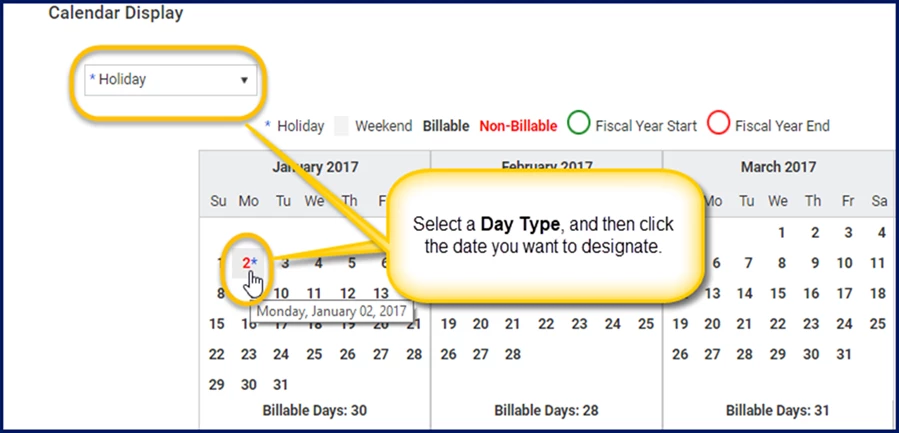
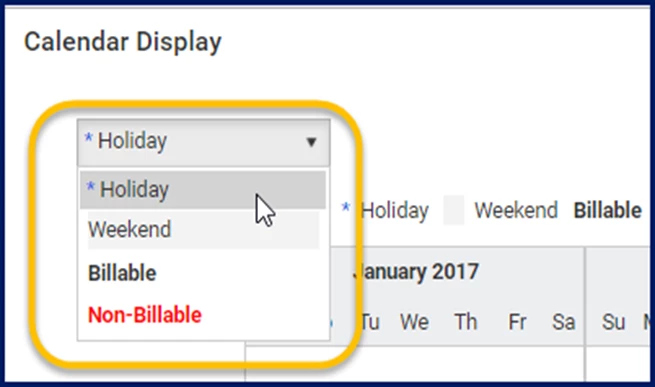
From the Day Types list, select the kind of day you want to designate on your calendar. For example, holidays, weekends, company-approved billable, non‑billable dates, or fiscal year end.
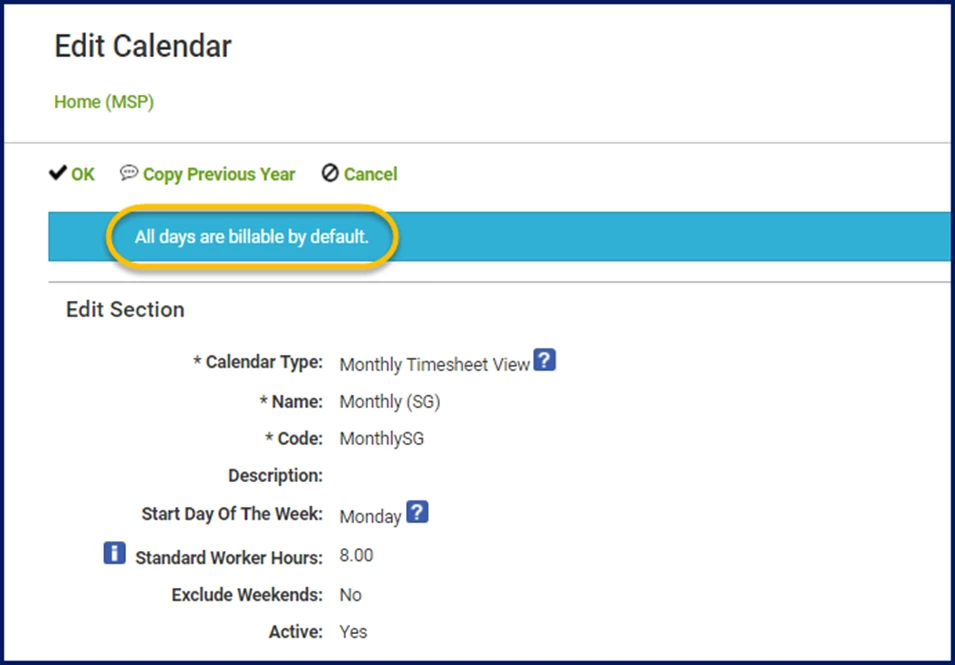
TIP: In calendars that support Day Types, days are billable by default.
In the Calendar Display, locate and click the date you want to designate as the Day Type you selected.
Repeat steps 6 and 7 for each Day Type you want to define.
Near the top of the Edit Calendar page, select OK to save your updates. The monthly calendar you created is now applied to your VMS.
Please complete the following fields as part of your Beeline Community registration. Unless noted as private, this information will be displayed on your user profile within the community.