


Sometimes an assigned approver may become inactive or no longer applicable. As a program office user, you can quickly reassign all pending Contingent Staffing, Services Procurement or Resource Tracking approvals and tasks assigned to those users.
You can choose to instantly reassign all approvals and tasks to an individual user’s or a group of users’ immediate manager or manually reassign them to a different approver. Reassigning approvals helps maintain workflow continuity and ensures time-sensitive approvals are processed on schedule.
Learn about approvals, tasks and alternative approvers
To ensure that reassigned approvals are timely processed and aligned with your business rules, familiarize yourself with these criteria.
| Supported | Unsupported |
|---|---|
| Approvals and tasks in your Organizational Unit reassigned to an active user | Supplier approvals MSP approvals Assignment Assessment Questionnaire surveys Project Close surveys Milestone Close surveys Recertifications Compliance and Certification Management |
Understand approval visibility
What you can see and reassign in Beeline Enterprise depends on your user permissions and your program’s policies. When reassigning approvals, you’ll only see users, approvals, and tasks within your allowed visibility—such as by geography, industry, cost center, or organizational unit.
You can only reassign approvals to someone who already has access to the data. If you try to assign it to someone without access, an error message displays and you’re prevented from reassigning the approval.
Discover how it works
- When you reassign approvals and tasks, all current approvals are reassigned to the user or users you select. The reassigned approvals are processed according to your standard business rules and workflows.
- Only the transaction and workflow step you select is affected. So, keep in mind that may mean you’ll need to reassign additional approvals and tasks for subsequent steps in your workflows.
- For example, assume you reassign a Candidate Submission approval. Later that same candidate is involved in your interview and/or offer workflow approvals.
- When you reassign approvals and tasks, the previous approver is removed from the Approver Step list. When you assign or reassign approvals or tasks, every new approver automatically gets a notification and sees an in‑app alert in the Hiring Manager Experience. Notifications and Alerts are not sent to Beeline Classic.
- When you assign or reassign approvals or tasks, every new approver automatically gets an email notification and sees an in app alert in the Hiring Manager Experience.
Report on reassigned approvals
To help you track which approvals and tasks were reassigned, use these fields in the Approvals definition.
|
|
|
|
|
|
|
|
|
|
Action steps
This enhancement is automatically available to program office users who have access to the Data Management options under the VMS Settings menu. If you don’t have the appropriate visibility, you can see the Reassign Pending Approvals link on the Data Management page, but you can’t reassign approvals.
How to steps
Information in this article reflects a standard Enterprise configuration. Your Enterprise platform is based on your organization’s configuration. Settings and/or data visibility rules may vary slightly from what is described.
As a program office user with the appropriate permissions, you can efficiently manage reassigning approvals via self-service. You can administer only approvals and tasks in geographies and industries for which you have visibility.
Caution: Before you reassign approvals and tasks, make sure the approver you intend to choose has the appropriate signing limit or authority.
To reassign approvals and tasks, complete these steps from your Enterprise dashboard.
- Select Preferences > VMS Settings > Data Management. A Data Management page displays.
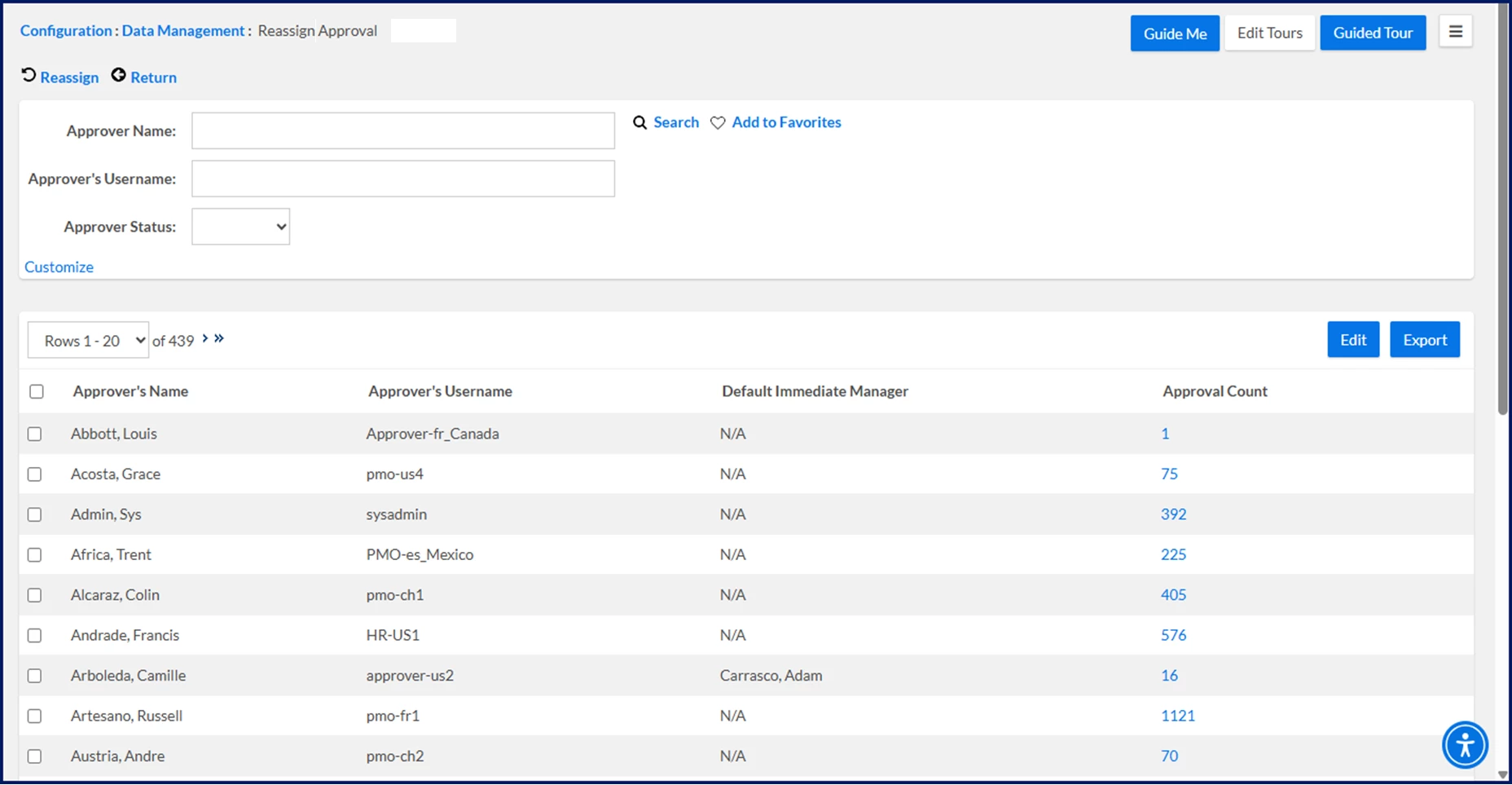
- Select the Reassign Pending Approvals link. A Reassign Approvals page displays. You can instantly view these details:
- Approver’s last and first names.
- Approver’s username.
- The user’s immediate manager. N/A displays if the user’s immediate manager is inactive or if the approver is the highest-level manager and doesn’t have a superior.
- Total number of pending approvals for each user.
-
Use these fields in the Search section to quickly locate an approver whose tasks you want to reassign: Approver Name, Approver’s Username, or Approver Status. Typeahead isn’t supported for the Approver Name field.
- To reassign all approvals and tasks for a user or users without an immediate manager, complete these steps from the Reassign Approvals page:
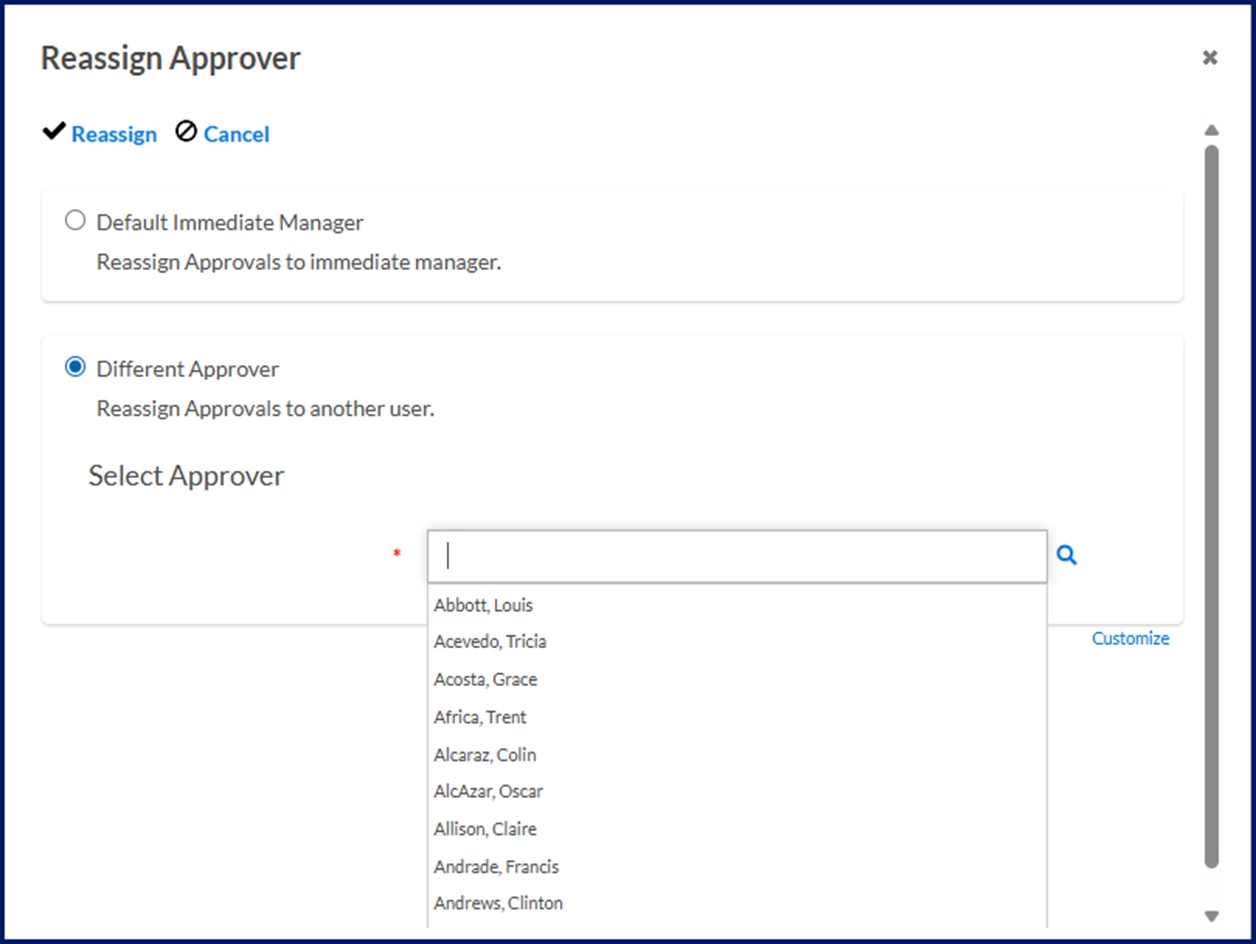
- Select the checkbox next to one or more Approver’s Name, and then select Reassign. The Reassign Approver dialog displays.
- Select the Different Approver checkbox.
- Choose a different approver from the Select Approver list.
- Select Reassign.
All approvals are reassigned to the user or users you selected from the Select Approver list. Plus, the previous approver is removed from the Approver Step list.
In addition, Notifications and Alerts are sent to the new approver via the Hiring Manager Experience. When you reassign all approvals and tasks to multiple approvers, Notifications and Alerts are sent to each new approver via the Hiring Manager Experience.
When you choose multiple approvals to reassign, all approvals are reassigned to the user you select from the Select Approver list. In addition, Notifications and Alerts are sent to that new approver via the Hiring Manager Experience.
Caution: If you select Reassign without choosing a different approver, you will receive an error.
- To reassign all approvals and tasks for a user or users to their immediate manager, complete these steps from the Reassign Approvals page:
- Select the Approver’s Name checkbox.
- Select Reassign.
All approvals are reassigned to the user or users you selected from the Select Approver list. Plus, the previous approver is removed from the Approver Step list.
In addition, Notifications and Alerts are sent to the new approver via the Hiring Manager Experience. When you reassign all approvals and tasks to multiple approvers, Notifications and Alerts are sent to each new approver via the Hiring Manager Experience.
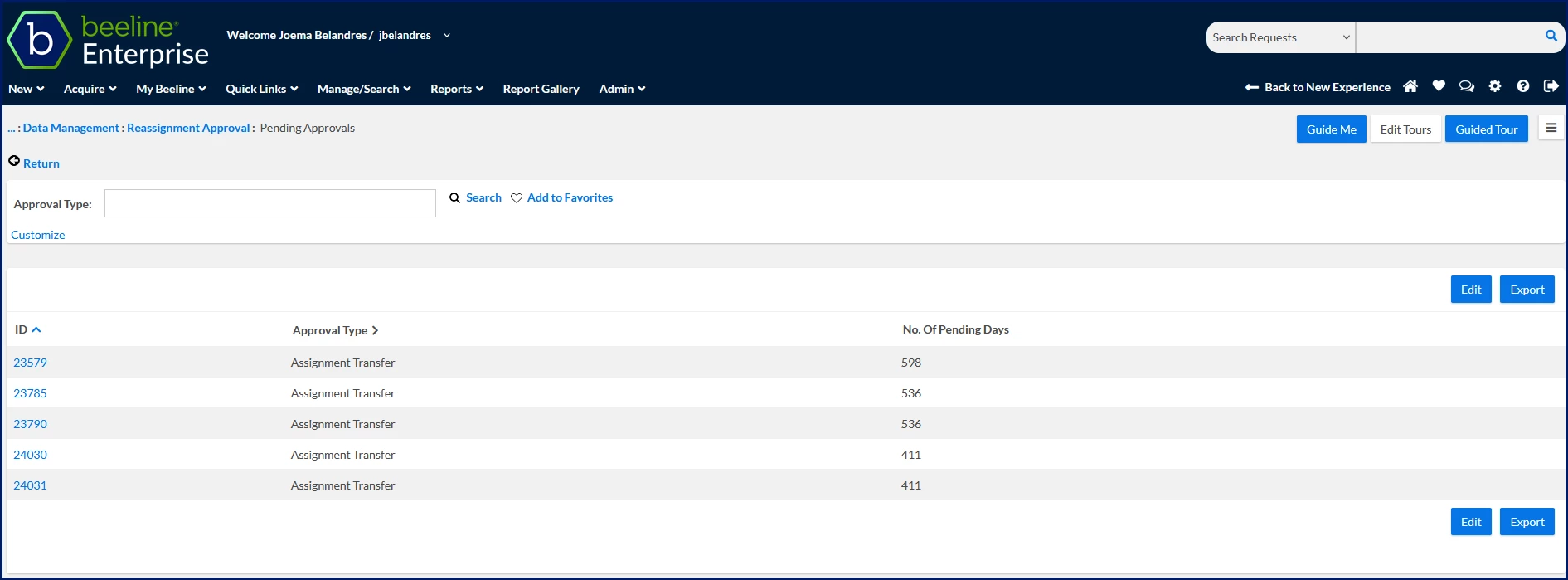
- Optional. To view details about an approver’s tasks, select the Approval Count link to open the Pending Approvals page. You can instantly view these details: the ID, Approval Type and the Number of Day a task has been pending.
| Persona Clients, program office users | Modules Contingent Staffing Services Procurement Resource Tracking Self-service | Documentation release Beeline Enterprise | Q1 2026 | Feedback? Email us: |