


Topics on this page
Creating and capturing background checks in Beeline Enterprise helps everyone involved in the procurement process adhere to legal requirements. Your program’s integration with First Advantage® streamlines your experience with managing background checks.
You can leverage your program’s integration with First Advantage at these stages of your procurement workflow.
- As a supplier, when you approve an offer extended to a candidate.
- As a program office user, when you approve an offer extended to a candidate.
- As a program office user, from an assignment in an Active or Scheduled status.
When you create a requisition, the appropriate background check packages are preloaded in the request based on how Enterprise has been configured. As the request is processed, you will confirm information about a candidate and initiate processing a background check through First Advantage.
You can view a background check order, the provider status, results and score from the Background Check Management tab on a candidate’s profile in Enterprise. You can also view the status of your order anytime and the results when the background check is complete. Learn how!
Information in this article reflects a standard Enterprise configuration. Your Enterprise platform is based on your organization’s configuration settings and/or data visibility rules and may vary slightly from what is described.
This topic assumes you’ll follow your organization’s standard procedures for submitting a candidate, approving an offer and onboarding a candidate.
How to steps: Supplier
As a supplier, you can leverage your program’s integration with First Advantage when you approve an offer extended to a candidate.
Verifying a candidate’s email
As a supplier, it’s important that you verify a candidate’s email when you approve an offer extended to a candidate. That step is crucial so that the candidate receives an invitation from First Advantage to provide information related to their background check.
You can verify the candidate's email using either the email notification you received or your My To Do list in your Enterprise dashboard.
To verify a candidate’s email when you approve an offer extended to a candidate, complete these steps from your Enterprise dashboard.
- Select the Candidate Offer Pending link in the My To Do quadrant of your dashboard. A Review Alerts dialog displays.
- Locate the candidate for whom you want to submit an offer, and then select View Details from the Action list.
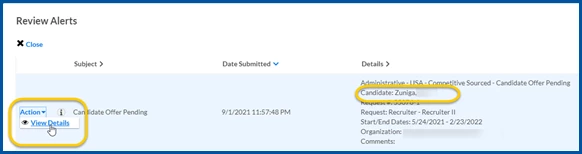
A Candidate Offer page displays. - Review the candidate information and any attachments.
- Complete the information on the Candidate Offer page based on your organization’s processes.
- Select the Accept Offer. A Candidate Offer–Approve dialog displays.
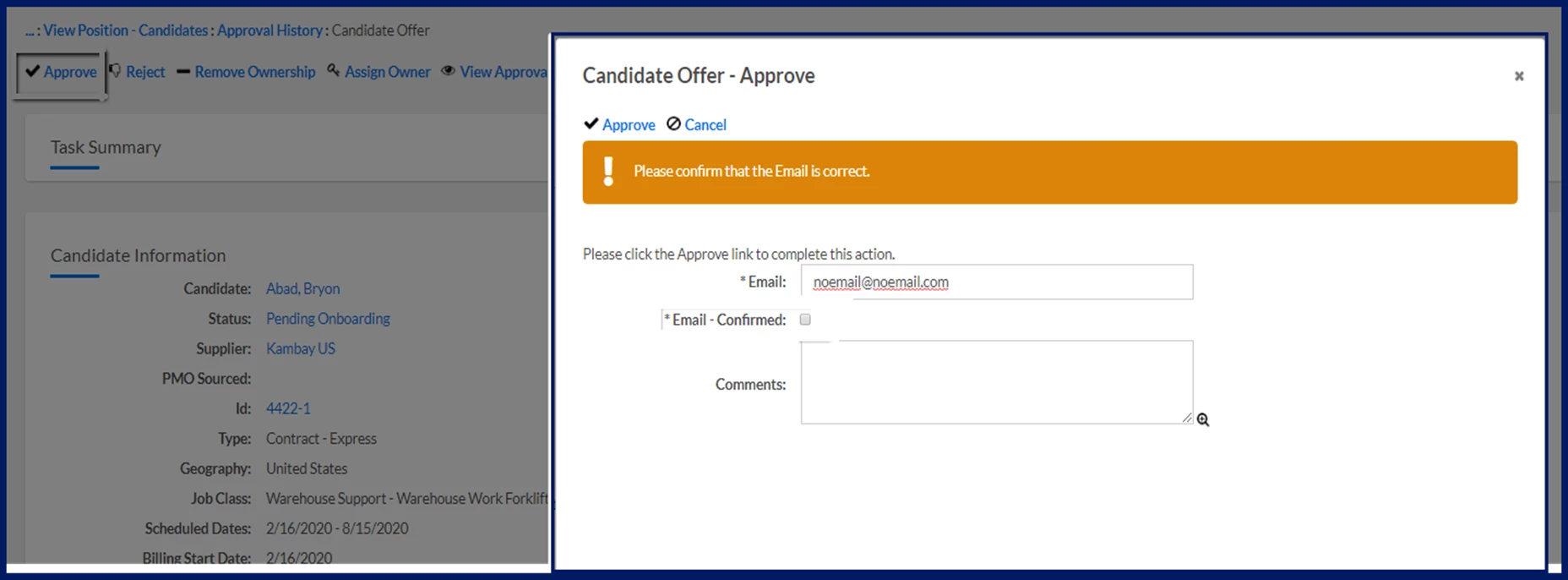
- Verify the email listed in the Email field matches the candidate’s email address on their profile.
- Confirm the candidate’s email, and then select the Email–Confirmed checkbox.
TIP: It’s important to ensure this email is correct. Otherwise, the candidate won’t receive the email invitation from First Advantage to initiate their background check. - Optional: Enter any remarks about the candidate or the offer in the Comments field.
- Select Approve to save your input and close the Candidate Offer–Approve dialog.
- Select Close to exit the Review Alerts dialog.
After you verify the candidate’s email and approve the offer, the offer continues to progress through the client’s workflow.
How to steps: Program office
As a program office user, you can initiate a background check when you approve an offer extended to a candidate. You can also initiate a background check from an assignment.
After you initiate a background check, the candidate continues to be processed in Enterprise through your procurement phases.
Initiating a background check while approving an offer
You can initiate a background check when you accept an offer using either the email notification you received or your My To Do list in your Enterprise dashboard.
To approve an offer extended to a candidate and initiate a background check, complete these steps from your Enterprise dashboard.
- Select the Candidate Offer Pending link in the My To Do quadrant of your dashboard. A Review Alerts dialog displays.
- Locate the candidate for whom you want to submit an offer, and then select View Details from the Action list.
A Candidate Offer page displays. - Review the candidate information and any attachments.
- Complete the information on the Candidate Offer page based on your organization’s processes.
- Select the Accept Offer. A Candidate Offer–Approve dialog displays.
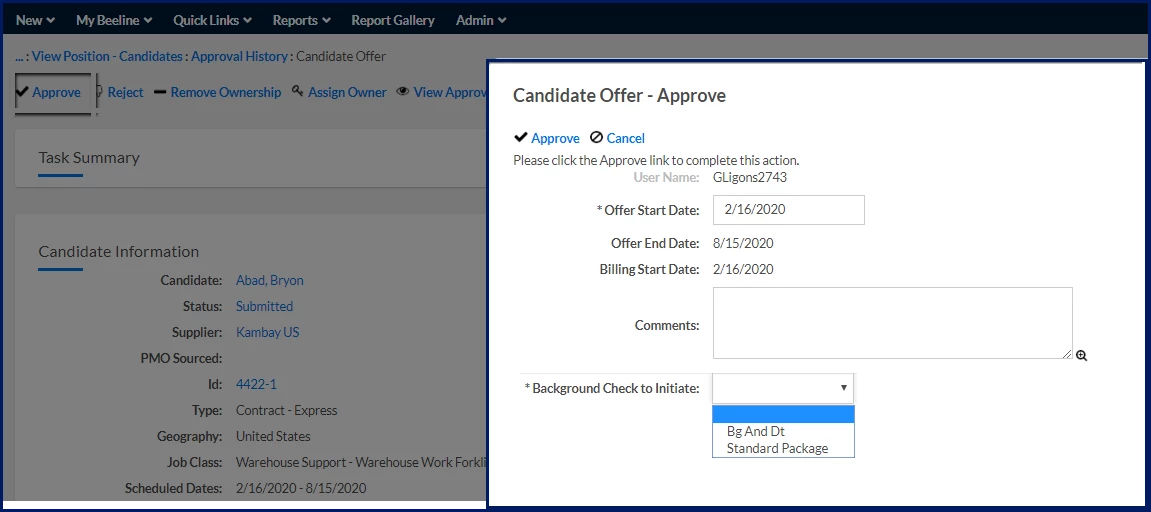
- From the Background Check to Initiate list, choose from the applicable First Advantage packages preconfigured on the Request Type.
- Select Accept Offer. The candidate offer is accepted and the background check packages you selected are automatically ordered. In addition, these events occur:
- Candidate details and order details are sent to First Advantage.
- An email is sent from First Advantage to the candidate inviting them to participate in the background check.
- Select Close to exit the Review Alerts dialog.
Initiating a background check from an assignment
You can also initiate a background check from assignments in an Active or Scheduled status. Use either the Assignment Menu in the Assignment Profile Dashboard Approval section on an Assignment Details page or the Initiate Provider Background Check tab on an Assignment Edit-Summary page.
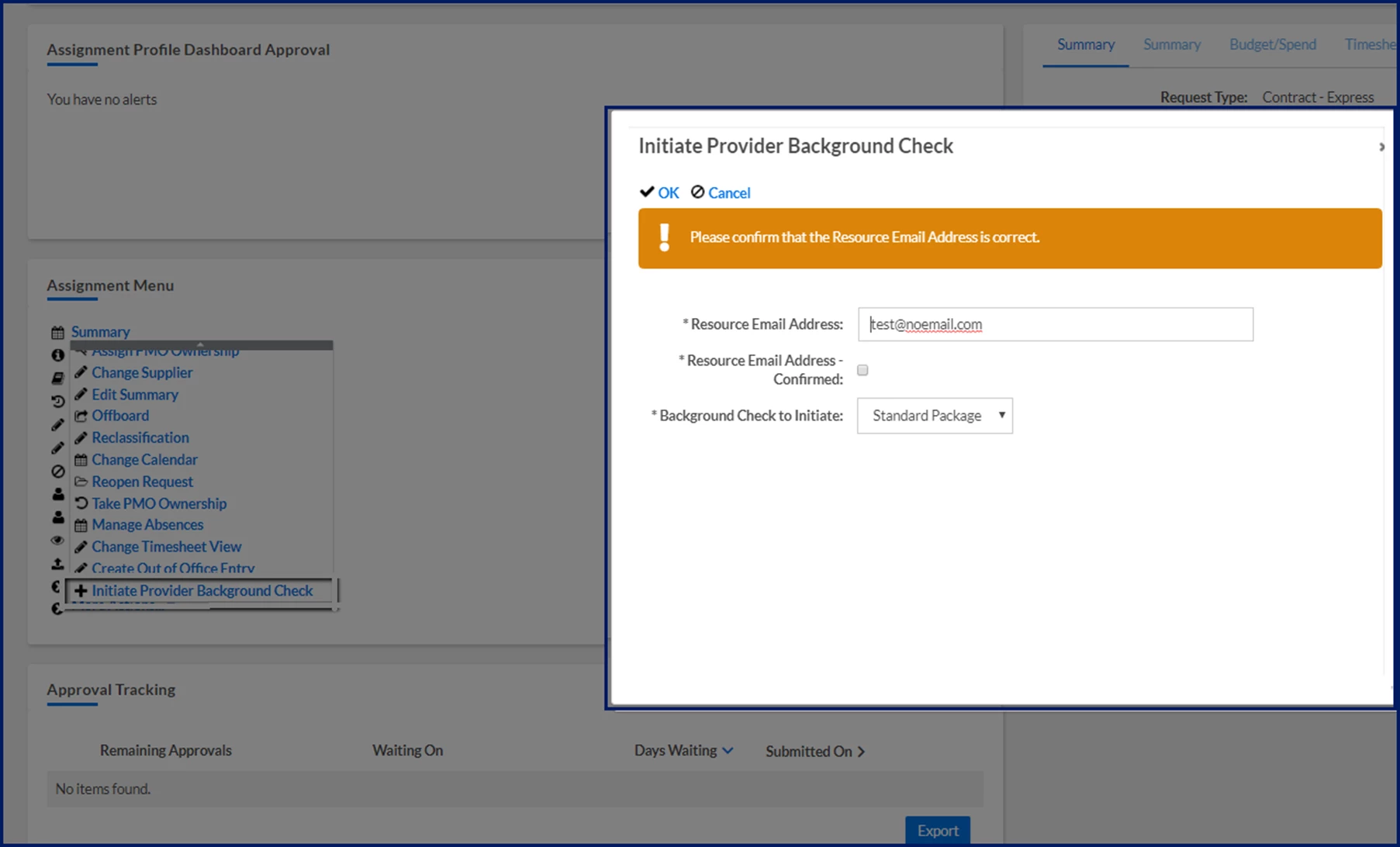
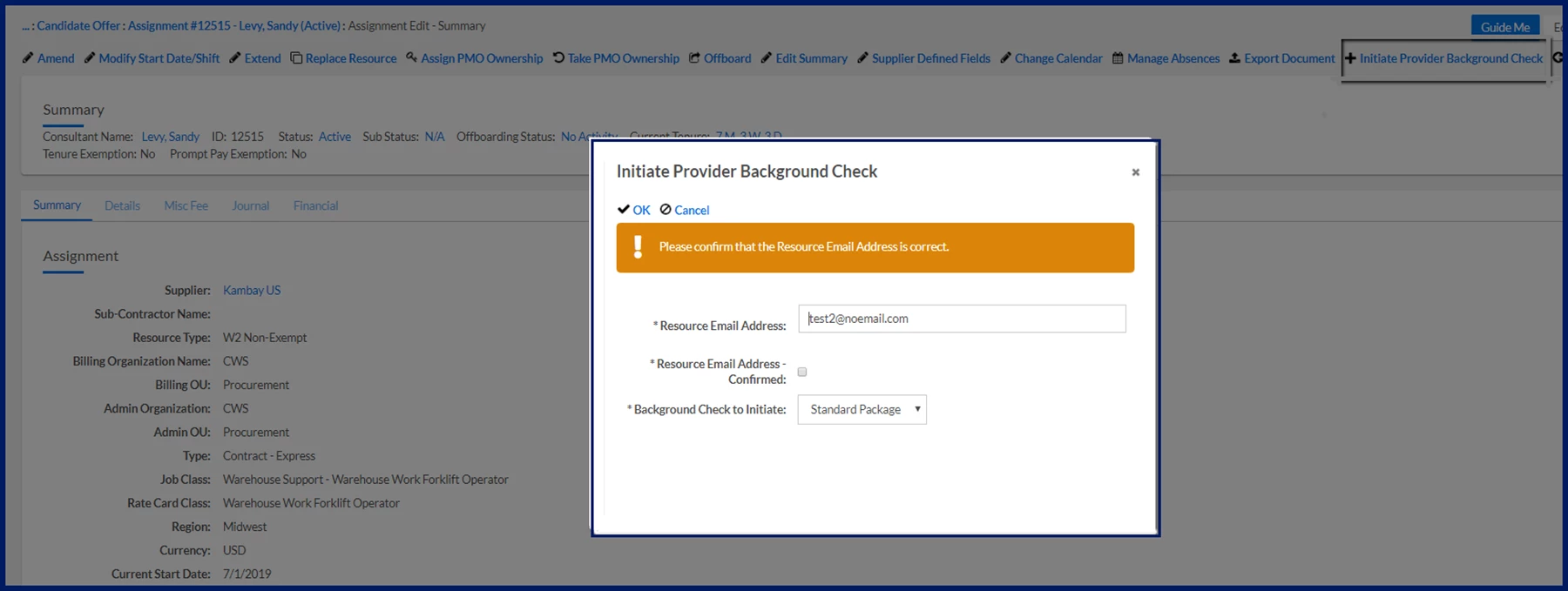
To initiate a background check from an assignment, complete these steps from your Enterprise dashboard.
- From the Simple Search option at the upper right of your dashboard, select Search Assignments, enter the assignment ID, and then select the assignment you want to view. An Assignment Details page displays.
- From the Assignment Menu, select Initiate Provider Background Check. An Initiate Provider Background Check dialog displays.
- Verify the email listed in the Email field matches the candidate’s email address on their profile.
- Confirm the candidate’s email, and then select the Email–Confirmed checkbox.
TIP: It’s important to ensure this email is correct. Otherwise, the candidate won’t receive the email invitation from First Advantage to initiate their background check. - From the Background Check to Initiate list, choose from the applicable First Advantage packages preconfigured on the Request Type.
- Select OK to exit the Initiate Provider Background Check dialog.
The background check packages you selected are automatically ordered. In addition, an email is sent from First Advantage to the candidate inviting them to participate in the background check.
Documentation release: Beeline Enterprise Q3 2025