Creating and capturing background checks in Beeline Enterprise helps everyone involved in the procurement process adhere to legal requirements. Your program’s integration with HireRight® streamlines your experience with managing background checks.
As a supplier or a program office user, when you’re required to initiate a background check order varies based on your Enterprise configuration. You can leverage your organization’s integration with HireRight at these stages of your procurement workflow.
Submitting a candidate
Accepting an offer extended to a candidate
Approving an offer extended to a candidate
You may also initiate a background check from Enterprise or directly from HireRight, depending on your integration configuration. Plus, you can easily view the status and results of your order in Enterprise. Learn how!
Initiating a background check directly from HireRight may reduce your time to fill because you can start your candidate vetting process as soon as you’re ready. You can identify your resources and initiate background check orders directly from HireRight. Then when it comes time to onboard your candidates, you can use the Order ID to expedite onboarding. You don’t need to wait for an SOW to be approved, promoted to a project, and requisitions released to suppliers. Learn how!
Persona
Program office users and suppliers
Information in this article reflects a standard Enterprise configuration. Your Enterprise platform is based on your organization’s configuration settings and/or data visibility rules and may vary slightly from what is described.
This topic assumes you’ll follow your organization’s standard procedures for submitting a candidate, approving an offer and onboarding a candidate.
How to steps: suppliers
Initiating a background check when you submit a candidate
You can quickly order a background check as part of your candidate submission process. Use either the email notification you received or your My To Do list in your Enterprise dashboard, and then simply choose from the preconfigured packages set up in Enterprise for your background check provider’s account.
To order a background check during candidate submission, complete these steps from your Enterprise dashboard.
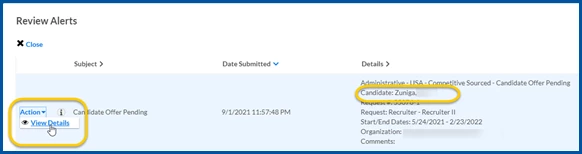
Select the Supplier Background Check-Initiate tasks link in the My To Do quadrant of your dashboard. A Review Alerts dialog displays.
Locate the candidate for whom you want to initiate a background check, and then select View Details from the Action list. A Candidate Submitted to Client page displays.
Review the candidate information and any attachments.
Complete the information on the Candidate Submitted to Client page based on your organization’s processes.
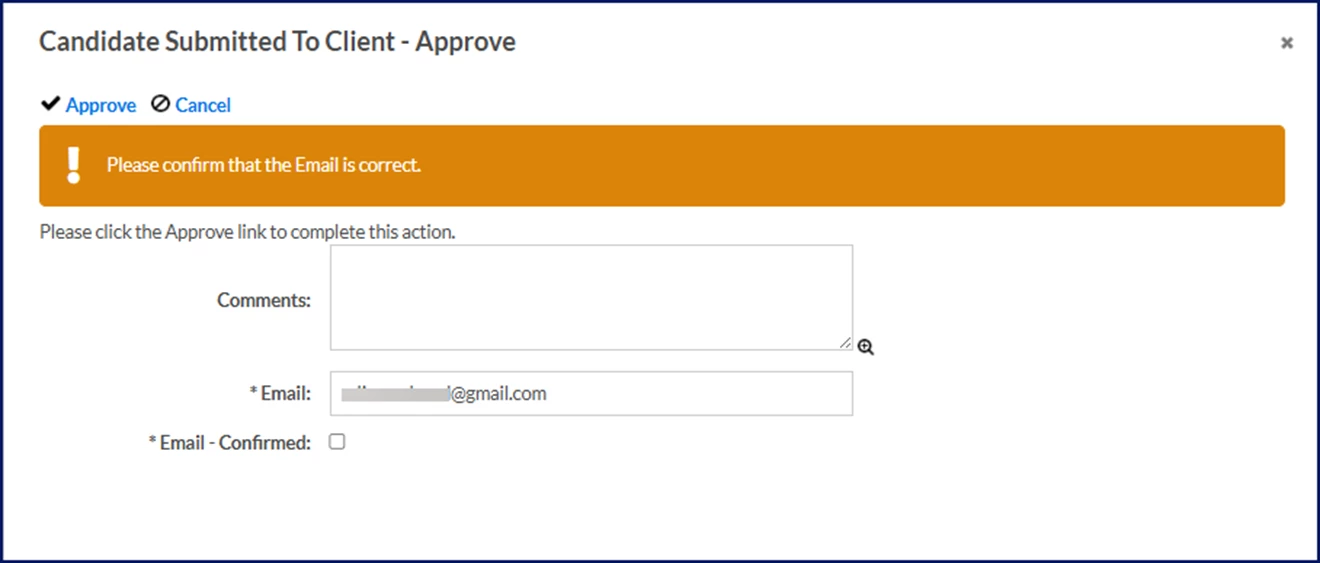
Select Approve. A Candidate Submitted to Client–Approve dialog displays.
Verify the email listed in the Email field matches the candidate’s email address on their profile.
Confirm the candidate’s email, and then select the Email–Confirmed checkbox. TIP: It’s important to ensure this email is correct. Otherwise, the candidate won’t receive the email invitation from HireRight to initiate their background check.
Optional: Enter any remarks about the candidate or the offer in the Comments field.
Select the Legal Requirements checkbox to confirm that you have complied with your program’s judicial background check obligations.
From the Background Check to Initiate list, choose from the applicable packages preconfigured for your HireRight account.
Select Approve. The background check packages you selected are automatically ordered. In addition, these events occur:
Candidate details and order details are sent to the background check provider.
An email is sent from the background check provider to the candidate inviting them to participate in the background check.
Select Return to go back to the Request Details page.
After you order a background check, the requisition and the candidate continue to be processed in Enterprise through your procurement phases.
Initiating a background check when you accept an offer
You can quickly order a background check when you accept an offer extended to a candidate. After you order a background check, the candidate continues to be processed in Enterprise through your procurement phases.
To accept an offer extended to a candidate and order a background check, complete these steps from your Enterprise dashboard.
Select the Candidate Offer Pending link in the My To Do quadrant of your dashboard. A Review Alerts dialog displays.
Locate the candidate for whom you want to submit an offer, and then select View Details from the Action list. A Candidate Offer page displays.
Review the candidate information and any attachments.
Complete the information on the Candidate Offer page based on your organization’s processes.
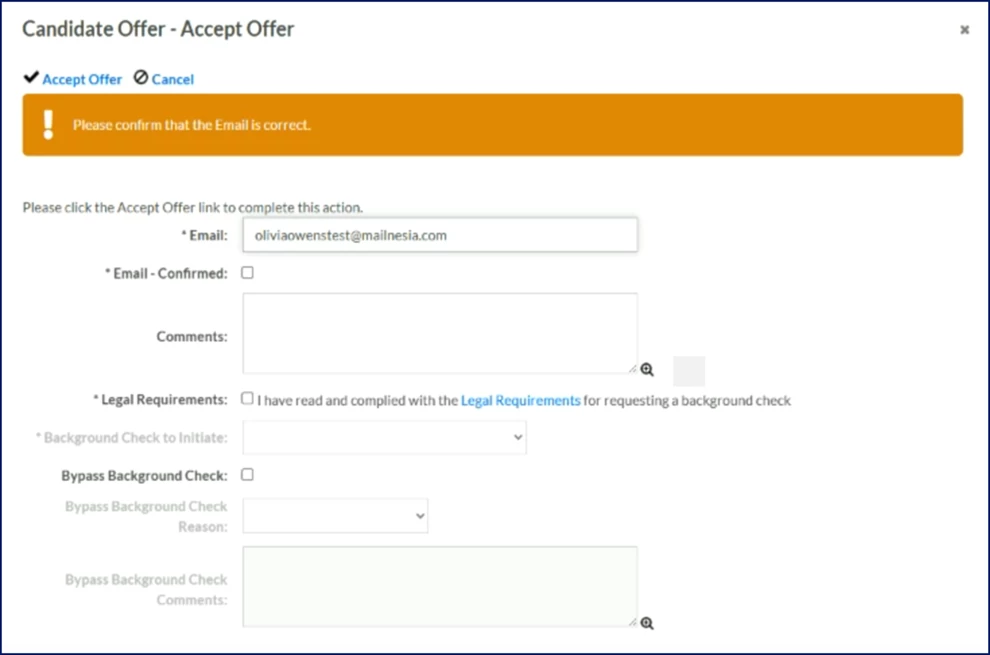
Select the Accept Offer. A Candidate Offer–Accept Offer dialog displays.
Verify the email listed in the Email field matches the candidate’s email address on their profile.
Confirm the candidate’s email, and then select the Email–Confirmed checkbox. TIP: It’s important to ensure this email is correct. Otherwise, the candidate won’t receive the email invitation from HireRight to initiate their background check.
Optional: Enter any remarks about the candidate or the offer in the Comments field.
Select the Legal Requirements checkbox to confirm that you have complied with your program’s judicial background check obligations.
From the Background Check to Initiate list, choose from the applicable packages preconfigured for your HireRight account.
Select Accept Offer. The candidate offer is accepted and the background check packages you selected are automatically ordered. In addition, these events occur:
Candidate details and order details are sent to the background check provider.
An email is sent from the background check provider to the candidate inviting them to participate in the background check.
Select Close to exit the Review Alerts dialog.
Using an order ID when you accept an offer
Depending on your configuration, you can initiate a background check request directly from HireRight. Then, you can enter the order ID during the candidate offer process.
You must have the authority to retrieve background check packages from HireRight to use the HireRight order ID in Enterprise. Currently, you can use the HireRight order ID only when you’re approving an offer.
To use an order ID during your candidate offer process, complete these steps from your Enterprise dashboard.
Select the Candidate Offer Pending tasks link in the My To Do quadrant of your dashboard. A Review Alerts dialog displays.
Locate the candidate for whom you want to submit an offer, and then select View Details from the Action list. A Candidate Offer page displays.
Review the candidate information and any attachments.
Complete the information on the Candidate Offer page based on your organization’s processes.
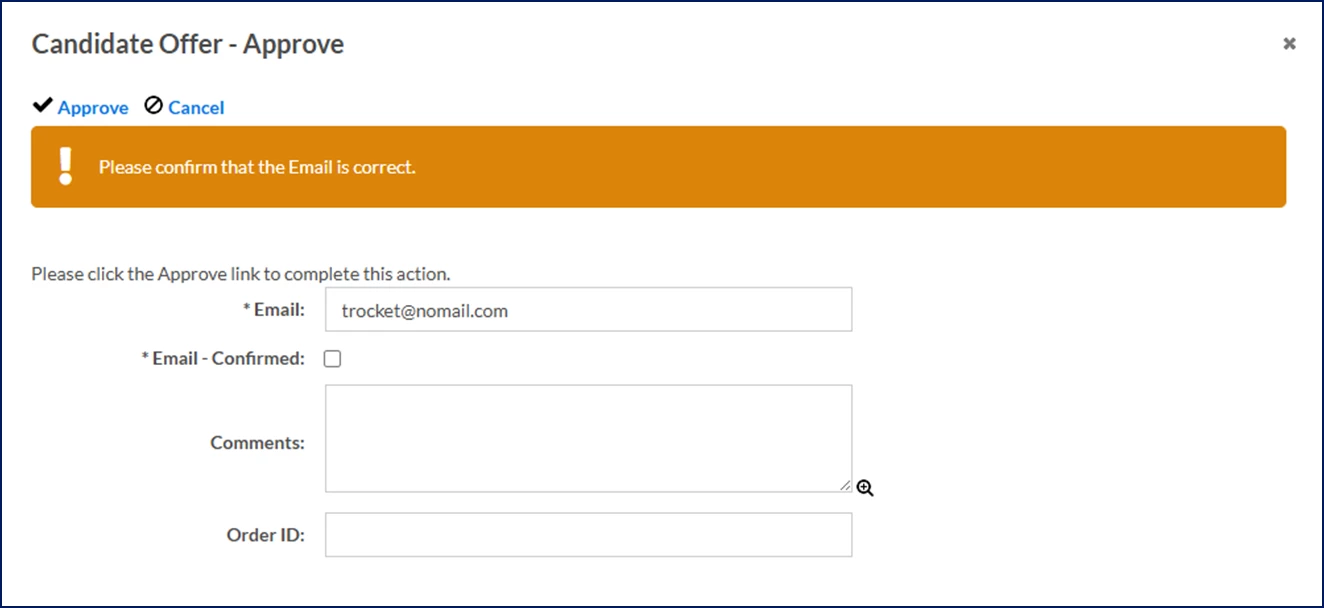
Select the Accept Offer. A Candidate Offer–Approve dialog displays.
Verify the email listed in the Email field matches the candidate’s email address on their profile.
Confirm the candidate’s email, and then select the Email–Confirmed checkbox. TIP: It’s important to ensure this email is correct. Otherwise, the candidate won’t receive the email invitation from HireRight to initiate their background check.
Optional: Enter any remarks about the candidate or the offer in the Comments field.
In the Order ID box, enter the HireRight number generated when you initiated an order in their system.
Select Approve. Your order details are automatically verified.
Select Close to exit the Review Alerts dialog.
You can view the Order ID and the provider status, results and score from the Background Check Management tab on a candidate’s profile in Enterprise. You can also view the status of your order anytime and the results when the background check is complete. Learn how!
Bypassing a background check
Occasionally, you may want to accept a candidate offer and bypass ordering a background check. When you bypass ordering a background check, the candidate is routed to your program office so they can validate that a background check is not required.
TIP: Background check bypass reasons are specific to your program and set up via self-service.
To bypass ordering a background check, complete these steps from your Enterprise dashboard.
Select the Candidate Offer Pending tasks awaiting action link in the My To Do section of your dashboard. A Review Alerts dialog displays.
Locate the candidate for whom you want to submit an offer, and then select View Details from the Action list. An Approval Details page displays.
Review the candidate information and any attachments.
Complete the information on the Approval Details page based on your organization’s processes.
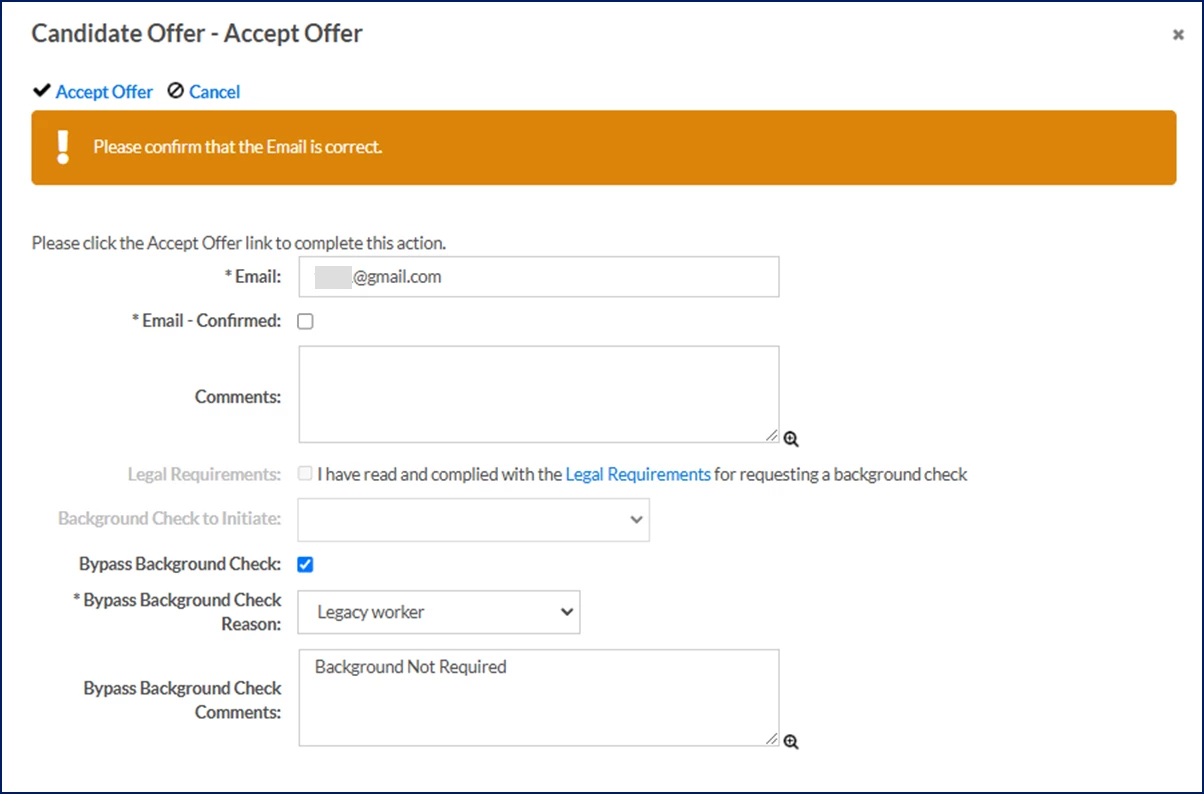
Select the Accept Offer. A Candidate Offer–Accept Offer dialog displays.
Verify the email listed in the Email field matches the candidate’s email address on their profile.
Confirm the candidate’s email, and then select the Email–Confirmed checkbox. TIP: It’s important to ensure this email is correct; otherwise, the candidate won’t receive the email invitation from Accurate to initiate their background check.
Optional: Enter any remarks about the candidate or the offer in the Comments field.
Select the Bypass Background Check checkbox. Additional fields display.
From the Bypass Background Check Reason list, select an explanation for why you’re omitting a background check.
Optional: Enter any remarks in the Bypass Background Check Comments field.
Select Accept Offer. A notification is sent to your program office to confirm that the candidate can progress through the onboarding workflow without a background check.
Select Close to exit the Review Alerts dialog.
Your program office must review and approve the background check bypass notification before the offer can be ratified and the candidate onboarded.
How to steps: program office
Approving bypassed background checks
As a program office user, you must review and approve candidates whose background check was bypassed. Use either the email notification you received or your My To Do list in your Enterprise dashboard,
To review and act on bypass notifications, complete these steps from your Enterprise dashboard.
Select the Candidate Background Check Bypass Approval tasks link in the My To Do section of your dashboard. A Review Alerts dialog displays.
Locate the candidate you want, and then select View Details from the Action list. An Approval Details page displays.
Scroll down to view the background check bypass reason and any comments.
Select Approve to allow the candidate to progress in your onboarding process without a background check.
Please complete the following fields as part of your Beeline Community registration. Unless noted as private, this information will be displayed on your user profile within the community.