


Approvals App - Table of Contents
Approvals
Ready to take action? Let’s start with Approvals.
Click either the Approvals number in the Action Required section of the Home screen or the Approvals app button in the navigation panel. Your screen refreshes to display all approvals waiting for you to take action. The slide-out panel located between the navigation panel and your work area separates the approvals into sections by Approval Categories, Additional Approvals, and Surveys. What you see listed depends on which tasks are assigned to YOU within Beeline Enterprise. Request and Assignment related approvals are visible to both the Hiring Manager as well as the Hiring Manager’s manager, making these records visible and actionable by either manager.
In the sample below, the client program has active Beeline Time and Beeline Expenses modules as well as Contingent Staffing and Services Procurement solutions. The Approvals slide-out panel displays tally numbers to give you a quick overview of your current activity. It also helps you determine which areas need your attention first. Click any tally number to refresh the screen to display the associated list of tasks.
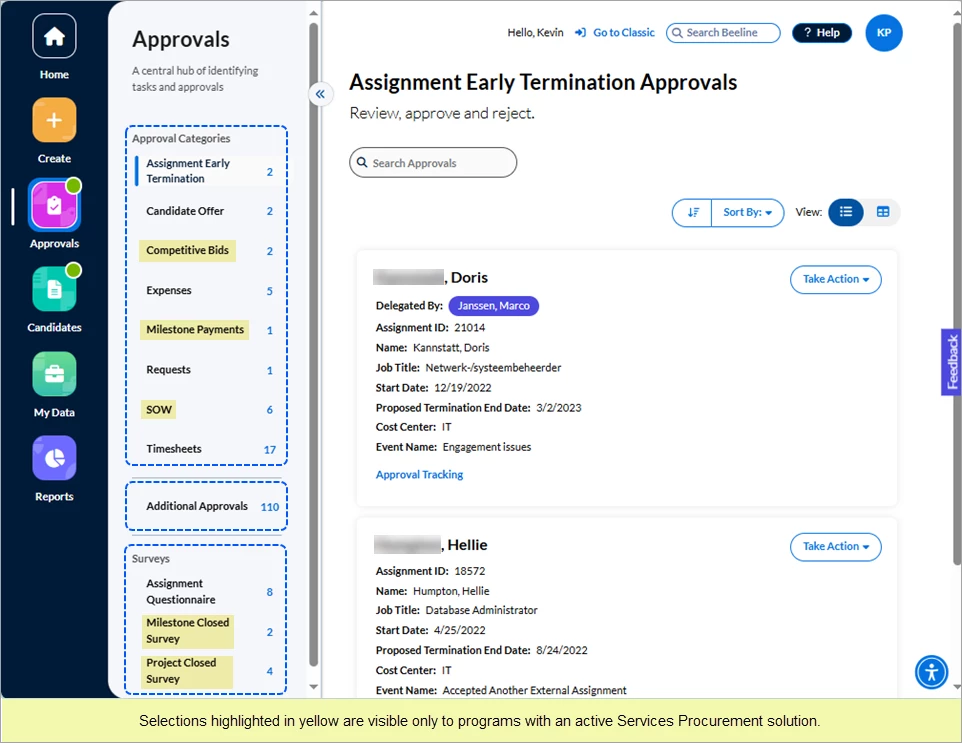
Notice the white line next to Approvals in the navigation panel. This indicator is a quick way to always know which app is currently active.
Views and Bulk Processing
The screen layouts are similar for all Approval Categories to provide consistent ease of use. You have the option to display records in Card View or Table View. There are a total of twelve Approval Categories, however only those that are valid for your program will be visible. Even if the Approval Category is valid for your program, it will only appear in the panel if there are active records needing approval. Any approval that does not fall under one of the twelve Approval Categories will be included in the Additional Approvals section.
Card View:
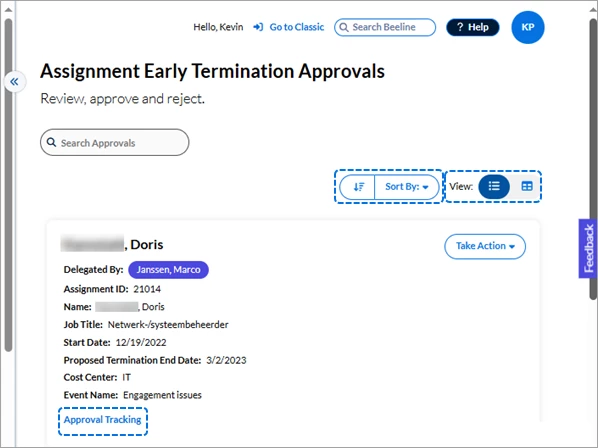
In Card View, records display in order of the Sort By filter setting. Fields display in a single column aligned along the left hand side. Buttons and features are located in the same area of the screen throughout the categories although the functionality may vary slightly. Take care to notice the differences in summary data fields and the differences in Sort By options. All card views include an Approval Tracking link that displays an approval process graph (see sample below) to let you know which approval steps have been completed, as well as which steps still need to be completed. They also include either a View Advanced or View More link to access additional details related to the approval record.

The Card View is best suited for taking action on a one-by-one basis. Keeping layouts similar from one Approval category to the next helps you work through your lists quickly. There is an option to approve multiple records in bulk, however this is only valid for Timesheets, Expenses, Recertifications, and Milestone Payments.
♦ Bulk Approval process
Approvals can be processed in bulk for Timesheets, Expenses, Recertifications, and Milestone Payments by batching these records together and then approving them as a distinct group. Each Card View screen can display up to 25 records. You can combine ALL records together into a combined group by clicking through the screens until you reach the end of the list. Then scroll to the top of your combined list and click the checkbox next to Approve Selected. This activates the Approve Selected button. (It will turn blue.) Click Approve Selected and ALL the records will be approved as a distinct group.
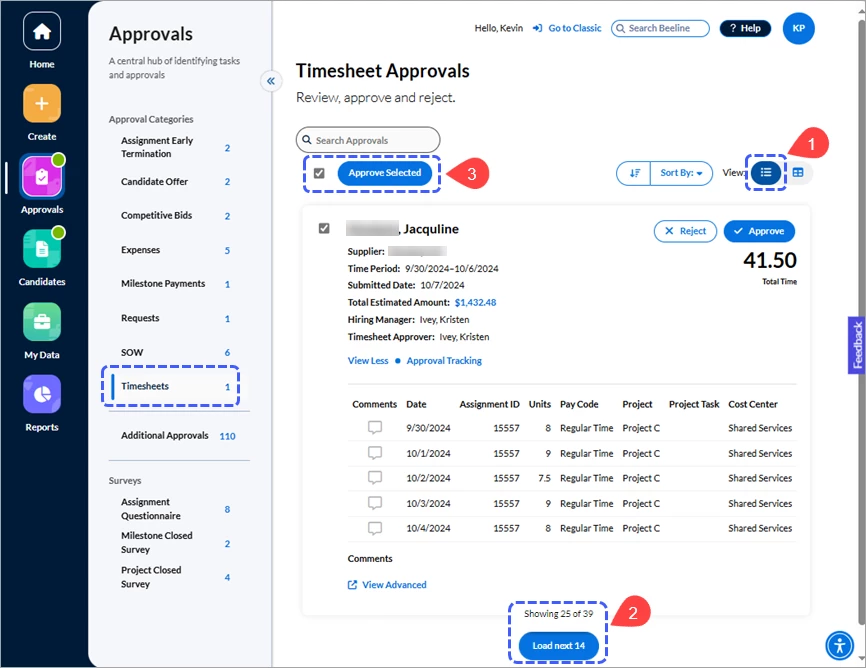
Steps for bulk approval:
- Select the Card View (see example above).
- Verify the total number of records to be approved by clicking the checkbox for each, then click Load next… until you reach the end of the list.
- Scroll back up to the top of the list and select the Approve Selected checkbox—the button activates. Click Approve Selected. All the selected records will be processed in a single batch.
TIP: If there are any ‘exception’ records in the approvals list, process those FIRST so that when you create your combined list, it only includes records that qualify for the same ‘action’.
Table View:
In Table View, records display in rows and columns, similar to a spreadsheet. The default sort order is the same as the Card View. The column headers are the same fields as displayed in the card view with the addition of a Delegated By column. The final Actions column is locked in place, and for some approval types, other key identifier columns (for example, Name or Assignment ID) might be locked as well, while all other columns are visible by using the horizontal scrollbar. Take care to notice the differences in data fields (columns) across categories. Each table can display up to 25 records (rows). The counter located in the bottom right corner lets you know how many records there are in total. Click the kebab icon (⋮) in the Actions column to view your options for taking action on the listed records.
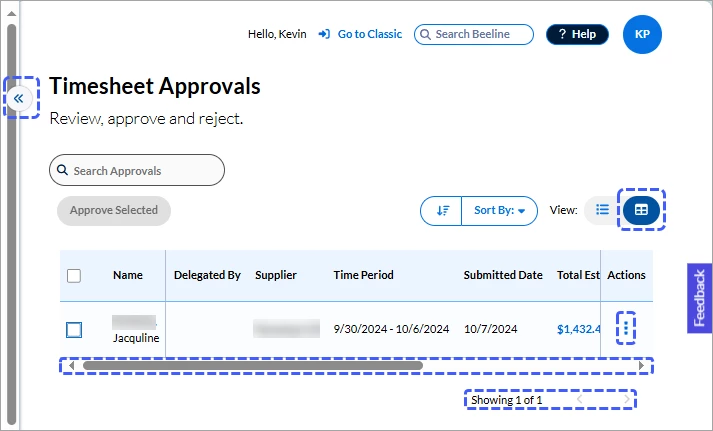
TIP: You can maximize your visible work area space by hiding the Approvals slide-out panel. Click the double arrow slider button to hide it, then click it again to restore it.
♦ Bulk Approval process
Approvals can be processed in bulk (i.e., batches) for Timesheets, Expenses, Recertifications, and Milestone Payments by selecting all records from a single table and then approving them as a group. Click the checkbox in the table header row to select all records (rows). This activates the Approve Selected button. (It will turn blue.) Click Approve Selected and ALL the records in the table will be approved as a distinct group. Repeat the process on each screen until all records have been processed.
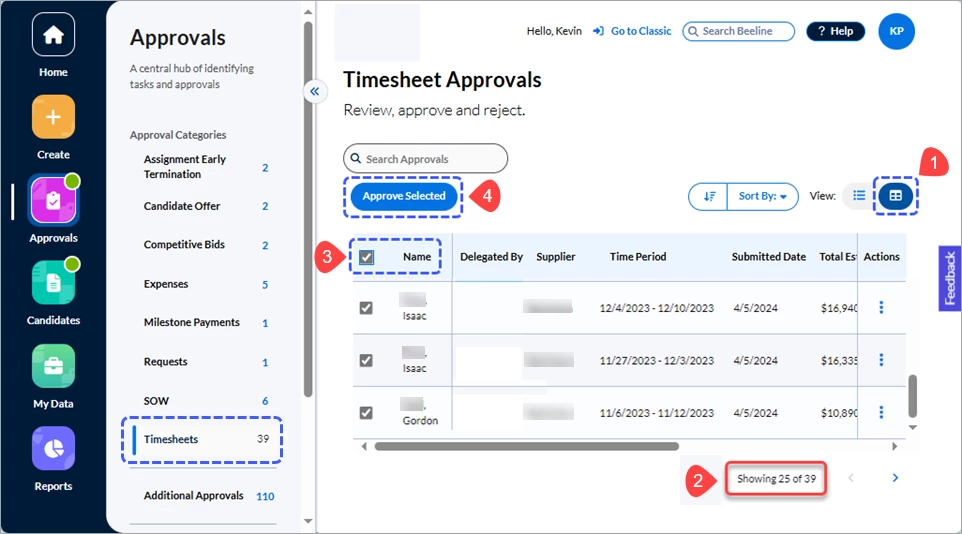
Steps for bulk approval:
- Select the Table View (see example above).
- Verify the total number of records to be approved. You can approve up to 25 records as a single batch.
- Click the checkbox in the header row of the table to select ALL the records or scroll through the screen to select individual rows—the Approve Selected button activates.
- Click Approve Selected. All the selected records will be processed in a single batch.
TIP: If there are any ‘exception’ records in the approvals tables, process those FIRST so that when you process the tables as groups, they only include records that qualify for the same ‘action’.
Approval Categories
Assignment Amendments
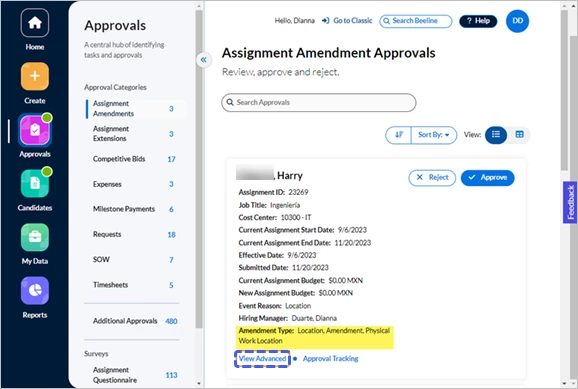
Not all assignment amendments require approvals. Approvals are needed for updates that impact the budget (for example, extensions, cancellations) or assignment management (for example, work location or equipment issued during onboarding). Be sure to check the Amendment Type field so you’ll know which information to check on the assignment record. To view the full assignment record, click the View Advanced link. The Reject action button opens a text box for you to explain why the amendment was rejected and what adjustments need to be made in order to resubmit.
Assignment Early Terminations
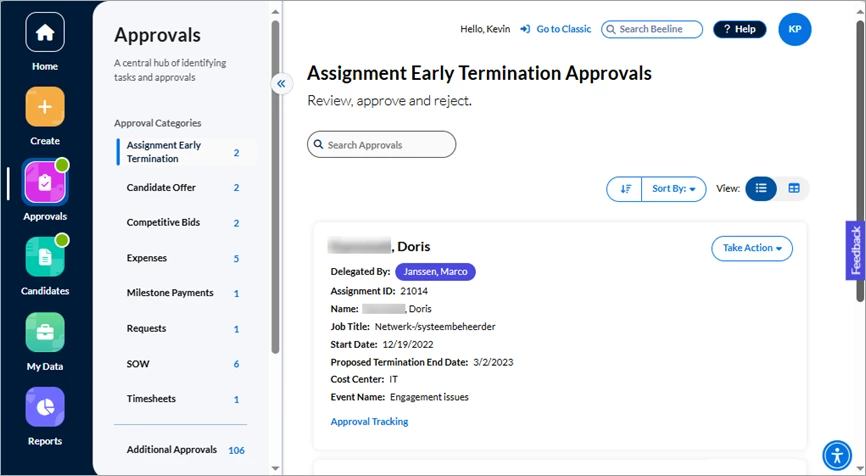
When an assignment ends prior to its original End Date, then an Assignment Early Termination workflow needs to be processed. There can be several reasons to end an assignment earlier than expected but the assignment early termination process ensures that information related to the assignment as to end date, budget calculations, and valid timesheet submission timeframes will be accurate. This is important not only for assignment and timesheet tracking but also for system and analytics reporting.
Assignment Extensions
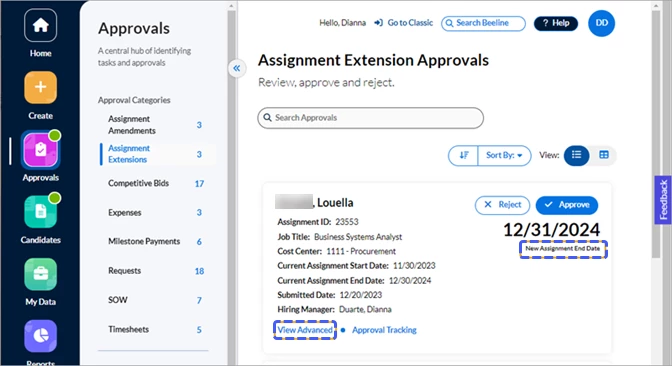
Assignment extensions have their own workflow approval path. The extension amendment can combine an extension with a budget adjustment (for example, an increased rate) or just be an extension without any budget adjustment. When actioning an approval, check the Amendment Type field in the Event Reason Information section (go to View Advanced screen) so you’re aware if the changes are only to duration timeline or also include budget related fields.
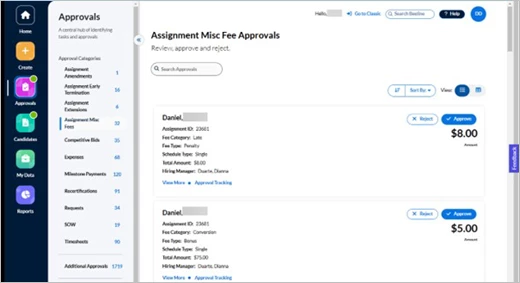
Assignment Miscellaneous Fee
When a financial transaction needs to be made between the Client, Supplier, and/or Contract Worker that is NOT a standard timesheet or expense entry, then a Miscellaneous Fee can be processed through the Assignment record. Once approved, these transactions are captured for the Client’s invoice processing.
There is a broad range of flexibility for the use of Misc Fees within Beeline Enterprise depending on Client needs and Program Office procedures. If you have questions about when to submit a charge as a Misc Fee, or the details required, you should reach out to your Program Office.
Assignment Recertifications
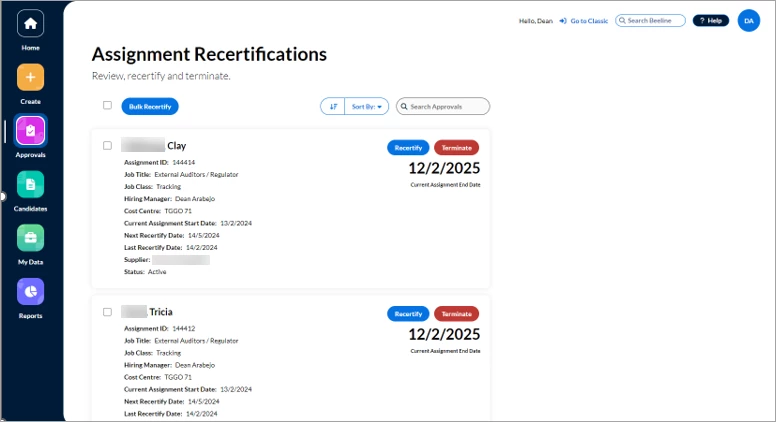
It’s important for you to keep the recertification or termination status current for your contingent workers. The Approvals app makes it easy to manage your recertifications either on a one-by-one basis or in batch mode. It can also identify assignments that do not qualify for recertification so you can begin the offboarding process. Clients/Programs want to be sure that contingent workers have badges and system access rights when they need them, but they also want to be sure that badges are collected when a worker leaves and their system access rights are rescinded to avoid security risks to the organization.
Candidate Offer
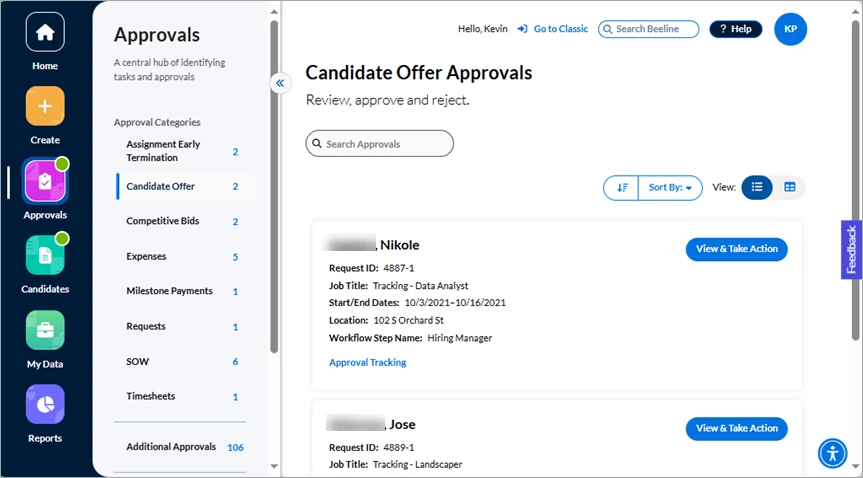
The Candidate Offer marks the end of the candidate review process when the successful candidate is identified and the Program Office works with Supplier to finalize the details of the offer. The Hiring Manager approves prior to onboarding. Separating Candidate Offers into their own section of the Approvals app makes it easy for Hiring Managers to search, sort, and track all Offer approvals. Approval step information is readily available by clicking the View & Take Action button.
Competitive Bids
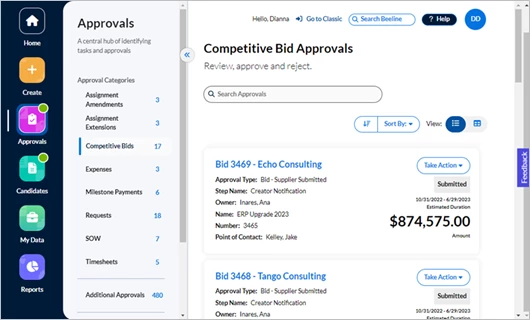
Competitive Bids are an optional feature in the Services Procurement solution. Clients use competitive bids to solicit multiple vendors to respond to a single sourcing event for a defined scope of work. The successful vendor then advances to the SOW (Statement of Work) stage to scope out the terms and conditions. Once the terms and conditions are agreed upon, the SOW is promoted to an active Project which is used to manage the agreed upon scope of work.
Expenses
You can take action on a single Expense approval or you can use the checkbox option to bundle similar expense types together and take action on them as a batch (Approve Selected). Scroll through the list and determine which items need separate handling. Take action on those as needed. Then go back and combine all the remaining expense items into “like” batches for quicker and more efficient processing. Notice that the amount displayed on the right-hand side is the total amount of the submitted Expense. When you reject an expense, a text box displays so you can enter Comments as to why it was rejected and what needs to be adjusted before it can be resubmitted.
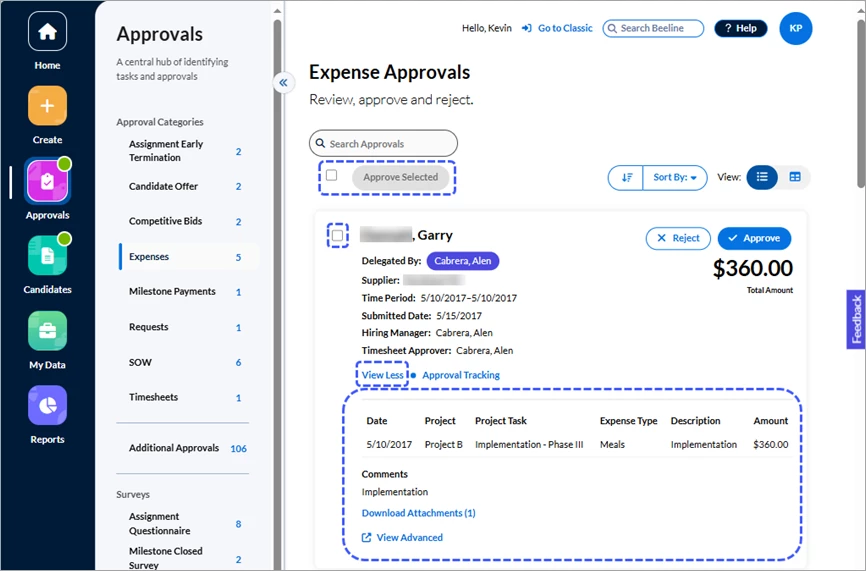
Use the View More option to reveal a slide down section that displays expense entry details. Click the Download Attachments link to view submitted expense documentation. Click View Less to collapse this section. Notice that the Download Attachments link is only visible in the View More expansion section.
TIP: You can set your preference to View More or View Less and the system will honor your preference as you work with other expense approvals. However, once you log out or if you change browsers, the setting reverts back to the default view.
Milestone Payments (including Units of Measure)
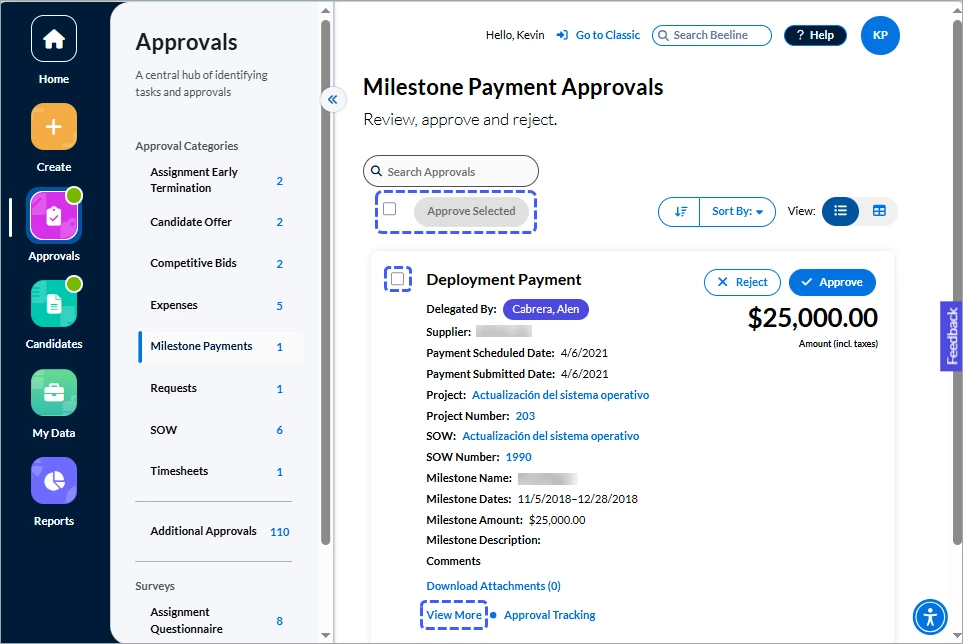
Milestone Payment Approvals is a standard feature used in the Services Procurement solution. Milestone payments are managed under the active Project based on the details agreed to in the SOW (Statement of Work). When you click View More, the Milestone section expands to display additional details.
Requests
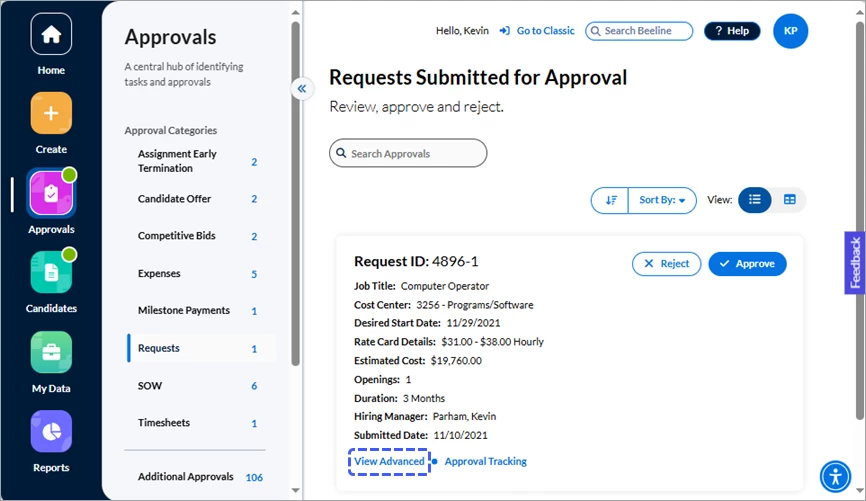
Follow the same principles used for the assignment approvals to work through your Request approval list. The screen layouts are similar and the buttons and features are located in the same area of the screen. Take care to notice the differences in summary fields and the differences in Sort By options. The Openings field lets you instantly view how many positions are associated with the requisition. Use the View Advanced link to access more details if you can’t determine how to action the approval based on the summary fields information. Remember the Card View is best for actioning short lists on a one-by-one basis while the Table View is better for actioning multiple records in batch mode.
SOW (Statement of Work)
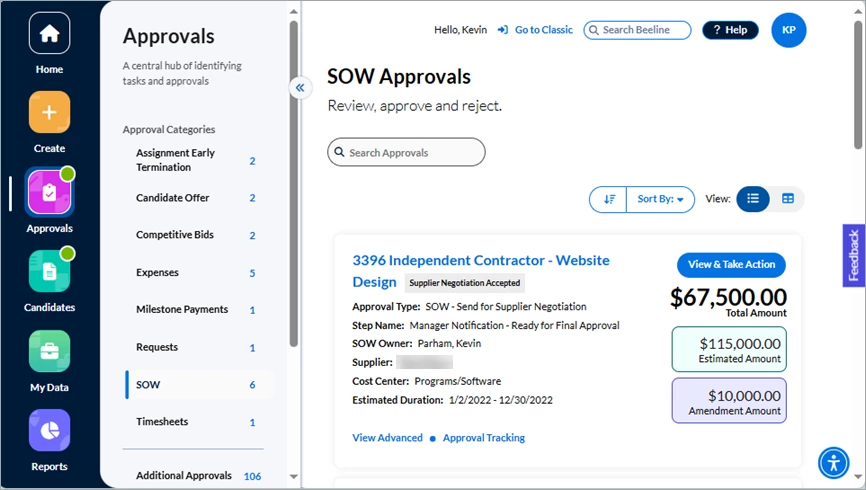
As mentioned previously, the SOW is a phase of the Services Procurement solution used to scope out the terms and conditions of the proposed work Project. Once the terms and conditions are agreed upon between the client and the vendor, the SOW is promoted to an active Project to manage the agreed upon scope of work. The Card and Table views display key summary information. Financial tracking is simplified by showing the Total Amount of the Project as well as the Estimated Amount and the Amendment Amount specific to the open approval.
Timesheets
Timesheets are typically approved by the Hiring Manager or the designated Timesheet Approver. For some programs this is the same individual while for other programs these roles are separate. Either method can be managed within the Hiring Manager Experience. You can instantly see the total estimated amount for a submitted timesheet before you approve it by checking the Total Estimated Amount field in the timesheet summary on either the Card and Table views. Click the hyperlinked total Amount and a window opens with Estimated Amount Breakdown details for the entire timesheet.
In the Card View, you can take action on a single timesheet record or you can use the checkbox option to bundle similar timesheets together and take action on them as a batch (Approve Selected). To simplify the process, scroll through the list and determine which timesheets need to be actioned on an individual basis. Take action on those as needed. Then go back and combine all the remaining timesheets into “like” batches for quicker and more efficient processing. Notice that the total displayed on the right-hand side is the Total Time submitted. When you reject a timesheet, a text box displays so you can enter Comments as to why it was rejected and what needs to be adjusted before it can be resubmitted.
In the Table View, it is easier to organize timesheets into groups for batch processing.
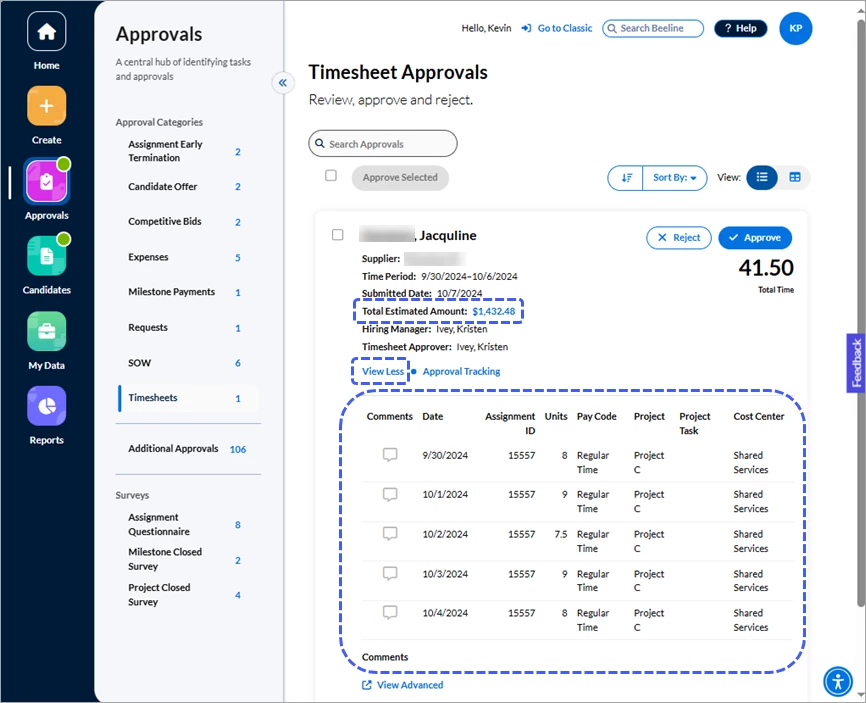
In the Card View, click View More to reveal a slide-down section with timesheet details, including Comments. Click View Less to collapse this section.
You can set your preference to View More or View Less and the system will honor your preference as you work with other timesheet approvals. However, once you log out or if you change browsers, this setting reverts back to the default view.
The View Advanced option navigates you to the complete timesheet record to view all details. Click the Back to My Apps link to return to the Timesheet Approvals list.
NOTE: The View Advanced link is only visible in the View More expansion section.
Cost Allocation details
If your Beeline Enterprise instance includes Cost Allocations as part of its financial tracking, you can easily check this information on approval records for Timesheets, Expenses, Miscellaneous Fees, and Milestones. Follow the same process steps provided below to access information for all approval categories where cost allocation is a valid option.
- Navigate to the card view of the respective approval category. The example below is from an Expense Approval.
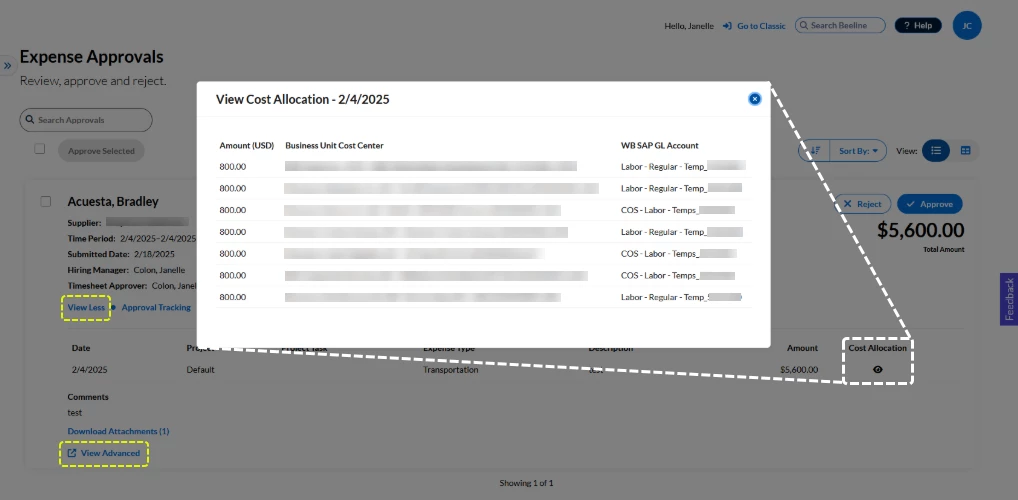
- Click View More to expose the expansion section. (View Less will be the visible label.)
- Click the ‘eye’ icon in the Cost Allocation column for the record of your choice. A window opens to display the relevant cost allocation string.
Optional: Click the Approve button to view the cost allocation string for Milestone payments. - Click the X button in the upper right corner to close the window and return to the previous screen.
To make edits to either the Timesheet or Expense cost allocations, you need to click Advanced View and navigate to BTE (Beeline Time and Expense) to access the edit options. Edits can be made to Miscellaneous Fee and Milestone cost allocations by clicking the Approve button.
Additional Approvals
All other approval types are combined into a single list in the Additional Approvals section.
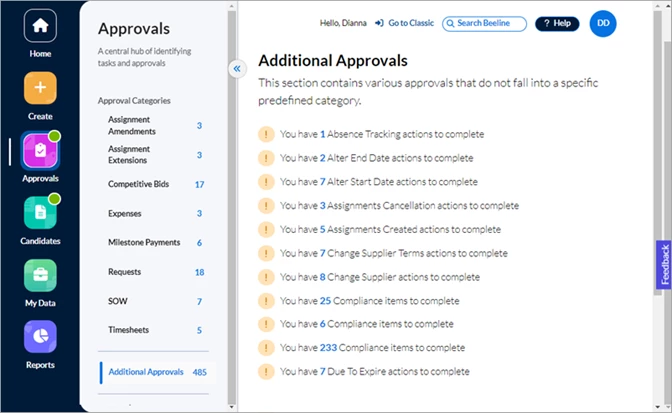
Click any blue tally number in the list to open the dialog window with further details (Table View).
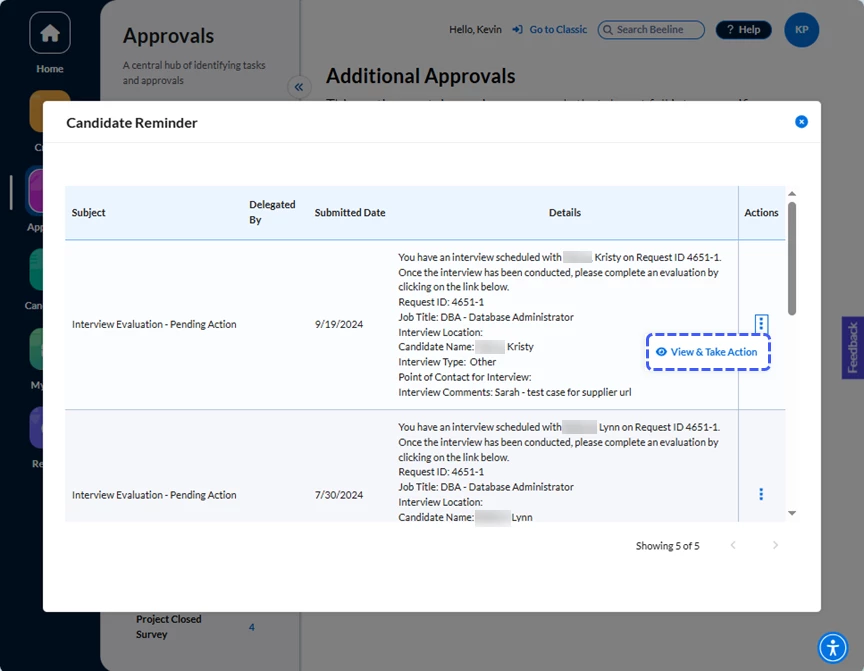
Click View & Take Action in the Actions column to navigate to the record Details screen. Review the record and use the displayed action buttons to approve or reject. Click Ù Back to My Apps to navigate back to the list.
Surveys
Programs decide which, if any, questionnaires and surveys to assign to Hiring Managers. In Classic Beeline, notifications informed Hiring Managers of these tasks. The Surveys section in the Approvals app now lists all outstanding questionnaires or surveys and includes a direct link for easy access. No more overlooked notifications causing you to miss providing this valuable feedback!
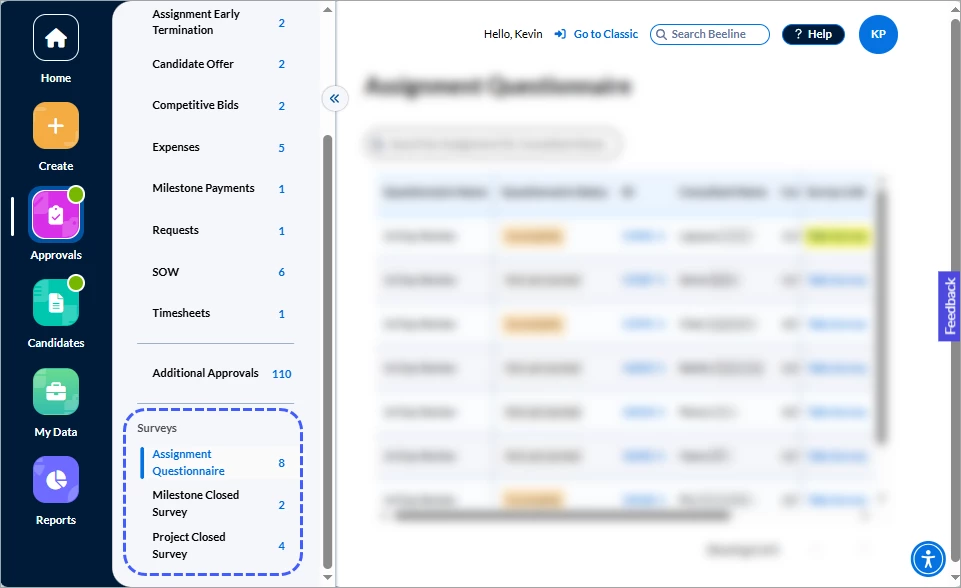
NOTE: Only those questionnaire/survey categories that are valid for your program display in your Hiring Manager Experience instance. All Surveys screens display in Table View format.
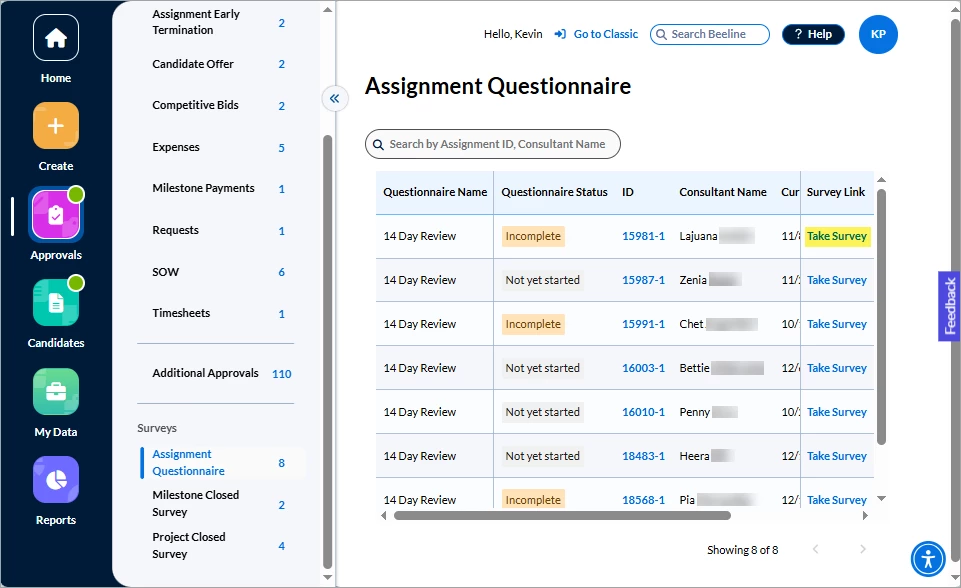
Assignment Questionnaire
Assignment questionnaires can be created for a variety of purposes throughout the assignment lifecycle. They provide important feedback to the Program Office not only as to worker performance but also VMS processes and functionality. Therefore, timely completion can go a long way to provide better oversight and program efficiencies.
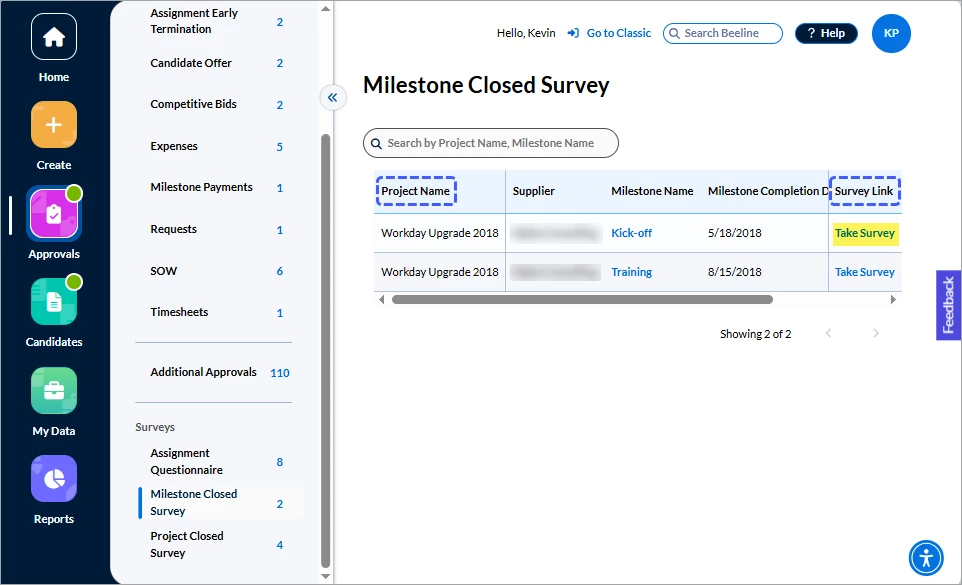
Milestone Closed Survey
Milestones are specific to the Services Procurement solution. They are used to ensure that the overall Project is meeting its SOW (Statement of Work) related terms and conditions. Each Project has its own specific requirements; however, these surveys ensure that not only are the specific Project requirements being met, but also that the project-based model is working effectively as well.
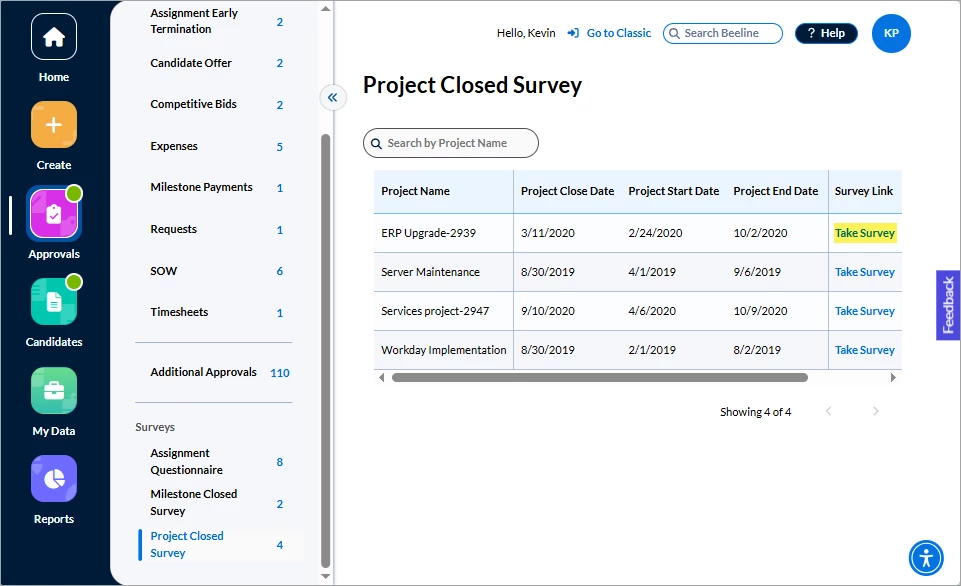
Project Closed Survey
Project Closed surveys assess the overall Project rather than the separate stages managed as Milestones. The objective is feedback that covers the broad range of actions and workflow tracking throughout the lifecycle of the active project.
| Persona | Modules | Date Posted | Feedback? Email us: |
| Hiring Manager | HMX | Beeline Enterprise | |