

Candidates
Table of Contents
The Candidates app simplifies the workflow needed to review, assess, and qualify candidates. Best of all—it does this with streamlined screens and easy access to action links making it quick to navigate from one evaluation task to another with minimal clicks.
The process begins when you click the Candidates app button in the navigation panel and the platform “fetches” all candidates submitted for your review based on your open Requests, or those delegated to you. Then, just sit back and let the “digital assistants” do their job!
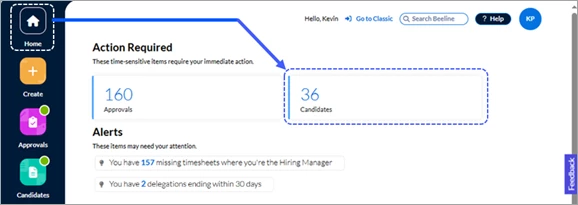
TIP: You can also click the Candidates tally number in the Action Required section on the Home screen to navigate directly to the Candidates list in the Candidates app.
When the “fetching” is complete, you’ll see a list of your open Requests organized by Job Title. The hyperlinked number at the top indicates the current number of submitted candidates.
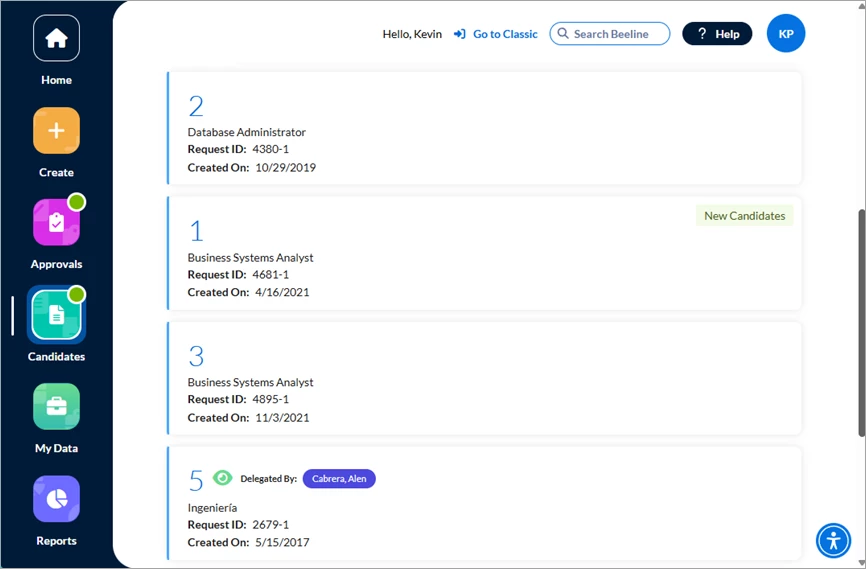
Each Request is shown as a separate card. The details inside the card include Job title, Request ID, and the Created On date. If the Request is one that was delegated to you, the Delegator’s name will display to the right of the number of submitted candidates. A New Candidates tag displays on the right side of the card to indicate that candidates have been added to the open Request.

Scroll through the list and click the hyperlinked number of submitted candidates on any card to drill down to the Candidate details.
Candidate Details
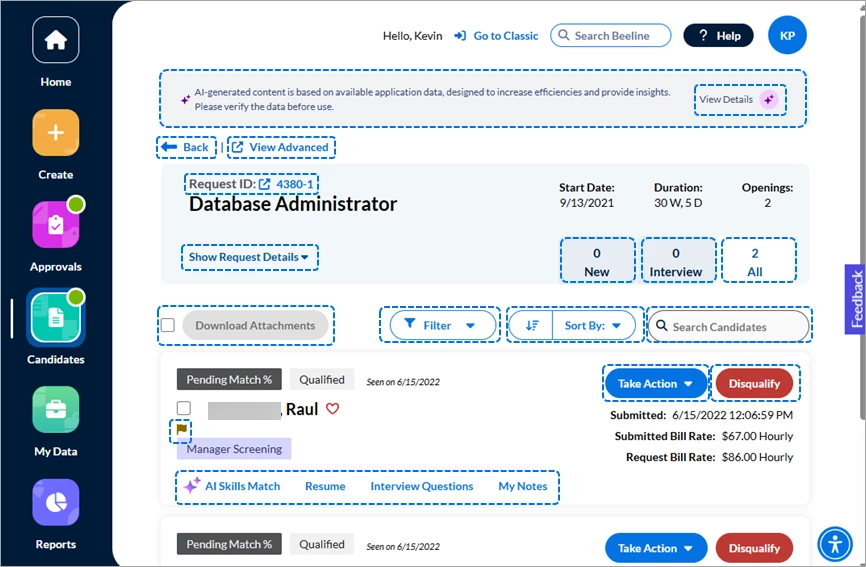
Take a moment to review the screen layout and get familiar with all the available options. These options are specifically designed to make the candidate review process go faster and be more efficient. They let you sort, filter, and search content for the details you need—when you need them.
The AI Skills Match, Skills Proximity Score, Resume Insights, and Interview Questions are AI-generated content. The intent is to support decision making throughout the Candidate review process, but they are not intended to replace human judgment. Please note our AI Disclaimer statement at the top of the screen. Click the View Details button to review the AI analysis process these features use to generate information.
♦ Located at the top of the workspace are the navigation links and Request details.
- Click Back to return to the previous Candidates list screen.
- Click View Advanced to navigate to the Candidate Evaluation list screen. Candidates are arranged in a table format to make it easy for you to compare candidates based on the information in the various columns. Click the kebab icon (⋮) in the Actions column on the far right and you’ll see which actions you can take on an individual candidate. Options will change as the candidate advances through the review process.
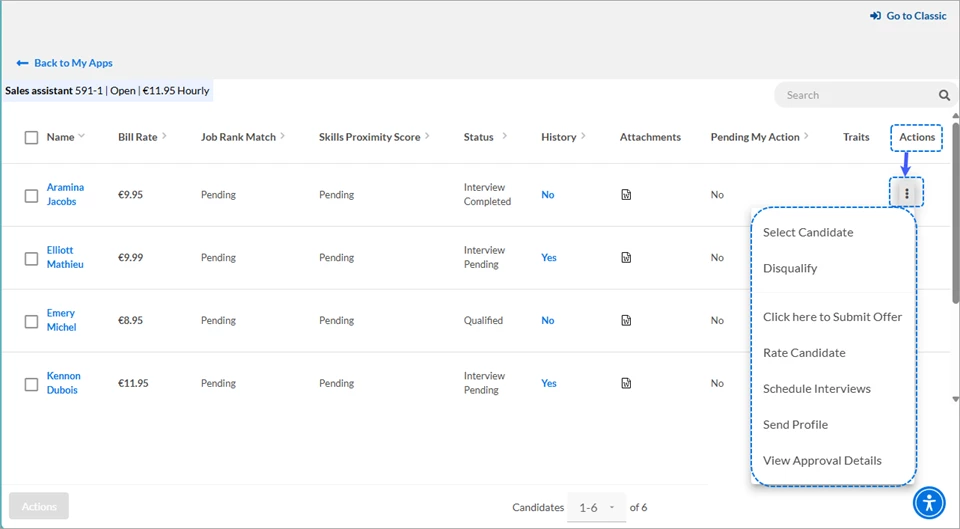
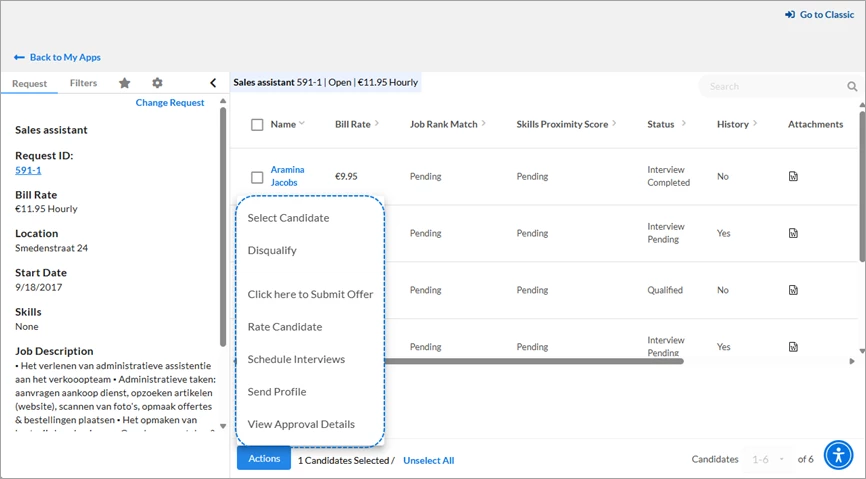
Click the Name checkbox, or any checkbox on the left side and the Actions button in the bottom left corner activates. The list of valid Actions you can take for a selected group of candidates will change as you advance through the review process.
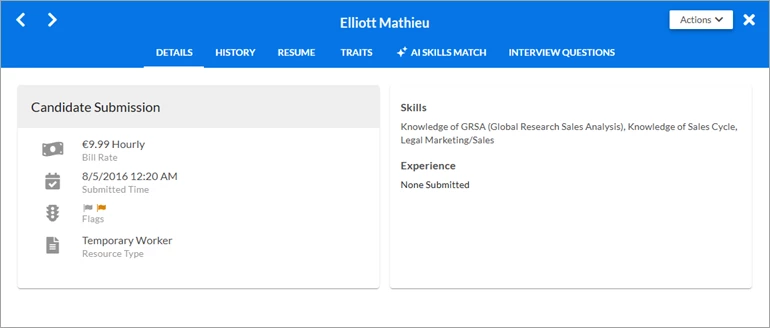
Click the candidate’s hyperlinked name on the left to open the Candidate Details modal window. This modal window gives you easy access to the candidate’s details, history, attachments (for example, resume), traits, and Actions options. Access is available all from a single pop-up window without the need to open additional tabs or windows to research or take actions on the candidate. You can use the forward and reverse arrows to switch to any other candidate in the list. Click X in the upper right corner to close the modal window and return to the Candidates Evaluation screen.
From the Candidates Evaluation screen, click the Back to My Apps link to return to the Candidates App screen.
- Click Show Request Details (located below the job title on the Candidate Details screen) to expand the summary view to the expanded view for additional Request details. Start Date, Duration, and Openings are repeated while Bill Rate, Location, End Date, and the Job Description are only visible in the expanded view.
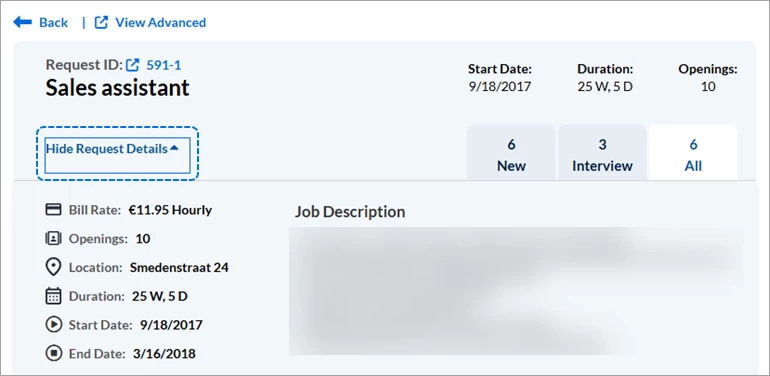
- Need to see more Request details? Click the Request ID: ####-# hyperlink to navigate to the Request dashboard which gives you access to the full Request record.
- Need to view just the New candidates, the candidates going through the Interview process, or All the candidates submitted for this Request? Click the respective tab to the right of the Show/Hide Request Details link.
Located below the Request details are the download, filter, sort, and search links.
- Click the checkbox next to Download Attachments to download all available items for all the candidates listed or click the checkbox next to each respective candidate’s name to select which individual downloads you want. The Download Attachments button only activates once a selection is made. The ability to download attachments in bulk not only streamlines the overall review process but it also gives you better options for comparing one candidate to another.
- Click the down arrow to select which Filter you want to use for your candidates list. The list includes multiple options for Skill Alignment and Candidate Status.
- Click Sort By to change the sort order of the candidates list based on the category option you select. Use the Arrow option to further refine your list into ascending or descending order.
- Don’t see the candidate you’re looking for? Use the Search Candidates feature to locate a specific candidate.
Next comes the list of submitted candidates—with easy access to take action.
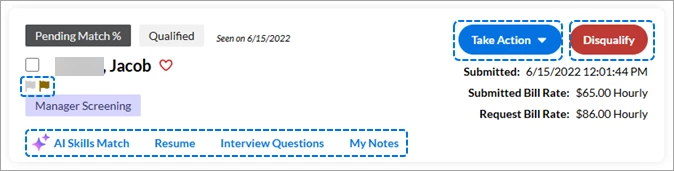
- Each candidate record is shown in a card format to provide an at-a-glance summary of key information and single-click access to detailed information or actionable buttons.
- Directly above the candidate’s name you’ll see the candidate’s current status.
- Click the checkbox to activate the Download option for any attached files.
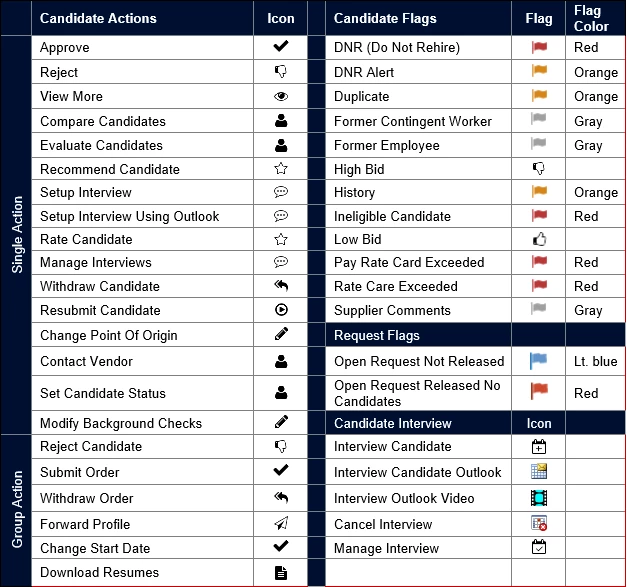
- Hover over any visible Candidate Flag for details. NOTE: For a complete list of Candidate Flags and other identifying icons that you may encounter throughout these evaluation screens, review the Candidate Flags and Icons section at the end of this section.
- Verify the current Candidate Submission workflow status by checking the status displayed beneath the candidate’s name.
- The Take Action button gives you access to Select Candidate, Manage Interviews, Rate Interview, Send Profile, or Submit Offer.
- The Disqualify button displays a pop-up window where you can select the Reason and enter Comments as to why a candidate is disqualified.
- Easily verify the candidate’s submitted date, submitted Bill Rate, and Request Bill Rate by viewing the information posted beneath the Take Action button.
- Drill down for detailed insights into the candidate’s work history, job experience, or skill sets by using the AI Skills Match or Resume tabs. The Interview Questions tab helps you generate question lists for the interview process and then evaluate the responses. Details for each feature tab are included below.
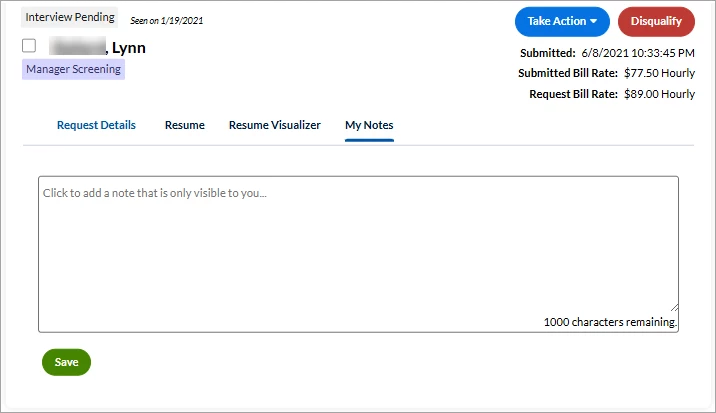
- Use the My Notes tab to create your own summary to refer to as needed.
♦ AI Skills Match / Skills Proximity Score
Notice that the overall Skills Match score displays above the candidate’s name on the Candidate Details screen but click the AI Skills Match tab and the section expands to show summary information for Matched Skills, Inferred Skills, and Missing Skills.
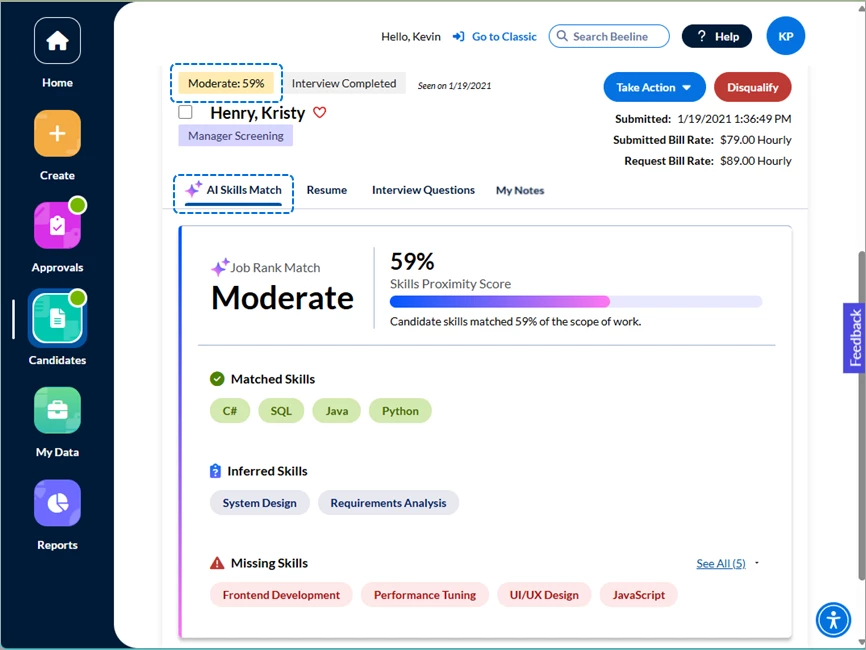
The Skill Alignment and Skills Proximity Score are columns on the Candidate Evaluation screen. The Candidate Details modal window also includes an AI Skills Match tab that repeats this information to provide easy access to key analysis information throughout the candidate review process.
Please note: Skills Proximity Score requires a Premium subscription. This is a Self-Service feature that your Program Office will need to activate before it is available on your Beeline Enterprise site. Please reach out to your Program Office to confirm activation.
♦ Resume / Resume Insights
To view the candidate’s full resume, just click the Resume tab. The submitted resume displays on the right side of the screen and the AI-generated Resume Insights display on the left side as four bullet points. These bullet points are designed to provide insights as to the candidates:
- Relevant skills and qualifications
- Experience that aligns with the role
- Notable achievements
- Missing qualifications or potential risk areas (such as gaps or limited experience).
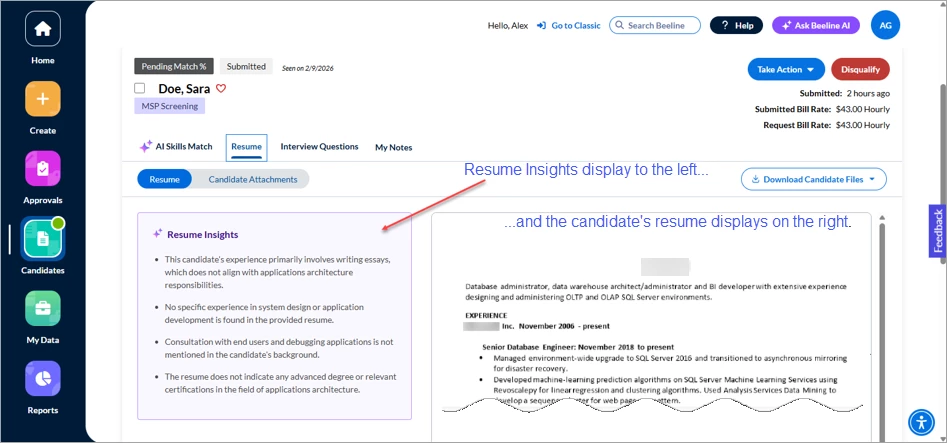
The content is produced by an AI analysis of the submitted resume against the job description. These insights are designed to reduce the time and effort typically used for manual resume screening and to generate overall process efficiencies by helping the hiring manager make informed decisions. The content identifies insights, it is not intended to compare, rank, or score submitted candidates. Resume Insights are only generated once and only if a resume is submitted for the candidate. If for any reason the system cannot produce the Resume Insights, then a message will display in the screen’s left side Resume Insights space as to why.
Resume Insights are also accessible from the Candidate Evaluation list screen as well as the Candidate Details modal window.
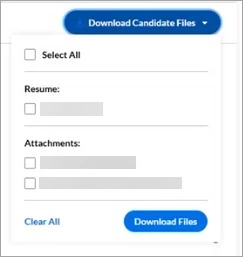
Click the Candidate Attachments tab to view any additional submitted documentation. The Download Candidate Files tab gives you the option to select some or all submitted documentation and then download your selection.
Please note: Resume Insights is a Self-Service option. It will only be visible and functional for candidates that are submitted after this has been enabled on your Beeline Enterprise production account. Reach out to your Program Office for details as to your enablement date.
♦ Interview Questions / Interview Question Generator
Questions are a key element to any interview, but every interviewer knows that creating an effective questions list is no simple task. Our Interview Question Generator uses AI analysis to compare the submitted resume against the job description. Then it takes the results to generate 10 custom-tailored questions that the hiring manager can use during the interview process.
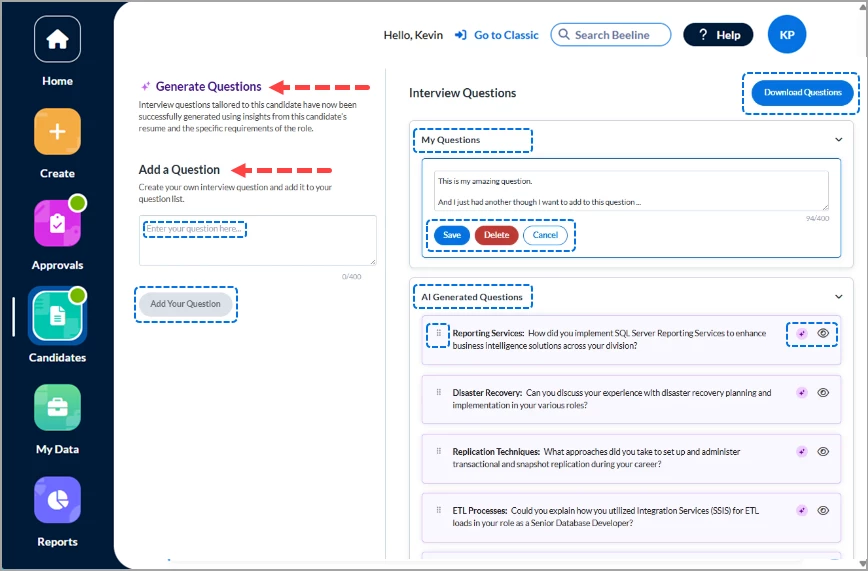
Our objective is to enhance and facilitate the overall process, so this functionality also includes a section where the hiring manager can create and incorporate their own questions (My Questions) into the interview process.
The AI-generated list can be further refined with the option to hide any question (as well as restore it back if you change your mind!) Each list can be adjusted to the order of your choice using the drag-and-drop option. The text of AI-generated questions is fixed but your My Questions entries include an <edit> option.
(TIP: If you want to revise an AI-generated question, you can always rewrite it as a My Question with the adjusted wording of your choice.) And, once the final lists are complete, the combined list can be downloaded in a PDF format.
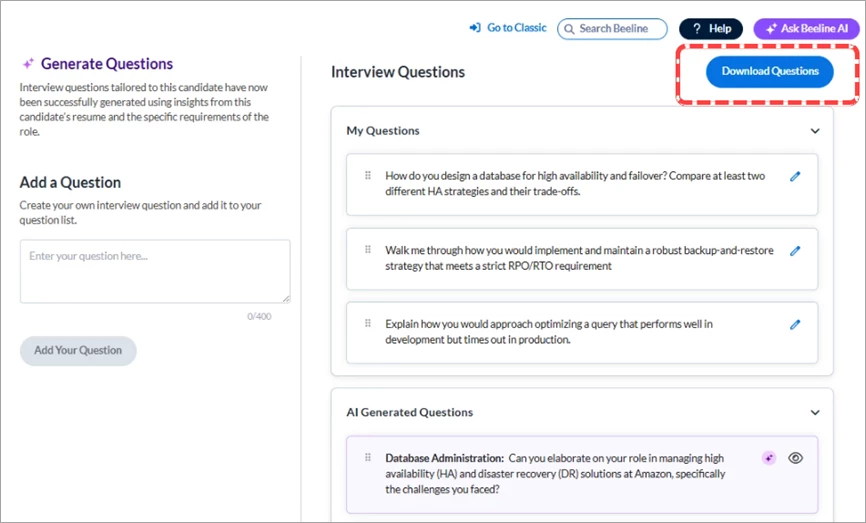
Please note: Interview Question Generator requires a Premium subscription. This is a Self-Service feature that your Program Office will need to activate before it is available on your Beeline Enterprise site. Please reach out to your Program Office to confirm activation.
♦ My Notes
Use this feature to take notes for your private use throughout the evaluation process.
Candidate Flags and Icons
| Persona | Module | Date Posted | Feedback? Email us: |
| Hiring | HMX | Beeline Enterprise |