


Table of Contents
Create
- Need to submit a request for a new contingent worker?
- Need to onboard a new tracked resource?
- Need a new project-related statement of work (SOW) or competitive bid?
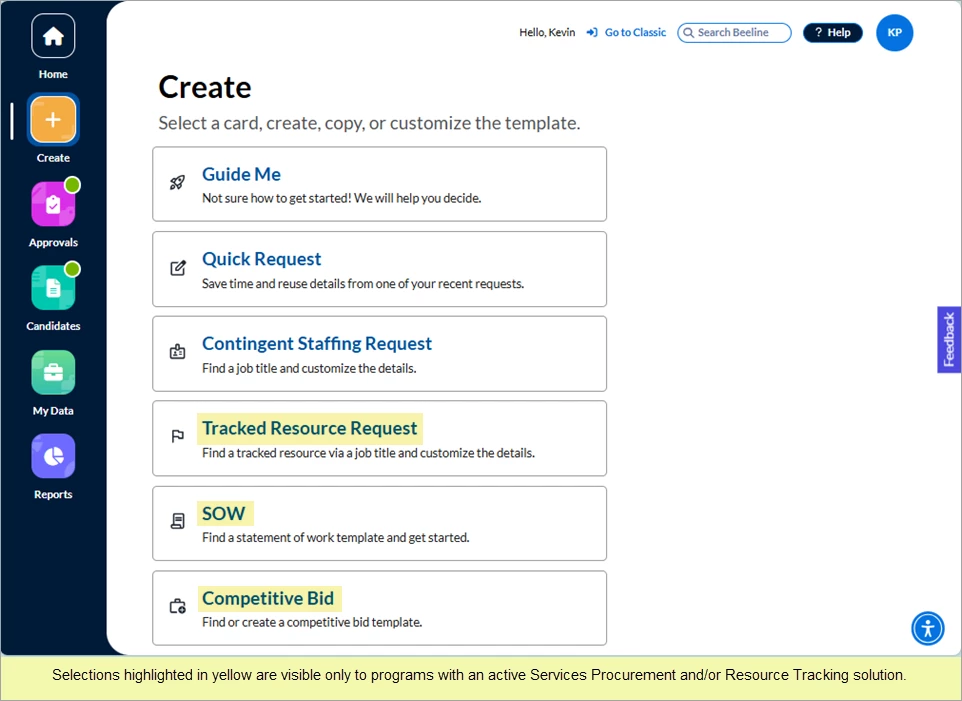
The Create app is where you begin. And like all beginnings, the path, and the task, is easier when there is guidance along the way. Select the Guide Me option if you want a digital assistant to direct you throughout the request process. Once you’re familiar with the process you can switch to the Quick Request option and repurpose a previous request to create your new one. Or just follow the standard process with the Contingent Staffing Request option—but notice that we’ve added a “Need Help Getting Started?” section to provide helpful insights and search filters to narrow your search by geography and industry. There’s even a copy option that lets you adjust a previous request to create a whole new different one—that’s quite a timesaver!
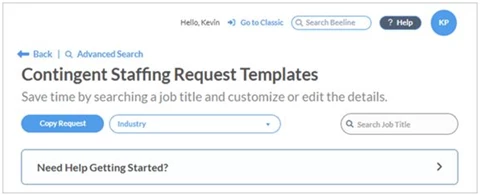
You’ll find these same helpful features available for Resource Tracking and SOWs. Competitive Bid has all these features as well, with the exception of being able to copy.
Guide Me
Guide Me walks you through the decision process to create a request by having you answer a series of questions. The system responds to these questions by advancing you through the workflow steps based on your answers. The questions and responses are based on client configuration settings to ensure that the process follows the path intended by the client.
NOTE: Some programs use Guide Me as their default method for all new Requests, which makes it the only visible option.
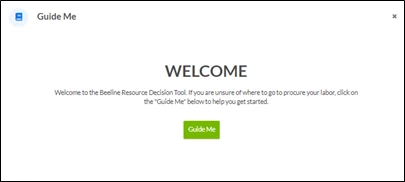
Please note: If you do not see a Guide Me card on your Create App landing screen, then reach out to your Program Office to verify if Guide Me is a valid option for your Beeline Enterprise account.
Quick Request
The Quick Request option lets you use a previous request as a model for a new one. In instances where there are few differences between the request you need to create and a prior request, this method can be a real time saver. The data field selections have already been made. You just need to review them and make any necessary adjustments needed for the new request. Be sure to check the auto-populated fields to verify that the entries are what you need for your “new” request.
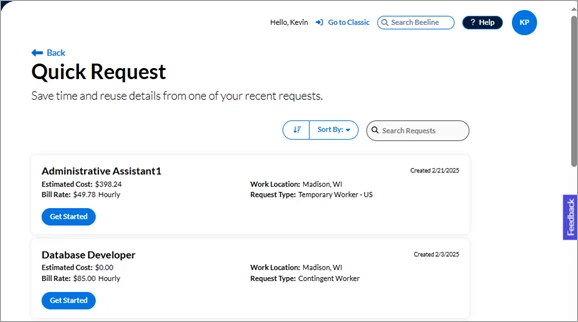
Please note: If you do not see a Quick Request card on your Create App landing screen, then reach out to your Program Office to verify if Quick Request is a valid option for your Beeline Enterprise account.
Contingent Staffing Request
When there’s no prior request that’s a close enough match to copy or use as a model, you’ll need to fill out the complete form by first selecting the job title. Check the “Need Help Getting Started?” content for guidance and potential shortcuts. Take care when making selections and filling in fields so that you can use this request as a “copy” or Quick Request option in the future. Time and effort invested now, can save you time and effort in the future.
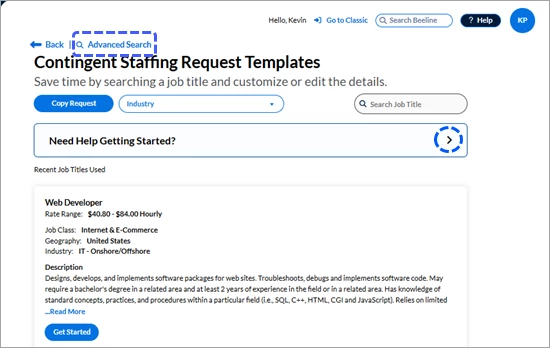
♦ Advanced Search
If you need more than an industry and/or job title search to locate the request template you need, and none of the items in the Recent Job Title Used list are a workable option, then click Advanced Search at the top of the screen. From the Advanced Search screen, you can filter your search by Geography, Industry, Job Class, and/or Job Title. There’s also a standard Search field. Set the filters to the selections of your choice, then click Apply Search to start the search process and your results display in table format on the bottom section of the screen. Table columns include Job Title, Job Class, Industry Name, Geography, Rate Range, and Job Description.
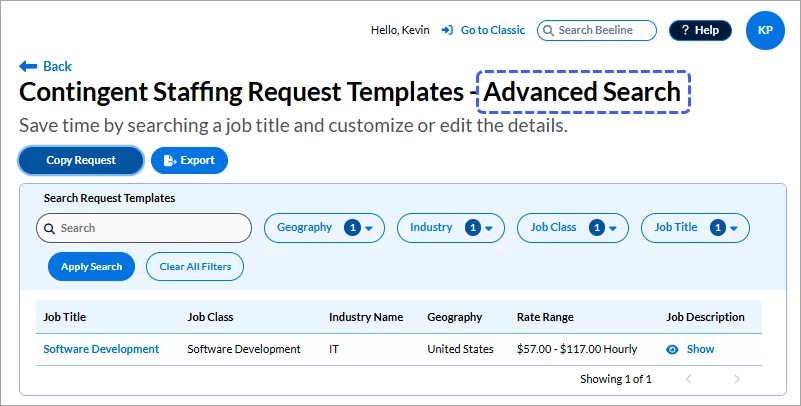
You can copy any request from the search results or even export the list of request templates for offline review. Advanced Search lets you spend less time looking for request templates so you can spend more time focusing on time-to-fill tasks.
Tracked Resource Request
Resource Tracking is used to track third-party workers who work onsite at client work locations, but whose time and expense processing is handled by their third-party employer. This tracking provides oversight and visibility at work locations for both onboarding and offboarding protocols to ensure that only authorized workers are onsite at a work location at any given time. Review the “Need Help Getting Started?” content for helpful tips working with these records.

Click the Get Started button and the screen refreshes to display the full request form. Parts of the form are similar to the Contingent Staffing Request form, but they are not the same. Take care that your entries reflect Resource Tracking rather than a Contingent Staffing request. Fill in the fields as indicated; then click Save to complete your request and forward it to the Approver.
♦ Advanced Search
The Advanced Search option includes additional search filters that let you narrow the focus of your search for the request template you need. Results display details for Job Title, Job Class, Industry Name, Geography, Rate Range, and Job Description in table format making it easier to compare and locate the template you need. Check the Advanced Search section in the Contingent Staffing Request entry above for additional details.
SOW – Statement of Work (Services Procurement)
Beeline Enterprise's Services Procurement solution supports the entire Services Procurement lifecycle from sourcing, through negotiation, into engagement management, and invoicing. Programs can use the full range of components or just the basics. Services Procurement is a project-based solution with payments based on milestones and/or units of measure (UOM). Some programs may also incorporate time and expense payments for their projects-based contingent workers. Check the “Need Help Getting Started?” content for helpful tips working with these records. The overall objective for the SOW process is to create a legally binding agreement between the client and the vendor that details the Terms & Conditions to be followed throughout the active Project.
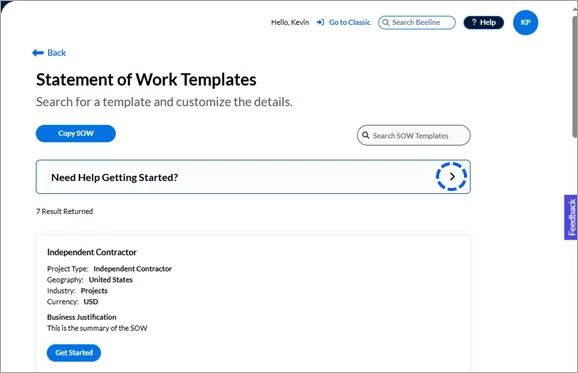
Click the Get Started button and the screen refreshes to display the initial step in the SOW creation ribbon. Follow the prompts to complete the steps; then click Submit to forward the SOW to the approval process. Depending on program requirements, terms and financials may be negotiated after this initial approval and prior to releasing to the vendor.
Competitive Bid (Services Procurement)
For some Projects, the client may already know who the service provider will be and the bidding process can be skipped. In those instances where a formal process is needed to identify and request products and/or services from multiple potential service providers, a Competitive Bid is used to award the SOW to the successful applicant. Review the content in the “Need Help Getting Started?” for tips and guidance.
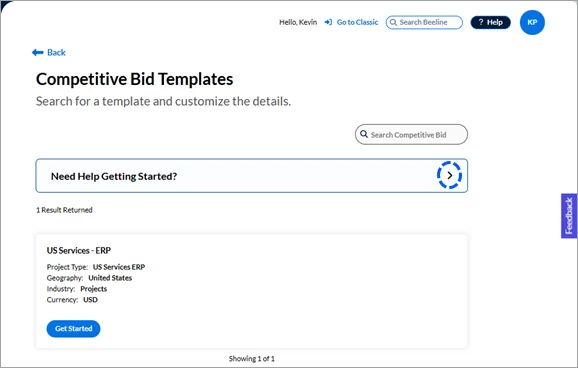
Click the Get Started button and the screen refreshes to display the initial step in the Competitive Bid creation ribbon. Follow the prompts to complete the steps; then click Submit to complete the Competitive Bid and forward it for approval before it can be released to the designated vendors.
| Persona | Module | Date Posted | Feedback? Email us: |
| Hiring | HMX | Beeline Enterprise |