


Smarter questions. Better interviews.
The AI‑powered Interview Question Generator jump‑starts your prep with 10 automatically generated questions. Plus, you can add your own to match your hiring style. Interview Question Generator gives you the confidence to ask the right questions—and the tools to do it effortlessly.
How it helps
- Generates tailored interview questions from the candidate’s resume and job requirements.
- Saves prep time by providing a strong, ready‑to‑use question set.
- Highlights gaps or unclear experience for more effective evaluation.
- Organizes AI‑generated and custom questions in one streamlined workflow.
- Promotes consistent, skill‑focused interviews that lead to stronger hiring outcomes.
How it works
- Analyzes the candidate’s resume and job description to understand key skills, experience, and role requirements.
- Generates a set of tailored interview questions using AI, designed to align with the most relevant competencies for the role.
- Separates AI‑generated questions from manager‑created ones for a clean, organized view.
- Allows you to add, edit, or remove your own custom questions in the My Questions section.
- Lets you hide AI‑generated questions to reduce clutter without permanently deleting them.
- Provides a one‑click option to download all active interview questions in a polished, ready‑to‑use PDF.
Action required
The Interview Question Generator feature is a premium AI feature. Your organization must have subscribed to the Premium AI package, and your system administrator must set up the feature before it’s available. See this article to learn how to set up the Interview Question Generator.
AI packages can be added to Enterprise via a Make a Change ticket. Contact your Relationship Manager to learn more about AI packages and features.
Persona
Hiring managers and program office users
How to steps
You can produce AI-generated interview questions from the Interview Questions tab when you drill down into a candidate from the Candidates app in the Hiring Manager Experience. You can also produce AI-generated interview questions from Interview Questions tab in the Candidate Evaluation feature.
Pro tip: To protect privacy, Personally Identifiable Information (PII) is not processed in Enterprise by AI.
Prerequisites
- Requires a submitted candidate with an attachment clearly identified as their resume.
Tip: See this article to learn how to identify a resume. - Requires an associated job description or job details to generate tailored questions.
Information in this article reflects a standard Enterprise configuration. Your Enterprise platform is based on your organization’s configuration. Settings and/or data visibility rules may vary slightly from what is described.
To accomplish your task, complete these steps from your Hiring Manager Experience.
- From the left Navigation, select the Candidates app.
- Select the open request you want to review.
- Navigate to the candidate you want to evaluate, and select the Interview Questions tab.
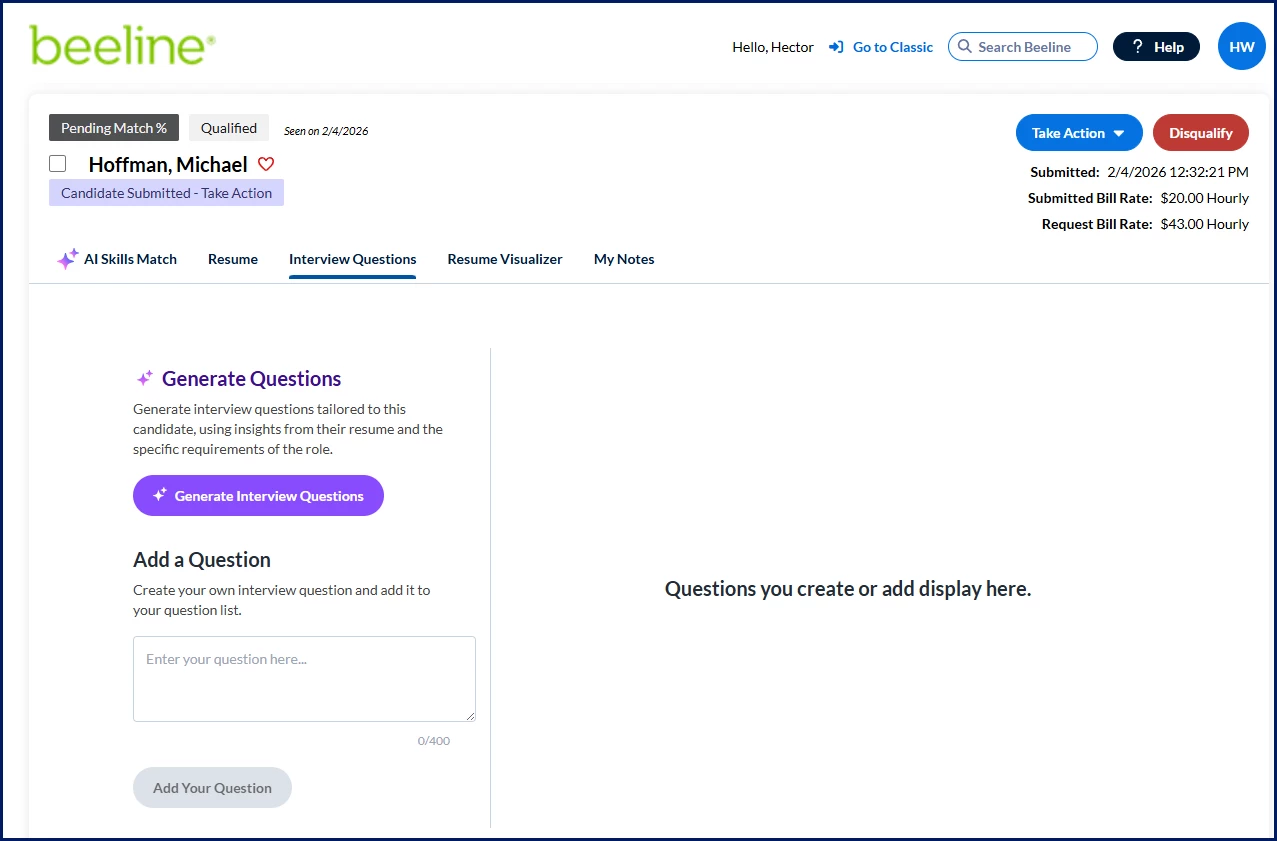
- Select Generate Interview Questions. AI-generated questions display on the right.
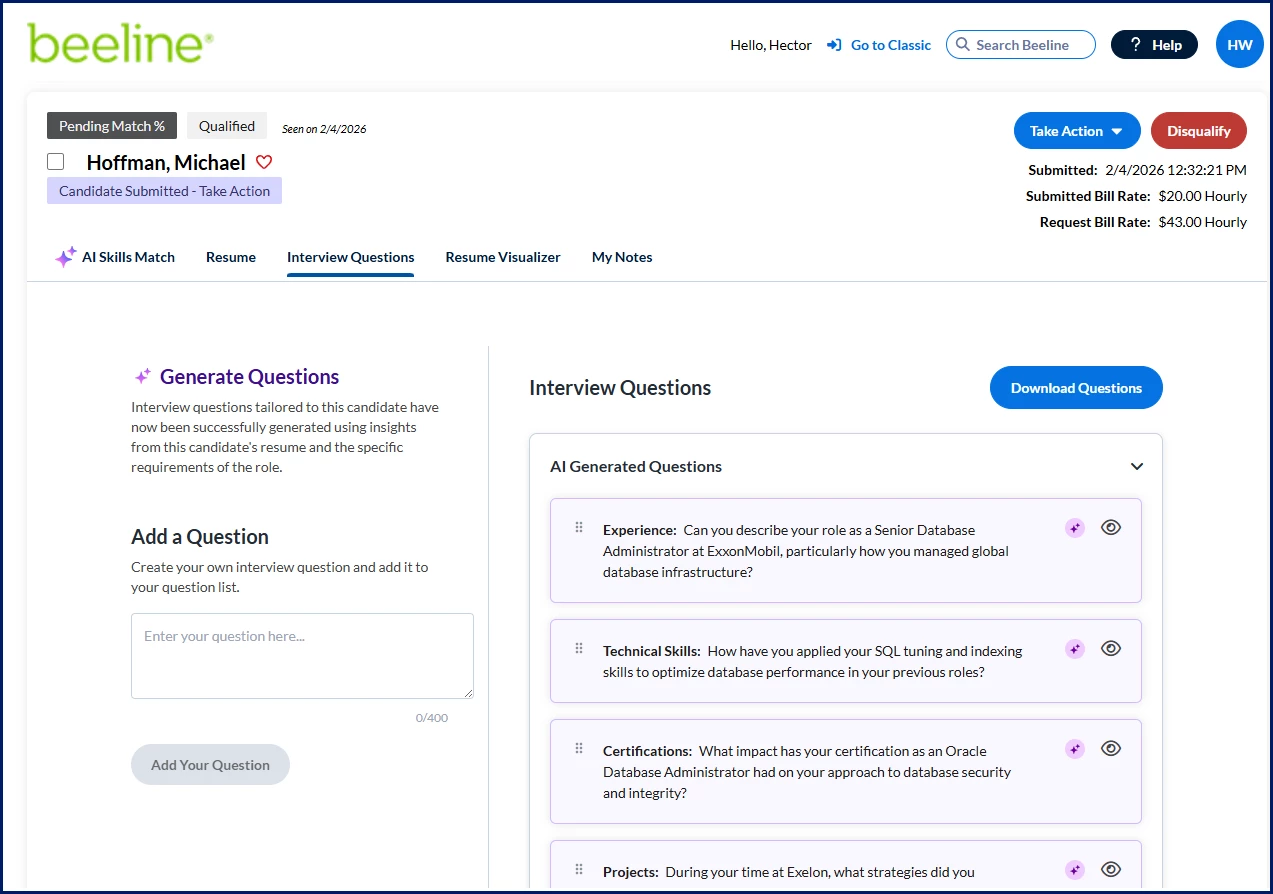
- Review the questions.
- Optional. You can drag and drop questions in the AI Generated Questions section to organize questions in whatever order you like.
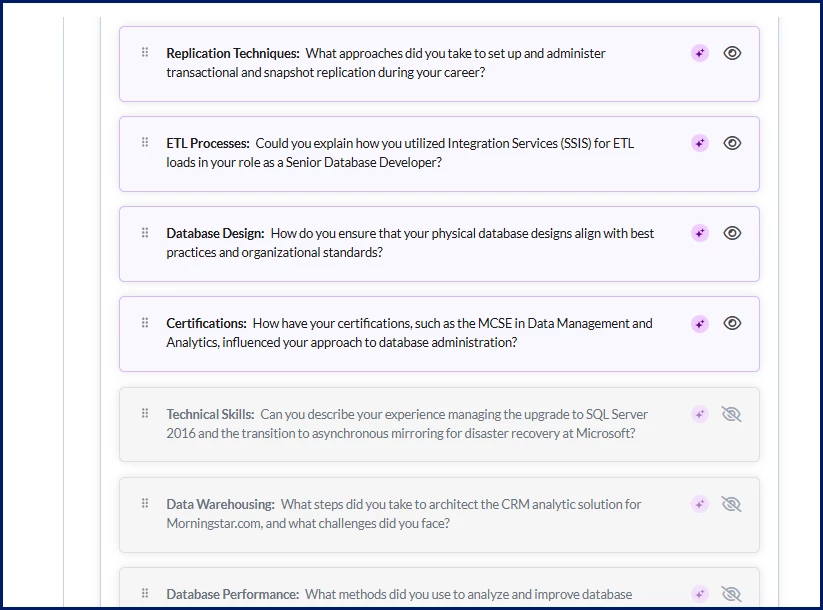
- Optional. If there are AI‑generated questions you don’t want to use, select the Visibility icon to remove them from view. You can easily make a hidden question visible again anytime you like just—select the Visibility icon on a hidden question. Hidden questions display toward the bottom of the list.
- Optional. To include your own question, take these steps:
- Enter your question text in the Question field. You can enter up to 400 characters.
- Select Add Your Question.
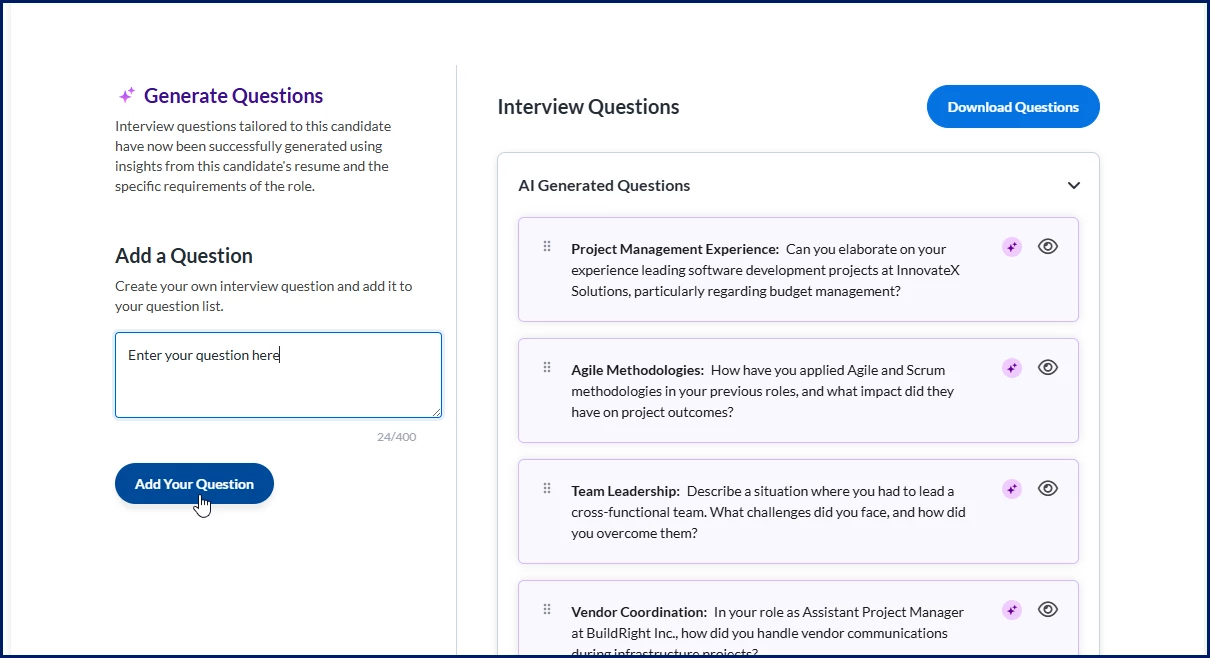
Your question is added under My Questions in the right section.
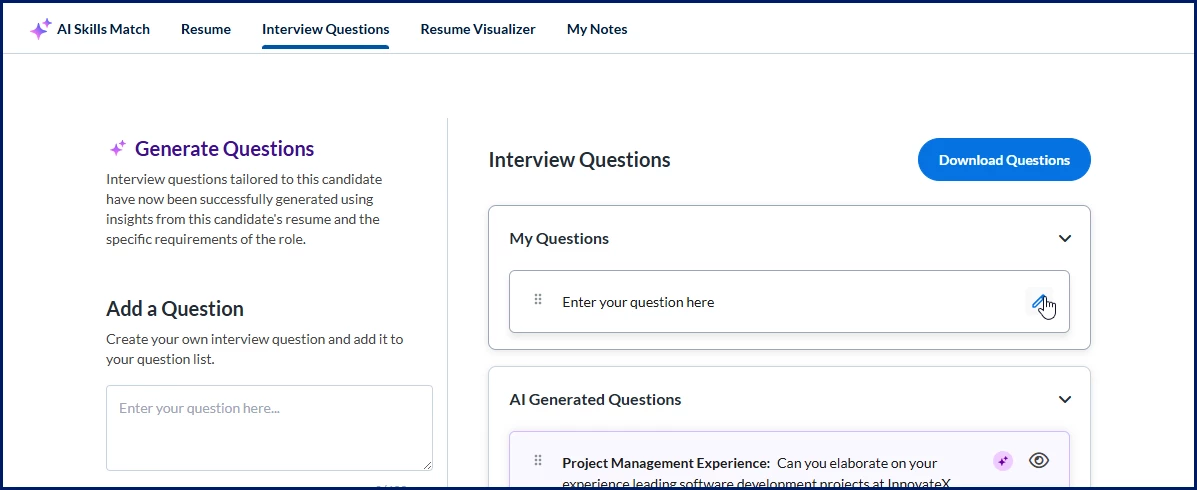
- Optional. Repeat steps a and b to add more questions of your own.
- Optional. You can edit or remove questions you added in the My Questions section.
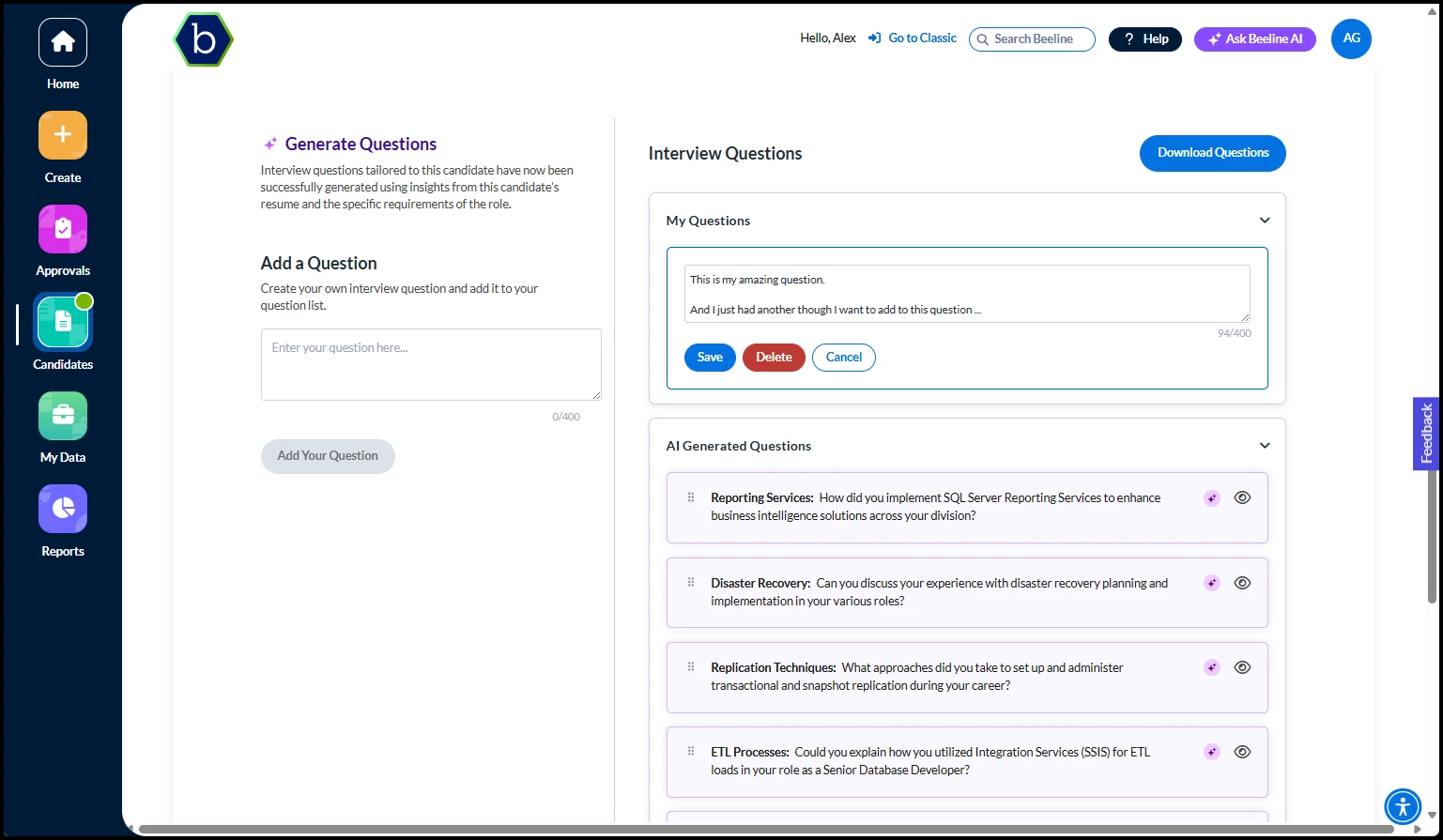
- Optional. You can drag and drop questions in the My Questions section to organize questions in whatever order you like.
Tip: Only you can view and export custom questions you create for a candidate. They’re not visible to other users.
- Optional. Select Download Questions to export a PDF of all active interview questions to your local device.
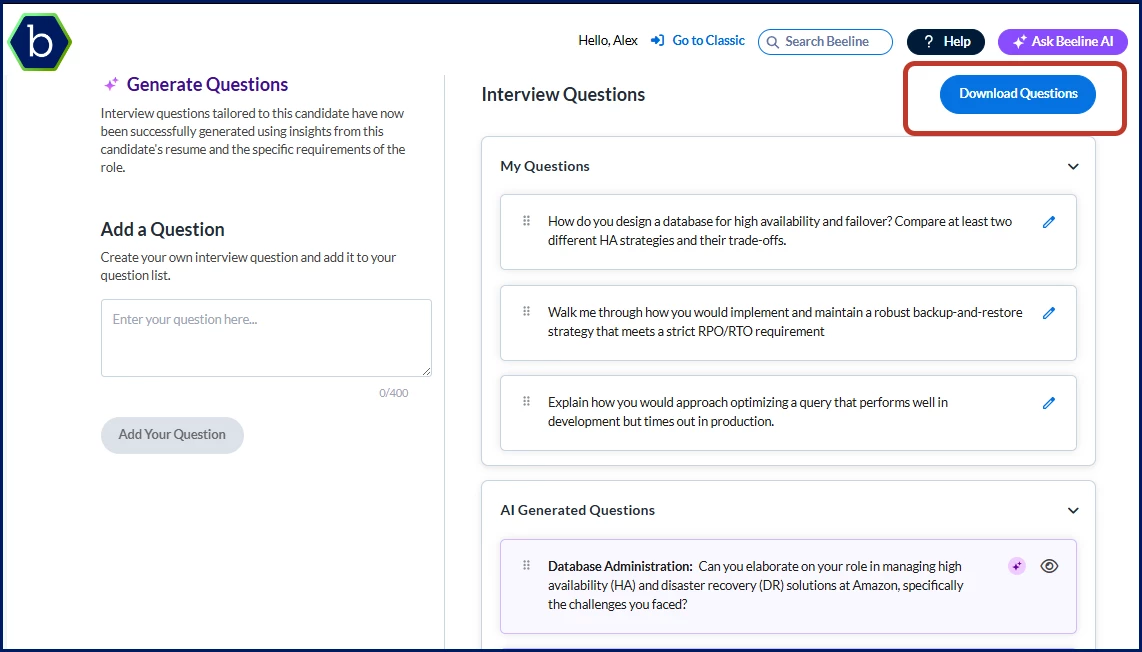
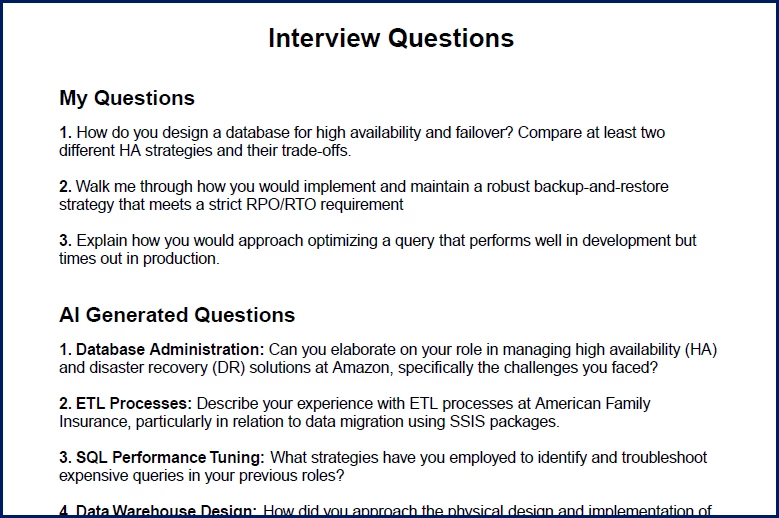
- Take further action using the available features in the Candidates app.
Pro tip: You can also generate interview questions from Interview Manager. Just select Take Action > Manage Interviews. Then select Interview Questions. You’re redirected to a Candidate Evaluation page showing you the Interview Questions tab by default.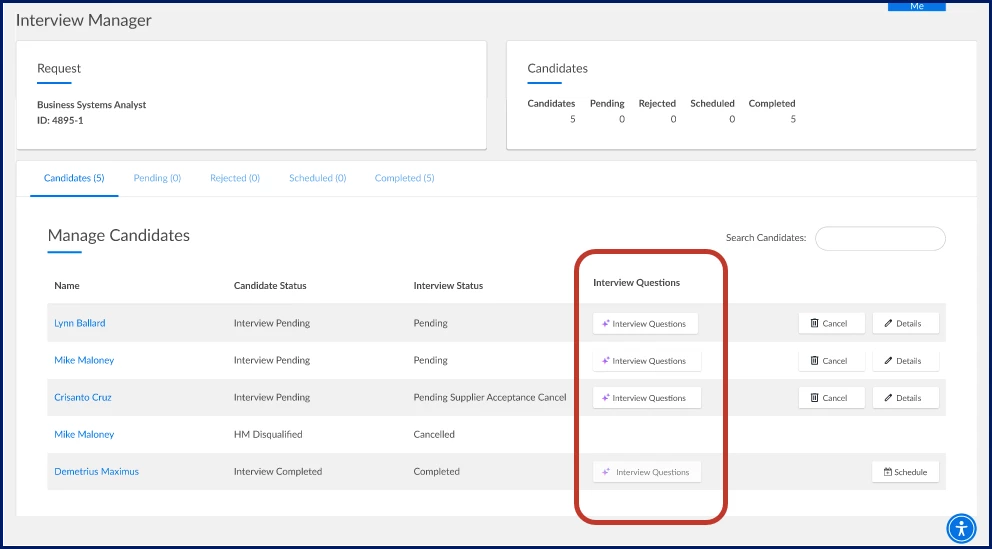
| Persona | Module | Date Posted | Feedback? Email us: |
| Hiring Manager | Hiring Manager Experience Artificial Intelligence & Automation | Beeline Enterprise | Q1 2026 |