


Persona
Clients, program office users and system administrators
How to steps
Information in this article reflects a standard Enterprise configuration. Your Enterprise platform is based on your organization’s configuration. Settings and/or data visibility rules may vary slightly from what is described.
As a program office user with administrative permissions, you may occasionally need to reset a user’s Beeline Enterprise login password. You can easily accomplish that task from the Users page.
From the Users page, you can easily access all user profiles from a single list—regardless of user group, such as clients, MSPs, resources, and suppliers.
Beeline Best Practice. Determine if the user’s account is locked due to too many failed password attempts. Read this article to learn more about locked accounts. Generally, a user can reset their own password from the Enterprise Login page, and they may not be aware their account has become locked.
To accomplish your task, complete these steps from your Enterprise dashboard.
-
From the top Navigation menu, select Admin > Security. A Security Administration page displays.
-
From the left Navigation panel, select the Users folder.
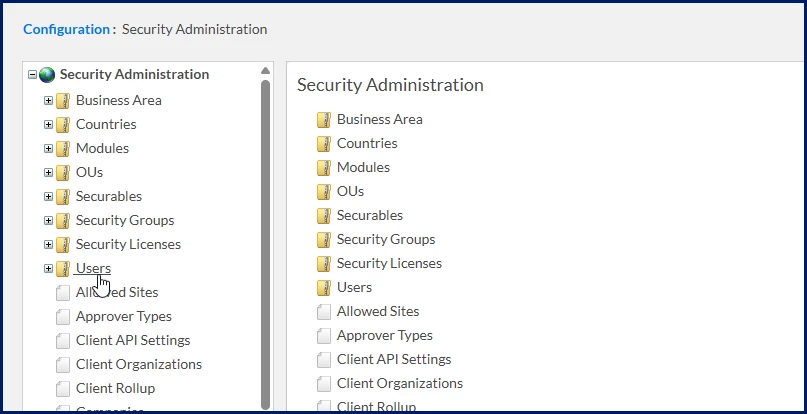
A Users page displays.
-
Use the fields on the Users page to enter identifying information about the user, and then select Search.
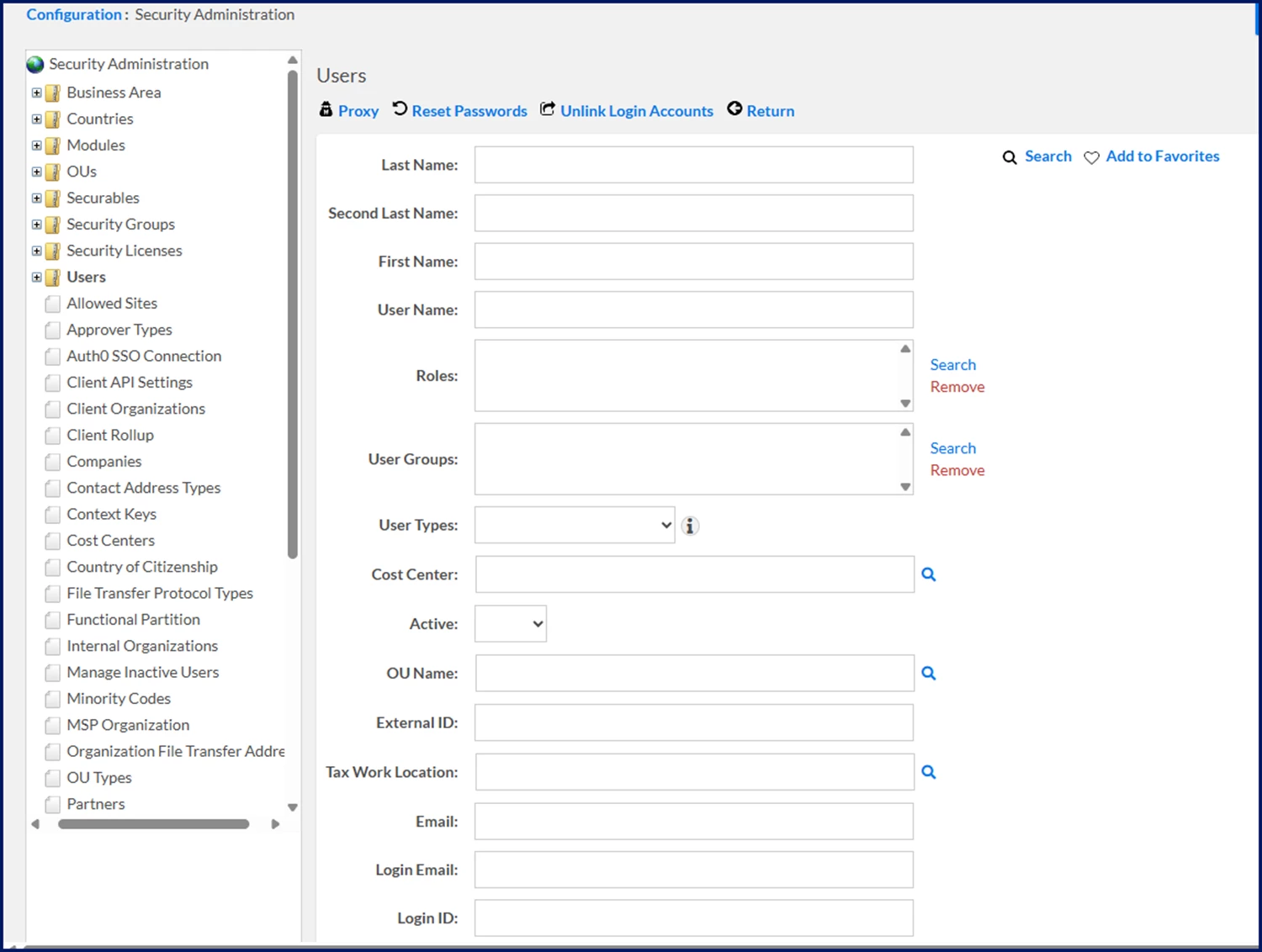
Search Results display at the bottom of the Users page.
-
From the Search Results, select the Name link for the user whose profile you want to manage.
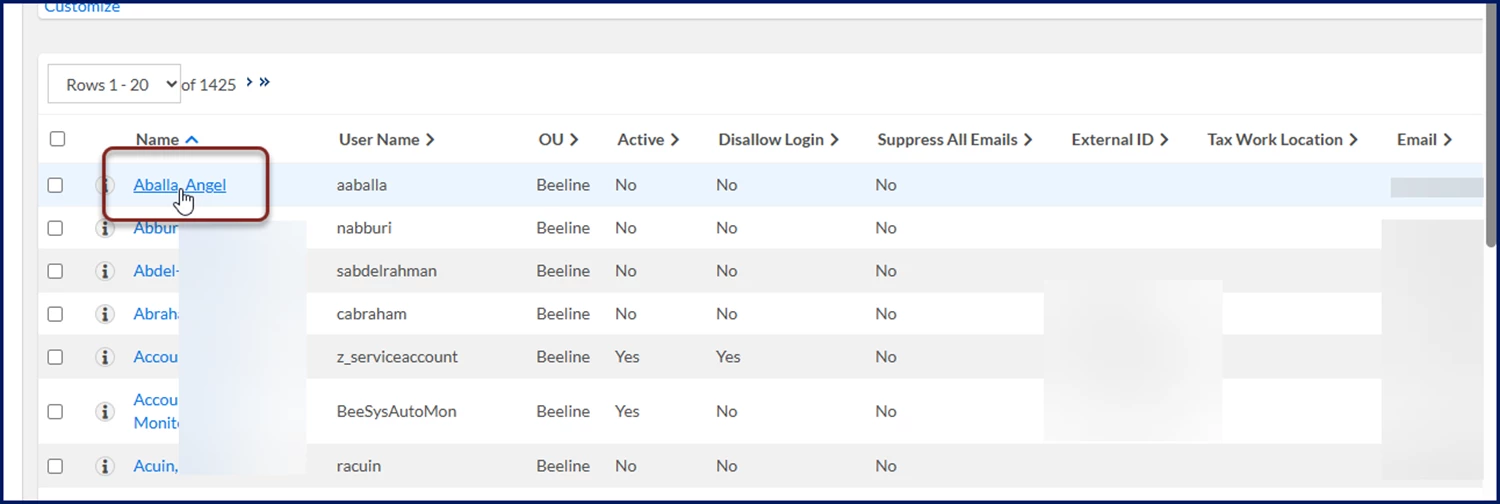
A View User Details - Summary page displays.
-
Use the various data fields to enter identifying user information, then, click Search.
-
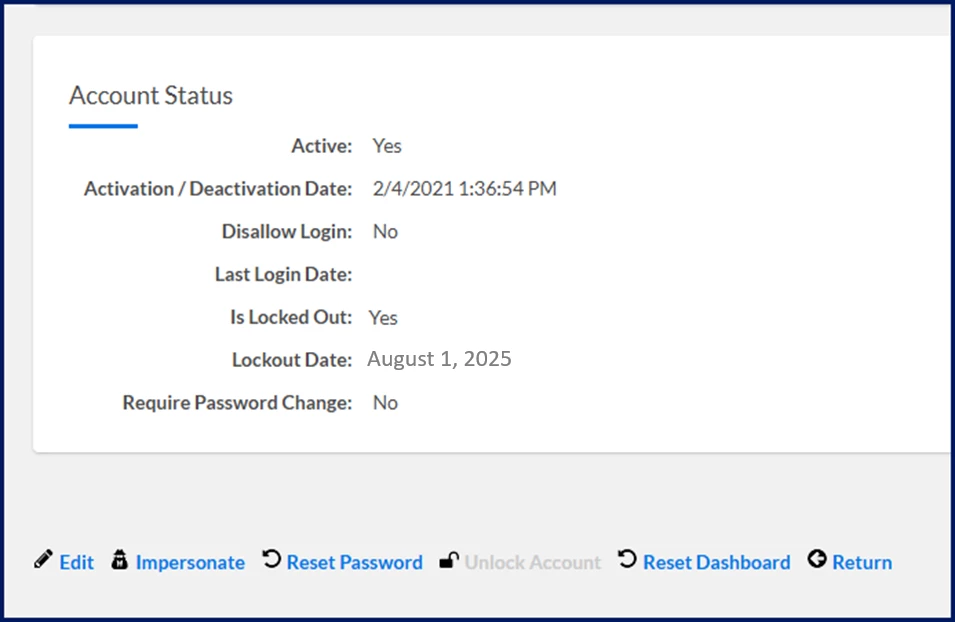
Optional. Verify whether the user’s account is lock from the Action bar at the top of the View User Details - Summary page or from the Account Status section.
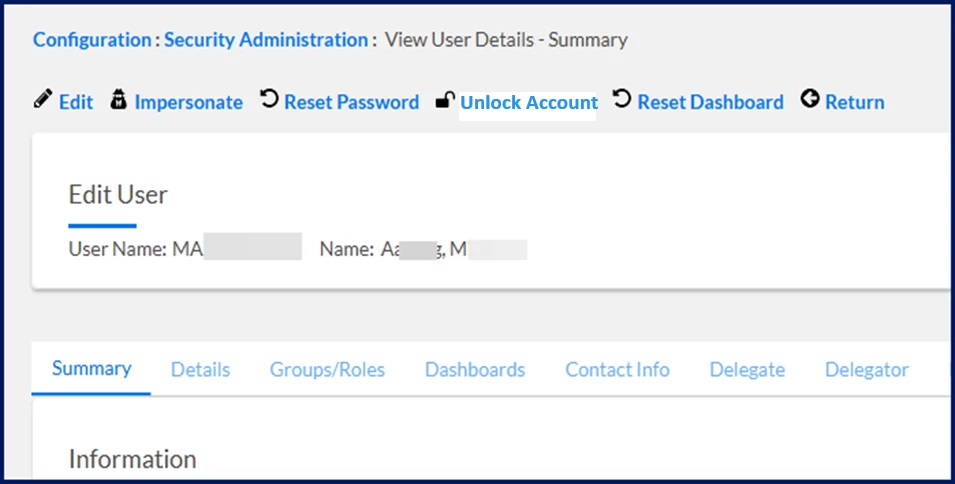
-
Make sure the Email field in the Information section contains the user’s current email address. If it’s incorrect, the user won’t receive the Password Reset notification that's generated.
-
Select Reset Passwords. A Confirmation dialog displays.
-
Select OK to confirm. A Status message displays indicating that an email was sent to the user you selected with instructions on how to reset their password.
-
Select Return to go back to the Users page.
-
Select the site logo in the upper left corner to return to your Enterprise dashboard.
Documentation release: Beeline Enterprise | Q3 2025