Assignments are a key data point your program tracks in Beeline Enterprise. Assignments help you track who is working on what, where, when, and for whom. They’re usually classified by job class, job title, rate card category, supplier, and more.
Assignments in Enterprise can be for contingent staffing, services procurement or resource tracking. Sometimes they’re amended to adjust for changes in scope. Or even reclassified to account for organizational changes or job class realignments.
Plus, you may need to reclassify more than one assignment simultaneously. Quickly do so via self-service using the Mass Reclassification options under VMS Settings > Continent Staffing.
To learn more about Assignment Reclassification, see this article.
How It helps
Assignment Reclassification allows you to:
Maintain accurate workforce analytics by aligning assignments with updated job taxonomy.
Avoid unnecessary requests by updating existing assignments instead of creating new ones.
Ensure flexibility with options to retain or update rates when job titles or categories change.
Keep systems synchronized through support for standard worker download integrations.
Persona
Clients and program office users
Reports
You can report on reclassified assignments by including these fields in your Assignment Definition reports
Batch Number
Error Details
Mass Reclass Status
Warning Details
Configuration considerations
When you reclassify an assignment, your standard business processes and workflow still apply. In addition, you can reclassify an assignment and impact the pay rate when your program is using the trueRATE 2.0 and/or Beeline Rate, Time, & Expense (RTE) features.
Rate Card Categories
Enterprise uses Rate Card Categories (RCCs) to organize and group rate cards for more granular control and reporting. RCC are useful for useful for organizations with complex, multi-region, or multi-role rate requirements and provide these benefits:
Facilitate reporting and analytics by region, business unit, or supplier.
Limit the available rate cards when users are creating requisitions, ensuring only relevant options are shown.
Support more detailed and flexible rate structures, such as having different rates for the same job title in different regions or for different types of work (hourly vs. daily).
There are typically two levels:
RCC1 (Rate Card Category 1): Usually groups rates by region or location. For example, RCC1 might be "Northwest," "Southeast," or "Metro."
RCC2 (Rate Card Category 2): Further categorizes rates, often by rate type (such as hourly, daily, monthly) or by skill level (like "Level 1" or "Level 2").
When reclassifying assignments, you can select new values for RCC1 and RCC2 to ensure the assignment is aligned with the correct region and rate type.
Worker download integrations
Support for assignment reclassifications in standard Worker Download (WDL) integrations depends on your configuration. To include these changes in your WDL output, submit a Service Request so your setup can be reviewed and tested. Standard WDL integrations (API, Connector, and flat file) may support full or delta updates based on your configuration.
How to steps
Information in this article reflects a standard Enterprise configuration. Your Enterprise platform is based on your organization’s configuration. Settings and/or data visibility rules may vary slightly from what is described.
Reclassifying multiple assignments
Caution: You can reclassify only assignments that are in the same industry and the same request type.
To accomplish your task, complete these steps from your Enterprise dashboard.
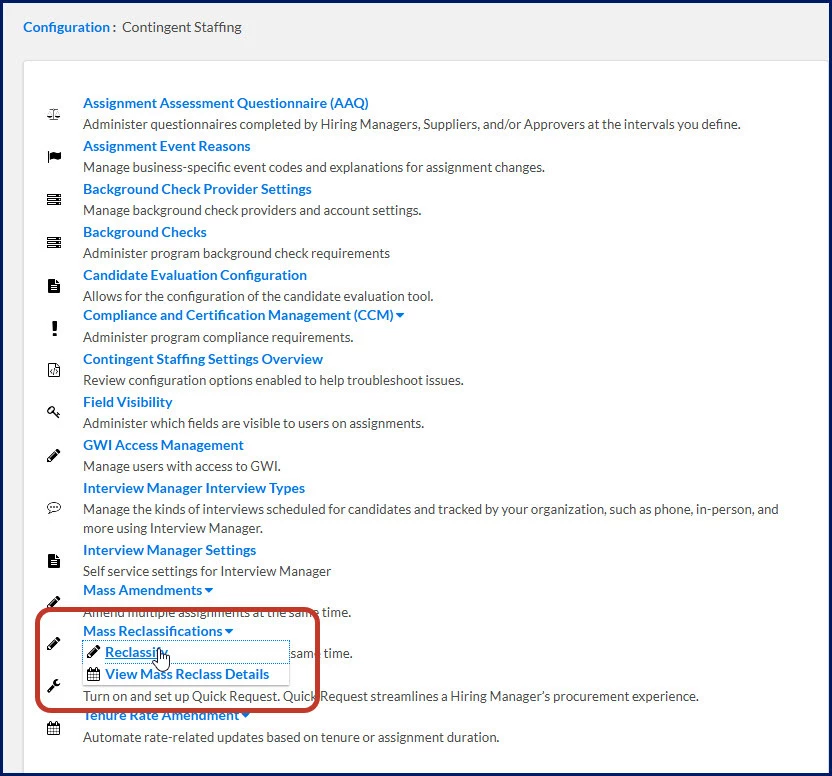
Navigate to and expand the Mass Reclassification option. Then select Reclassify.
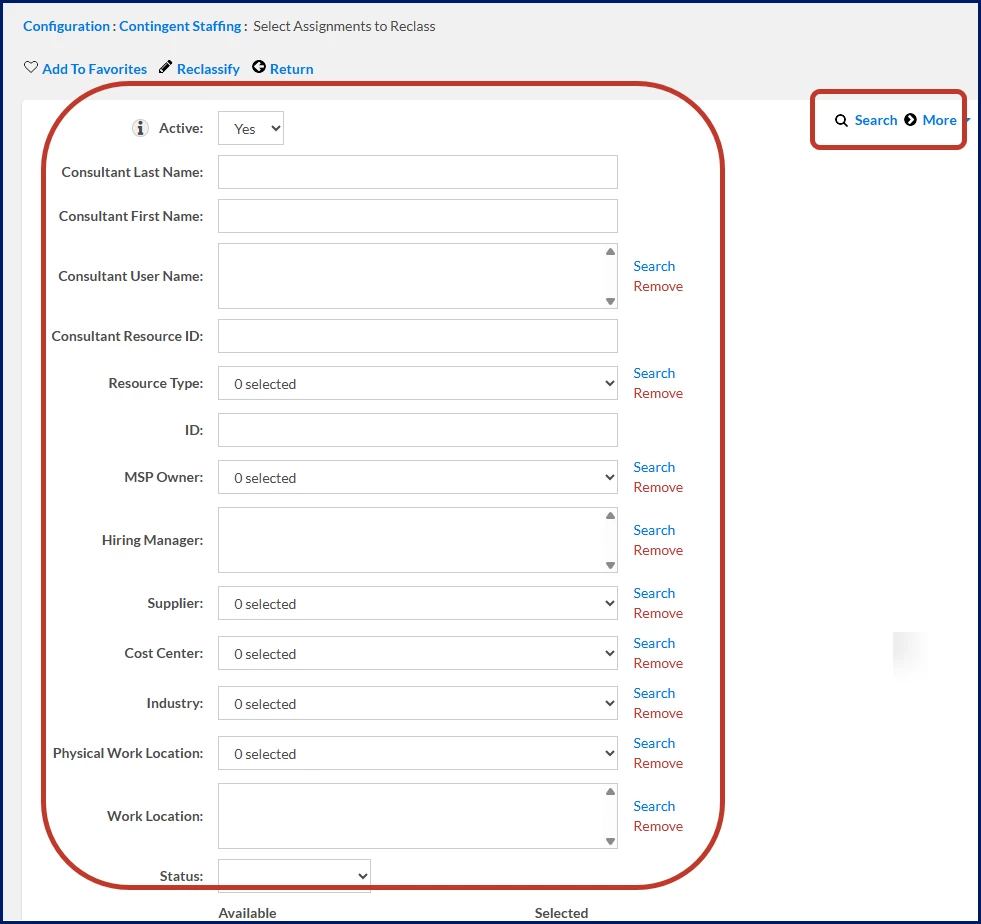
A Select Assignments to Reclass page displays.
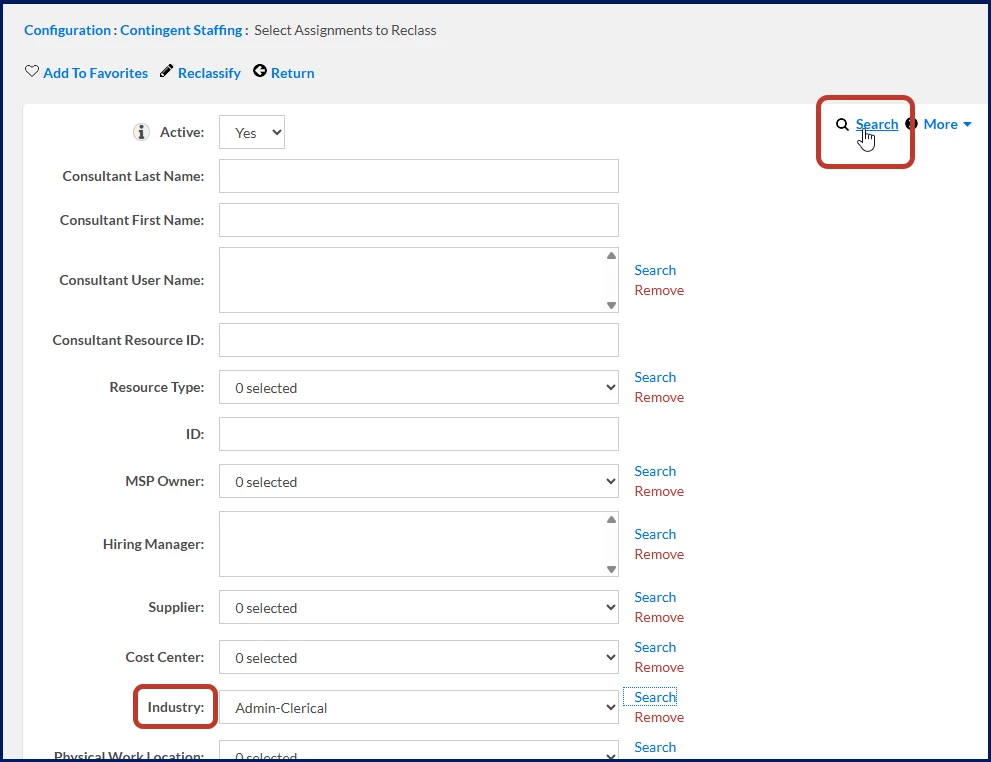
From the Industry list, select a line of business.
From the Request Type list, select a kind of request.
Optional. Use the fields on the Select Assignments to Reclass page to locate and select assignments.
Pro tip: Use the Industry or Request Type lists with the Search icon near the top of the Select Assignments to Reclass page to instantly identify assignments that can be reclassified simultaneously.
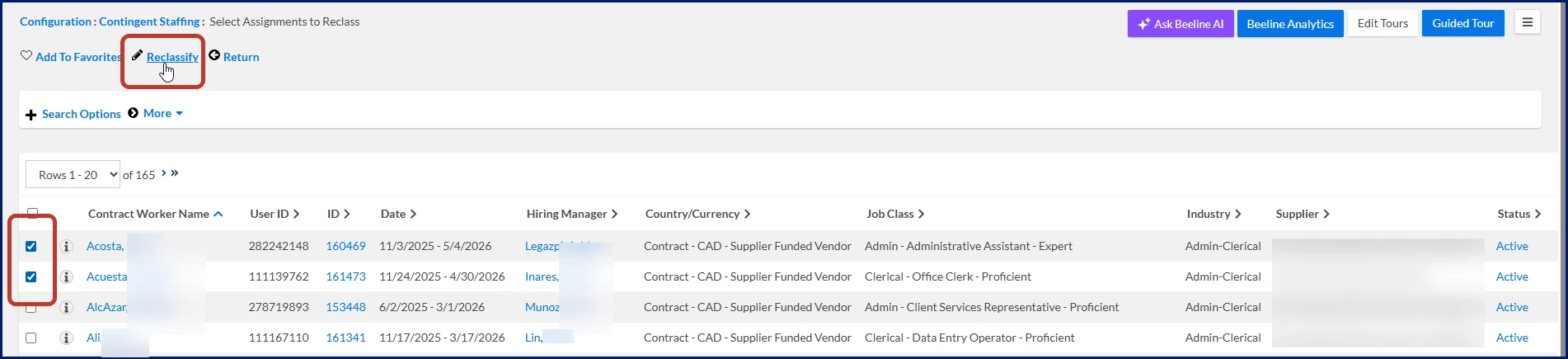
Select one or more assignments in the same industry and request type, and then select Reclassify.
A Mass Reclassification page displays.
Complete these steps from the Modification Reason section:
Make sure the correct explanation is selected in the Modification Reason list.
Add remarks in the Comment field.
Complete these steps from the Reclassification section:
Use the Effective Date Calendar to define when the change takes effect.
From the Job Class list, choose the applicable class.
From the Job Title list, choose the applicable position title.
From the Rate Card Category 1 list, choose the option you want. Usually, RCC1 is associated with a specific region in your program.
From the Rate Card Category 2 list, choose the option you want. Usually, RCC2 is associated with a specific rate type, such as hourly, daily, monthly, and more.
Use one of these options to choose how you want to handle rates:
To keep the current assignment rates, select the Retain Current Assignment Rates checkbox.
OR
To change rates, select the Assignment Rates > Modify link. A Rate Card Screen dialog displays.
Modify the rate as needed.
Select Save to apply your rate changes and close the Rate Card dialog.
Select Next. Your changes are validated, and the Modify Assignment page displays so you can verify your updates.
Select OK to apply your changes and exit the Modify Assignment page. A dialog displays prompting you to confirm your changes.
Select OK. The assignment is reclassified.
Viewing details for multiple reclassified assignments
To accomplish your task, complete these steps from your Enterprise dashboard.
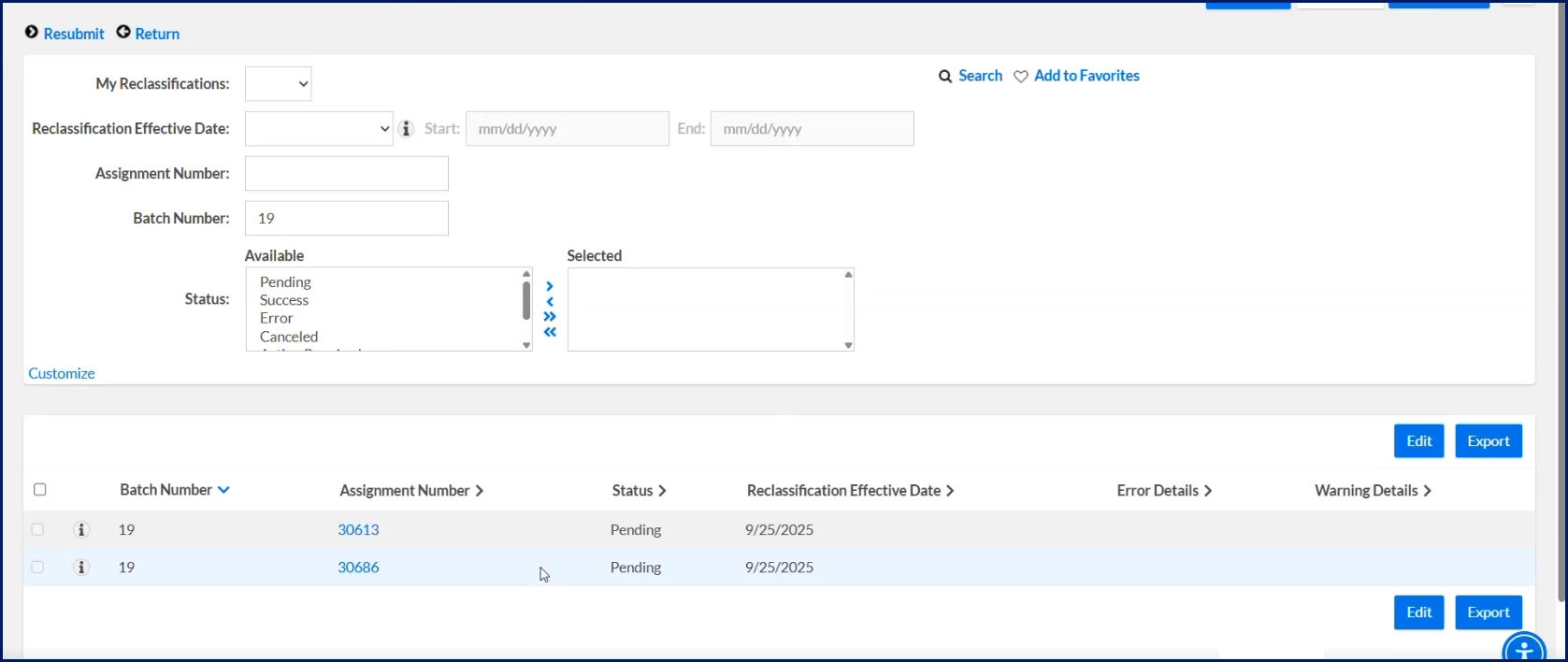
Navigate to and expand the Mass Reclassification option. Then select View Mass Reclass Details. A Mass Reclassification Progress page displays.
Optional. Use any of these options to filter results.
The My Reclassifications list to choose to view only the assignments you reclassified or to view all reclassified assignments.
The Reclassification Effective Date calendar to specify a date.
The Assignment Number field to locate an individual assignment.
The Batch Number field to locate a particular group of changes.
The Batch Number list to choose assignments in a specific status, such as Pending, Cancelled, and more.
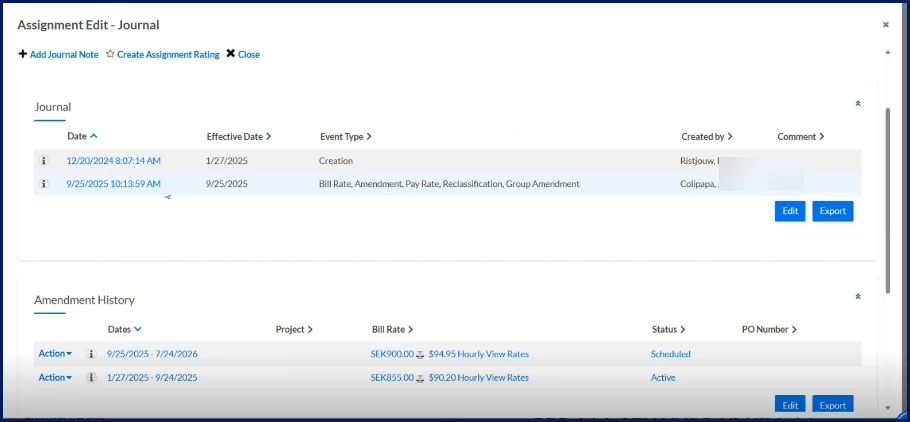
You can instantly view details of assignments in progress in the Assignments list near the bottom of the Mass Reclassification Progress page. Pro tip: You can also view reclassification details from an individual assignment using the Assignment Menu > View Journal.
Please complete the following fields as part of your Beeline Community registration. Unless noted as private, this information will be displayed on your user profile within the community.