


In Beeline Enterprise, a Procurement Industry combines the Geographies and Labor Categories set up in a site. Procurement Industries help align an Enterprise configuration with your client’s business workflows, processes, lines of business, and the types of contingent talent they use.
As your program changes and expands, you may find you want to change the stored configuration details associated with your Procurement Industries. In some scenarios, you may need to make the same changes to several Procurement Industries across multiple geographies and labor categories set up in a site.
To help you efficiently administer Procurement Industries in an Enterprise site, you can use the Procurement Industry Bulk Edit option. Using the Procurement Industry Bulk Edit option streamlined changing multiple industries and ensured accurate, consistent and standardized Procurement Industries across all applicable Geographies and Labor Categories in a client’s Enterprise site.
Information in this article reflects a standard Enterprise configuration. Your Enterprise platform is based on your organization’s configuration. Settings and/or data visibility rules may vary slightly from what is described.
How to steps
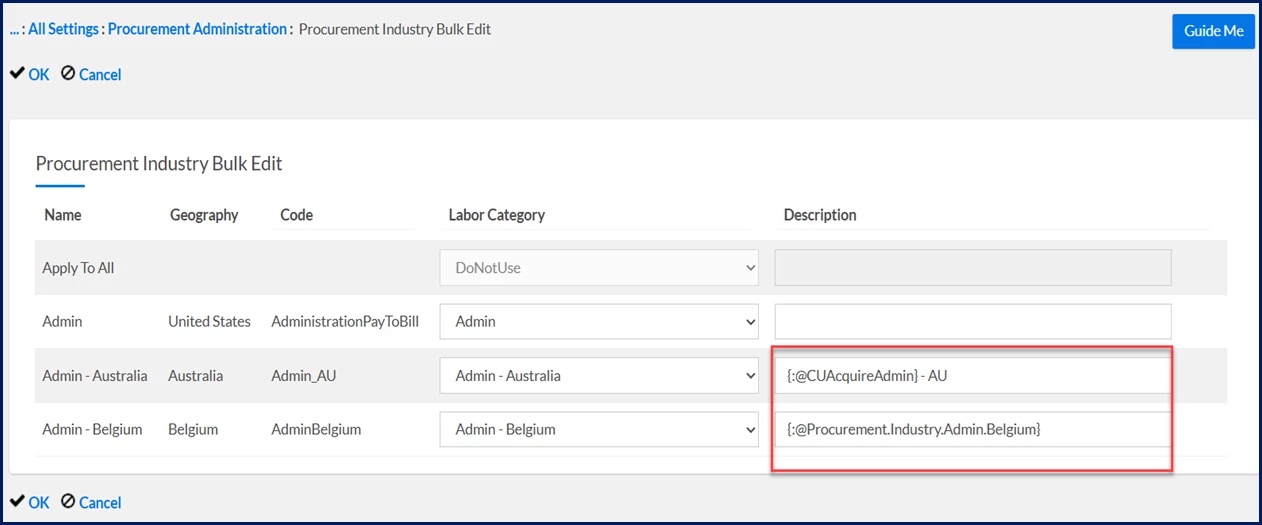
Caution: When you’re updating criteria, you’ll progress through pages where you can change additional details. You may encounter fields with text in curly brackets ( {text} ). Text that displays in curly brackets indicates a Term Key.
Do not change any Term Key information while you’re bulk editing procurement industries.
To simultaneously modify multiple procurement industries, complete these steps from your Enterprise dashboard.
- Select Admin > Procurement. A Procurement Administration page displays.
- Scroll down in the left navigation panel, and then select Procurement Industry Bulk Edit. A Procurement Industry Bulk Edit page displays.
- Use the Select link next to the Industries field in the Information section to open the Select Procurement Industry dialog so you can choose the industry you want to modify. From the Select Procurement Industry dialog, you can instantly see details about Procurement Industries already set up, such as the Industry Name, the Industry Code, and much more.
- Optional. Use the column headers in the Select Procurement Industry dialog to sort the list of industries. For example, select the Geography Name column to view industries grouped by the geographies in which they’re used.
- Select the Industry Name checkbox to choose the industries you want to modify, and then select OK to close the Select Procurement Industry dialog and return to the Procurement Industry Bulk Edit page.
- Optional. To update the criteria that apply to procurement industries, select the checkbox next to one or more of the fields in these sections on the Procurement Industry Bulk Edit page.
- Information
- Visibility
- Tenure Policy and Enforcement
- Resource Fields
- Industry Supplier Fields
- Approvers
- Select Next.
- Based on the checkboxes in the sections you selected, you’re directed to additional pages so that you can modify details for the procurement industry you selected.
- After you’ve provided specifics for the details you want to modify, select OK to close the Procurement Industry Bulk Edit page and apply your changes.
Documentation release: Beeline Enterprise | Q3 2025