At the core of your Beeline Enterprise site is your data. Data about your contingent workforce and the structural elements that facilitate tracking contingent talent, sourcing, spend, and much more. As an Enterprise system administrator, you administer the data that supports the workflows and processes unique to your business requirements in your Enterprise site.
You’re responsible for populating and managing that data, which is securely stored in an Enterprise database. Whether you manage your data in an internal system and synchronize Enterprise updates with an integration, manually input individual changes, or bulk import mass updates to Enterprise.
About requests and request types
Underlying transactions processed through Enterprise are requisitions (also called requests or job opportunities) for the work you need done and the contingent talent to do that work. Fundamental to requests are request types that drive the information required for a requisition.
Requests store the details about the work being sourced, and track openings submitted through Enterprise by a client for work to be completed by a talent.
Request Types store dozens of configurations related to a single procurement process. The request type drives the information required for and the workflows applied to a requisition.
Request Types are the different categories or forms of requisitions users can submit in Enterprise to fill various staffing needs. Request Types are the specific categories of staffing requests, such as temporary, contract-to-hire, project-based, or seasonal positions.
Request Types help users organize and manage the different kinds of contingent labor requirements within an organization. Each type of request addresses different business needs and employment durations.
Understanding Request Type parameters
The data you need to collect varies based on your organization’s requirements and business processes. Plus, those processes may differ across the geographies and industries in which you operate.
That’s why the Request Types you can set up in Enterprise include numerous parameters. Those parameters give you the flexibility to create forms to collect exactly the data you need to successfully run your contingent workforce program. Each parameter you choose defines the information and fields visible and available to users on a requisition.
Updating multiple Request Types simultaneously
As your program changes and expands, you may find you want to change the stored configuration details associated with a Request Type. In some scenarios, you may need to make the same changes to several Request Types across multiple geographies and industries set up in a site. To help you accomplish that task quickly and efficiently, you can manage Request Type parameters via self-enablement.
Using the Procurement Request Type Bulk Edit option saves you administrative time, reduces potential errors introduced with manual, individual updates, and ensures Request Types are consistently set up across all applicable geographies and industries in a client’s Enterprise site.
TIP: Some Request Type parameters are fixed into a request when it’s created. Those values won’t be updated on existing requests when you change Request Type parameters, but will apply to new requests.
To simultaneously update multiple Request Types, complete these steps from your Enterprise dashboard.
Select Admin > Procurement. A Procurement Administration page displays.
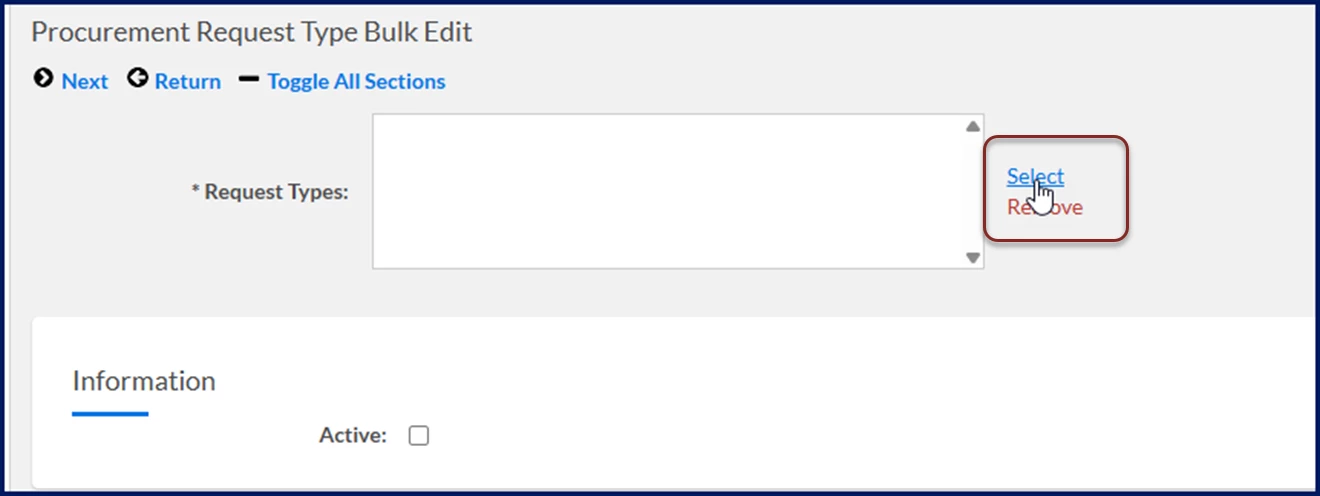
From the left navigation, scroll down to and select the Procurement Request Type Bulk Edit link. A Procurement Request Type Bulk Edit page displays.
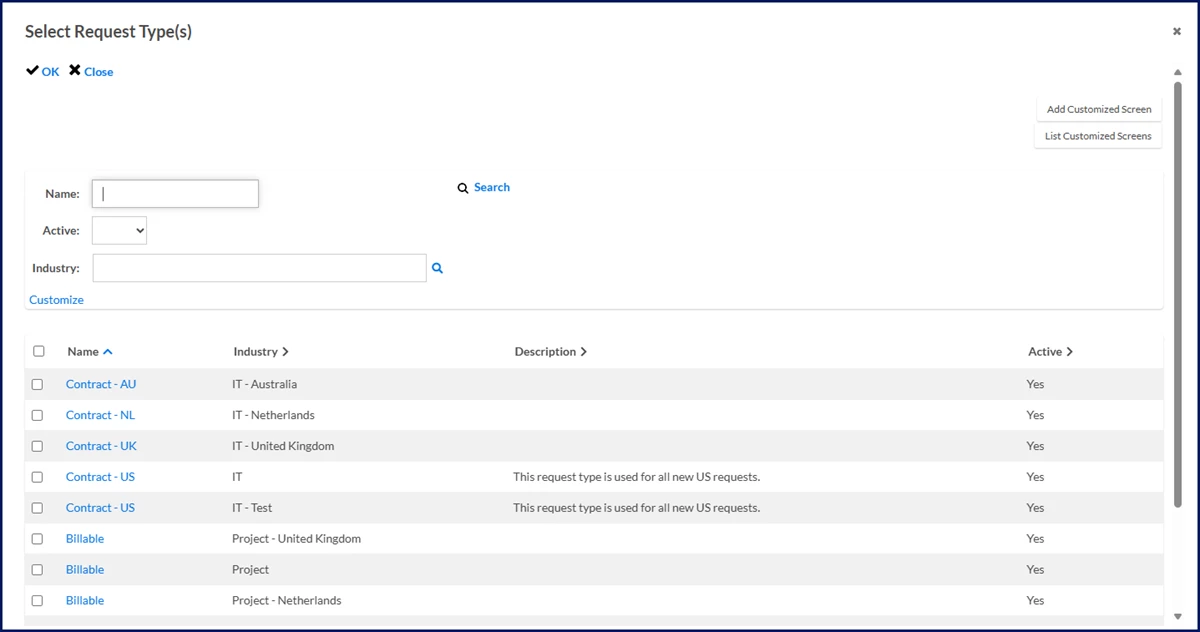
Use the Select link next to the Request Types field in the Information section to open the Select Request Types dialog so you can choose the request type you want to modify. You can instantly see details about Request Types already set up, such as the Name, the Industry in which the request type is used, comments in the Description, and whether the request type is Active.
Optional. Use the column headers in the Select Request Types dialog to sort the list of request types. For example, select the Industry column to view request types grouped by the industry in which they’re used.
Select the checkbox next to the request type name to choose the types you want to modify, and then select OK to close the Select Request Types dialog and return to the Procurement Request Type Bulk Edit page.
Optional. To update the data about the request type, select the checkbox next to one or more of the fields in the Information section.
Name
Description
Display Order
Active
Optional. To update the fields visible to users on a request, select the checkbox next to one or more of the fields in these Request Related Parameters sections.
Request Related Parameters
Candidate Related Parameters
Request Sections
Rate Card Categories
Fields
User Defined Views
Flags
Offer & Submission Flags
Fiscal Management Section
Timesheets
Miscellaneous
Streamlined Procurement - Resource Sections
Select Next.
Based on the checkboxes in the sections you selected, you’re directed to additional pages so that you can modify details for the request type you selected.
After you’ve provided specifics for the details you want to modify, select OK to close the Procurement Request Type Bulk Edit page and apply your changes.
Please complete the following fields as part of your Beeline Community registration. Unless noted as private, this information will be displayed on your user profile within the community.