


Topics on this page
Terminology keys let you control the words your users see throughout the system. Use them to match your client’s language, culture, or preferred terminology and tailor their Beeline Enterprise experience to their program.
For example, if your client prefers “Responsibility Center” instead of “Cost Center,” you can update the terminology key so that the new term appears everywhere in the system. You can also set different terms for different cultures or languages.
Why they matter
- Reduce user confusion
- Improve clarity and familiarity
- Strengthen the overall user experience
- Support accurate, client‑specific communication
How they help
- Create language that aligns with each client’s preferences
- Support multiple cultures and languages
- Ensure consistent phrasing across the system
- Provide flexibility when clients use industry‑ or company‑specific terms
Tips and guidance
- Default Value - is the effective value unless the override value is set
-
Override Value - will be the effective value until cleared
- Most system terminology key name begin with a tilde ( ~ ). For instance, the system term key for an organizational unit is ~OU.
- Environment-specific terminology key names created during site implementation usually begin with an ampersand ( @ ).
- Begin the name of your custom terminology key with an ampersand ( @ ). Custom term keys that don’t include an ampersand at the beginning of the name may be overwritten by appdev.
- Terminology keys can be embedded within another terminology key.
- Use caution when creating embedded term keys. They’re difficult to maintain because you can’t easily locate sentences or phrases by searching for their underlying text—the embedded values can’t be isolated in the system.
- Can facilitate customizing a global replacement or system key, like Hiring Manager, Assignment, or MSP.
Persona
Beeline Enterprise personnel
How to steps
Information in this article reflects a standard Enterprise configuration. Your Enterprise platform is based on your organization’s configuration. Settings and/or data visibility rules may vary slightly from what is described.
Finding and monitoring terminology keys
You can view and manage terminology keys using one of these options from your Enterprise dashboard.
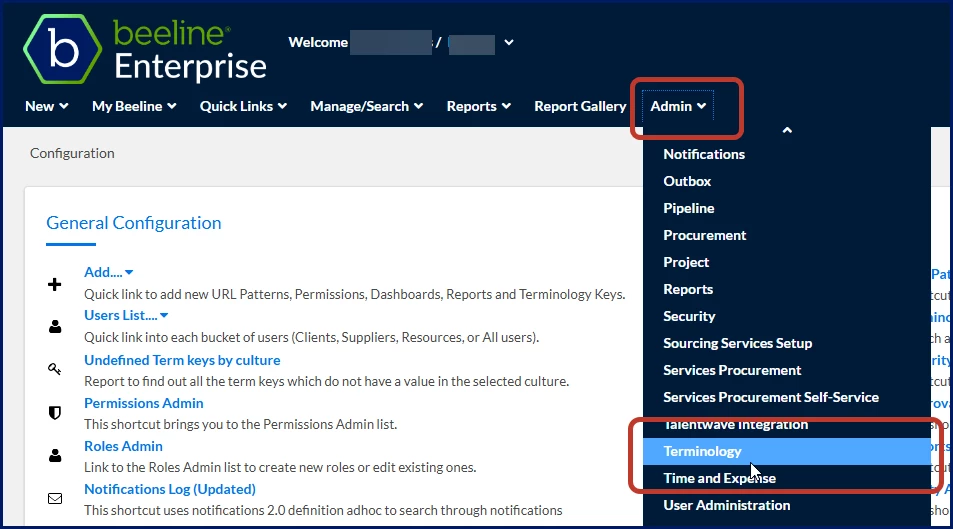
- Select Admin > Terminology.
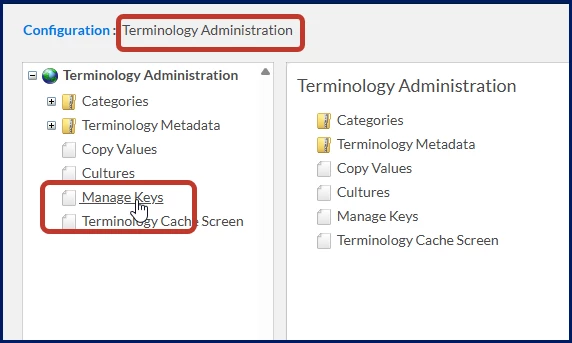
A Terminology Administration page displays. You can manage terminology, terminology cultures, categories, keys and values from the Terminology Administration page. - Select Manage Keys from the left Navigation.
OR
- Select Mega menu > Tools > Show Terminology Keys to view the values for terminology keys in real-time in the system.
Creating a new terminology key
Before you begin
-
Search first to make sure a term key doesn’t already exist.
Caution: Start your term key name with an ampersand ( @ ). Custom term keys that don’t include an ampersand at the beginning of the name may be overwritten by appdev.
To accomplish your task, complete these steps from your Enterprise dashboard.
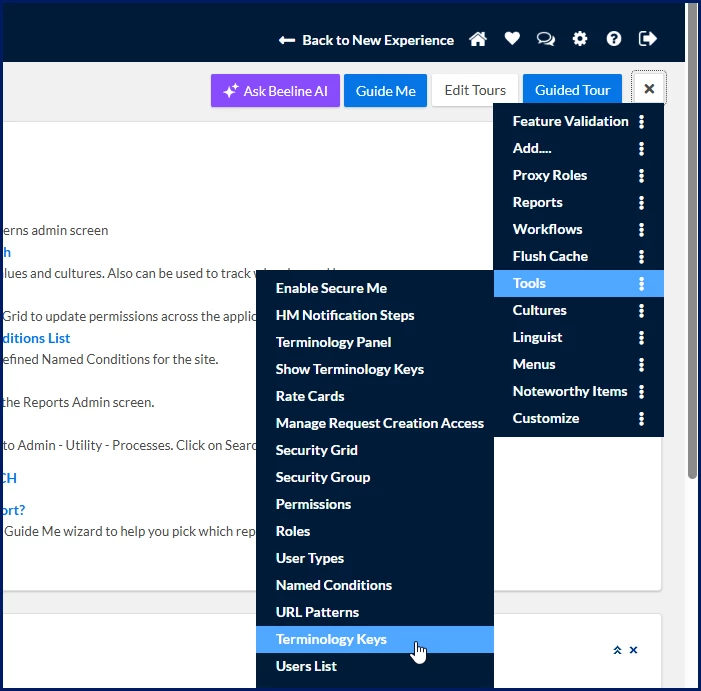
- From the Mega menu, select Tools > Terminology Keys.
A Manage Keys page displays.
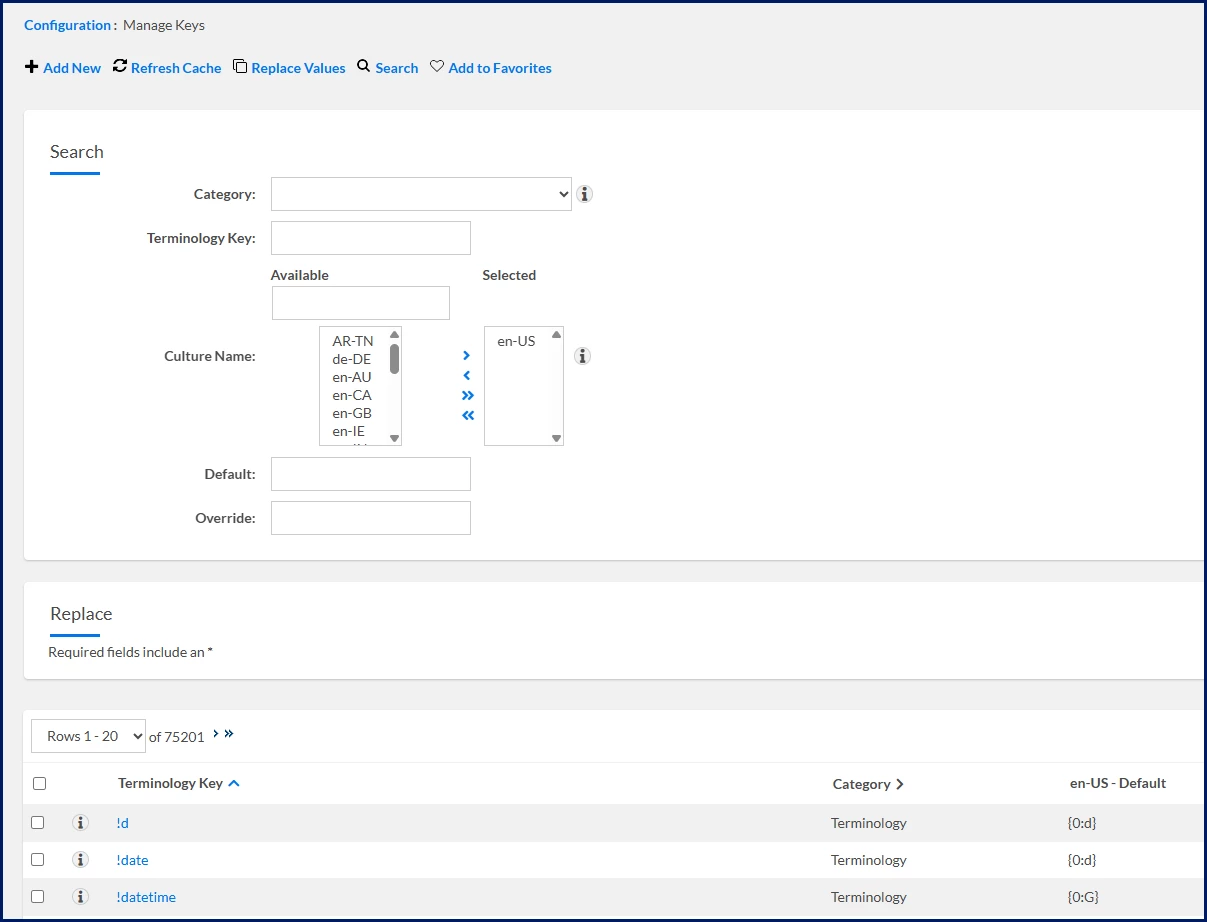
- Select Add New. An Add Key page displays.
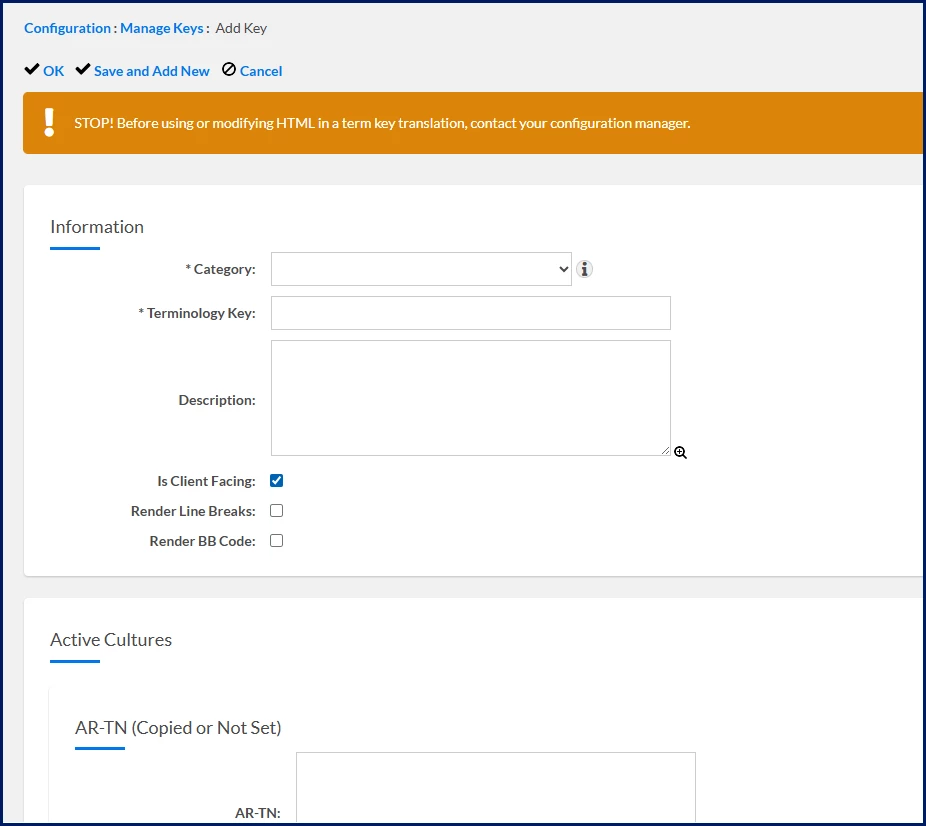
- From the Category list, use one of these options:
-
Choose Custom for a new client-specific terminology key.
OR -
Choose the appropriate category based on where the terminology key will be used for an application default terminology key. For example, select the BTE category to create a terminology key for a new field on the Timesheet entry page. Or select the Procurement category to create a terminology key for a new field on the Create Request page.
-
- In the Terminology Key field, enter a name for the key. Be sure to begin the name with an ampersand. You can enter up to 255 characters.
- Complete any remaining fields as needed.
- Select OK to save your new custom terminology key and return to the Manage Keys page.
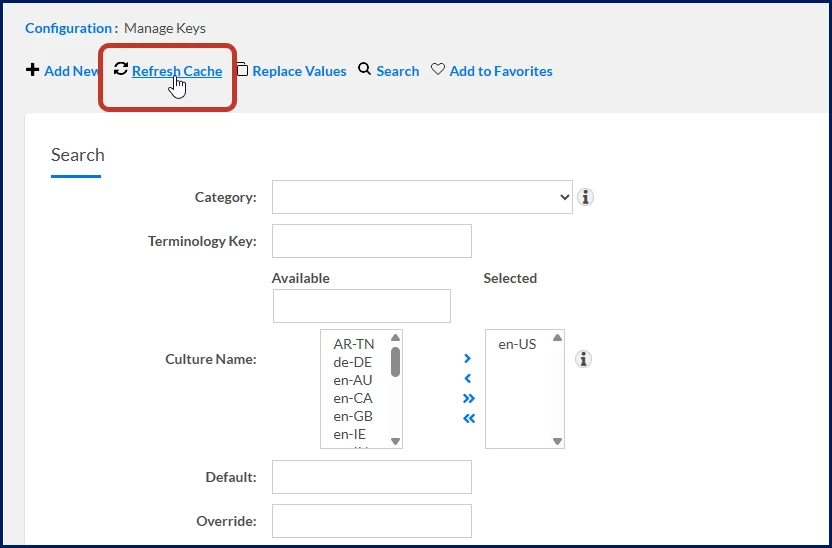
- Select Refresh Cache.
Updating an existing terminology key
Caution: Start your term key name with an ampersand ( @ ). Custom term keys that don’t include an ampersand at the beginning of the name may be overwritten by appdev.
To accomplish your task, complete these steps from your Enterprise dashboard.
- From the Mega menu, select Tools > Terminology Keys.
A Manage Keys page displays.
- Use the fields in the Search section to locate the key you want to change.
- Search without an ampersand ( @ ) or tilde ( ~ ) symbol at the beginning of the name.
- Search using the Default field.
- Search using the Override field.
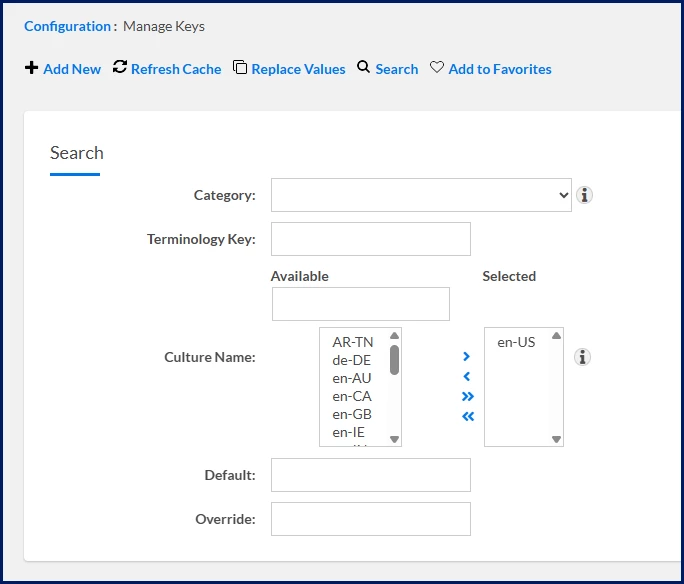
- Update the Override values only.
- Select OK to save your new custom terminology key and return to the Manage Keys page.
- Select Refresh Cache.
Top terminology key requests
Resource Matching feature
| Page | Terminology key |
|---|---|
| Create Resource | ProcurementResourceMatchPopupScreen.WarningCaptionNewResource.WithNewButton |
| Candidate Qualify | ProcurementResourceMatchPopupScreen.WarningCaptionSubmit.WithNewButton |
| Onboarding | ProcurementResourceMatchPopupScreen.WarningCaptionOnboard.WithNewButton |
| Continue Adding Resource (Action Link) | ProcurementResourceMatchPopupScreen.NewCandidate |
Quick Request feature
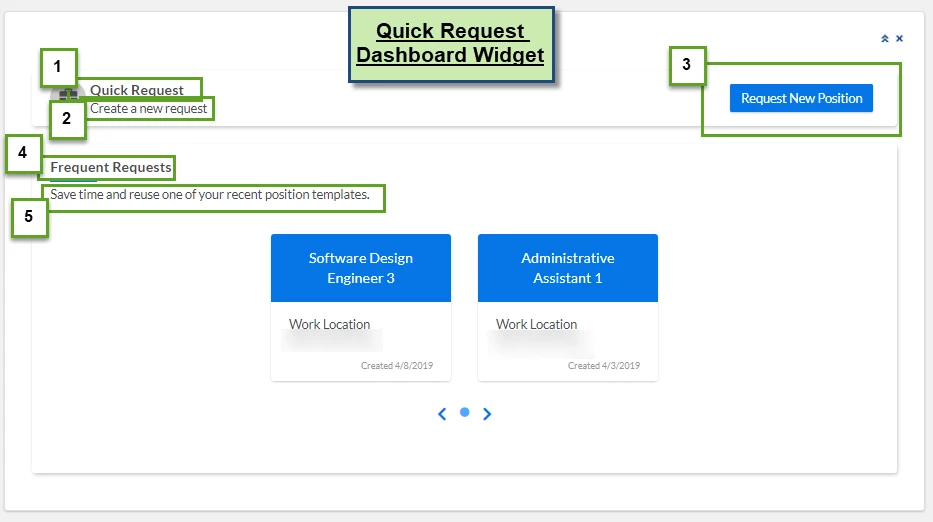
| Dashboard Widget | 1 | Quick Request | QuickRequestWidget.Title |
|---|---|---|---|
| Dashboard Widget | 2 | Create a New Request | QuickRequestWidget.CreateNewRequest |
| Dashboard Widget | 3 | Request New Position | QuickRequestWidget.AddNewRequestButton |
| Dashboard Widget | 4 | Frequent Requests | FrequentRequestWidget.Title |
| Dashboard Widget | 5 | Save time and reuse one of your recent position templates. | QuickRequestWidget.Subtitle |
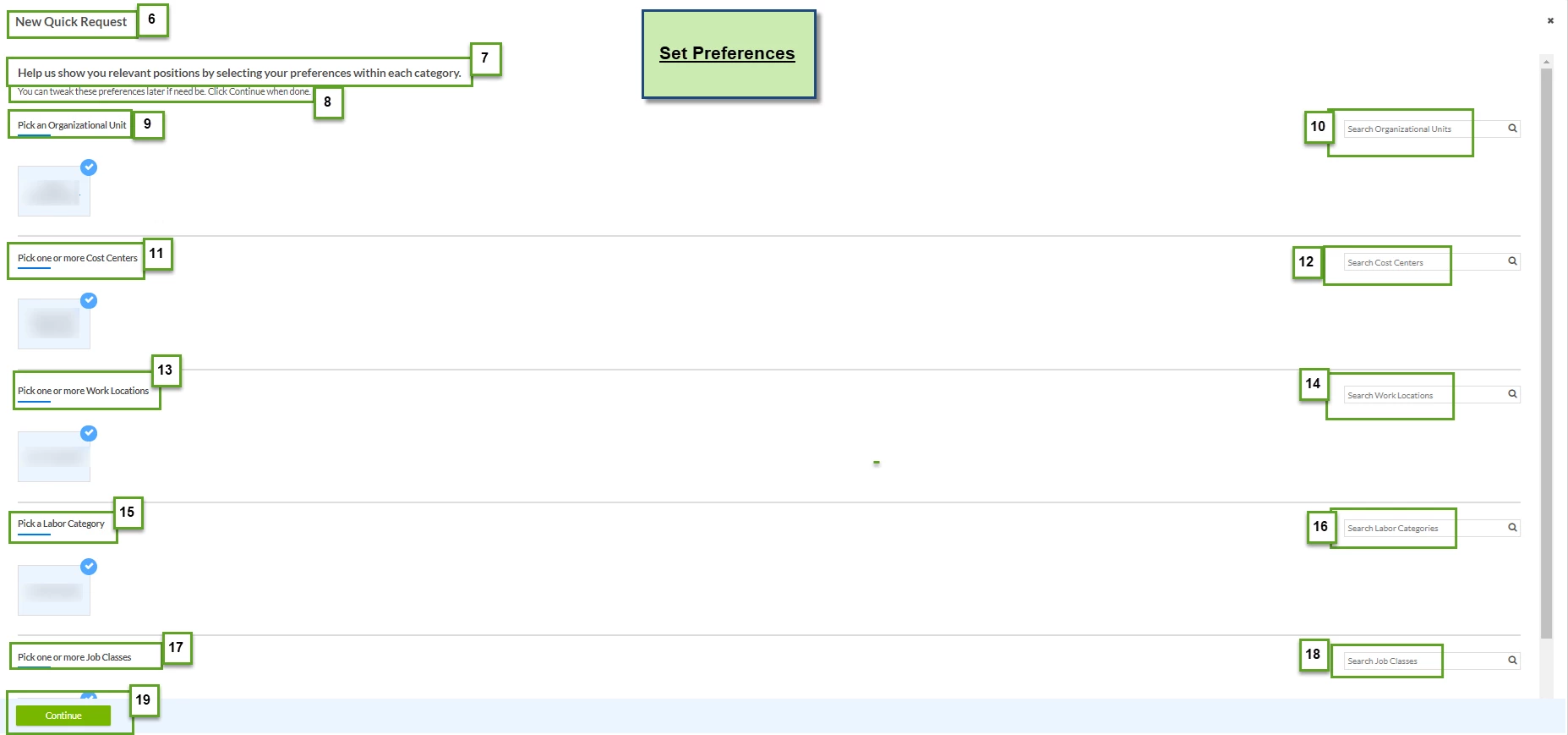
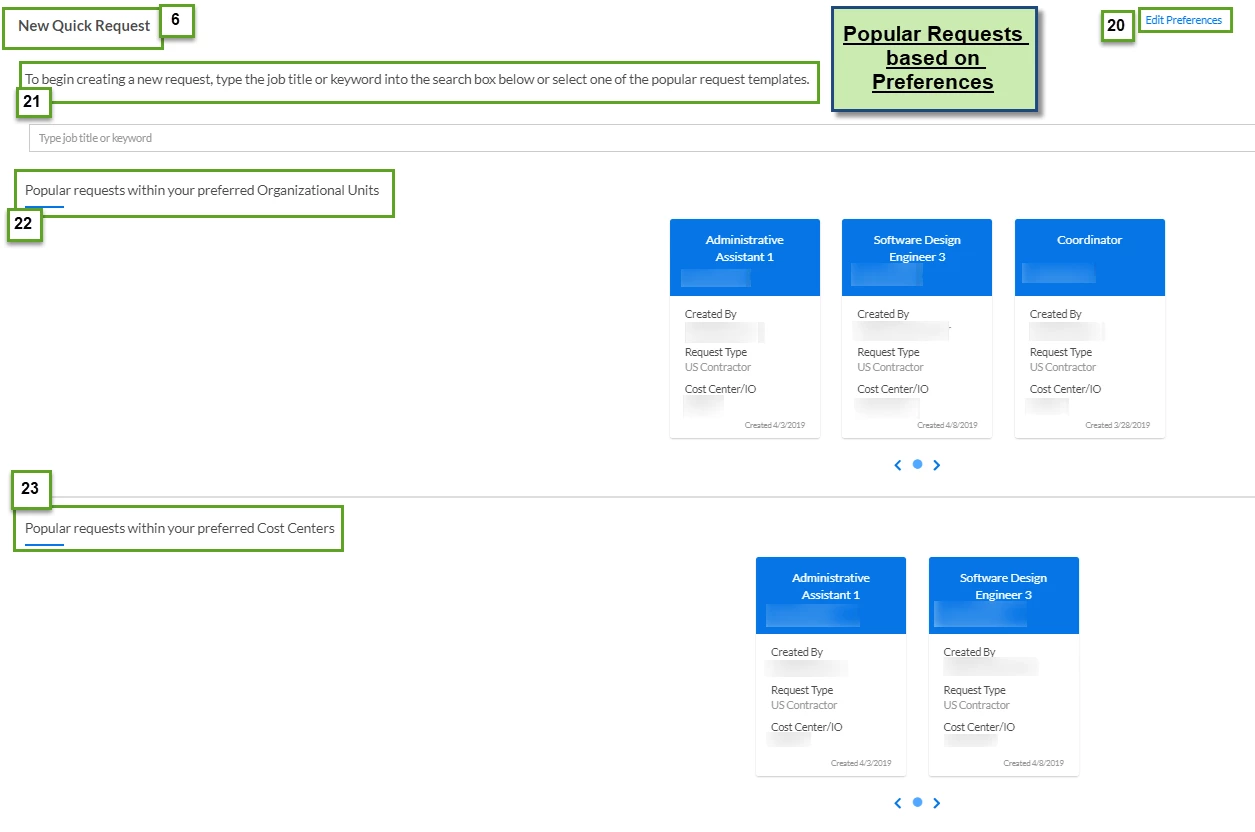
| Set Preferences | 6 | New Quick Request | QuickRequestSearchScreen.Title |
| Set Preferences | 7 | Help us show you relevant positions by selecting your preferences within each category. | QuickRequestWidget.Preferences.MainHeaderInstructions |
| Set Preferences | 8 | You can tweak these preferences later if need be. Click {:QuickRequestWidget.Preferences.SaveAndContinue} when done. | QuickRequestWidget.Preferences.Subtitle |
| Set Preferences | 9 | Pick an Organizational Unit | QuickRequestWidget.Preferences.OUSelectionInstructions |
| Set Preferences | 10 | Search Organizational Units | QuickRequestWidget.Preferences.OUSearchBoxPlaceholderText |
| Set Preferences | 11 | >Pick one or more Cost Centers | QuickRequestWidget.Preferences.CostCenterSelectionInstructions |
| Set Preferences | 12 | Search Cost Centers | QuickRequestWidget.Preferences.CostCenterSearchBoxPlaceholderText |
| Set Preferences | 13 | Pick one or More Work Locations | QuickRequestWidget.Preferences.WorkLocationSelectionInstructions |
| Set Preferences | 14 | Search Work Locations | QuickRequestWidget.Preferences.WorkLocationSearchBoxPlaceholderText |
| Set Preferences | 15 | Pick a Labor Category | QuickRequestWidget.Preferences.IndustrySelectionInstructions |
| Set Preferences | 16 | Search Labor Categories | QuickRequestWidget.Preferences.IndustrySearchBoxPlaceholderText |
| Set Preferences | 17 | Pick one or more Job Classes | QuickRequestWidget.Preferences.JobClassSelectionInstructions |
| Set Preferences | 18 | Search Job Classes | QuickRequestWidget.Preferences.JobClassSearchBoxPlaceholderText |
| Set Preferences | 19 | Continue | QuickRequestWidget.Preferences.SaveAndContinue |
| Popular Requests | 20 | Edit Preferences | QuickRequestWidget.EditPreferences |
| Popular Requests | 21 | To begin creating a new request, type the job title or keyword into the search box below or select one of the popular request templates. | NewQuickRequestControl.Subtitle |
| Popular Requests | 22 | Popular requests within your preferred Organizational Units | QuickRequestWidget.OURequests |
| Popular Requests | 23 | Popular requests within your preferred Cost Centers | QuickRequestWidget.CostCenterRequests |
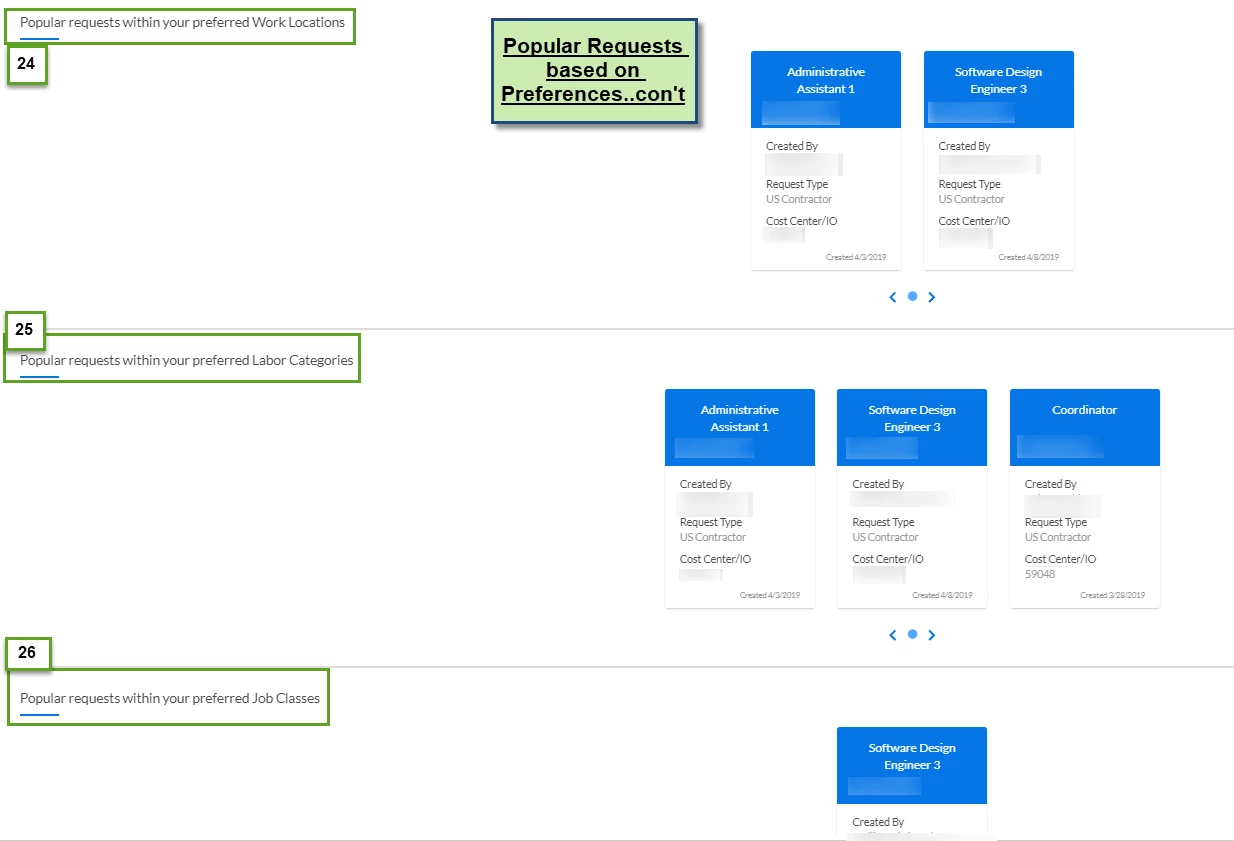
| Popular Requests | 24 | Popular requests within your preferred Work Locations | QuickRequestWidget.WorkLocationRequests |
| Popular Requests | 25 | Popular requests within your preferred Labor Categories | QuickRequestWidget.IndustryRequests |
| Popular Requests | 26 | Popular requests within your preferred Job Classes | QuickRequestWidget.JobClassRequests |
| Persona | Module | Date Posted | Feedback? Email us: |
|
|
| Beeline Enterprise | Dec 2025 |