


This article provides the Program Office and client users with the steps necessary to negotiate contractual and financial terms specific to a statement of work (SOW). Users need access to Microsoft® Word to negotiate the SOW terms and conditions. The exchange of the terms document is managed within Beeline Enterprise. The SOW financials are managed entirely within Beeline Enterprise. This guide is based on Beeline Classic configuration. Client-specific configurations may vary slightly from what is explained here.
Table of Contents
Negotiation Process Overview
After the SOW is submitted to a vendor, the vendor reviews the SOW contents. They either accept the SOW as submitted or revise the SOW content and return their revised version to the Program Office/client user for review. This is when the negotiation process begins. The negotiation process can be simple or complex depending on how many times revised versions go back and forth between the vendor and the Program Office/client user. The negotiation process continues until a final version is accepted by both parties.
All revisions made to the SOW are tracked throughout this negotiation process. Changes made to terms are managed using Track Changes within Microsoft Word and then tracked by version control numbers within Beeline Enterprise. Changes made to financials are tracked entirely within Beeline Enterprise using marking techniques.
Version Control (Terms)
The initial version of the SOW is based on a SOW template. Each subsequent “check out” (i.e., download) and “check in” (i.e., upload) of the SOW terms is then tracked by version control number. Contributors must download the terms to make revisions offline and then upload their revised version for review/approval. When the terms are downloaded, they are converted into a Microsoft® Word document (docx format only). Revisions are then made using standard Track Changes functionality. The revised document is uploaded back into Beeline Enterprise and a version control number is assigned to indicate the placement of this version in the overall tracking of check-outs/check-ins.
As a best practice, contributors should adjust the Word .docx filename to reflect the new version number when they upload a document since the system cannot revise filenames automatically during the check-in process. Tracking documents throughout an extended negotiation process is easier if the version number in the Word document filename matches the version number assigned within Beeline Enterprise. Tracking documents throughout an extended negotiation process is easier if the version number in the Word document filename is consistent with the version number assigned within Beeline Enterprise. Beeline Enterprise version numbers are assigned as a single progression regardless of negotiating party. Filename numbers can reflect this single progression across both parties or each side can use a separate progression count (e.g., c.1, c.2, c.3 for client with v.1, v.2 for vendor) as long as the filename numbers are consistent. Consistence is much better than confusion!
Contributors can check the progress of the terms documentation process by clicking the Terms icon on the SOW ribbon and reviewing the displayed version control history. A system message indicates if the current version is available for check out, or, if it is currently checked out, which contributor has it checked out. No other user will be able to upload a document while the current version is checked out. The Contributor column includes name, date, and timestamp for efficient tracking of all check-outs/check-ins. Once the negotiation process ends, the complete version control tracking can be retained for historical purposes or clients may choose to retain only the final version.
When using version control, be aware that:
- Only a single document may be tracked using version control at any given time. Should a user attempt to upload a document other than a revised version of the previous document, a warning message displays.
Users should take care not to override this warning message. If a document is uploaded that is not the revised version of the previous document, then the Track Changes history will be lost.
- Only one contributor may have the version control document checked out at any given time. All other users will be blocked from access until the document is checked in.
- Only Microsoft® Word .docx format is supported under version control.
- Internal versions are only visible to the negotiation side that created them. Version control uses a single numeric sequence for all versions but any version designated as “internal” will not be visible to the other negotiation side. Contributors can check the visibility status of any version by hovering over the Version number in the Terms tab on the SOW ribbon.
- Available options to upload a document include a “drag and drop” window located below the Version Control section or click in the “drag and drop” window and follow the prompts to browse and locate the file to import.
Marking Techniques (Financials)
The initial version, and all subsequent revisions, of Financials content must be made within Beeline Enterprise to ensure that this information is captured for financial tracking and invoicing once the SOW is promoted to a Project. A variety of marking techniques within Beeline Enterprise ensure that any revisions are highlighted throughout the negotiation process. These marking techniques include:
- Redline – identifies changes to text; previous version displays with a redline overlay. Items in list format, new sections, or deleted sections are indicated by a vertical red line adjacent to the item rather than through the text.
- Icons – used to highlight edits other than text edits
‘boxed’ A - indicates added content
‘boxed’ D - indicates deleted content
‘boxed’ M - indicates modified content
closed lock icon - identifies “locked” content; once content is locked, it cannot be edited. Content can be locked on the original template or prior to submitting the SOW to the vendor. Vendors do not have the option to lock content.
- Tags – identifies financials that have edited content; the number in the tag indicates the total number of edits across all Financials sections.
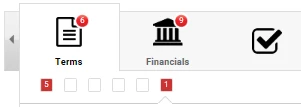
This example shows an open Financials tab with a total of 6 “marked” changes.
The boxes indicate the specific section, 5 changes in the 1st and 1 change in the 6th.
You can filter which Financials edits you want to view by using the More Actions pull-down selection list located above the tab ribbon. (Hint: to view a SOW in tabbed view, click View Details on the SOW Profile screen.) Filter options include:
- Show Final – ability to view the SOW changes in a final state (i.e., all redlining removed) prior to acceptance
- Show Our Changes – ability to view just the changes made by the Program Office/client user
- Show Vendor Changes – ability to view only the changes made by the vendor
- Show All Changes – ability to view changes to the SOW regardless of user role
Be advised: If you use these filters during the review or edit stages, you need to click Show Final before you can proceed to the Action tab. This ensures that the “save” option on the Action tab, saves the current version of the SOW.
Use the process steps described below to review, edit, and re-submit a SOW to the vendor. These steps will be repeated throughout the negotiation process until the final version is accepted.
Please note: Content entered in Comment tags is not marked, tagged, filtered, or tracked throughout the negotiation process. This is separate functionality and “visible” comments are not considered part of the contractual content.
Review Vendor Changes
To review changes submitted by the vendor:
- Navigate to your Beeline Enterprise Home screen.
- In the My To Do section, click the number link located within the alert sentence, “You have # ‘You have been invited to contribute to a SOW’ tasks awaiting action”. A new window with a list of SOWs waiting for review displays.
- Click the Action drop-down arrow of the SOW to review.
- Click View Details. This opens the SOW Profile screen.
- Click View Details on the SOW Profile screen to open the SOW record in the tabbed view.
- Click the Terms tab icon to view the Version Control tracking list. Click the Checkout button to download and review the vendor’s revisions. The format of the download is Word .docx. Turn on the “Track Changes” feature before making any adjustments.
- Click Next to continue to the Financials tab.
- Use the Comments feature to make notes as you review this content. You can use these notes to identify changes you will want to make when you switch to edit mode, or you can use the check box option if you want to share any comments with the vendor. Remember to click Save to retain your comments.
The Financials tab can include multiple sections that are displayed on separate screens. Use the Next button option to ensure you cycle through ALL Financials content.
Explanations for the various marking techniques are provided in the Negotiate Terms section of this document.
Options in the More Actions pull-down selection list let you filter these edits by type for better management throughout the review process.
- The Action tab is the final tab in the ribbon. If you accept the vendor’s edits as presented, then click Accept. (Make sure that the “accepted” Terms document is checked in.) If you choose to negotiate the content of the SOW by proposing adjustments/changes back to the vendor, then click Edit and proceed to the Edit SOW section below.
Edit SOW
To edit the revised SOW:
- Complete the review process as described in Review Vendor Edits up through step 8.
- Click the check mark tab in the ribbon to go directly to the Action tab.
- On the Action tab, click Edit. Click Edit again in the dialog box to complete this action. The system returns to the SOW Profile screen.
- Click View Details to open the SOW record in edit mode with the ribbon visible. Hint: The pencil icon to the left of each section number is a quick way to confirm that you are in edit mode.
- From the Welcome tab, click the Next button to navigate to the Terms tab.
- Review the Version Control (Terms) content in the Negotiation Process Overview of this document.
- Click Checkout to download the most current version. The download format will be Word .docx.
- Turn Track Changes on in Word.
- Make all revisions in Word and save the document.
Remember to revise the filename of your saved document to match the version number of the upload!
- Drag the revised Word document into the “drag and drop” box located below the version control list or click in the “drag and drop” box and use the prompts to browse and upload your file.
- Proceed to the Action tab if no adjustments are made to the Financials. Either use the Next button to cycle through the Financials tab or click the check mark icon in the ribbon to go directly to the Action tab. Skip to the Re-submit Edits to Vendor section to continue.
- Otherwise, modify the Financials as follows:
- Click Next to go to the Financials - Fixed Bid section. The line items are milestones.
- Check any Comments created during the Review process. The number displayed within the comment icon indicates the total number of comments and is a helpful tracking feature. New comments can be created at any time. Use the check box if the comments are intended for the vendor.
- Click the Pencil icon to edit the milestone. An Edit Milestone dialog box opens. Required fields are indicated by an asterisk (*). Make your adjustments and click Save Milestone to exit and return to the tabbed view.
- Click the + Add Milestone link to create additional milestone line items to add to the current list. (Note: The prev | next link is used to move up and down the milestone list; the Next button takes you to the next Financials section.)
Remember to click Save after each of the above modifications to retain your changes.
- Click the Next button to navigate to the next financials section. Depending on the nature of the SOW, there will be a separate financials section for each financials type. Options include milestones, units of measure, roles, non-billable resources, and resource funds. The modification process steps for Units of Measure are similar to those described for milestones. Follow the prompts in the Edit Unit of Measure dialog box to make your adjustments or use the “plus” option to create new ones. Roles and Non-billable Resources are both role-based financials. Follow the prompts in the Edit/Add Role dialog box to modify/create these records. Required fields are indicated by an asterisk (*). Remember to click save to retain all adjustments/changes. Resource Funds is a single text box where you enter the total Resource Funds Amount. The Summary is always the final Financials tab. Review the content and check the math!
- Once you have completed your adjustments under the Financials tab, click the Next tab to proceed to the Action tab to submit the revised SOW to the vendor.
Re-submit to Vendor
When you have completed making all your revisions, you are ready to submit your changes back to the vendor for review.
To submit revisions to the vendor:
- Click the Action tab indicated by the check mark icon in the SOW tabbed view. (You can access the tabbed view by clicking View Details on the SOW Profile screen.)
- Click Submit for Approval. A dialogue box appears.
- Click OK to confirm your intent to submit to vendor. The system returns to the SOW Profile screen and displays an updated status, “Pending Vendor Negotiation.” The SOW record is routed to the vendor for review.
- Click Return to exit the SOW Profile and return to your Home screen.
SOW Acceptance
The vendor and the Program Office/client user must agree on all contractual and financial terms specified in the statement of work (SOW) before a final acceptance can be processed. Individual term clauses and/or financial line items may be “locked” on the original template and indicate items that are non-negotiable. Additional content can also be locked in a new SOW prior to its release to the vendor. Content can only be locked by Program Office or client users.
To lock financials in a SOW:
- Click View Details on the SOW Profile screen to open the SOW record in a tabbed view.
- Click the Financials tab in the ribbon.
- Make any final adjustments to financial line items that you intend to lock.
- Click the “open lock” icon next to any line item that is non-negotiable. The icon will change to a “closed lock”. Note: You can click the “closed lock” icon to reverse this action at any time during the negotiation phase.
The ability to lock content is only an option on the Financials tab. Sections/line items where there is no visible unlock/lock icon are pre-set as non-negotiable on the SOW template.
To accept individual financials during the negotiations phase using the lock feature:
- Review the vendor’s submitted edits as described in the Review Vendor Edits section of this document.
- Use the Comments feature to note which individual items you plan to accept. You can refer to these notes when you switch to the edit mode. Remember to click Save to retain your comments.
- When you have completed your review of the Financials tab, click the check mark tab in the ribbon to go directly to the Action tab.
- On the Action tab, click Edit. Click Edit again in the dialog box to complete this action. The system returns to the SOW Profile screen.
- Click View Details to open the SOW record in edit mode with the ribbon visible. Hint: The pencil icon to the left of each section number is a quick way to confirm that you are in edit mode.
- Check the Comment tags you made during the Review process to locate the financials you want to lock.
- Click the Open Lock icon to change a section to “locked”. This acts as a temporary approval until the final acceptance is processed.
- To ensure that the vendor is aware of your “approval”, use the Comments feature to indicate why the content is now locked and be sure to check the box to make the comment visible to the vendor. Remember to save your changes!
To accept all vendor terms and/or changes (final acceptance):
- Complete the review process as described in the Review Vendor Edits section of this document.
- If you accept the vendor’s revisions without changes, then go to the Action tab (click check mark icon on the ribbon) and click the Accept box.
- If you negotiated with the vendor to adjust the SOW and now have a final version you can accept without changes, then go to the Action tab (click check mark icon on the ribbon) and click the Accept box.
- Click Accept in the dialog box to confirm your acceptance. The system returns to the SOW Profile screen and displays the new status, “Vendor Negotiation Accepted.”
- Click Return to exit the SOW Profile and return to your Home screen.
| Persona | Module | Date Posted | Feedback? Email us: |
| SOW Team | Services Procurement | Beeline Enterprise |