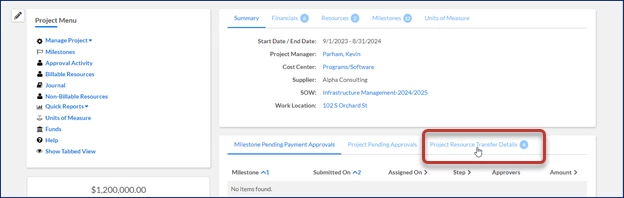
As a hiring manager, program office user or supplier, you can use the Project Resource Transfer feature to quickly and efficiently transfer active nonbillable contingent talent from one project to another in Beeline Enterprise. Using the Project Resource Transfer feature reduces your administrative overhead when creating new assignments. It also ensures continuity, data integrity and accurate reporting.
You can choose to add these project resource transfer-related fields to the Assignment Definition or the Projects and Services Definition reports. You can also get data on transferred talent and assignments using the Project Resource Transfer Details report available from the source project profile.
Assignment Definition report
Field
Description
Assignment - Project - Project Resource Transfer - Batch Number
The batch number associated with a project resource transfer transaction.
When transactions are processed as a batch in Enterprise, batches are assigned distinct numbers used for identification and tracking.
Assignment - Project - Project Resource Transfer - Creation Message
Shows a system generated message indicating whether the new assignment was created successfully. Shows error details when the new assignment wasn’t created.
Assignment - Project - Project Resource Transfer - Is Source Assignment
Indicates whether the assignment was the project assignment the resource was transferred from. Value is Yes or No.
Assignment - Project - Project Resource Transfer - Is Source Project
Indicates whether the project was the project the resource was transferred from. Value is Yes or No.
Assignment - Project - Project Resource Transfer - New Assignment
The number allocated to the new assignment created when a resource is transferred from one project to another.
When assignments are created, they are assigned distinct numbers used for identification and tracking in Enterprise.
Assignment - Project - Project Resource Transfer - Process Assignments Status
Processing state of the new assignment associated with a project resource transfer record, such as Pending, Success, Error, or Approved.
Assignment - Project - Project Resource Transfer - Status
Processing state of a project resource transfer record, such as Pending, Success, Error, or Approved.
Assignment - Project - Project Resource Transfer - Target Project ID
The project number of the project the project resource is being transferred to.
When projects are created, they are assigned distinct numbers used for identification and tracking in Enterprise.
Assignment - Project - Project Resource Transfer - Termination Message
Text indicating an assignment was terminated due to a project resource transfer.
Projects and Services Definition report
Field
Description
Project - Project Resource Transfer - Batch Number
The batch number associated with a project resource transfer transaction.
When transactions are processed as a batch in Enterprise, batches are assigned distinct numbers used for identification and tracking.
Project - Project Resource Transfer - Date Created
The date and time the project resource transfer record was created in mm/dd/yyyy hh:mm:ss AM|PM format.
Project - Project Resource Transfer - Error Information
Details for any error that occurred when the project resource transfer was submitted.
Project - Project Resource Transfer - Is Source Project
Indicates whether the project was the project the resource was transferred from. Value is Yes or No.
Project - Project Resource Transfer - New Assignment End Date
The date and time the project assignment a resource was transferred from ended in mm/dd/yyyy hh:mm:ss AM|PM format.
Project - Project Resource Transfer - New Assignment Start Date
The date and time the project assignment a resource was transferred to started in mm/dd/yyyy hh:mm:ss AM|PM format.
Project - Project Resource Transfer - Project Transfer Comments
Comments explaining why a project was modified when a resource was transferred.
Project - Project Resource Transfer - Project Transfer Reason
Project modification reason.
Project - Project Resource Transfer - Status
Status of a project resource transfer, such as Pending, Success, Error, or Approved.
Project - Project Resource Transfer - Submitted By - Cost Center
Cost center associated with the user who submitted the project resource transfer.
Project - Project Resource Transfer - Submitted By - Cost Center Number
Cost center number associated with the user who submitted the project resource transfer.
Project - Project Resource Transfer - Submitted By - First Name
First name of the user who submitted the project resource transfer.
Project - Project Resource Transfer - Submitted By - Last Name
Last name of the user who submitted the project resource transfer.
Project - Project Resource Transfer - Submitted By - Last Name, First Name Middle Name
Last, first and middle names of the user who submitted the project resource transfer.
Project - Project Resource Transfer - Submitted By - Manager Hierarchy Level 1 - Full Name
Full name of the Level 1 manager associated with the user who submitted the project resource transfer.
Project - Project Resource Transfer - Submitted By - Manager's First Name
First name of the manager of the user who submitted the project resource transfer.
Project - Project Resource Transfer - Submitted By - Name
Last and first names of the user who submitted the project resource transfer.
Project - Project Resource Transfer - Submitted By - Name w/o Link
Full name value of the user.
Project - Project Resource Transfer - Submitted By - Organization Unit Code
The alpha-numeric organization unit code associated with the user who submitted the project resource transfer.
Project - Project Resource Transfer - Submitted By - Organization unit value associated to the user record
The text description of the organization unit associated with the user who submitted the project resource transfer.
Project - Project Resource Transfer - Submitted By - OU
Organization unit associated with the user who submitted the project resource transfer that includes user’s the Beeline ID.
To generate a report showing resources transferred from one project to another, complete these steps from your Enterprise dashboard.
Navigate to the report of your choice using one of these options:
Select Report Gallery. Next, locate the report, and then select Run. OR
Select Admin > Reports. Enter the report name in the Report Name field on the Reports Administration page, and then select Search. Next, locate the report from the list at the bottom of the page, and then select Open with Report Builder.
From the Fields tab, choose columns from the available project resource transfer-related fields.
From the Filters tab, choose any filters you want to apply.
After you define filters, select Create Report.
Your report is created, and you can view details about resources transferred from one project to another.
To view a Project Resource Transfer Details report, complete these steps from your Enterprise dashboard.
From the Simple Search option at the upper right of your dashboard, select Search Projects and then select the Search icon. Search results display at the bottom on a Search Projects page.
Select the Project ID link for the project you want to view from the results. A Project dashboard displays.
Select the Project Resource Transfer Details link. The Project Resource Transfer Details tab expands to show details.
Documentation release: Beeline Enterprise | August 2024
This topic has been closed for replies.
Beeline Community Registration
Please complete the following fields as part of your Beeline Community registration. Unless noted as private, this information will be displayed on your user profile within the community.