


As a hiring manager, program office user or supplier, you can use the Project Resource Transfer feature to quickly and efficiently transfer active nonbillable contingent talent from one project to another in Beeline Enterprise. Using the Project Resource Transfer feature reduces your administrative overhead when creating new assignments. It also ensures continuity, data integrity and accurate reporting.
Information in this article reflects a standard Enterprise configuration. Your Enterprise platform is based on your organization’s configuration. Settings and/or data visibility rules may vary slightly from what is described.
To transfer a nonbillable resource from one project to another, complete these steps from your Enterprise dashboard.
- From the Simple Search option at the upper right of your dashboard, select Search Projects, enter the project number and then select the project from the autosuggest list that displays. A Project page displays.
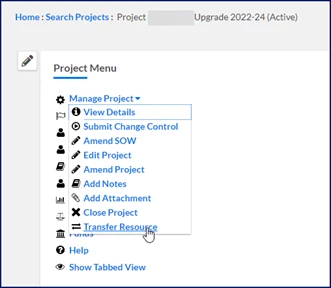
- From the Project Menu, select Transfer Resource.
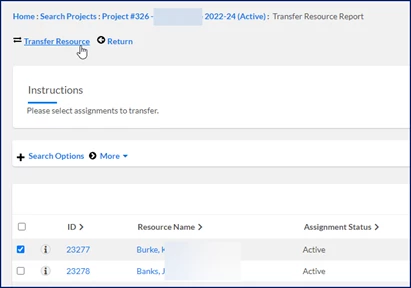
A Transfer Resource Report page displays. - Select one or more resources that you want to transfer.
- Select Transfer Resource.
A Project Resource Transfer page displays.
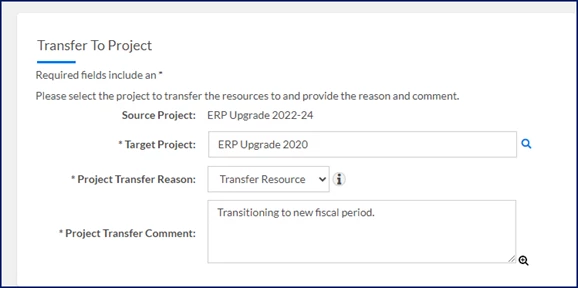
- Use the Target Project field to locate the project to which you want to move the resource.
- Select an explanation for the transition from the Project Transfer Reason list.
- Enter additional remarks about the change in the Project Transfer Comment field.
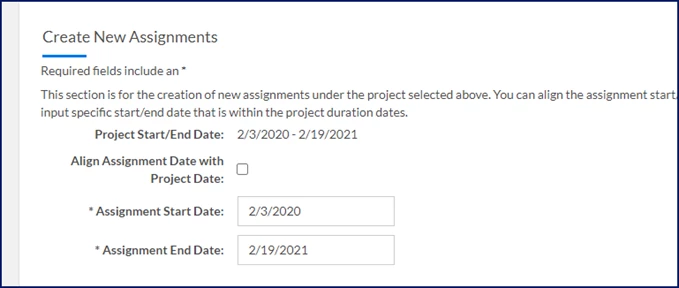
- Optional. Select the Align Assignment Date with Project Date checkbox to automatically match dates for the new assignment to the project's schedule.
- Enter the date the new assignment begins in the Assignment Start Date field.
- Enter the date the new assignment stops in the Assignment End Date field.
- Select the kind of cancellation from the Termination Type list.
- Select an explanation for the cancellation from the Termination Reasons list.
- Enter additional remarks about the cancellation in the Termination Comment field.
- Enter the date to end the current assignment in the New End Date field.
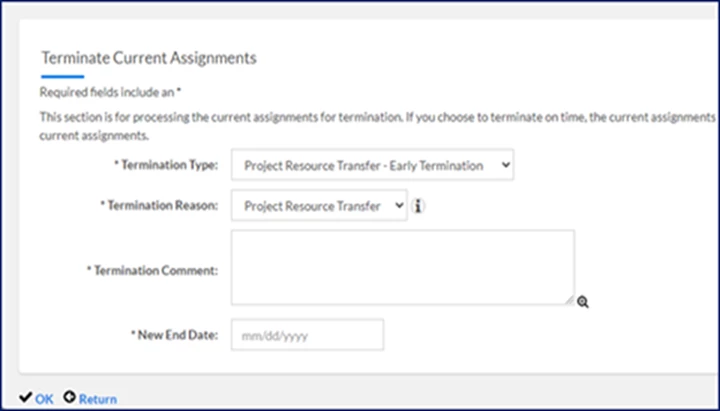
- Select OK.
The assignments or resources you selected are automatically transferred.
TIP: When applicable, the transfer may be routed to the project manager for approval. After the transfer is approved, the new assignments display in the target project.
Documentation release: Beeline Enterprise | July 2024