


Expedite your statement of work process and copy an existing SOW!
A well-crafted statement of work (SOW) is essential for successful project execution. It helps ensure everyone involved has a clear understanding of the project's goals and expectations. And building one quickly helps your team start work as soon as possible.
As a hiring manager, program office user or project manager, you can streamline creating or renewing an SOW by copying one that’s already approved and vetted. Using the Copy SOW link on an SOW Profile page instantly opens that automatically includes General Information, Contributors, Terms, and Financials from the original SOW. Plus, you can specify which fields you want to copy.
Main benefits
-
Expedite creating and/or renewing an SOW and improve compliance.
-
Save your program office time and improve their experience.
-
Reuse vetted, ratified copy from an approved SOW.
-
Accelerate the transition from SOW to contract to project.
-
Gather metrics on which SOWs are copied and by whom.
-
Efficiency and ease in managing the right information when copying a Statement of Work.
- Align to business and financial processes.
Persona
Hiring managers, program office users and project managers
Action required
Delivering the ease of SOW Copy with field flexibility requires a Make a Change ticket and Beeline Enterprise configuration.
Understanding what gets copied
Your program can choose to use either the SOW Copy feature or the SOW Copy with field flexibility feature. This topic explains how to use the SOW Copy with field flexibility feature.
When you replicate an SOW, you can choose which fields you copy. Here’s the list of available fields.
Fields available to be copied vary based on your access and permissions. Your Enterprise platform is based on your organization’s configuration settings and/or data visibility rules and may vary slightly from what is described.
| When you select this checkbox... | These fields are copied. | |
|---|---|---|
| General Info | All fields on the General Info tab. | |
| Summary | All fields in the Summary section on the General Info tab. | |
| Name | Title of the SOW | |
| Business Justification | Economic viability of a proposed project | |
| Client Signer | Last and first names of the client user designated to ratify the SOW via a DocuSign integration. | |
| Owner | Last and first names of the user who is responsible for creating and defining an SOW. They are also responsible for transitioning the SOW to a project. | |
| Client Admin | Last and first names of the client user who is an SOW contributor and can manage the SOW. | |
| PMO | Last and first names of the program management office user who is an SOW contributor. | |
| Physical Work Location | Name or number of a building and the name of the road or street where the contingent talent/contract worker reports to complete a job. | |
| Location | Name or number of a building and the name of the road or street where the office/site is located. | |
| PO Number | Purchase order number from the client’s system. | |
| Cost Center | User Interface field that maps to the client's internal accounting charge codes. | |
| Client Attachments | Documents uploaded by the client to an SOW. | |
| Client-Defined Fields | Any specialized fields defined by the client used to capture data in Enterprise. | |
| Start and End Dates | Dates the work is expected to begin and complete. | |
| Estimated Budget Amount | Forecasted spend allotted to the project. | |
| Supplier Information | All fields in the Supplier Information section on the General Info tab. When you copy an SOW and include Supplier Information, the Supplier field is locked on the copied SOW to prevent unintended changes. You can still edit the Point of Contact and the Supplier Signer fields. When you copy an SOW and exclude Supplier Information, these dependent fields are automatically excluded: Supplier, Point of Contact, Supplier Signer, Supplier Attachments, Terms, and Financials. You can subsequently edit those fields in the copied SOW. | |
| Supplier | Business name of the vendor associated with the SOW. | |
| Point of Contact | Last and first names of the individual who is the liaison for the SOW. | |
| Supplier Signer | Last and first names of the supplier user designated to ratify the SOW via a DocuSign integration. | |
| Supplier Name | Business name of the vendor associated with the SOW. | |
| Point of Contact Name | Last and first names of the individual who is the liaison for the SOW. | |
| Point of Contact Email | Email address for the individual who is the liaison for the SOW. | |
| Supplier Phone | Telephone number for the vendor’s business. | |
| Supplier Website | Website for the vendor’s business. | |
| Resultant Supplier | Business name of the vendor associated with the procurement industry the SOW is associated with. | |
| Additional Information | All fields in the Additional Information section on the General Info tab. | |
| Client-Defined Fields | Any specialized fields defined by the client used to capture data about a supplier in Enterprise. | |
| Contributors | Last and first names of and Enterprise role for the individuals associated with an SOW. | |
| Terms | Client-defined reusable clauses associated with an organization’s SOW creation process. | |
| Financials | Current and historical submitted milestones associated with an SOW. | |
| Fixed Bid | Flag indicating the SOW/project is billed using a flat amount, regardless of the number of hours worked. |
Copying an SOW
Information in this article reflects a standard Enterprise configuration. Your Enterprise platform is based on your organization’s configuration settings and/or data visibility rules and may vary slightly from what is described.
Duplicating an SOW helps you be efficient and lets you move quickly toward starting a new project.
To copy an SOW, complete these steps from your Enterprise dashboard.
- Navigate to the SOW you want to copy using one of these options.
Beeline Classic
- From the Simple Search option at the upper right of your dashboard, select Search SOWs, enter the number and then select the SOW from the autosuggest list that displays. An SOW Profile page displays.
-
From the SOW Menu, select Copy SOW.
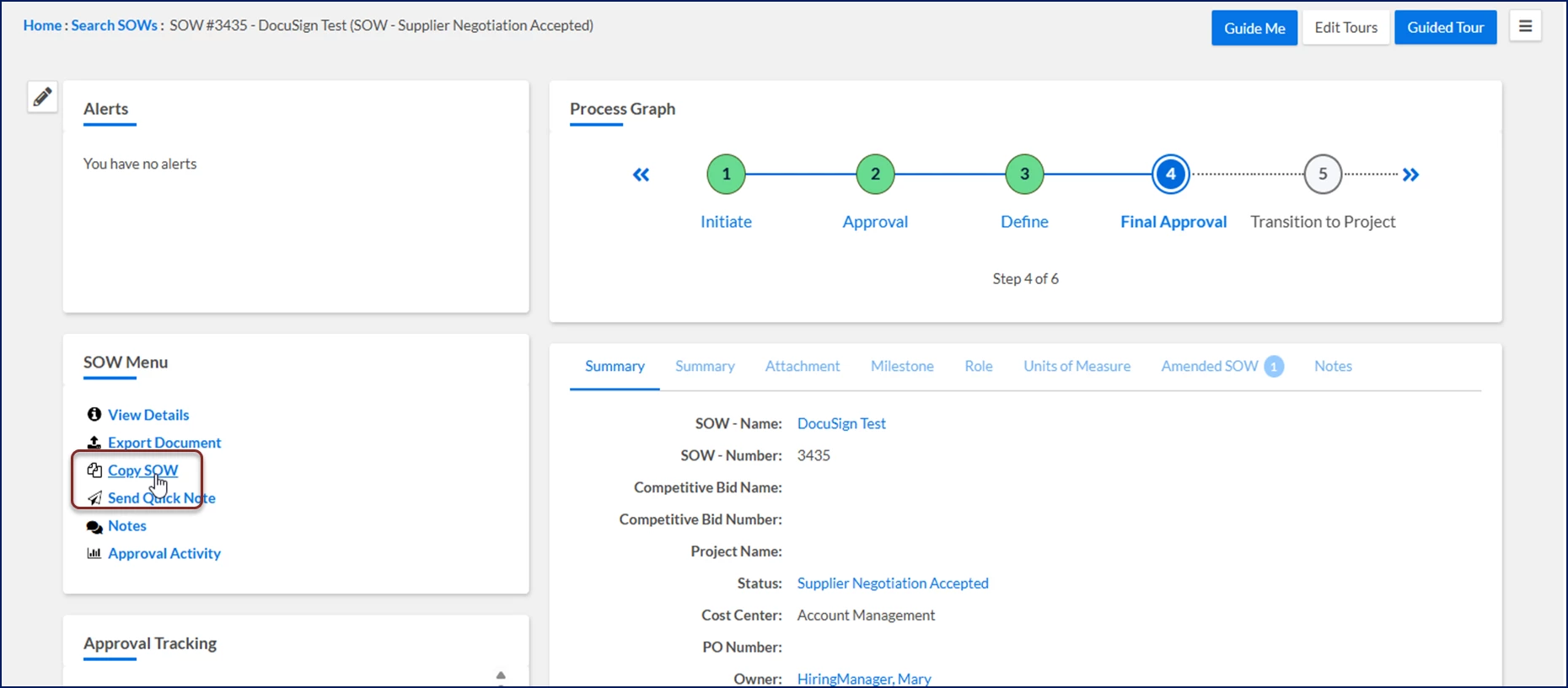
A Welcome page displays showing you a list of fields you can choose to copy.
OR
Hiring Manager Experience
- From the Create app, select Create SOW. A Statement of Work Templates page displays.
- Select Copy SOW.
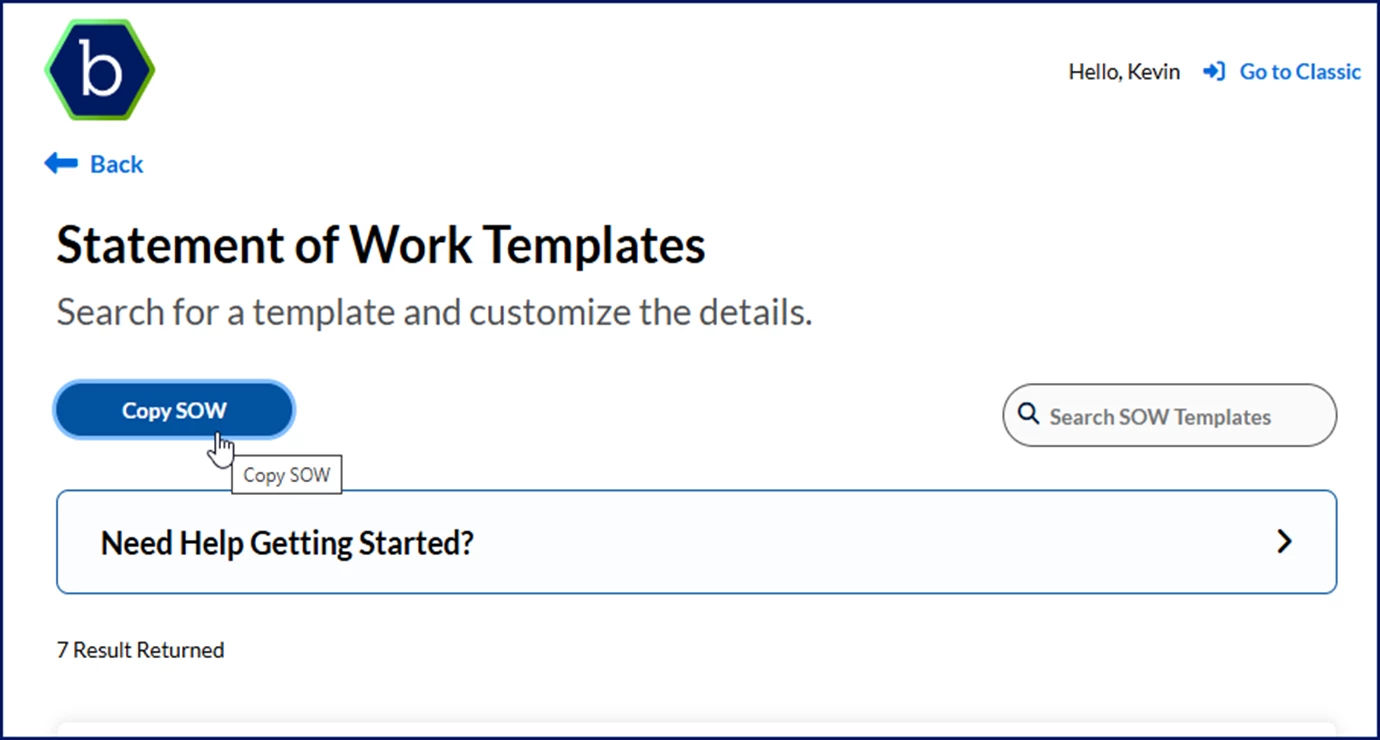
A Previous SOWs dialog displays. - Locate the SOW you want to copy.
- Select Copy SOW.
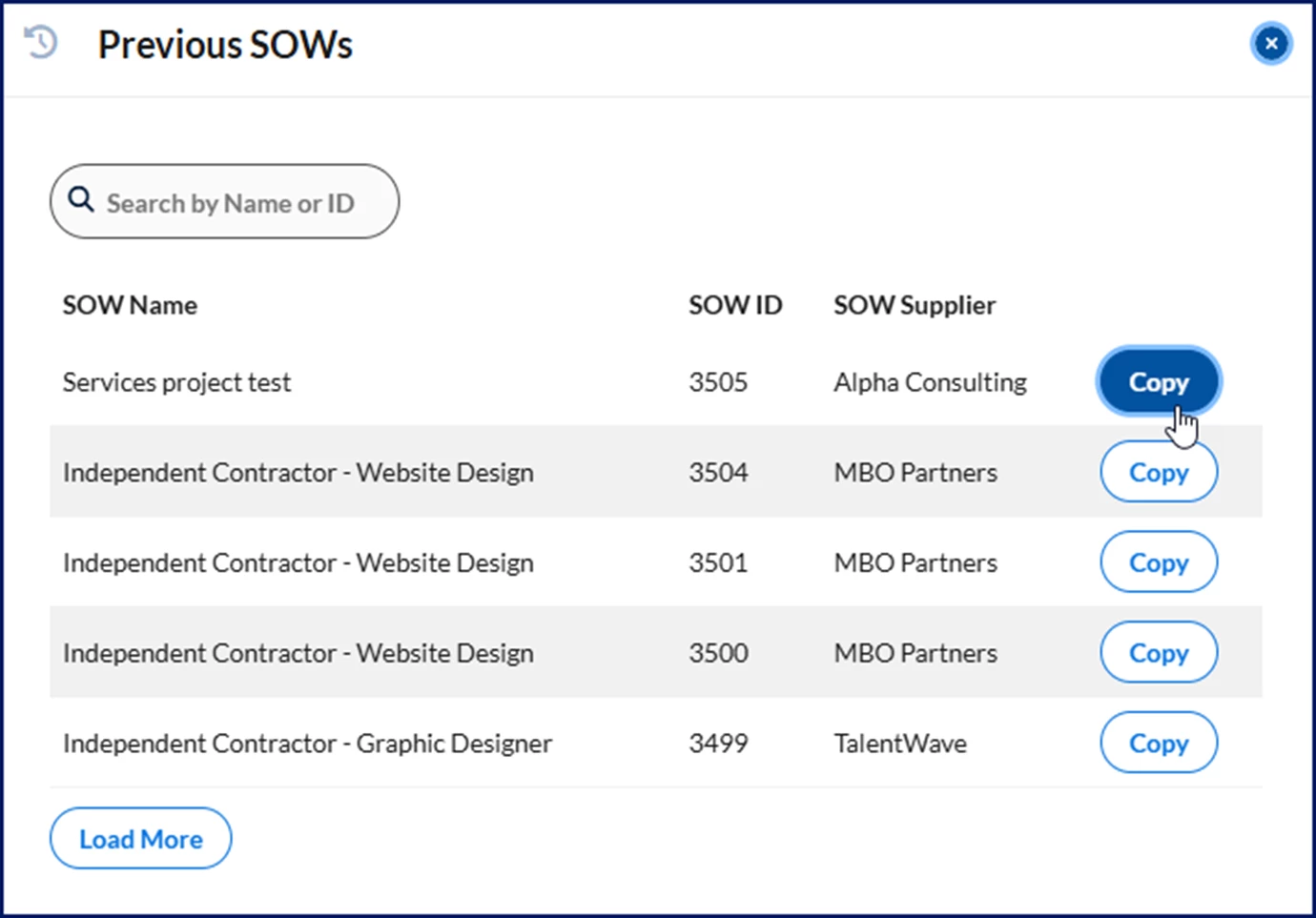
A Welcome page displays showing you a list of fields you can choose to copy.
- Select the fields you want to copy.
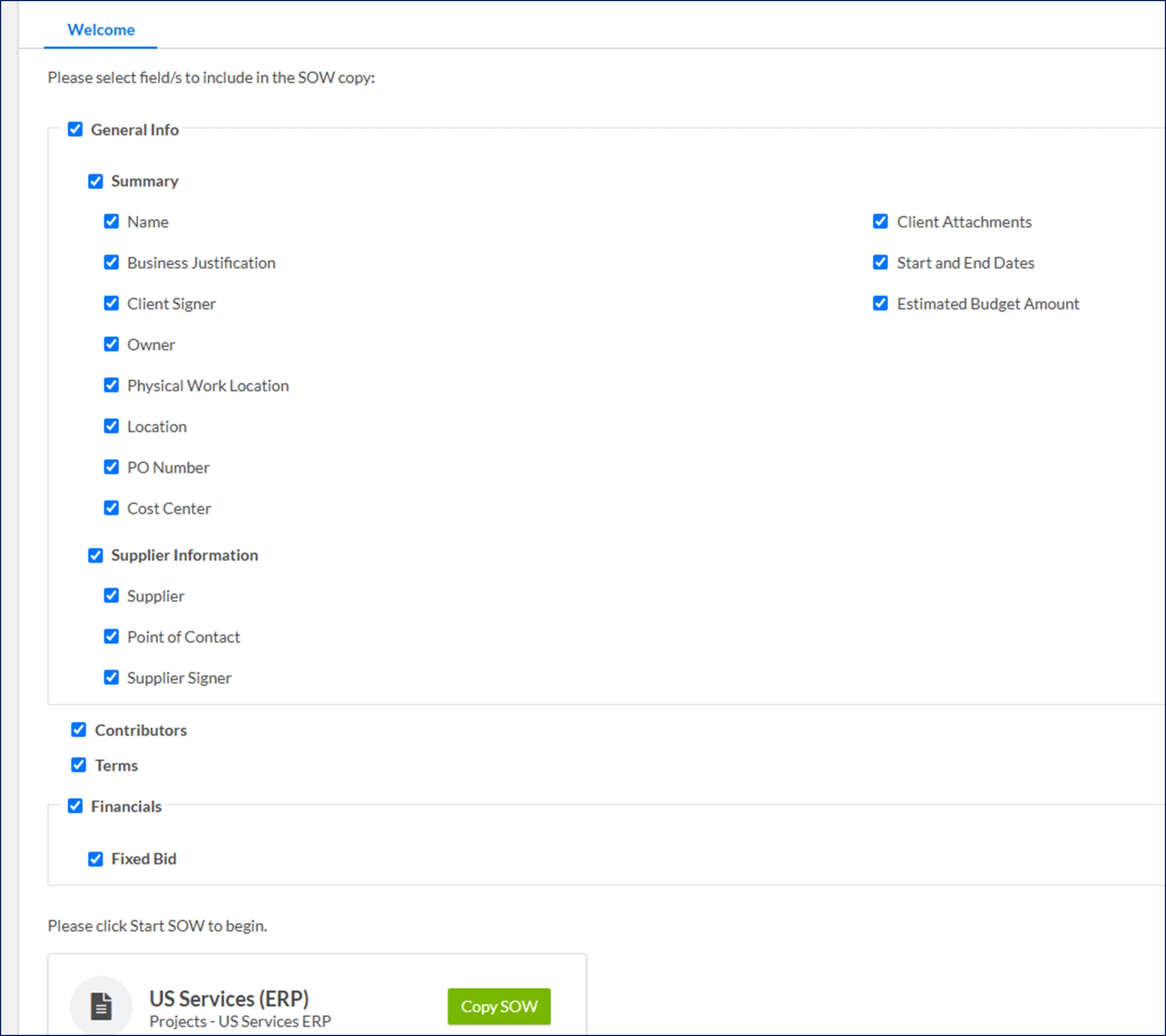
- Select Copy SOW. An SOW Edit page displays.
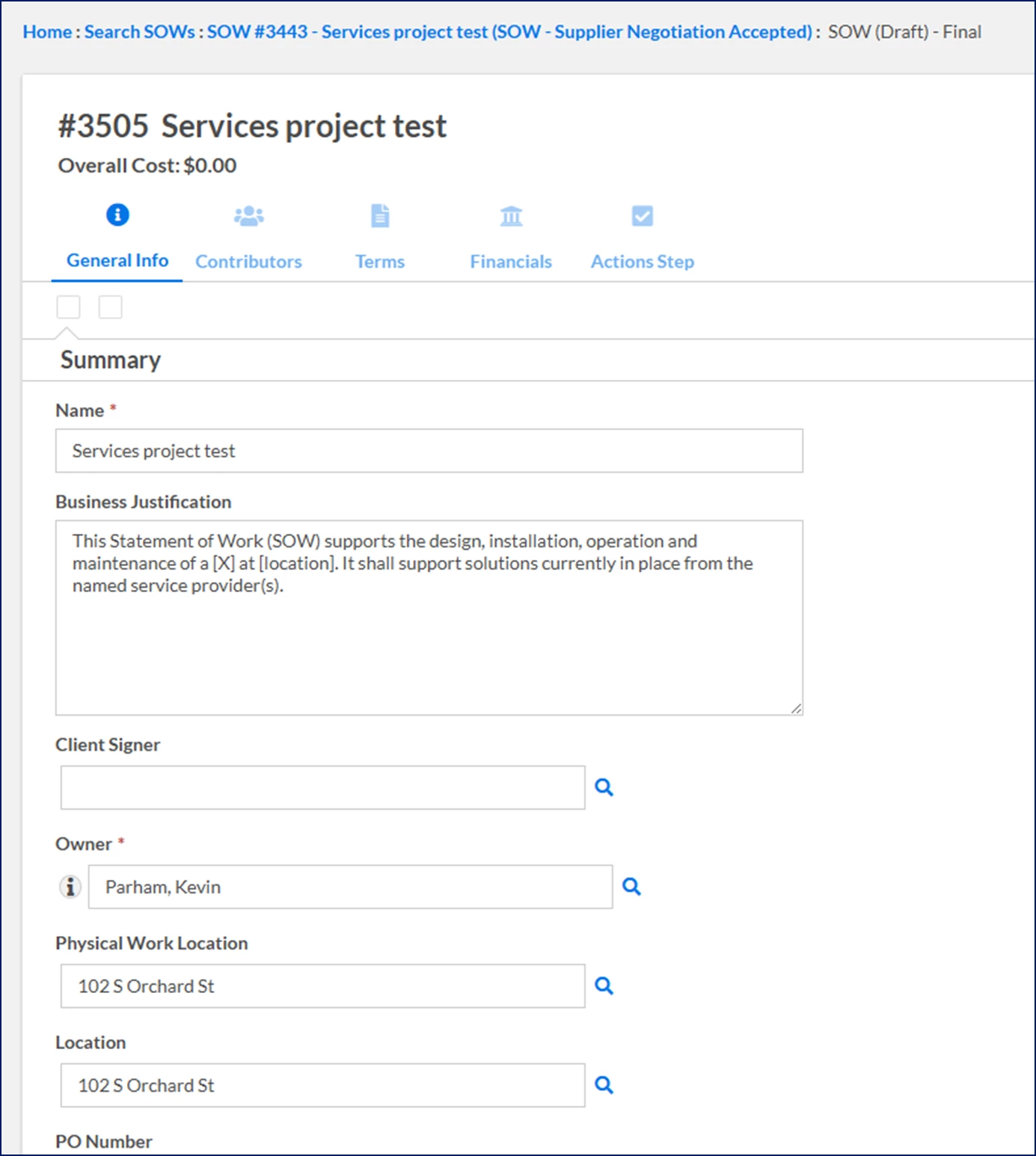
- Follow your organization’s processes for building and submitting your SOW.
| Persona Hiring managers, program office users and project managers | Modules Services Procurement | Documentation release Beeline Enterprise | Q2 2026 | Feedback? Email us: |