


Globalization, demographic trends, and technology advancements create tremendous complexity for the personnel managing the rate, time, and expense functions of your contingent talent and third-party services. And tracking and managing tenure is just one aspect they need to consider.
Tracking and managing tenure usually involve adjusting rates, which needs to happen as near real-time as possible. Your Program Office can leverage a powerful rules-based engine to automatically adjust pay rates, bill rates or markup based on criteria they define.
Users have versatility and control when setting up rules. They can define the exact criteria for when rates should be automatically adjusted based on worker tenure or assignment duration.
Plus, users can account for variations in tenure adjustments by grouping rules and defining differences in rate adjustments percentages based on industry, job title, supplier, and much more. In addition, users can easily gather analytics on tenure using the Assignment Definition report.
Main benefits
-
Flexibility plus control to define tenure rate adjustment rules based on your criteria.
TIP: Tenure rate amendments are based on duration; rate amendments based on billed hours are not supported. -
Automate pay rate, bill rate or markup adjustments based on your pre-set rules.
-
Streamline monitoring and managing contingent talent and assignment tenure.
-
Increase adherence to equal pay legislation and other legal regulations based on region.
-
Reduce compliance risks by eliminating manual intervention.
Persona
Program office users
Action required
Automating Tenure Rate Amendments requires a Make a Change ticket and Beeline Enterprise configuration. After your users have the appropriate permissions, they can set up tenure rate amendment rules for your organization via self-service.
How to steps
Information in this article reflects a standard Enterprise configuration. Your Enterprise platform is based on your organization’s configuration. Settings and/or data visibility rules may vary slightly from what is described.
Viewing tenure rate adjustments
As a program office user, you can easily view tenure rate amendments on an assignment. Viewing transactions lets you verify that rates on an assignment were adjusted when and as you expected.
To view tenure rate amendment, complete these steps from your Enterprise dashboard.
- From the Simple Search option at the upper right of your dashboard, select Search Assignments, enter the assignment ID, and then select the assignment you want to view. An Assignment Details page displays.
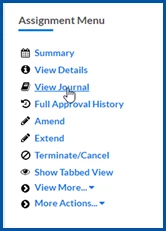
- From the Assignment Menu, select View Journal.
- When rates on an assignment were automatically adjusted rates on an assignment based on your tenure rate amendment rules, the rule name displays in the TRA Rule Name column.
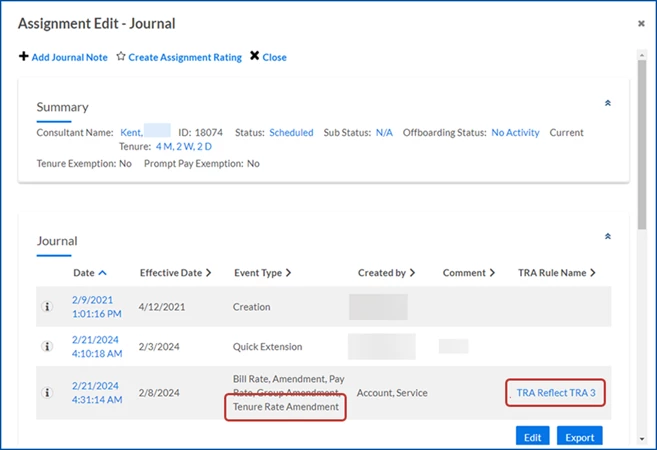
- Select the link in the TRA Rule Name column to view details about a rule.
Exempting assignments
Sometimes, a contingent talent’s assignment isn’t eligible for rate adjustments based on tenure, and you need to exclude the assignment to ensure your Tenure Rate Amendments Rules aren’t applied. As a program office user, you can conveniently exclude an assignment using the Assignment Menu when you drill down into an assignment.
When you exempt an assignment, Tenure Rate Amendments Rules already successfully applied and rules in progress are not reversed. To undo a TRA rule when it was successfully applied requires manually reversing the rate change via a single assignment amendment.
You can also conveniently exempt multiple assignments from tenure and tenure rate adjustments using Mass Amendments. Read this article to learn how.
To exempt an assignment from tenure rate amendments, complete these steps from your Enterprise dashboard.
- From the Simple Search option at the upper right of your dashboard, select Search Assignments, enter the assignment ID, and then select the assignment you want to view. An Assignment Details page displays.
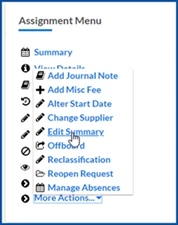
- From the Assignment Menu, select More Actions > Edit Summary.
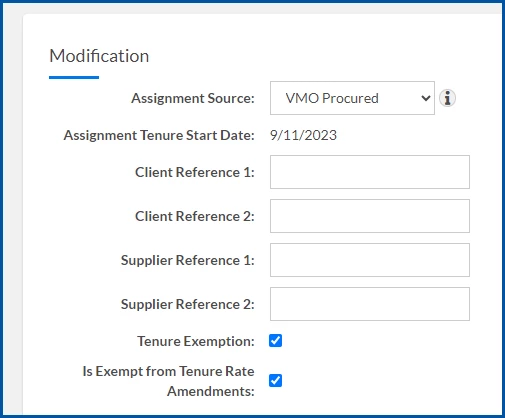
- Optional: Select the Tenure Exemption checkbox in the Modifications section on the Assignment Summary Edit page to exclude the assignment from tenure calculations.
- Select the Is Exempt from Tenure Rate Amendments checkbox in the Modifications section on the Assignment Summary Edit page to exclude the assignment from tenure rate amendment transactions.
-
Make sure all required fields are completed on the Assignment Summary Edit page.
- Select Next, and then select OK.
The assignment will be excluded from any future tenure rate amendments rule transactions.
Building reports
You can easily gather analytics about assignment rates amended due to tenure using the Assignment Definition, Approval Approver–Assignment and the Approvals–Assignment reports. Customize the report from Beeline’s Report Builder and conveniently extract data like, which assignments had rates amended for tenure, the rules that were applied to each amended assignment, and much more.
To build a report and gather analytics on assignment rates amended due to tenure, complete these steps from your Enterprise dashboard.
If you need assistance adding these fields to your reports, open a Service Request ticket, and then contact your Client Operations Manager.
- Select Report Gallery. Next, locate the report, and then select Run.
- From the Fields tab, choose columns from these available fields:
- Tenure Rate Amendment–Rule Name
- Assignment Tenure Rate Amendment–Tenure Rate Amendment Effective Date
- Assignment Tenure Rate Amendment–Tenure Rate Amendment Priority Number
- Assignment Tenure Rate Amendment–Assignment Tenure Rate Amendment Status
- Assignment Tenure Rate Amendment–Tenure Rate Amendment Comments
- Assignment Tenure Rate Amendment–Mass Amendment Batch Number
- Assignment Tenure Rate Amendment–Mass Amendment Error Details
- Assignment Tenure Rate Amendment–Mass Amendment Warning Details
- Assignment Tenure Rate Amendment–Assignment Tenure Rate Amendment Assignment Amendment Change Status
- Assignment–Assignment Is Exempt From Tenure Rate Amendment
- From the Filters tab, choose any filters you want to apply.
-
After you define filters, select Create Report.
Your report is created, and you can view details such as which assignments had rates amended for tenure, the rules applied to each amended assignment, which assignments have rates due to be updated for tenure, and any assignment amendments that failed to process and why.
Documentation release: Beeline Enterprise | Q1 2024