Take control of financial reporting with flexible, self-service report management
Program office users and financial invoice administrators can manage, customize and publish financial reports through Report Builder. With the appropriate report rights, you can update report configurations, create report versions, publish changes, and automate report delivery from a centralized reporting workspace.
Role-based access gives you the flexibility to manage reports based on your responsibilities while helping protect report data and administrative functions.
Gives you greater control over financial reporting and report management.
Speeds access to the financial insights you need to support business decisions.
Reduces manual effort by enabling you to update and publish reports yourself.
Supports consistent reporting across all sites through centralized report management.
Protects report data and functionality through role-based access controls.
Who it's for
Program office users who manage and maintain financial reports.
Financial invoice administrators who manage financial reports and report access.
How it helps
Enables you to customize financial reports to meet changing business needs.
Simplifies report management through a centralized reporting workspace.
Allows you to publish report updates and maintain report configurations with confidence.
Automates report delivery to save time and reduce repetitive tasks.
Allows Financial Invoice and Program Office Administrators to manage report access for other roles.
Before you begin
Before you can manage self-service financial reports, you need:
Access to financial reports.
Access to Search Reports or the Report Gallery.
Report rights for the actions you need to perform.
Access to the reports you are responsible for managing.
TIP: If you cannot see a report, button or menu option, you may need additional permissions or report rights.
How self-service financial reporting works
Self-service reporting gives you more control over financial reports. Depending on your assigned access, you can:
View and run financial reports.
Update report fields, labels, filters, and settings.
Create new report versions.
Publish changes to existing reports.
Schedule report delivery.
Manage report access for other users.
Your assigned report rights determine the reports you can access and the actions you can perform. Use Simple Search in Report Builder to find the self-service financial reports available to you.
Report rights and available actions
The actions available to you depend on the report rights assigned to your role. Program Office users can typically update and publish reports, while Financial Invoice Administrators can also manage report access. This helps protect report data while giving you the flexibility to manage reports according to your responsibilities.
If you want to...
You need...
View or run a report
View rights
Create a new version of a report
Create rights
Modify and publish changes to an existing report
Overwrite rights
Manage report access, or view/run a report, create a report or modify and publish changes to an existing report
Admin rights
Search for, open, or manage reports
Access to the Reports area, from Simple Search > Search Reports or the Report Gallery
TIP: If you don't have the required access, certain reports, buttons, or menu options may not be available.
How to steps
Information in this article reflects a standard Enterprise configuration. Your Enterprise platform is based on your organization’s configuration. Settings and/or data visibility rules may vary slightly from what is described.
To accomplish your task, complete these steps from your Enterprise dashboard.
Managing reports
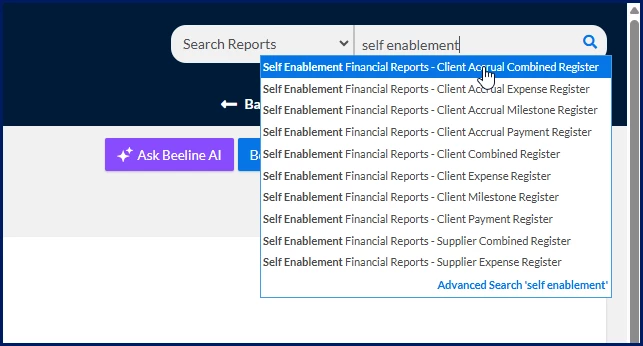
These steps guide you using Simple Search > Search Reports. You can also access reports from the Report Gallery option in the Navigation menu.
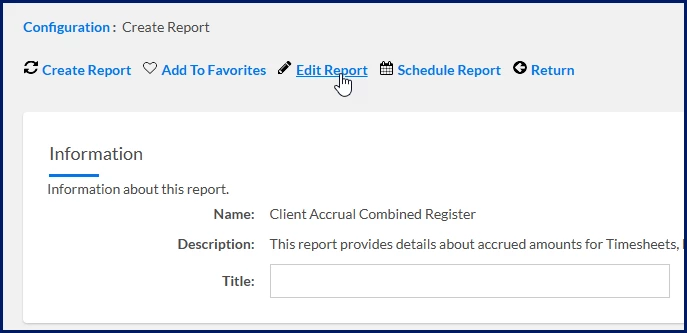
From the Simple Search field at the upper right of your dashboard, select Search Reports, enter the Self Enablement, and then select the report you want. A Create Report page displays.
Select Edit Report. The Report Builder page displays.
Create, modify, publish, or manage the report based on your assigned permissions and report rights.
Update the report fields, filters, settings, or formatting as needed.
Select Publish.
Save the report as a new version or update the existing report based on your assigned report rights.
Only users with Admin report rights can manage report access. Financial Invoice Administrators are typically assigned these rights.
Open the report in Report Gallery.
Select Edit Rights.
Assign or update report rights for the appropriate roles.
Save your changes.
Frequently asked questions
Why can't I see a financial report?
You may not have access to the report, or the report may not be assigned to your role.
Why can't I edit a report?
You may only have View rights. Updating and publishing existing reports requires Overwrite rights or higher.
What's the difference between Create and Overwrite?
Create allows you to save a new version of a report. Overwrite allows you to modify and publish changes to an existing report.
Why can't I manage report access?
Managing report access requires Admin rights. Financial Invoice Administrators are typically assigned this level of access.
Why don't I see certain buttons or menu options?
The reports and actions available to you depend on your assigned permissions and report rights. Actions that require additional access remain hidden or unavailable.
What happens when I publish a report?
Publishing saves your changes and makes the updated report available according to your assigned report rights.
How do I know what actions I can perform?
The reports and actions available to you reflect the permissions and report rights assigned to your role.
Why can't I find a report in Search Reports, Report Gallery or Report Builder?
The report may not be available to your role, you may not have access to the report, or the report name may differ from the search terms you entered. Try searching by report name or related tags.
Please complete the following fields as part of your Beeline Community registration. Unless noted as private, this information will be displayed on your user profile within the community.