


Share request notes with the right people
Request notes help you communicate and collaborate with stakeholders involved in a request. When creating a note, you can choose who can view it, making it easier to share relevant information while keeping communication centralized within the request.
Jump to what you want
Used together with
Use request notes together with:
- Notify Supplier to notify suppliers about request updates and notes that require their attention.
- Request reporting to view request notes using the same visibility rules applied in the application.
Why it matters
- Improve communication across Hiring Managers, Program Office, and Suppliers.
- Reduce the risk of stakeholders missing important updates.
- Increase transparency throughout the request lifecycle.
- Keep request-related discussions in one place.
- Help teams make faster, more informed decisions.
Who it's for
- Hiring managers
- Program office users
- Supplier users who need visibility into shared request updates
Availability and setup
Request Note Visibility is not available by default. Your organization must submit a Make a Change ticket to enable the Visible To field and configure any related supplier notification workflows before eligible users can access the feature.
If the Visible To field is not enabled for your role, request notes follow your organization's default visibility settings. In this case, users outside your organization may not be able to view the note, even if they have access to the request.
After setup is complete, eligible users can control who can view a request note and use Notify Supplier to notify suppliers about request updates.
How it helps
- Choose who can view a note when you create it.
- Share information with the stakeholders who need it.
- View note visibility directly from the Visible to column.
- Keep request discussions attached to the request record.
- Apply the same visibility rules in both the application and reporting.
- Share supplier-facing updates using existing supplier notification workflows.
How it works
Having access to a request does not automatically give you access to every note. You can view only the notes shared with your organization.
If the Visible To field is available for your role, you can control which organizations can view a note. If the Visible To field is not available, the note follows your organization's default visibility settings, which may prevent users outside your organization from viewing the note.
| When you... | What happens... |
|---|---|
| Create a note | Select a visibility option based on your organization type. |
| View notes | See only notes shared with your organization. |
| View the Visible To column | See which organizations can access a note. |
| Run reports that include request notes | See only notes your organization is authorized to access. |
Visibility options
The visibility options available depend on the organization type of the user creating the note.
| If the note is created by a... | Available option | Note is visible to... |
|---|---|---|
| Hiring Manager | My Organization | Hiring Managers |
| Hiring Manager | MSP and My Organization | Hiring Managers, Program Office users, and Beeline users |
| Hiring Manager | Supplier and My Organization | Hiring Managers and Suppliers |
| Hiring Manager | All | Hiring Managers, Program Office users, Beeline users, and Suppliers |
| Program Office or Beeline user | My Organization | Program Office users and Beeline users |
| Program Office or Beeline user | Supplier and My Organization | Program Office users, Beeline users, and Suppliers |
| Program Office or Beeline user | All | Hiring Managers, Program Office users, Beeline users, and Suppliers |
| Supplier | No visibility options available | Supplier visibility rules apply |
Visibility option descriptions
| Option | Description |
|---|---|
| My Organization | Shares the note only with users in the same organization type as the note creator. |
| MSP and My Organization | Shares the note with Program Office and Beeline users and users in the creator's organization type. Available only to Hiring Managers. |
| Supplier and My Organization | Shares the note with suppliers who have access to the request and users in the creator's organization type. Selecting this option also sends a supplier email notification when the note is saved. |
| All | Makes the note visible to all applicable organizations associated with the request. |
Supplier visibility rules
Suppliers cannot select visibility options when creating notes.
- You can view notes created by users within your own supplier organization.
- You cannot view notes created by another supplier organization.
- You cannot share notes with Hiring Managers, Program Office users, Beeline users, or other supplier organizations.
- When a Hiring Manager, Program Office user, or Beeline user shares a note with suppliers, all supplier organizations with access to the request can view the note.
Supplier note limitations
Suppliers can create request notes for their own organization, but they cannot use request notes to send questions, feedback, or comments directly to Hiring Managers or Program Office users.
When you create a request note as a supplier:
- Users within your supplier organization can view the note.
- Hiring Managers, Program Office users, and Beeline users cannot view the note.
- Users from other supplier organizations cannot view the note.
Because supplier-created notes remain within the supplier organization, suppliers cannot use request notes to send questions, feedback, or comments directly to Hiring Managers or Program Office users.
Example
If Supplier A and Supplier B both have access to the same request:
- Notes created by Supplier A are visible only to users from Supplier A.
- Notes created by Supplier B are visible only to users from Supplier B.
- Notes shared with suppliers by a Hiring Manager, Program Office user, or Beeline user are visible to users from both Supplier A and Supplier B.
Notify suppliers
Supplier notifications can be triggered in two ways:
- Select Supplier and My Organization and save the note.
- Select Notify Supplier when saving the note.
What's the difference?
| If you want to... | Do this |
|---|---|
| Control who can view a note | Select a value in Visible to. |
| Notify suppliers about a note | Select Notify Supplier. |
| Allow suppliers to view the note and receive a notification | Select Supplier and My Organization in Visible to and save the note. |
Reporting
When you run reports that include request notes, you see only the notes your organization is authorized to access.
- You can view only the notes you are authorized to access.
- You see the same notes in reports that you can view in the application.
Important behavior
- Use the Visible to column to see which organizations can view a note. The value displayed may vary based on your organization and permissions.
- When you share a note with suppliers, all supplier organizations that have access to the request can view it.
- Selecting Supplier and My Organization sends a supplier email notification when the note is saved.
- Selecting Notify Supplier also sends a supplier email notification.
- If the Visible to field is not available to your role, request notes follow the default visibility behavior for your organization. In this case, users outside your organization may not be able to view the note.
What this means
When you create and share request notes:
- The right stakeholders can access the information they need.
- Important request details remain associated with the request record.
- Cross-organizational collaboration becomes easier and more transparent.
- You maintain greater control over who can view request communications.
How to steps
Information in this article reflects a standard Enterprise configuration. Your Enterprise platform is based on your organization’s configuration. Settings and/or data visibility rules may vary slightly from what is described.
To accomplish your task, complete these steps from your Enterprise dashboard.
TIP: The visibility options available depend on your organization type. Review Visibility options before creating a note if you're unsure which audience to select.
Sharing a note
- From the Simple Search field at the upper right of your dashboard, select Search Requests, enter the request number, and then select the request you want. A Request Details page displays.
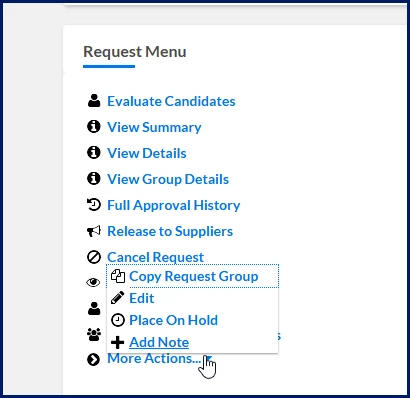
- From the Request Menu section, expand More Actions and select Add Note.
An Add Request Note dialog displays.
Important: If the Visible To field is not available, your request notes follow your organization's default visibility settings. Users outside your organization may not be able to view the note, even if they have access to the request.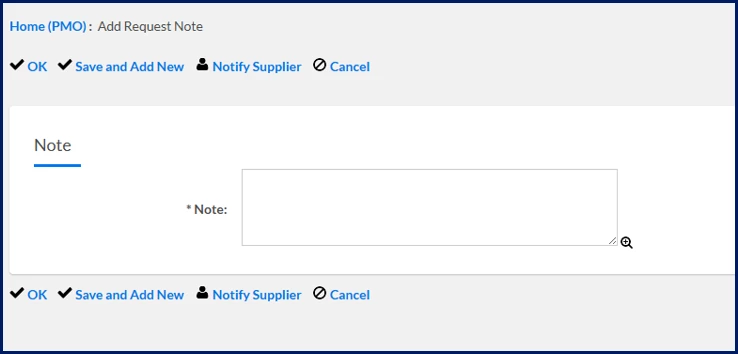
Add Request Note without Visible To list - Select the audience who can view the note from Visible To. ⚠️
What this does: Lets you share notes with additional stakeholders who have access to the request.
Why this matters: Helps you share information with the right stakeholders while limiting visibility to only those who need access.
In simple terms: You're choosing who can read the note.
- In the Note field, add your comment.
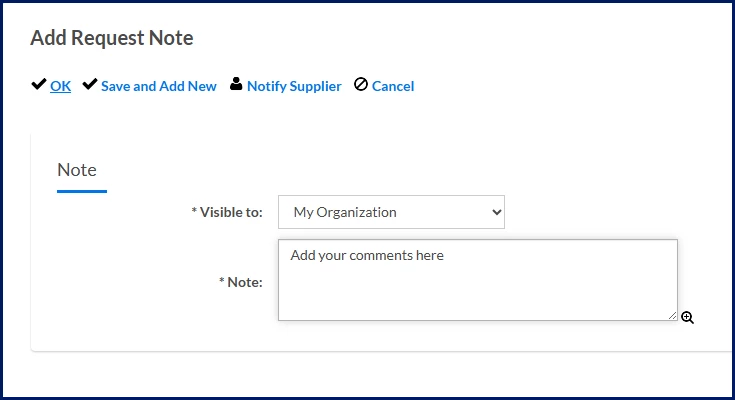
Add Request Note with Visible To list - Choose an action:
TIP: Selecting Supplier and My Organization makes the note available to suppliers and sends a supplier email notification when the note is saved. You can also use Notify Supplier to send a supplier notification.Action Result OK Saves the note. If Supplier and My Organization is selected, a supplier email notification is also sent. Save and Add New Saves the note and opens a new note form. Notify Supplier Saves the note and sends a supplier email notification. Cancel Closes the page without saving. 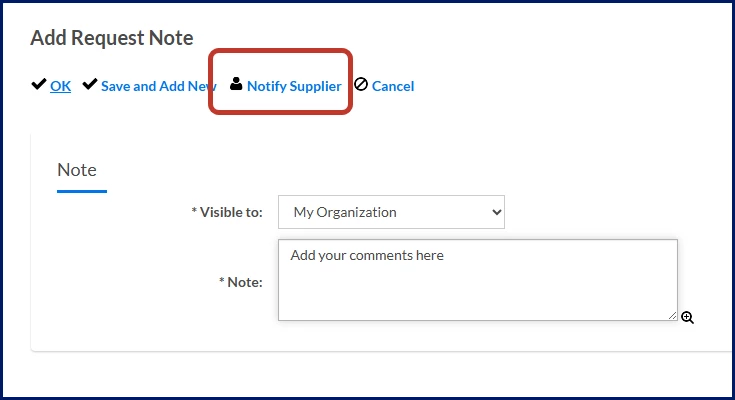
Add Request Note: Notify Supplier
Frequently asked questions
Who can select visibility options when creating a note?
Hiring Managers, Program Office users, and Beeline users can select visibility options when creating notes. Suppliers can view notes shared with them but cannot select visibility options.
Which suppliers can see a note shared with suppliers?
All supplier organizations that have access to the request.
Can suppliers choose who can see their notes?
No. Supplier-created notes remain visible only within the supplier organization that created them.
Why can I access a request but not see a note?
Having access to a request does not automatically give you access to every note. A user may have access to the request but still be unable to view a note if that note was not shared with their organization. You can view only the notes shared with your organization based on the selected visibility settings.
Does Supplier and My Organization send a supplier notification?
Yes. When you select Supplier and My Organization and save the note, suppliers can view the note and receive a supplier email notification.
| Persona Hiring managers, program office users, suppliers | Modules Contingent Staffing Services Procurement | Documentation release Beeline Enterprise | Q3 2026 | Feedback? Email us: |