


One candidate. One profile. No confusion.
When a candidate is submitted in Beeline Enterprise, your workflow includes a check for an existing profile. If a potential match is identified, the program office must determine whether the records refer to the same individual.
Preventing duplicate profiles keeps the candidate database clean and reliable. It also supports stronger data quality and helps everyone move through the hiring process more efficiently.
To make this easier, the Resource Matching feature highlights potential duplicate records. You can choose between two presentation options:
- Standard dialog box (configurable): A simple, customizable prompt that alerts users to a possible match.
- Available by default
- Enriched dialog box (non‑configurable): A more detailed prompt that provides clear guidance to help users verify records accurately.
- Requires setup via self-service
These tools work together to ensure candidates are submitted correctly the first time, reducing delays and improving overall workflow efficiency.
Pro tip: To learn more about the Resource Matching feature, go to this article.
Action required
You can turn on the enhanced Resource Matching guidance dialog via self-service from VMS Settings.
Persona
Clients, program office users, system administrators
How to steps
Before you begin
- Confirm you have access to VMS Settings > Data Management.
Information in this article reflects a standard Enterprise configuration. Your Enterprise platform is based on your organization’s configuration. Settings and/or data visibility rules may vary slightly from what is described.
To accomplish your task, complete these steps from your Enterprise dashboard.
- Select Preferences > VMS Settings > Data Management. A Data Management page displays.
- Select the Enhanced Resource Matching link. A Global Settings page displays.
- Select Edit.
- In the Miscellaneous section under the Global Settings section, set the Enable New Resource Matching Override list to Yes.
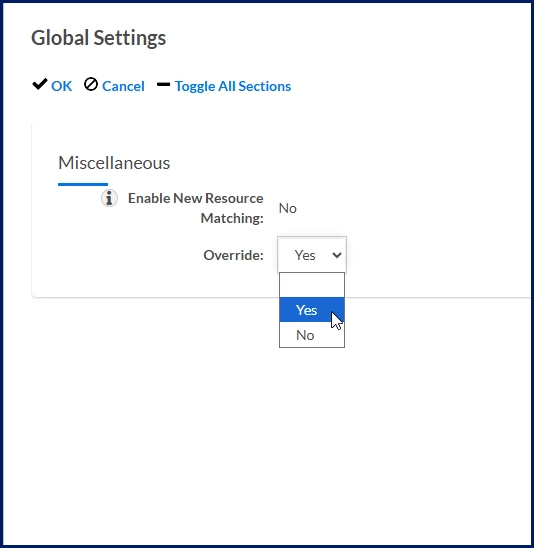
- Select OK to save your selections and return to the Global Settings page.
- Select Refresh Cache to apply your settings.
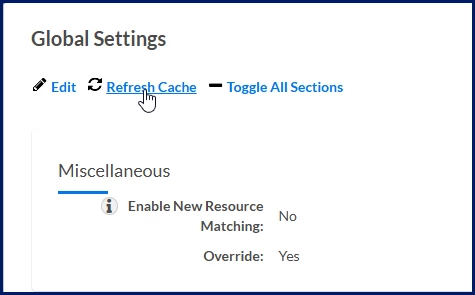
- Select the X in the upper right of the Global Settings page to close the page to return to the Data Management page.
The enriched Resource Matching user guidance and experience are available to your users.
| Persona | Modules | Documentation release | Feedback? Email us: |
|---|---|---|---|
| Clients, program office users, system administrators | Contingent Staffing Services Procurement Resource Tracking | Beeline Enterprise | Q1 2026 | beelinecommunity@beeline.com |