


Topics on this page
Find the right resources faster—so you can act with confidence and get better results.
Resource Matching helps you prevent duplicate records, keep candidate information accurate, and protect the integrity of your workflows.
Whether you are adding resources as a supplier or reviewing candidates as part of a program office team, the system gives you clear, timely insights so you can make confident decisions and move forward without rework.
When you submit a candidate and a potential duplicate is detected, the Resource Matching dialog displays so you can review and confirm the correct record. The layout may vary by your organization’s configuration, but the steps are always the same: review the matches, select the correct record (or confirm there isn’t one), and resolve the match before continuing.
Why Resource Matching matters
Resource Matching helps prevent duplicate records and ensures individuals are consistently identified across your program. You use it to:
- Link candidates to the correct profile
- Identify risks, including flagged or restricted resources
- Maintain accurate tenure, reporting, and invoicing data
✅ Cleaner data. Faster workflows. Fewer errors.
Who it’s for
- Program office users
- Suppliers
What this means for you
Your decisions in Resource Matching affect more than just the current step. You must review matches and confirm identity before continuing.
- Matching correctly keeps IDs consistent across systems
- Duplicate records impact tenure, invoicing, and reporting
- DNR matches enforce compliance and risk controls
- Resource Matching does not fix or merge duplicate records
- Your decisions carry forward across workflows
When Resource Matching displays
Resource Matching displays during key points in the workflow when a potential duplicate is detected.
- For suppliers, this typically occurs during candidate submission
- For program office users, it occurs during candidate review
What you see in Resource Matching
Resource Matching follows the same process in every workflow—when a potential duplicate is detected, a Resource Matching dialog displays to help you review and compare records before continuing. What changes is how much detail you see based on your organization’s setup and your role.
Resource Matching displays:
- A message with next-step guidance
- The Submitted Candidate section (your reference record)
- A list of matching candidates
- A Search option to refine results
- Action controls (OK, Cancel, Continue Adding Resource)
Each level builds on the same underlying matching logic—only the visibility and guidance change. Depending on your configuration, Resource Matching displays different levels of detail:
🔷See how the views vary
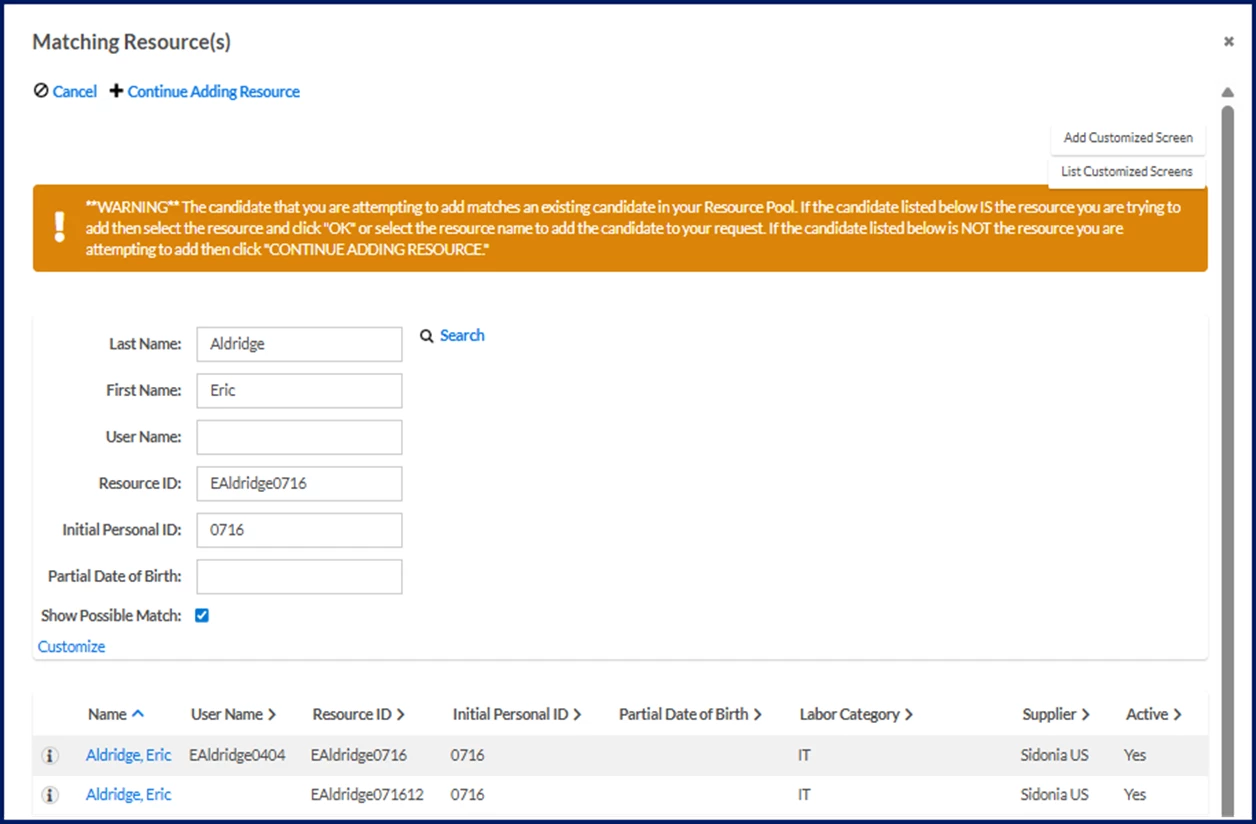
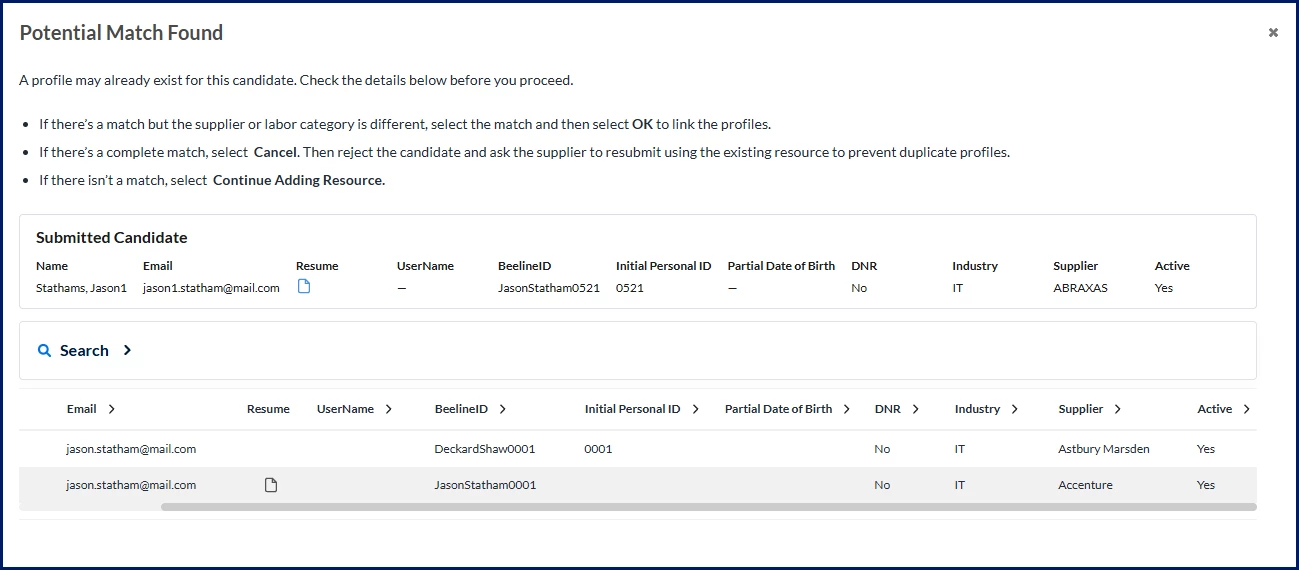
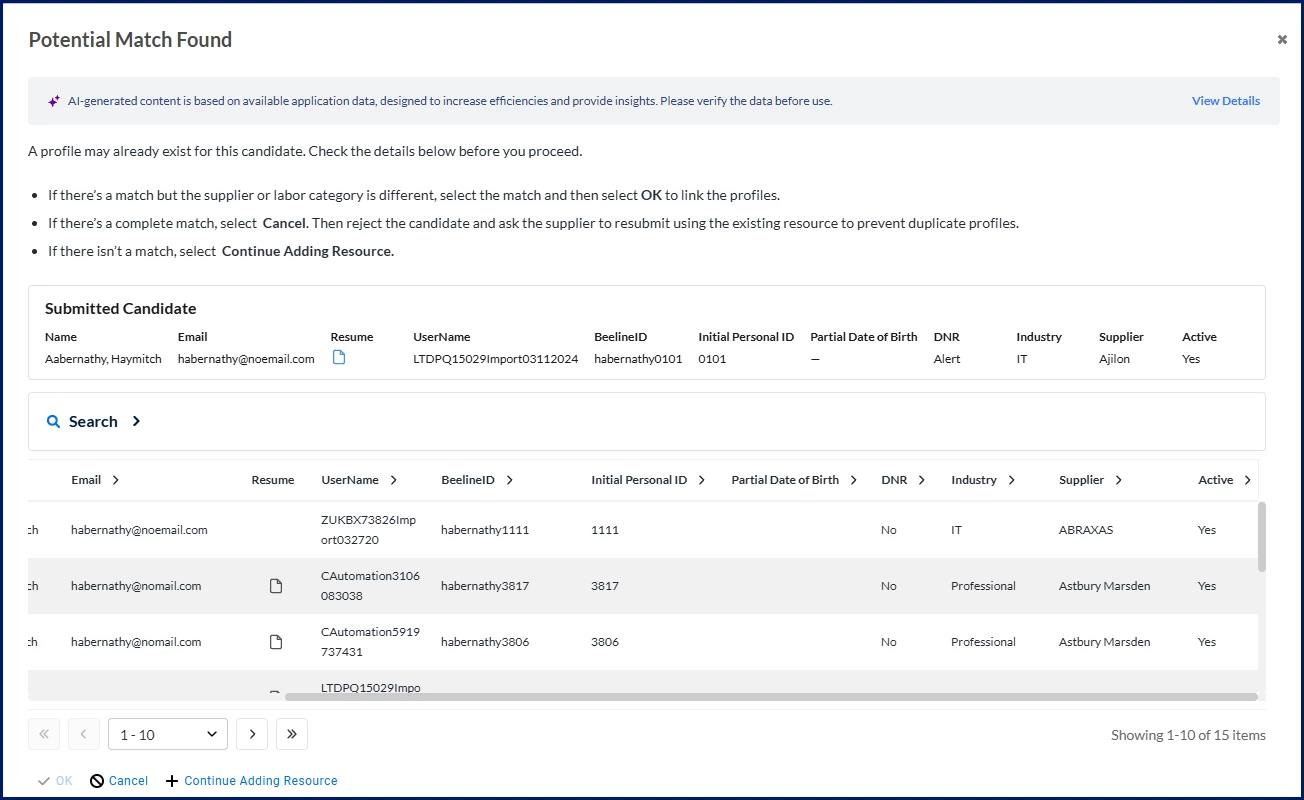
Each level builds on the same underlying matching logic—only the visibility and guidance change.
Configuration settings determine which view is enabled and what data is available for comparison. If you don’t see certain fields or features, your current view may not include them.
| View | Configuration | What you see | How it helps |
|---|---|---|---|
| Essential (default) | Available to all users by default Instructional content on the Matching Resources view can be customized by your program. | Basic candidate details and core identity fields | Supports quick decisions |
| Enhanced | Requires on/off setup Instructional content on the Potential Match Found view cannot be customized. To learn how to enable this view, see Enhanced Resource Matching: Self-service setup | Additional candidate fields, expanded record details and clearer guidance | Improves validation with more context |
| Intelligence (Resource Matching Intelligence) | Requires on/off setup and an AI package Instructional content on the Potential Match Found view cannot be customized. To learn how to enable this view, see Resource Matching Intelligence: Self-service setup | Enhanced details plus Match Confidence, AI insights, and prioritized results | Speeds review with AI-supported insights |
✅ Different view. Same decision process.
Regardless of what you see, the process is the same:
- Review the submitted candidate
- Compare matching records
- Resolve the match before continuing
Match Confidence (Resource Matching Intelligence view only)
If your view includes Match Confidence, use it to prioritize review—not to make the final decision.
| Level | What it means | What to do |
|---|---|---|
| High | Likely same individual | Review first |
| Possible | Uncertain | Compare carefully |
| Low | Unlikely match | Review as needed |
✅Always confirm using candidate data before selecting a match.
Action steps
Resource Matching is automatically available in the Contingent Staffing, Services Procurement, and Resource Tracking modules in Beeline Enterprise. The Matching Resources dialog appears during key workflow steps when a possible duplicate is detected.
Your organization can enable additional detail and AI-supported insights through configuration. To learn more, see:
How to steps
Information in this article reflects a standard Enterprise configuration. Your Enterprise platform is based on your organization’s configuration. Settings and/or data visibility rules may vary slightly from what is described.
Guidelines
🔷Review the tips
- Follow program rules for legal names and Initial Personal ID values to support accurate matching.
- You must resolve matches before proceeding; incorrect cancellation results in an error.
- Only program office users can link matching records using OK.
- DNR records block qualification and must be disqualified.
- Existing duplicate records are not automatically corrected and require manual updates.
Review the submitted candidate
Start with the Submitted Candidate section. This shows exactly what was submitted and serves as your baseline.
| Field | What to check |
|---|---|
| Name | Variations, suffixes, numbering |
| Second strongest identifier | |
| Resume | Confirm attachment when required |
| Username | Indicates the resource may already be onboarded |
| Beeline ID | Identify the assigned record |
| Initial Personal ID | Supporting identifier |
| Partial Date of Birth | Review if available |
| DNR | Confirm Do Not Rehire status |
| Industry | Validate labor category |
| Supplier | Confirm submitting supplier |
| Active | Verify profile status |
✅ Always establish your baseline before comparing matches
Review matching candidates
Below the submitted candidate, Resource Matching displays a Possible Matches list. Review all results before making a decision.
- Each row represents an existing resource profile
- Matches may include:
- Records from other suppliers
- Records in different industries
- Previously created profiles with similar identifiers
- You can select a row to confirm a match
Compare records
Use multiple data points—never rely on a single field. Confirm alignment across multiple fields before deciding.
| Field | How to use it |
|---|---|
| Name | Check spelling, order, and variations |
| Prioritize exact or near matches | |
| Beeline ID | Differences may indicate duplicate profiles |
| Initial Personal ID | Use to support your decision |
| Supplier / Industry | Confirm whether differences are expected |
Ensuring consistent IDs
Accurate matching ensures the correct record is used across your program. The Beeline ID is a key identifier used to track individuals across your program. It connects records for the same individual across suppliers and assignments.
- It stays with a resource across workflows, suppliers and assignments
- It ensures continuity in reporting, invoicing, and tenure tracking
- It helps prevent duplicate records from representing the same individual
✅ Selecting the correct match ensures the right Beeline ID is preserved across all suppliers, assignments, and workflows.
Identity continuity behaviors
Resource Matching helps maintain identity continuity across suppliers, assignments, and onboarding activities.
| Behavior | Description |
|---|---|
| Beeline ID persistence | When a match is selected, the associated Beeline ID is retained across suppliers and industries whenever possible. |
| Beeline ID uniqueness enforcement | Program settings may automatically append a value to maintain uniqueness when Beeline ID conflicts exist. |
| Resource and Security User alignment | Matching decisions help maintain alignment between Resource Records and Security User Records to support accurate onboarding and user identity management. |
✅ Correct matching helps preserve identity continuity across workflows and downstream processes.
Quick decision guide
You must resolve the match before continuing.
| If you see this | Do this |
|---|---|
| Same person, different supplier | Select match → OK |
| Exact duplicate | Cancel → Disqualify and instruct the supplier to resubmit using the existing profile |
| No match | Continue Adding Resource |
| DNR flagged | Select match → OK → Disqualify |
Step-by-step overview
Use these steps if you need full workflow guidance.
To accomplish your task, complete these steps from your Enterprise dashboard.
- From the My To Do List, select the You have # new Resumes awaiting review link. The Candidate Review Tool displays.
- From the Actions menu, select View Task. The Candidate Submitted to Client page displays.
- Select the Show Matching Candidates link. The Matching Resources dialog displays.
⚠️ When a match is found, you cannot continue to qualify the candidate without resolving it. Attempting to bypass this step results in an error. - Take one of these steps based on the results that display in the Matching Resources dialog.
Scenarios
No match found- When you don’t find an exact match or if the resource is already on an assignment, select Continue Adding Resource. You’re returned to the Candidate Submitted to Client page.
- Select Qualify from the Candidate Submitted to Client page.
OR
Potential match found—different supplier or industry- When a potential match is found but the supplier or the industry the resource is associated with are different, select the matching candidate.
TIP: You may see more than one potential match when a resource is associated with two suppliers or multiple industries. If resource matching was correctly done when the resource was added, the Beeline ID will be the same.
- Select OK. The Candidate Submitted to Client page displays.
- Select Qualify from the Candidate Submitted to Client page.
✅ Profiles are linked and the Beeline ID is updated to maintain consistency
OR
DNR flagged- If the resource you select is flagged as Do Not Rehire (DNR), a Warning displays. Select OK in the Warning dialog.
- Select Disqualify Candidate. The Candidate Submitted to Client - Disqualify dialog displays.
- Select an explanation from the Reason list.
- Use the Comments field to inform the supplier the resource is flagged as DNR.
✅ Prevents onboarding and enforces compliance
OR
Exact match- When you’re certain an exact match was found (same person, same industry, same supplier), select Cancel. The Candidate Submitted to Client page displays.
- Select Disqualify Candidate. The Candidate Submitted to Client - Disqualify dialog displays
- Select an explanation from the Reason list.
- Add Comments instructing resubmission using the existing profile.
✅ Prevents duplicate records
- Continue processing the candidate according to your program’s business processes and workflow requirements.
Additional tips
- Candidates with usernames have already been onboarded
- A candidate may appear multiple times if associated with different suppliers or industries
- When matching is done correctly, the Beeline ID remains consistent across records
Additional details about Resource Matching
🔷See field visibility
The fields you see may vary slightly depending on your role and your organization’s configuration. For example, a resume displays only when it is attached to the submitted candidate.
| Field | Supplier | Program office |
|---|---|---|
| Match Confidence | ✔ (Resource Matching Intelligence view only) | |
| Name | ✔ | ✔ |
| ✔ | ✔ (Enhanced and Resource Matching Intelligence views only) | |
| Resume | ✔ | ✔ (Enhanced and Resource Matching Intelligence views only) |
| Username (onboarding history) | ✔ | ✔ |
| Beeline ID | ✔ | ✔ |
| Initial Personal ID | ✔ | ✔ |
| Partial date of birth | ✔ | ✔ |
| Supplier | ✔ | ✔ |
| Industry | ✔ | ✔ |
| DNR indicator | ✔ | ✔ |
Resume requirement (program office users): The resume displays only when the submitted candidate record includes an attachment clearly identified as a resume.
Get it right—and fix it when needed
Resource Matching requires both careful decision-making and quick correction when issues occur. Use these resources based on where you are in the process.
- Avoid common mistakes: Learn how to evaluate matches, reduce risk, and make the right decision the first time.
- Resolve errors and data issues: Troubleshoot system errors and correct data issues to restore accurate records and keep workflows moving.
✅ Start with prevention. If something goes wrong, use the troubleshooting guide to resolve it quickly and confidently.
Need more detail?
- See Resource Matching overview for feature context
- See Resource Matching logic for technical details (matching criteria, ID rules, confidence calculation)
Explore to learn more
- To understand the supplier experience, go to this article.
| Persona Clients, program office users | Modules Contingent Staffing Services Procurement Resource Tracking Artificial Intelligence | Documentation release Beeline Enterprise | Q2 2026 | Feedback? Email us: |